iPhone Screen Won't Rotate? Fix It With Apple's Steps
Fix an iPhone that won't rotate: check Portrait Orientation Lock, test Safari and Measure, restart, update iOS, and reset settings only if needed.
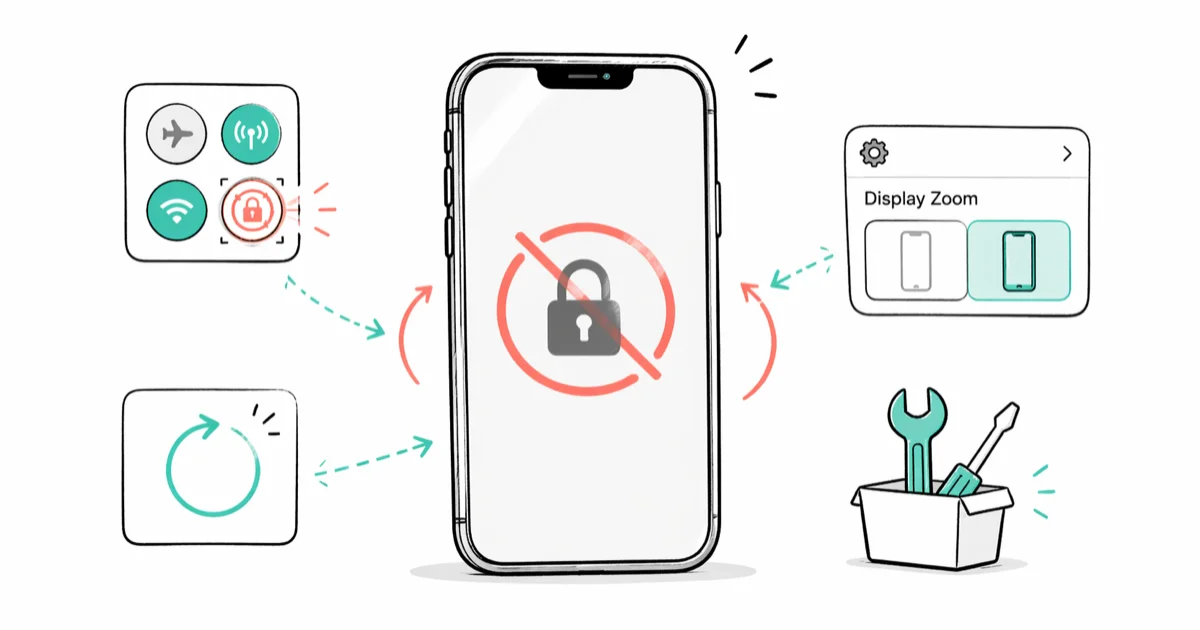
Quick AnswerTurn off Portrait Orientation Lock in Control Center, then test Safari or Calculator. If neither rotates, check Measure > Level, restart and update the iPhone, then contact Apple if the problem continues.
If your iPhone stays in portrait, first separate an app limitation from a device-wide problem. Check Portrait Orientation Lock, test a supported app, and use Measure > Level before moving to broader troubleshooting.
- Turn off Portrait Orientation Lock in Control Center
- Test with Safari or Calculator because not every app supports rotation
Open Measure>Levelto see whether the orientation reading changes- Restart the iPhone if Level is stuck, then install any available iOS update
- Reset All Settings is rarely necessary and doesn’t erase your photos, messages, apps, or documents
#How Do You Turn Off Portrait Orientation Lock?
Open Control Center and find the padlock surrounded by a circular arrow. If the control is highlighted, tap it to turn Portrait Orientation Lock off, then turn the iPhone sideways.
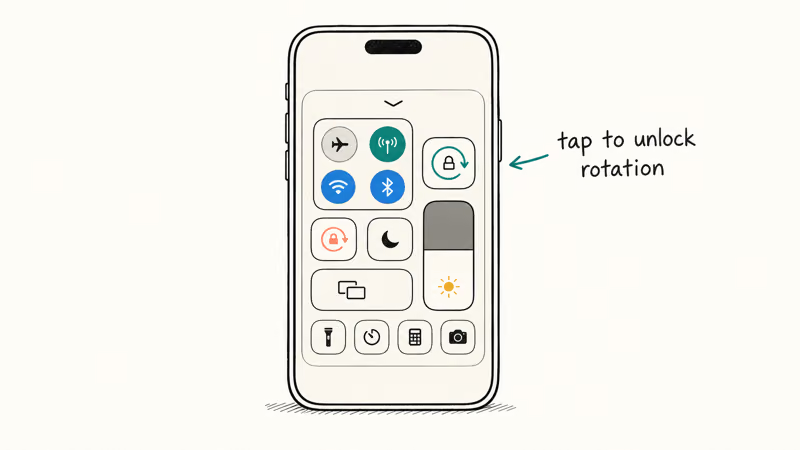
The gesture for opening Control Center depends on the iPhone:
- On an iPhone with Face ID, swipe down from the top-right edge.
- On iPhone SE and iPhone 8 or earlier, swipe up from the bottom edge.
Those paths come from Apple’s current Control Center guide. The old version of this article cited Apple support ID 111766 for rotation behavior, but that ID is an Apple One page and can’t support this instruction.
#How Do You Test Rotation in Safari or Calculator?
An app can stay in one orientation even when the iPhone is working normally. Apple’s current screen-rotation guide says that not all apps support rotation and recommends testing with Safari or Calculator.
Open either app, turn the phone sideways, and compare the result:
- If Safari or Calculator rotates but another app doesn’t, the other app may not support that orientation.
- If neither test app rotates with Portrait Orientation Lock off, continue with the Level test.
Don’t use the Home Screen as the only test. Its layout behavior doesn’t establish whether a supported app or the phone’s orientation reading is working.
#Check the Level Tool in Measure
Open the built-in Measure app and tap Level. Turn the iPhone and watch whether the Level display responds. Apple includes this test in the same rotation guide.
If Level changes orientation but one app stays portrait, focus on that app. Close and reopen it, install any update offered for it in the App Store, and check the developer’s current support information. Users can’t force every app layout to support landscape mode.
If the Compass app has a separate problem, use the focused iPhone compass troubleshooting guide instead of treating it as proof of the same fault.
If Level appears stuck, Apple says to restart the iPhone and test again. Avoid unverified “sensor calibration” gestures: Apple’s current rotation flow uses Level as a test, not as a manual accelerometer or gyroscope calibration procedure.
#Restart the iPhone
Use the restart instructions linked from Apple’s rotation guide for your model. A regular restart is the next documented step when Level doesn’t move.
If the iPhone itself is unresponsive, follow the model-specific force-restart steps in our frozen iPhone guide or Apple’s linked instructions. Don’t force restart merely because one portrait-only app won’t rotate; verify the problem in Safari or Calculator first.
After the phone starts again:
- Confirm Portrait Orientation Lock is still off.
- Test Safari or Calculator.
Test Measure>Level.
This repeatable sequence is more useful than timing how quickly the display turns. Apple doesn’t publish a universal number of seconds in which every app must rotate.
#Install an Available iOS Update
Back up the iPhone before installing system software. Apple’s current iPhone update guide says to connect the device to power and Wi-Fi, then go to Settings > General > Software Update and follow the available update prompt.
Update size and installation time vary, so don’t rely on a fixed completion estimate. If the update won’t download or install, Apple’s update troubleshooting guide covers power, internet access, available storage, and removing and downloading the update again. Our focused guide can also help if your iPhone is stuck on Verifying Update.
Test rotation again after the update and restart are complete.
#Reset All Settings Only if the Earlier Checks Fail
Apple says to restart first because resetting settings is rarely necessary.
If the documented checks still fail, open Settings > General > Transfer or Reset iPhone > Reset > Reset All Settings.
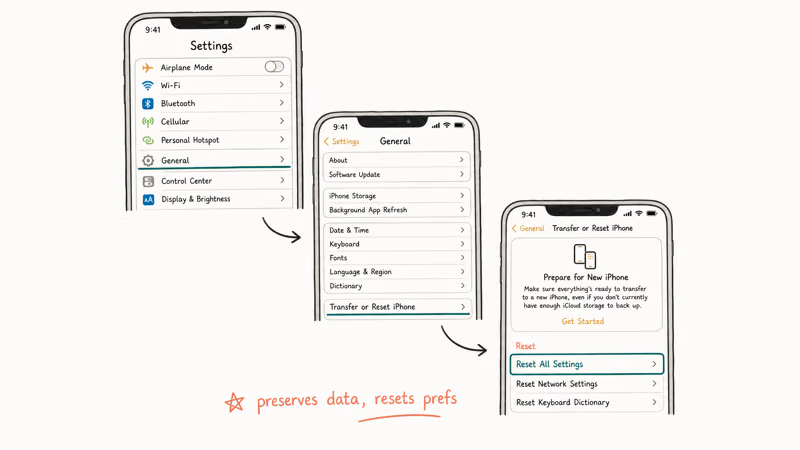
According to Apple’s current Reset All Settings guide, this doesn’t delete photos, messages, apps, or documents. It does reset settings such as network and privacy settings and removes Apple Pay cards, so record anything you’ll need to configure again.
Reset All Settings isn’t the same as Erase All Content and Settings.
Erasing isn’t part of Apple’s current screen-rotation troubleshooting flow, and you shouldn’t wipe an iPhone on the promise that doing so will fix rotation.
#When to Contact Apple
Contact Apple if Portrait Orientation Lock is off, Safari or Calculator won’t rotate, and Measure > Level still doesn’t respond after a restart and available update. Tell support which tests you completed and whether the issue began after a drop, liquid exposure, repair, or software change.
Those symptoms justify diagnosis; they don’t prove on their own that a particular accelerometer, gyroscope, display, or logic-board part has failed. If taps also fail to register, check the separate iPhone screen responsiveness guide. Our iPhone screen flickering guide covers another display symptom.
#Bottom Line
Turn off Portrait Orientation Lock, then test Safari or Calculator. If neither rotates, check Measure > Level and restart the iPhone if Level is stuck. Back up and update iOS next. Reset All Settings is a later option that preserves personal content but resets configuration; if the documented checks still fail, let Apple diagnose the device instead of assuming a specific sensor is broken.
#Frequently Asked Questions
Why does one app stay in portrait while other apps rotate?
Not every app supports every orientation. If Safari or Calculator rotates, the phone’s basic rotation path is working and the other app may be designed for portrait only. Check that app’s current release and support notes.
Why won’t the iPhone Home Screen rotate?
Don’t use the Home Screen as the control test. Layout behavior can vary by device and software. Apple’s current troubleshooting page recommends Safari or Calculator, so use one of those apps to decide whether rotation itself is failing.
How can I test the orientation sensor?
Open Measure > Level and turn the phone. If the display doesn’t respond, restart the iPhone and test again, as Apple’s rotation guide instructs. A stuck Level reading is a reason to continue troubleshooting, not a definitive hardware diagnosis.
Should I calibrate the accelerometer or move the iPhone in a figure eight?
Apple’s current rotation flow doesn’t prescribe a figure-eight or other manual calibration. Check Portrait Orientation Lock, use Safari or Calculator, test Level, and restart instead.
Will Reset All Settings erase my data?
Apple says Reset All Settings doesn’t delete photos, messages, apps, or documents. It does reset system configuration, including network and privacy settings, and removes Apple Pay cards. Read the confirmation screen before proceeding.
Should I factory-reset an iPhone that won’t rotate?
Not as a routine rotation fix. Apple’s current guide moves from the lock control to supported-app and Level tests, then a restart. If updating and Reset All Settings don’t help, contact Apple before erasing personal content.

Mac mini M6 vs M5 Pro: Which Model Should You Buy?
Mac mini M6 vs M5 Pro compared on price, memory, ports, displays, and real workloads. Find the better 2026 Mac mini for your desk and budget.

Apple Siri Settlement: Who Qualifies and How to Claim
Apple's $250 million Siri settlement covers iPhone 15 Pro and iPhone 16 models bought June 2024 to March 2025. See who qualifies and how claims work.

iOS 26.6.1 Security Update: What Apple Fixed and Who Gets It
Apple released iOS 26.6.1 on August 17 with 29 security fixes, including an IPSec interception bug. See what it patches, who gets it, and how to update.

iPhone Adaptive Power: How It Works and When to Use It
Learn how iPhone Adaptive Power works, which models support it, what it changes, and when Low Power Mode is still the better battery-saving choice.