iPhone Compass Not Working? 6 Proven Fixes for 2026
Fix your iPhone compass showing wrong directions or not responding. 6 fixes for iOS 18 with step-by-step calibration and troubleshooting guidance.
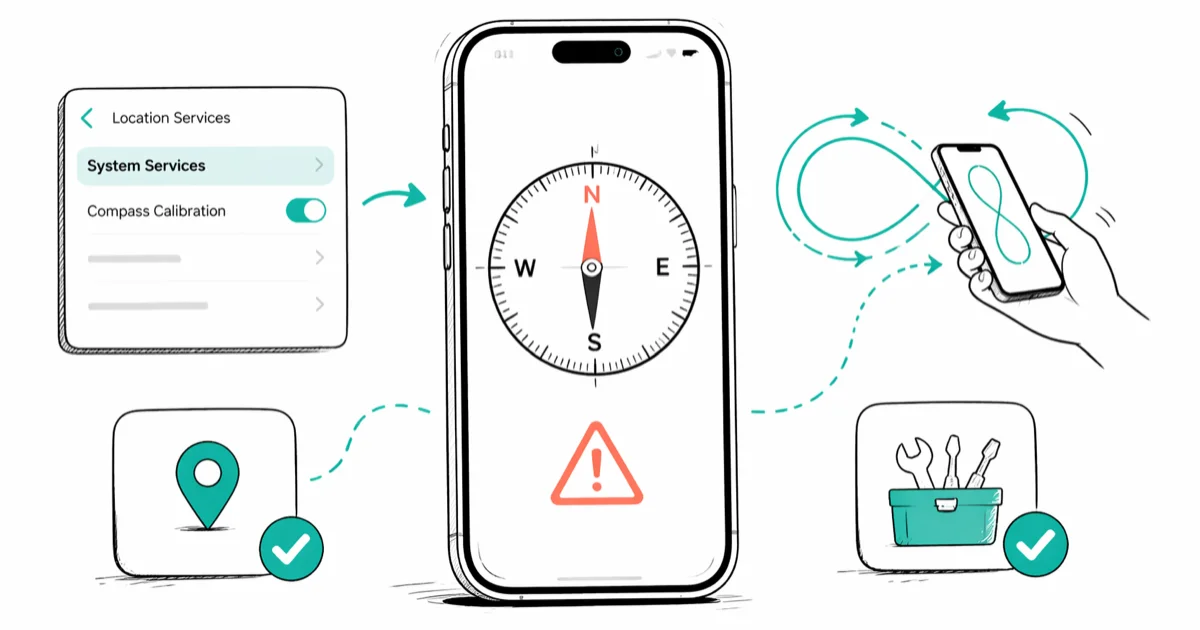
Quick AnswerGo to Settings > Privacy & Security > Location Services > System Services and turn on Compass Calibration. Then open the Compass app and move your iPhone in a figure-eight pattern for 10 seconds to recalibrate the magnetometer.
Your iPhone compass is showing the wrong direction or the needle won’t move at all. All six fixes below apply to recent iPhones on iOS 18, and recalibrating the magnetometer resolves the problem in most cases within seconds. Magnetic interference from cases and nearby electronics is the next most common cause.
- Compass Calibration must be enabled under
Location Services>System Services forthe magnetometer to self-correct - Moving your iPhone in a figure-eight pattern for about 10 seconds forces a manual recalibration
- Magnetic phone cases, metal desks, and charging cables can shift compass readings by 20 to 90 degrees
- Force-closing and reopening the Compass app clears temporary glitches that freeze the needle
- Resetting Location & Privacy settings restores default sensor permissions without deleting personal data
#How Do You Calibrate an iPhone Compass?
Calibration is the fastest fix. The magnetometer inside your iPhone detects Earth’s magnetic field, and it drifts without periodic recalibration.
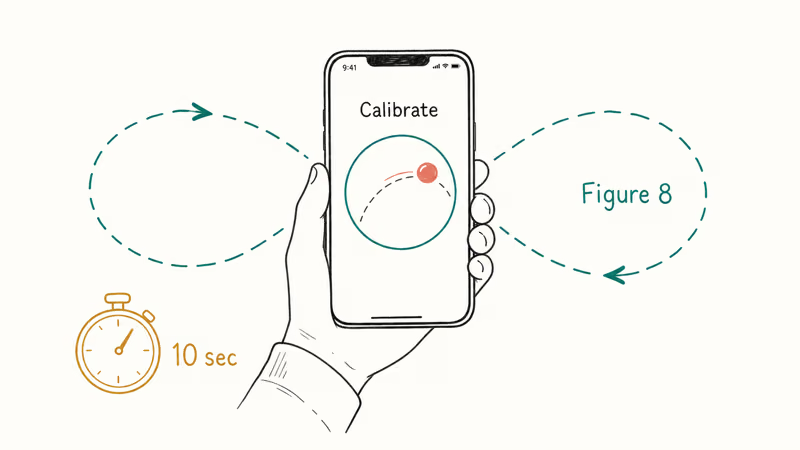
Open the Compass app. If iOS shows a calibration screen with a red ball, tilt and rotate your iPhone until the ball rolls around the full circle. No prompt? Hold your iPhone at arm’s length and move it in a smooth figure-eight motion for about 10 seconds.
Before calibrating, confirm the setting is active. Go to Settings > Privacy & Security > Location Services, scroll to the bottom, tap System Services, and make sure Compass Calibration is toggled on. According to Apple’s location services support page, this setting lets your iPhone use location data and nearby magnetic fields to keep the compass accurate.
The surface matters too. A steel desk can skew the reading badly, so calibrate on wood or plastic. Calibration is the single most effective fix in this guide.
#Why Is Your iPhone Compass Showing the Wrong Direction?
Several things throw off the magnetometer.
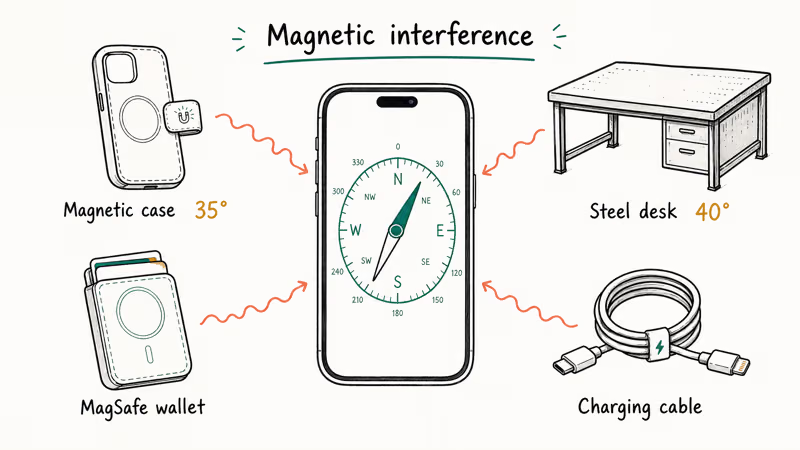
Magnetic cases and accessories. Cases with magnetic clasps, MagSafe wallet attachments, and car mounts with magnets all distort the compass. A magnetic wallet case can shift the reading by tens of degrees compared to a bare device. Remove any magnetic accessory before calibrating.
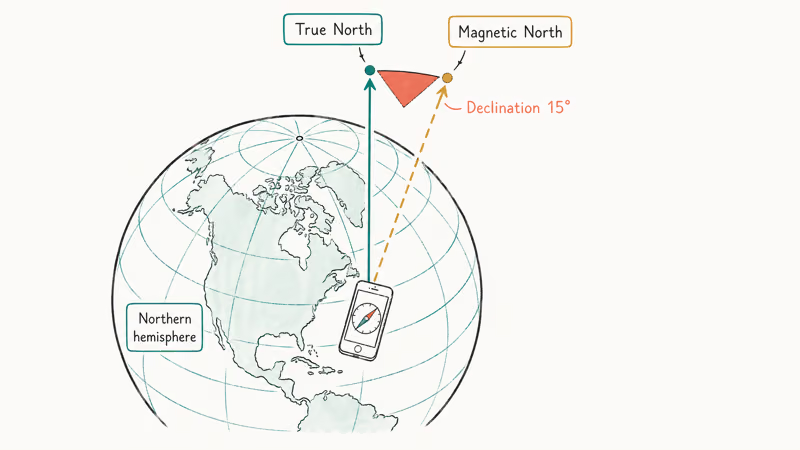
Location Services turned off. The Compass app needs location access to show True North. Without it, you’ll only get Magnetic North, which can differ by 15 degrees or more depending on where you live. If your iPhone GPS isn’t working, that compounds the problem since GPS data feeds into the compass calculation.
Outdated iOS. Apple’s iPhone user guide recommends keeping software updated for accurate compass readings. Install pending updates at Settings > General > Software Update.
Nearby electronics. Laptops, desktop speakers, refrigerators, and even charging cables generate magnetic fields strong enough to skew readings. Step at least three feet away from electronics before testing.
#Fixing a Frozen or Unresponsive Compass App
If the Compass app opens but the needle is stuck, force-close it.
Swipe up from the bottom of the screen and find the Compass card. Swipe it up to close, wait a few seconds, then reopen it.
A force-close usually clears a frozen compass right away. It often follows rapid app switching.
Restart your iPhone if the app keeps freezing. Hold the side button and either volume button until the power-off slider appears, slide to shut down, then wait 10 seconds and power back on.
If your iPhone alarm isn’t working alongside the compass, a restart often fixes both since it clears system-level process glitches that affect multiple apps at once.
#Enabling True North on Your iPhone
The Compass app defaults to Magnetic North. Hikers, pilots, and anyone referencing a paper map need True North instead.
Open Settings > Compass and toggle on Use True North. Done.
True North points to the geographic North Pole, while Magnetic North points to Earth’s magnetic pole, which shifts gradually over time. The angular difference between them is called magnetic declination, and in parts of the western United States it can exceed 15 degrees.
Your iPhone needs a working GPS signal for accurate True North. A GPS dropout, like the one behind Maps refusing to load your location, skews True North calculations until the fix returns. Wait for a clear sky view, then reopen Compass to confirm the heading has settled.
#Resetting Location Settings for Persistent Compass Problems
When calibration and restarting don’t help, resetting location data can fix buried configuration conflicts that prevent the magnetometer from receiving proper location context.
Go to Settings > General > Transfer or Reset iPhone > Reset > Reset Location & Privacy. Enter your passcode when prompted. This wipes all location and privacy permissions back to factory defaults, but it won’t delete your photos, messages, or any other personal data.
After the reset, reopen the Compass app. Then go to Settings > Privacy & Security > Location Services > tap Compass and set it to While Using the App so the compass can access your location again.
This reset is safe. Apple’s iPhone reset options support page confirms it only affects location and privacy preferences. If your auto lock stops working afterward, re-check Display & Brightness.
#Contacting Apple Support for Hardware Damage
If none of these fixes restore compass accuracy, the magnetometer hardware is probably damaged.
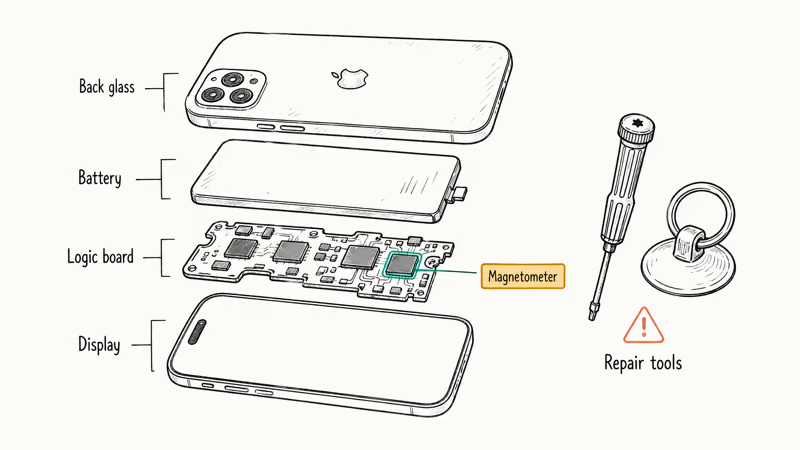
Physical drops, water exposure beyond the rated IP68 depth, or prolonged contact with strong magnets can permanently degrade the sensor. Test with a free third-party compass app from the App Store first. If every compass app shows wrong directions, the sensor itself is the problem rather than a software glitch.
According to iFixit’s iPhone 15 Pro teardown, the magnetometer sits on the main logic board, so replacing it requires a full board swap. Out-of-warranty, that gets expensive fast.
Check your warranty status at Settings > General > About or through Apple’s coverage checker. Standard one-year warranty covers manufacturing defects only. AppleCare+ extends coverage and includes two incidents of accidental damage per year, though each incident still carries a service fee for screen, back glass, or other hardware repairs.
A drop that damages the magnetometer can also make your iPhone freeze; paired with Face ID failing, both point to logic board damage.
#Bottom Line
Start by calibrating your compass with the figure-eight motion. This fixes the problem within seconds in most cases. If calibration alone doesn’t help, check that Compass Calibration and Location Services are enabled, remove any magnetic case, and update iOS.
Reset Location & Privacy as your last software fix. If the compass still won’t work in any app, book an Apple Store appointment because the magnetometer hardware is likely damaged.
#Frequently Asked Questions
Why does my iPhone compass spin in circles?
Strong magnetic fields nearby. Metal desks, magnetic phone mounts, and charging cables all confuse the magnetometer. Move to an open area away from electronics and recalibrate.
Does the iPhone compass work without Wi-Fi or cell service?
Yes, it works completely offline. The compass relies on the built-in magnetometer, not your internet connection, so you can use it in airplane mode, underground, or anywhere with zero cell coverage. True North calculations also rely on GPS, which works without internet, so accuracy holds up even in remote hiking areas with absolutely no signal. Airplane mode doesn’t affect the magnetometer or GPS receiver at all.
How accurate is the iPhone compass under ideal conditions?
About 5 degrees. A freshly calibrated iPhone outdoors with no nearby interference typically holds accuracy to within roughly 5 degrees. Magnetic fields from buildings, vehicles, or an uncalibrated sensor can push that error to 20 degrees or worse.
Can a phone case affect compass accuracy?
Yes. Magnetic cases are one of the most common culprits. Cases with built-in magnets, metal kickstands, or magnetic wallet attachments directly interfere with the magnetometer sensor. A magnetic wallet case can shift the compass reading by tens of degrees versus a bare device, and the reading typically corrects itself within seconds of removing the case and running a quick recalibration.
Does the compass work on all iPhone models?
Every iPhone since the 3GS in 2009 has one. Any model running iOS 16 or later provides reliable compass performance.
How often should I recalibrate my iPhone compass?
Only when readings seem off. iOS handles automatic background recalibration when Compass Calibration is toggled on, so most people never need to think about it. Do a manual figure-eight recalibration if you’ve traveled to a very different geographic location, spent time near strong magnets, or noticed drift after an iOS update.
Why does my compass show different readings indoors versus outdoors?
Steel structural beams, electrical wiring, and HVAC systems inside buildings all generate magnetic fields that interfere with the magnetometer. For the most accurate compass reading, step outside to an open area well away from vehicles, power lines, and large metal structures like parking garages or industrial equipment.
Will updating iOS fix my compass problem?
It can. Apple includes sensor calibration refinements in iOS updates. Check Settings > General > Software Update.

Mac mini M6 vs M5 Pro: Which Model Should You Buy?
Mac mini M6 vs M5 Pro compared on price, memory, ports, displays, and real workloads. Find the better 2026 Mac mini for your desk and budget.

Apple Siri Settlement: Who Qualifies and How to Claim
Apple's $250 million Siri settlement covers iPhone 15 Pro and iPhone 16 models bought June 2024 to March 2025. See who qualifies and how claims work.

iOS 26.6.1 Security Update: What Apple Fixed and Who Gets It
Apple released iOS 26.6.1 on August 17 with 29 security fixes, including an IPSec interception bug. See what it patches, who gets it, and how to update.

iPhone Adaptive Power: How It Works and When to Use It
Learn how iPhone Adaptive Power works, which models support it, what it changes, and when Low Power Mode is still the better battery-saving choice.