Set Up Face ID Second Appearance: 2026 iPhone Guide
Set up Face ID alternate appearance in under 2 minutes. Add a second look or a trusted face, with the 2-face limit and reset steps explained.
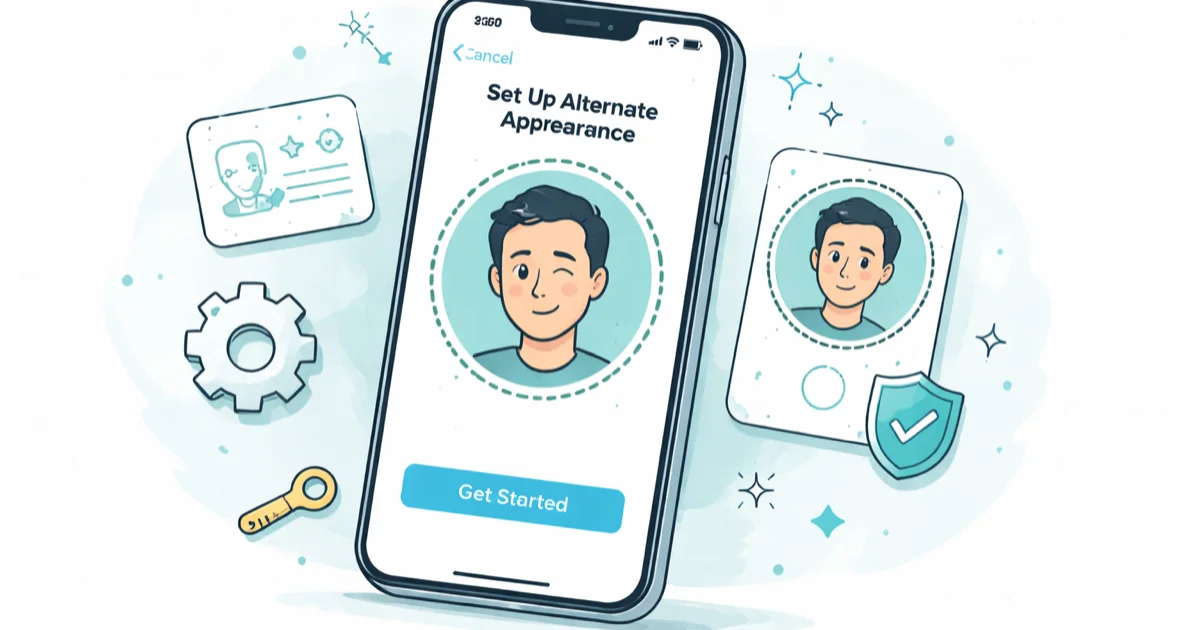
Quick AnswerGo to Settings > Face ID & Passcode, tap Set Up an Alternate Appearance, then follow the two scan passes. Face ID supports one primary plus one alternate face.
A Face ID second appearance teaches your own iPhone (a device you own and use, not anyone else’s phone) to recognize you in two different looks. The flow is the same across recent iPhones on iOS 17 and iOS 18, and enrollment finishes in about 90 seconds.
- Face ID supports a hard maximum of 2 faces: 1 primary plus 1 alternate appearance
- The setting lives at
Settings>Face ID & Passcode>Set Upan Alternate Appearance - Available on every iPhone with Face ID (iPhone X through iPhone 17 family) plus Face ID iPad Pro models
- Enrollment takes about 90 seconds with two head-circle scans at 10 to 20 inches from your face
- You can’t delete only the alternate face; you must Reset Face ID and re-enroll the primary
#What Is Face ID Alternate Appearance and When Should You Use It?
Face ID alternate appearance is a second slot inside the Face ID & Passcode settings that lets the TrueDepth camera memorize a second version of a face.
According to Apple’s iPhone Face ID setup guide, if you have an appearance that can look vastly different, you can set up an alternate appearance so Face ID still recognizes you. Apple introduced the feature in iOS 12, and it has stayed in the same Settings location across every iOS release since.
The 2-face cap is the headline rule. iMore’s alternate appearance walkthrough states that you can only store one primary Face ID and one alternate face, for a total of exactly 2 faces. There’s no third slot, no family-album mode, no per-person profile. Whatever you put in slot two is the only second face Face ID will ever know until you reset everything.
#Two Situations That Call for an Alternate Appearance
The feature was designed for one person whose appearance changes a lot, but it works for two people sharing one device too. The right framing matters because it shapes whether to use the slot at all.
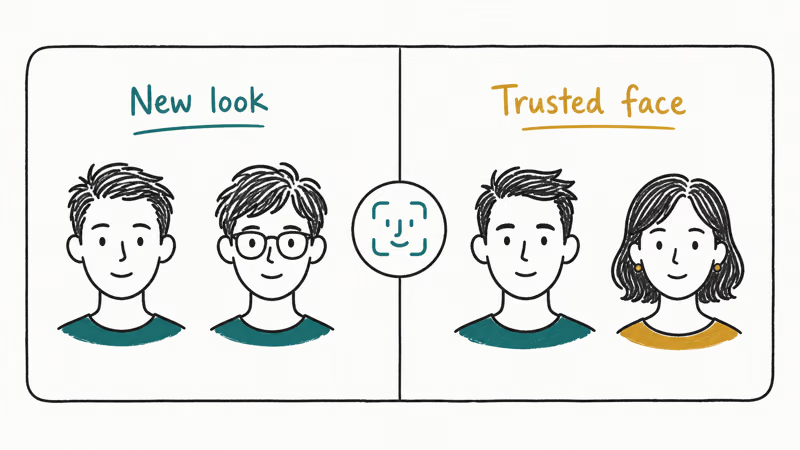
One person, two looks. You wear prescription glasses some days and contacts other days. You shaved a beard or grew one. You wear a hijab, hard hat, or surgical mask at work and your everyday face at home. Face ID adapts on its own most of the time, but enrollment is the fix when it keeps falling back to the passcode.
Two people, one phone. A shared family iPhone in the kitchen, a partner who needs navigation in the car, an older parent on a shared device. It works with trade-offs (see the limits section below).
Both modes work the same way. With glasses enrolled as the alternate, the constant passcode fallback usually stops the same day.
#Step-by-Step: How to Set Up an Alternate Face ID
Full enrollment takes about 90 seconds in good lighting. The steps are identical on iPhone X through the iPhone 17 family, and on Face ID iPad Pro models.
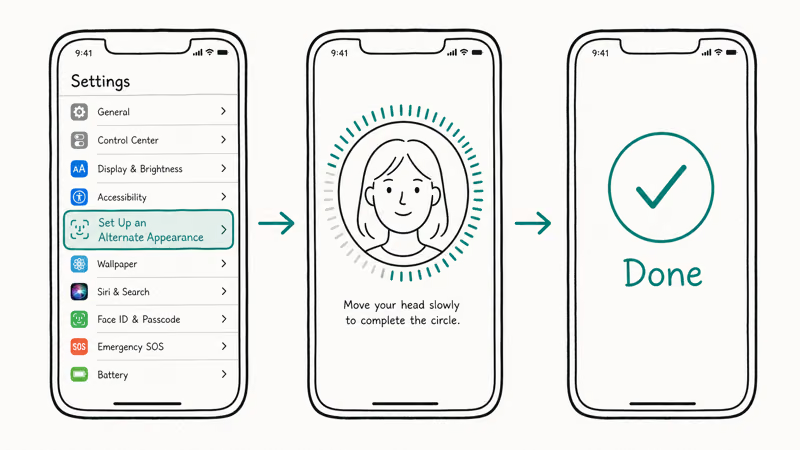
- Open the Settings app.
- Scroll to Face ID & Passcode and tap it.
- Enter your iPhone passcode when prompted.
- Tap Set Up an Alternate Appearance.
- Tap Get Started, then hold the iPhone 10 to 20 inches from the face being enrolled.
- Move the head in a slow, complete circle so the enrollment ring fills.
- Tap Continue when the first scan completes.
- Repeat the slow head circle for the second scan.
- Tap Done.
A few details make the first try work:
- Lighting matters more than people expect. Apple’s guide points to even, indirect light. A bright window behind the face throws the TrueDepth camera off, and a dim room stalls the enrollment ring.
- Take off whatever isn’t part of the look you’re enrolling. If the alternate is “me without glasses,” do the whole enrollment without glasses on. If it’s “my partner with their beard,” don’t coach them to look surprised; relaxed expressions enroll faster.
- Keep the iPhone in portrait at eye level. Holding the phone in your lap or above your head makes Face ID treat the enrollment as a partial scan and either restart the ring or refuse to finish.
Once both scans complete, the new appearance is live immediately. Lock the screen, raise the iPhone, and the new face should unlock it on the first try.
#Common Enrollment Failures and Their Fixes
Most enrollment failures fall into one of four buckets, and three of them are positioning or lighting issues rather than the iPhone itself. The same patterns show up across every Face ID iPhone.
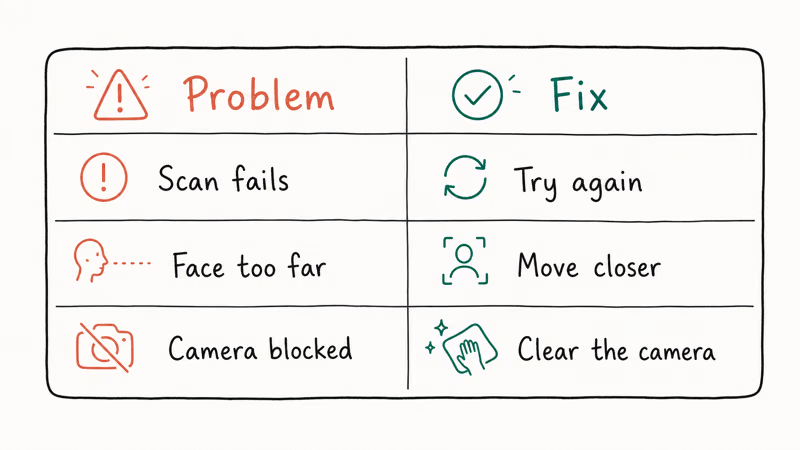
“Move iPhone Lower” or “Move iPhone Farther Away.” This is the TrueDepth camera saying the head is partially outside the frame. Move the iPhone until it sits between 10 and 20 inches from the face, hold it at eye level, and start the head circle again. Our Move iPhone Lower fix guide covers this error in depth.
The enrollment ring stalls. Almost always lighting. Move under a ceiling light or face an indirectly lit wall. Direct sunlight from behind, dim side lamps, or screen glare all stall the scan.
“Face ID Is Not Available” right after entering the passcode. This means the TrueDepth camera itself isn’t responding. The alternate appearance flow can’t even start. Our Face ID not working on iPhone guide walks the software fixes; if it persists, check TrueDepth camera not working for the hardware side.
“Unable to Activate Face ID on This iPhone.” This message blocks the alternate setup before it begins. Our Unable to Activate Face ID fix walks through eight tested resolutions, starting with cleaning the TrueDepth bar and force restarting.
The most common cause of an aborted scan is a hat or hoodie shadow across the eyes. Removing the headwear clears it.
#When Does Face ID Alternate Appearance Not Work?
Four real limitations are worth knowing before you commit a second face to the phone.
The 2-face cap is hard. You can’t enroll a third person or a third look. Apple offers no workaround, and no setting under accessibility or developer mode changes this. If your household has three adults sharing one iPhone, Face ID isn’t the right unlock for the third person.
Twins and close siblings can confuse Face ID even before an alternate is enrolled. According to Apple, the probability of a random person unlocking your iPhone is less than 1 in 1,000,000 with one enrolled appearance, per About Face ID advanced technology. That same Apple page states that this probability is higher for twins, siblings who resemble you, and children under 13.
Apple’s iPhone Face ID model support page lists every Face ID iPhone (X, XR, XS, 11, 12, 13, 14, 15, 16, 17 and their variants) plus Face ID iPad Pro models. The constraint applies universally across that device list, regardless of generation.
Enrolling a sibling as the alternate is more likely to compound that problem than fix it. Use passcode unlock for the second person when there’s any visual similarity.
Enrolling a second adult is functionally identical to handing over your unlocked iPhone. Apple Pay, password autofill, biometrics-gated banking apps, Messages, Mail, and any app that uses biometric unlock will all open for the second face the same way they open for you. No per-app permission split exists. If you wouldn’t also share your Apple ID password with this person, don’t give their face the alternate slot.
Treat consent and privacy as a legal matter for any joint device. Enrolling someone without their knowledge violates basic privacy norms, and in shared workplace or family contexts it can also touch state privacy law.
Face ID with a mask is a separate feature. Apple added Face ID with a mask on iPhone 12 and later in iOS 15.4. That setting is an inline toggle in the same Face ID & Passcode menu. It doesn’t consume the alternate slot. If you only need mask recognition, enable that toggle and keep the alternate slot free.
Primary Face ID unlock speed doesn’t change after the alternate appearance is added. Unlock latency stays the same before and after enrollment, because the TrueDepth pipeline checks both faces in parallel rather than one after the other.
#How to Remove or Reset the Alternate Face ID
Apple doesn’t provide a per-face delete button. MacRumors’ iOS 12 alternate appearance how-to confirms that once your alternate appearance has been entered, there’s no option to delete it on its own. The only removal path is a full Face ID reset followed by re-enrolling the primary.
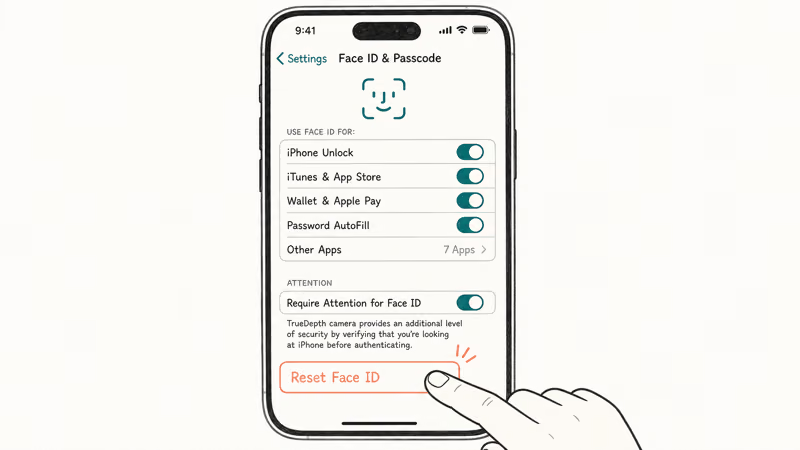
The reset flow:
- Open
Settings>Face ID & Passcode. - Enter your passcode.
- Tap Reset Face ID.
- Tap Set Up Face ID to re-enroll the primary face you want to keep.
- Skip the alternate prompt if you don’t want a second face this time.
After the reset, the iPhone may show “Your Passcode Is Required to Enable Face ID” the next time you wake the screen. That’s a normal security checkpoint, not an error. Our passcode checkpoint guide explains why it appears.
If the iPhone passcode itself is the blocker (forgotten, or stuck at the “iPhone Unavailable” lockout), the fix is on a separate path. Our iPhone passcode reset guide covers Apple’s recovery routes.
#Bottom Line
Set up the alternate appearance today if your daily look changes enough that you keep typing the passcode after a failed scan. Glasses you wear half the time, a beard you trimmed, or a work hat that throws shadow over your eyes — those are the right reasons. Enrollment takes about 90 seconds and ends the passcode-fallback loop the same day.
Don’t use the second slot for another adult unless you’d also hand them your unlocked iPhone, your Apple Pay card, and your password manager. Parents enrolling a co-parent on a shared family iPhone is the only routine two-person case we recommend, and even then, audit which apps are using biometric unlock first.
#Frequently Asked Questions
How many faces can Face ID recognize at once?
Two. One primary and one alternate appearance, for a total of exactly 2 faces. No third slot exists, and no developer setting raises this cap.
Will Face ID alternate appearance let my partner or sibling unlock my iPhone?
Yes. If you enroll their face in the alternate slot, they can unlock the phone the same way you do. Anything biometric on the iPhone unlocks for them too: Apple Pay, password autofill, banking apps, Messages, and email. It’s full account access, not a permission you can scope down.
Does enrolling a second face slow down primary Face ID?
No noticeable change. Primary unlock feels identical before and after enrolling an alternate appearance. The TrueDepth pipeline checks both faces in parallel rather than one after the other.
Can Face ID tell identical twins apart?
Not reliably. Apple’s Face ID page confirms the false-match probability rises with twins, siblings who resemble you, and children under 13. Enrolling a sibling as the alternate appearance can make the false-match problem worse rather than fix it. Passcode unlock is the safer choice for the second person when there’s any visual similarity.
How do I delete just the alternate appearance without resetting Face ID?
You can’t. Apple offers no per-face delete control, so the only removal path is a full Face ID reset followed by re-enrolling the primary face alone.
Why is “Set Up an Alternate Appearance” missing or grayed out in my Settings?
The option only appears after the primary Face ID is enrolled. If Face ID has been reset, was never set up, or shows “Unable to Activate Face ID on This iPhone,” the alternate option stays hidden until the primary face exists. Set up Face ID first, then return to the menu.
Does Face ID with a mask use up the alternate-appearance slot?
No. Face ID with a mask, added in iOS 15.4 on iPhone 12 and later, is a separate inline toggle and doesn’t consume the alternate slot.
Is my data safe if I let someone else’s face into Face ID?
Your encrypted data stays encrypted, but any app on your iPhone that uses biometric unlock will open for the enrolled second person the same way it opens for you. Apple Pay charges go through, password autofill works, and biometric-gated banking and messaging apps unlock. The enrolled face is treated as you, so trust matters more than encryption strength here.

Mac mini M6 vs M5 Pro: Which Model Should You Buy?
Mac mini M6 vs M5 Pro compared on price, memory, ports, displays, and real workloads. Find the better 2026 Mac mini for your desk and budget.

Apple Siri Settlement: Who Qualifies and How to Claim
Apple's $250 million Siri settlement covers iPhone 15 Pro and iPhone 16 models bought June 2024 to March 2025. See who qualifies and how claims work.

iOS 26.6.1 Security Update: What Apple Fixed and Who Gets It
Apple released iOS 26.6.1 on August 17 with 29 security fixes, including an IPSec interception bug. See what it patches, who gets it, and how to update.

iPhone Adaptive Power: How It Works and When to Use It
Learn how iPhone Adaptive Power works, which models support it, what it changes, and when Low Power Mode is still the better battery-saving choice.