How to Fix Server Execution Failed on Windows Media Player
Fix Server Execution Failed on Windows Media Player with seven methods. DLL re-registration, Clean Boot, and clean reinstall steps for Windows 10 and 11.

Quick AnswerOpen Command Prompt as Administrator and run regsvr32.exe jscript.dll, then regsvr32.exe vbscript.dll. These two commands re-register the script libraries Windows Media Player depends on and clear the Server Execution Failed error in most cases.
The “Server Execution Failed” error in Windows Media Player almost always points at a broken handshake between the player and the script libraries Windows uses to launch it. The fix is mechanical, not mysterious. Work through the seven methods below in order and you’ll catch the cause.
- Re-registering jscript.dll and vbscript.dll from an elevated Command Prompt is the fastest first fix for script-library registration problems
- A Clean Boot isolates antivirus and legacy startup conflicts that can block Media Player from launching
- Reinstalling Windows Media Player from Optional Features is the right move when DLL re-registration silently fails
- User folder permission resets help on machines that were upgraded from Windows 7 or had their owner SID changed
- Java runtime corruption affects Method 7 only, and modern Windows 10 and 11 builds don’t require Java for core playback
#Method 1: Re-Register the Script DLLs From Command Prompt
The error usually means Windows Media Player tried to call into JScript or VBScript and got nothing back. Re-registering the two DLLs forces Windows to rewrite the COM keys under HKEY_CLASSES_ROOT.
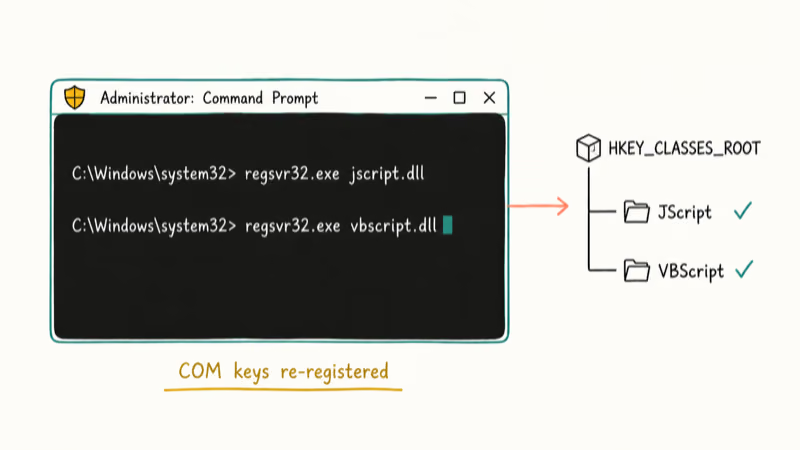
It really is that simple.
The regsvr32 commands are a low-risk first step because they repair script-library registration without reinstalling Media Player. If the command succeeds but the error still appears, reboot once before moving to the next method.
According to Microsoft’s regsvr32 reference, the command requires elevation because it writes to a registry hive that standard users can’t modify. Skip the elevation step and the call returns no error, but nothing actually changes.
Steps:
- Press Windows + R to open the Run dialog
- Type
cmd, then press Ctrl + Shift + Enter to open Command Prompt as Administrator - Paste
regsvr32.exe jscript.dlland press Enter - Click OK on the confirmation box
- Paste
regsvr32.exe vbscript.dlland press Enter - Click OK on the second confirmation box
Close Command Prompt and try Media Player.
If you see “DllRegisterServer was not found”, you opened a non-admin prompt. Reopen it with elevation and run both commands again.
The same DLL re-registration approach is useful for related Windows housekeeping, including the command-line workflows covered in delete files with command-line tools.
#Method 2: Why Does a Clean Boot Fix This Error?
Because the Server Execution Failed error is rarely a Media Player bug on its own. A third-party process is usually holding a lock on the same script library or COM endpoint Media Player needs to talk to. A Clean Boot turns those processes off so you can confirm whether they were the cause.
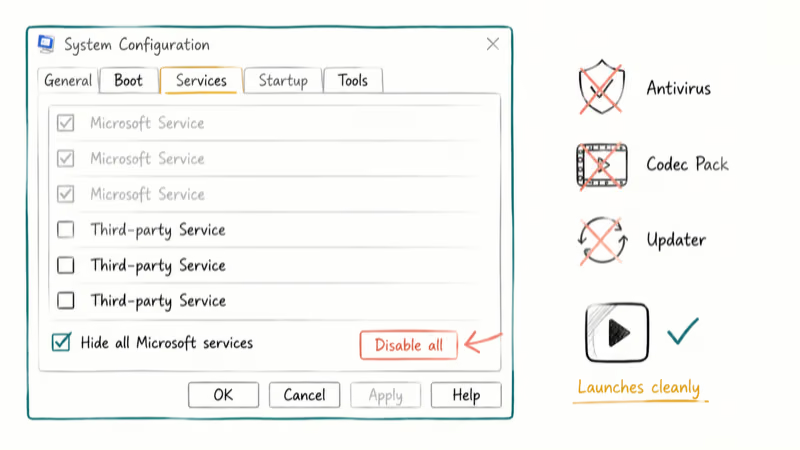
The classic culprit is antivirus.
Clean Boot is especially useful when antivirus or another startup utility is blocking the player. If Media Player opens normally after the reboot, re-enable startup items one at a time until the conflict returns.
According to Microsoft’s Clean Boot documentation, forgetting to tick “Hide all Microsoft services” before pressing “Disable all” is the most common Clean Boot mistake. The user ends up disabling system services and breaks the boot. Always tick the checkbox first.
How to Clean Boot:
- Press Windows + R, type
msconfig, and press Enter - Open the Services tab and tick Hide all Microsoft services at the bottom
- Click Disable all
- Open the Startup tab, then click Open Task Manager
- Right-click each enabled item and pick Disable
- Close Task Manager and click OK in msconfig
- Restart the computer
Test Media Player. If it works, re-enable services and startup items in batches of five, restarting between each batch, until the error returns. The last batch you re-enabled contains the offender. The same isolate-and-eliminate workflow helps when you repair Windows 10 without a CD.
#Method 3: Reset Permissions on Your User Folder
The error sometimes traces back to NTFS permissions, especially on machines upgraded from Windows 7 or 8.1 where the original user SID changed. Windows Media Player reads from %USERPROFILE%\Music and %USERPROFILE%\Videos, and if those paths refuse to grant SYSTEM read access, playback breaks before the file ever loads.
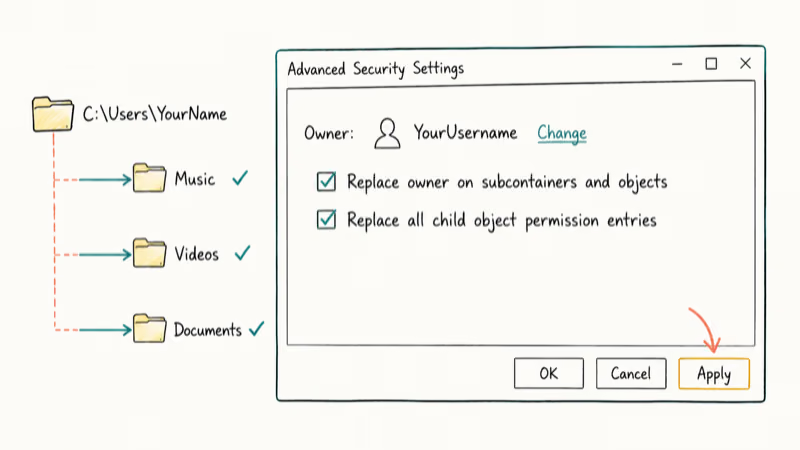
Quick check: try playing a file from C:\Users\Public\Videos\Sample Videos. If that works but a file from your library fails, the issue is permissions, not the player.
Reset folder ownership:
- Open File Explorer and go to
C:\Users\<YourUsername> - Right-click the folder, pick Properties
- Open the Security tab and click Advanced
- Click Change next to the Owner field
- Type your username, click Check Names, then OK
- Tick Replace owner on subcontainers and objects and Replace all child object permission entries
- Click Apply, then OK
Restart and try playback.
If a permission check fails partway through, take ownership of just the offending subfolder rather than the entire user profile, since full-profile changes can break OneDrive sync and Outlook profiles. That smaller, surgical change usually resolves the access issue without disturbing other apps that hold open handles in the same tree.
#Method 4: Add Antivirus Exceptions for Windows Media Player
Kaspersky, Avast, AVG, and McAfee can all flag Windows Media Player as suspicious when it opens a network stream or reads from a shared library folder. The fix is an exception, not turning your antivirus off.
If you also run Avast Cleanup or related tuning utilities, check the quarantine list. Those tools occasionally pull wmplayer.exe out of C:\Program Files\Windows Media Player\ after a definition update.
Common antivirus paths:
- Kaspersky:
Settings>Additional>Threats and Exclusions>Specify Trusted Applications. AddC:\Program Files\Windows Media Player\wmplayer.exe. - AVG:
Settings>Components>Web Shield>Exceptions. Addwmplayer.exe. - Avast:
Settings>General>Exceptions>Add Exception. Browse to the Windows Media Player folder. - McAfee:
Real-Time Scanning>Excluded Files. Add the wmplayer.exe path. - Windows Defender: Virus & threat protection > Manage settings > Add or remove exclusions > Process. Type
wmplayer.exe.
After saving the exception, reboot once. Some scanners only honor the exclusion list after the engine reloads.
#Method 5: Reinstall Windows Media Player From Optional Features
If the first four methods fail, the player itself is corrupted. Reinstalling from Optional Features wipes the binaries and recreates the registry entries from scratch, which fixes most cases that DLL re-registration can’t.
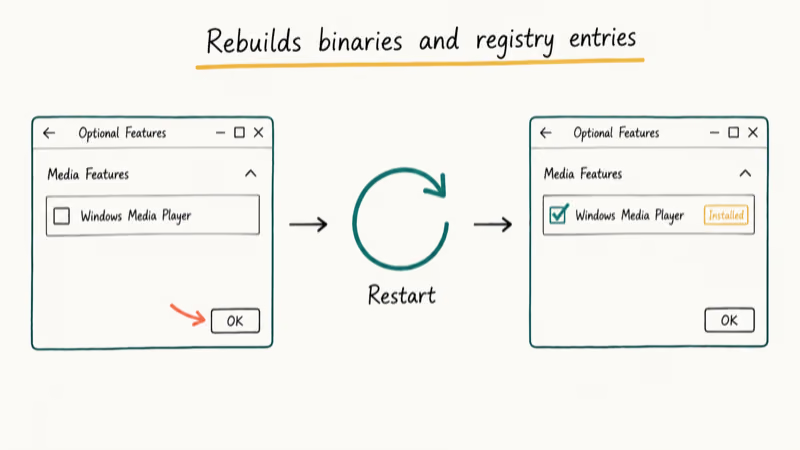
According to Microsoft’s Windows Media Player support page, Media Player 12 ships disabled in Windows 11 and must be re-enabled through Optional Features. The player you launch from Settings is actually the new “Media Player” app, which is a different binary.
Steps:
- Open Command Prompt as Administrator
- Paste this and press Enter:
net localgroup "Administrators" "NT Authority\Local Service" /add - Open
Settings>Apps>Optional Features - Click More Windows features at the bottom
- Expand Media Features and uncheck Windows Media Player
- Click OK and let the feature uninstall
- Restart the computer
- Return to
Optional Features>More Windowsfeatures - Re-check Windows Media Player and click OK
- Restart again
The reinstall itself takes about three minutes. When the player launches for the first time afterward, it rebuilds the library index, so give it a few minutes before testing playback against your real media files.
#What If a Single File Triggers the Error?
Sometimes the player is fine and the file is corrupted. The clue is consistency: if every other file plays cleanly and only one specific clip throws Server Execution Failed, the file is the suspect.
Open a different video first.
If that plays without complaint, your problem file is damaged or uses a codec Windows Media Player doesn’t support natively. Re-download the file from its source, or try a fallback player. The best video players for Windows roundup covers this situation, and the best MKV players guide covers the format Windows Media Player handles worst.
#Method 6: Restart the Network Sharing Service
Windows Media Player relies on the Windows Media Player Network Sharing Service for both local library indexing and DLNA streaming. When the service crashes or gets stuck on “Manual”, the player can throw the Server Execution Failed error even on local files.
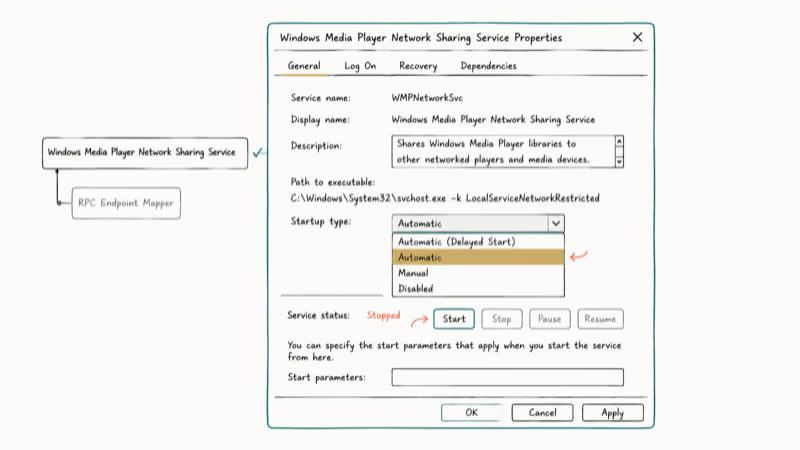
Restart it:
- Press Windows + R, type
services.msc, and press Enter - Scroll to Windows Media Player Network Sharing Service
- Right-click and pick Properties
- Set Startup type to Automatic
- Click Start, then OK
- Restart the computer
If clicking Start throws “Error 1068: dependency service failed to start”, open the Log On tab in the same Properties dialog. Click Browse, type your computer name, click Check Names, and re-authenticate. That clears the SID mismatch the dependency service reads to verify the account.
Recheck Media Player after the reboot. Local files should play, and DLNA targets should reappear in the library tree.
#Method 7: Update or Reinstall Java
Java runtime corruption is a long-tail cause. Older Windows Media Player codec packs and a few third-party plugins still call out to Java, and a broken or outdated runtime can cascade into the Server Execution Failed error.
If you also see browser-side warnings like the application blocked by Java security error, fix Java security policies first, since the runtime issue can mask the Media Player one.
Refresh Java cleanly:
- Open
Settings>Apps>Installed Apps - Find every entry beginning with Java and click Uninstall
- Reboot to clear lingering processes
- Open java.com/en/download in your browser
- Download the offline installer rather than the web installer
- Run the installer as Administrator and accept the defaults
- Reboot again
Modern Windows 10 22H2 and Windows 11 builds don’t need Java for core playback, so if Methods 1-6 already cleared the error, you can skip this one.
#Bottom Line
Start with Method 1. The DLL re-registration takes under two minutes, requires no downloads, and targets the script-library registration problem behind many Server Execution Failed cases. Method 2 (Clean Boot) is the right next step if Method 1 silently runs but the error returns. Save Method 5 for the cases where both fail and you’ve ruled out a file-specific issue first.
#Frequently Asked Questions
What does Server Execution Failed actually mean?
The error means Windows Media Player tried to call a registered COM server, usually a script engine or codec, and the call timed out or returned no handler. The underlying cause is almost always a missing or misregistered DLL, a permissions block, or a third-party process holding a conflicting lock on the same library Media Player wants to load. Different triggers, same surface error.
Does this fix work on Windows 11?
Yes. The error appears on Windows 11 with the same root causes, and Methods 1 and 2 work identically.
Do I need to uninstall and reinstall, or can I repair the player?
Windows doesn’t include a dedicated repair tool for Windows Media Player. The closest equivalent is the Optional Features uninstall-and-reinstall in Method 5, which rebuilds the binaries and registry entries from scratch. Try Methods 1 through 3 first, since they preserve your library settings, playlists, and any custom codec packs you’ve installed. Reinstalling is the bigger hammer, so save it for cases where the smaller fixes have already failed and you’ve ruled out a corrupted file.
What if only MKV or MOV files trigger the error?
That’s a codec problem, not a player problem.
Is it safe to run a Clean Boot?
Yes. Clean Boot leaves Microsoft services running and only disables third-party startup items. Your system will actually be more stable during the test, not less, because fewer programs are competing for resources. Re-enable items in batches of five, restarting between each batch, until the error returns; the last batch you re-enabled contains the offender, and you can disable that specific item permanently or look for an updated version that no longer conflicts.
Why does my antivirus block Windows Media Player?
Security software treats COM activations and library scans as suspicious behavior. Add wmplayer.exe to the trusted-applications list and reboot once.
Should I switch to a different player instead?
If Methods 1 through 7 all fail, switching to VLC or another modern player is reasonable. VLC handles almost every codec without external packs and doesn’t have a Server Execution Failed equivalent.