How to Delete Files Using Command Prompt on Windows
Delete files and folders using Command Prompt on Windows with DEL, RD, and RMDIR commands. Covers wildcards, hidden files, and permanent deletion in 2026.
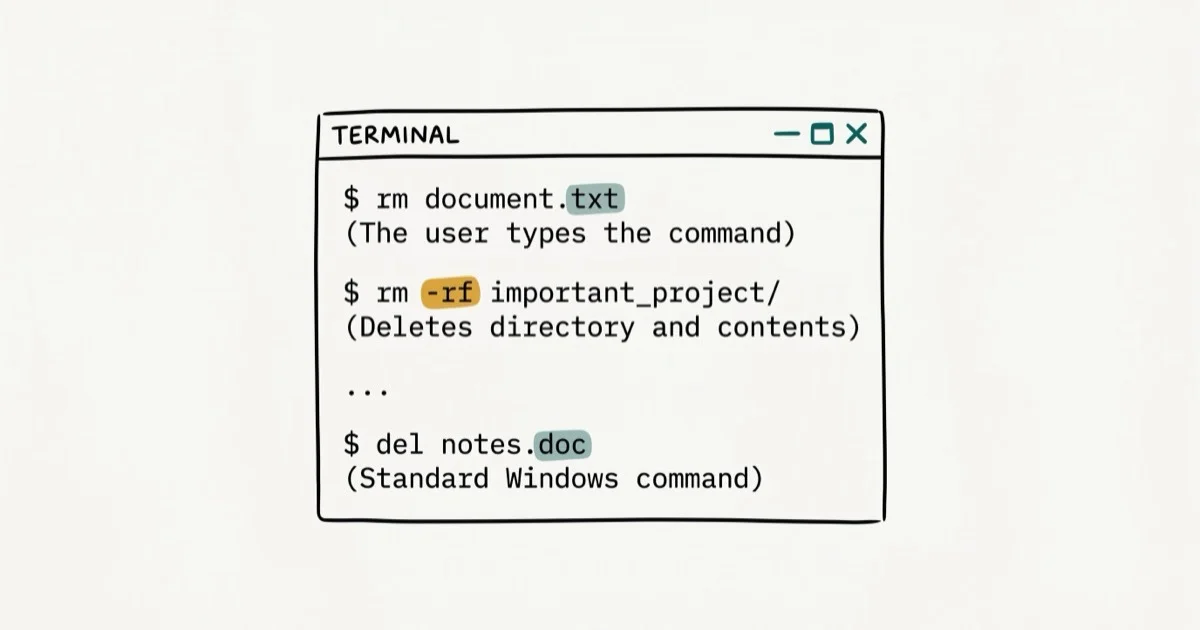
Quick AnswerOpen Command Prompt and type DEL followed by the filename to delete a file. Use RD /S to remove an entire folder with all its contents. Files deleted this way skip the Recycle Bin and are permanently removed.
Command Prompt lets you delete files and folders faster than clicking through File Explorer, especially when dealing with large batches or stubborn files that won’t delete normally. The current Windows syntax still centers on DEL for files and RD or RMDIR for folders.
Run delete commands only on your own computer, your own account, or a system you are authorized to administer. Command-line deletion can remove evidence, backups, or shared data quickly, so stay within legal and workplace policy limits, double-check paths, and avoid deleting files that belong to another user or organization.
- Type DEL followed by a filename to permanently delete it without sending it to the Recycle Bin.
- Use DEL *.ext with a wildcard to delete all files of a specific type at once.
- The RD /S command removes an entire folder and every file inside it in one step.
- DEL /F forces deletion of read-only files that block standard removal
- Files deleted via Command Prompt bypass the Recycle Bin and can’t be undone
#How Do You Delete a File Using Command Prompt?
The DEL command removes individual files directly from the current directory or any path you specify. Wikipedia’s history of the DEL command confirms that DEL has been part of DOS and Windows since version 1.0 in 1981 — making it one of the oldest and most stable commands available. See Wikipedia’s DEL command overview for the full version history.
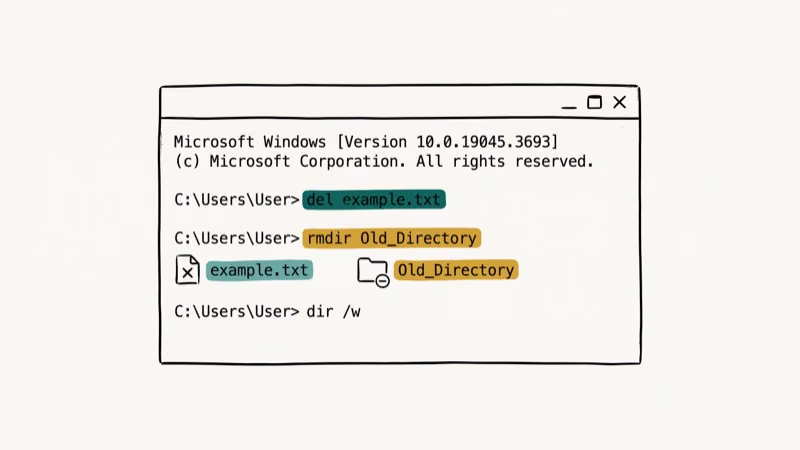
Open Command Prompt by pressing Win+R, typing cmd, and pressing Enter. Run Command Prompt as administrator (right-click the result and choose Run as administrator) when deleting files in protected system folders.
Go to the folder containing your file using the cd command. For example: cd C:\Users\YourName\Documents. Once you’re in the right folder, type:
DEL filename.txtPress Enter and the file is gone. There’s no confirmation dialog and no Recycle Bin step. If you want to delete a file in a different folder without navigating there first, use the full path:
DEL C:\Users\YourName\Documents\filename.txtTo delete multiple specific files at once, list them separated by spaces:
DEL file1.jpg file2.jpg file3.jpg#Deleting Multiple Files with Wildcards
Wildcards let you delete groups of files matching a pattern without typing every filename individually.
The asterisk (*) matches any sequence of characters. For example, DEL *.jpg deletes every JPEG file in the current folder, which is faster than typing each filename manually.
Common wildcard patterns:
DEL *.tmpremoves all temporary filesDEL report_*.docxremoves all Word files starting with “report_”DEL *.*removes every file in the current folder regardless of extension
Be careful with DEL *.* in particular. According to Microsoft’s DEL command documentation, this command deletes all files in the current directory without moving them to the Recycle Bin. There’s no undo and no recovery through standard Windows tools. Always run dir first to verify you’re in the right folder before using this command on any folder with important data.
#How Do You Delete an Entire Folder?
The DEL command only removes files. To delete a folder, use RD (or its alias RMDIR). RD stands for Remove Directory, and it requires the folder to be empty unless you add the /S flag.
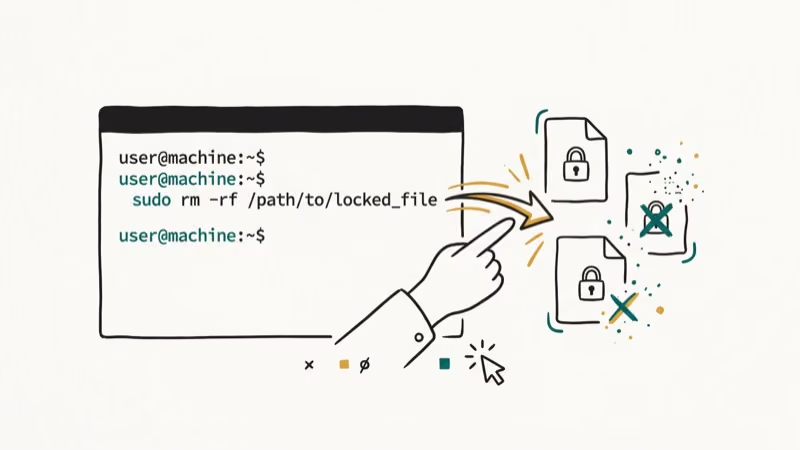
To delete an empty folder:
RD FolderNameTo delete a folder and everything inside it recursively, add the /S flag:
RD /S FolderNameWindows will prompt you to confirm. To skip the prompt and delete silently, combine /S with /Q:
RD /S /Q FolderNameRD /S /Q is the quiet recursive version of the folder-deletion command. It removes the folder tree without prompting, so verify the path carefully before pressing Enter.
#How to Delete Read-Only and Hidden Files
Standard DEL commands fail on read-only files. The /F flag overrides read-only protection:
DEL /F filename.txtFor hidden files, you first need to view them with DIR /A, which lists all files including those with hidden attributes. Then delete using:
DEL /A filename.txtAccording to Microsoft’s Windows commands reference, the /A attribute flag targets files with specific attributes, including hidden (H), system (S), and read-only (R). Combining flags like DEL /F /A handles both read-only and hidden at once.
#Recovering Files Deleted by Command Prompt
Files deleted with DEL or RD skip the Recycle Bin entirely, which means the standard “Restore” option doesn’t exist. Recovery depends on whether the storage space has been overwritten since deletion.
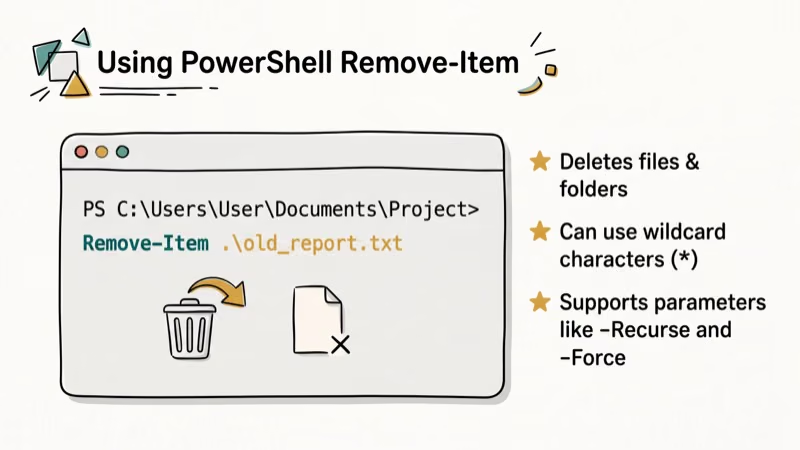
Third-party tools like Windows File Recovery from Microsoft can scan drives for deleted file signatures. Microsoft’s Windows File Recovery documentation confirms it supports 4 file systems: NTFS, FAT, exFAT, and ReFS. Recovery success drops significantly the more the drive has been used after deletion, so act quickly.
If you accidentally deleted something critical, stop writing new files to that drive immediately. Every new file risks overwriting the deleted data. For more on recovering deleted data from drives, see how to recover data from an NTFS hard drive.
#Emptying the Recycle Bin from Command Prompt
The Recycle Bin stores files deleted through File Explorer, but Command Prompt deletions skip it entirely. If you want to empty the Recycle Bin manually from Command Prompt, run this command:
RD /S /Q %SystemDrive%\$Recycle.binThis permanently removes everything currently in the Recycle Bin without opening any dialog. For a more detailed walkthrough of managing the Recycle Bin, see how to empty the Recycle Bin using both the GUI and command-line methods.
#Tips for Safer Command Prompt Deletions
Mistakes in Command Prompt are permanent, so a few habits help avoid disasters.
Always verify your current directory with the dir command before running any deletion. This shows exactly which files are in scope. For bulk deletions, add the /P flag to DEL, which prompts you to confirm each file before deleting it. Run DEL /? to see a full list of available flags and their effects.
For large or complex deletion jobs, check your wildcard pattern with dir *.ext first. This shows which files match the pattern before you commit to deleting them, which is useful when wildcards are involved.
#Bottom Line
Use DEL filename to delete files and RD /S /Q FolderName to delete entire folders. Both commands bypass the Recycle Bin permanently. For accidental deletions, weigh recovery options like free disk recovery software before the drive space is overwritten. If you run into the “directory name is invalid” error while navigating, how to fix the directory name is invalid explains the cause.
#Frequently Asked Questions
Does DEL send files to the Recycle Bin?
No. Files deleted with the DEL command are permanently removed and don’t appear in the Recycle Bin. The only recovery option is third-party data recovery software, and only if the storage space hasn’t been overwritten yet.
What’s the difference between DEL and RD in Command Prompt?
DEL removes files. RD (or RMDIR) removes folders. DEL can’t delete a folder, and RD can’t delete individual files. Use RD /S to delete a folder along with all files and subfolders inside it.
How do I delete all files in a folder without deleting the folder itself?
Navigate into the folder with cd FolderPath, then run DEL *.*. This deletes all files in the current directory while leaving the folder structure intact. The folder itself remains empty, but all its contents are gone permanently. If you want confirmation before each deletion, add the /P flag: DEL /P *.* asks you to confirm each file individually before removing it.
Can I delete system files using Command Prompt?
You can attempt it, but Windows protects certain system files even with administrator privileges. Deleting core system files like those in System32 can cause Windows to stop booting. Only delete system files if you know exactly what you’re removing and have a recovery plan.
How do I force delete a file that says it’s in use?
Run Command Prompt as administrator, then use DEL /F filename. If the file is still locked by a running process, restart Windows in Safe Mode, which prevents most background processes from loading and frees up file handles that persist during normal boot.
Is there an undo command for DEL in Command Prompt?
No. Command Prompt has no undo function for file deletion. Once you run DEL, the file is gone permanently and doesn’t appear in the Recycle Bin. Your only options are restoring from a backup or running data recovery software, and for unsaved documents specifically see how to recover unsaved Word documents before the storage space gets reused by new files or system activity.
How do I delete files older than a certain date?
Use the forfiles command: forfiles /p "C:\FolderPath" /s /d -30 /c "cmd /c del @path". This deletes all files in the specified folder older than 30 days. Change the -30 value to target different age ranges.

Best Laptop for Running LLMs in 2026: Memory Comes First
The best laptop for running LLMs is a memory purchase first. Compare MacBook unified memory against NVIDIA laptop VRAM, and see what each tier really runs.

How to Run a Local LLM on Windows: A 2026 Setup Guide
Run a local LLM on Windows with LM Studio or Ollama. Pick a model that fits your GPU memory, keep every prompt offline, and skip the monthly bill.

Bluetooth Not Working on Snapdragon X? Fixes for 2026
Bluetooth not working on your Snapdragon X Copilot+ PC? Generic audio, mice, and keyboards work, but vendor apps often lack an ARM build. Fixes inside.

Docker Desktop and WSL2 Not Working on Snapdragon X? Fix It
WSL2 runs fine on Snapdragon X, but Docker Desktop ARM is Early Access and throws WSL errors. Use WSL2 plus native ARM64 Ubuntu and Docker Engine.