How to Block Inappropriate Websites on Your Phone (2026)
Block inappropriate websites on iPhone and Android using Screen Time, Family Link, DNS filtering, and safe browsers. Full setup guide for parents.
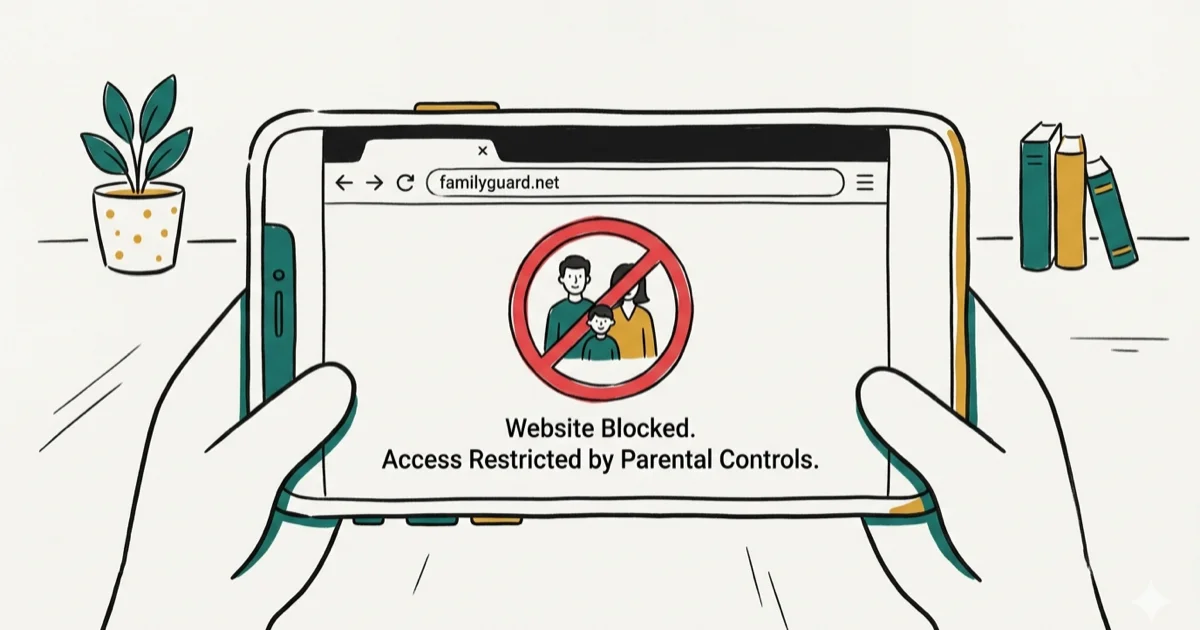
Quick AnswerOn iPhone, go to Settings > Screen Time > Content & Privacy Restrictions > Web Content and select Limit Adult Websites. On Android, set up Google Family Link and configure Private DNS with family-filter-dns.cleanbrowsing.org for network-level blocking.
Blocking inappropriate websites on your kid’s phone takes about 15 minutes when you combine built-in parental controls with DNS filtering. Every method below works on current iPhone and Android devices, so you can apply the same layered approach across both platforms.
Using these methods on devices or accounts you don’t own may violate applicable laws and platform terms.
- Screen Time (iPhone) and Family Link (Android) block adult content in browsers for free
- DNS filtering with CleanBrowsing catches requests that bypass browser-level filters across all apps
- Restricting app installs prevents kids from downloading unfiltered browsers or VPNs
- Router-level DNS protects every device on your home Wi-Fi without per-device setup
- No single layer catches everything, but three layers together block the vast majority of explicit content
#How Does iPhone Screen Time Block Websites?
Screen Time is Apple’s built-in parental control system, and it handles web filtering without any downloads. Open Settings > Screen Time, tap Content & Privacy Restrictions, and toggle it on. Then go to Content Restrictions > Web Content and pick your filtering level.
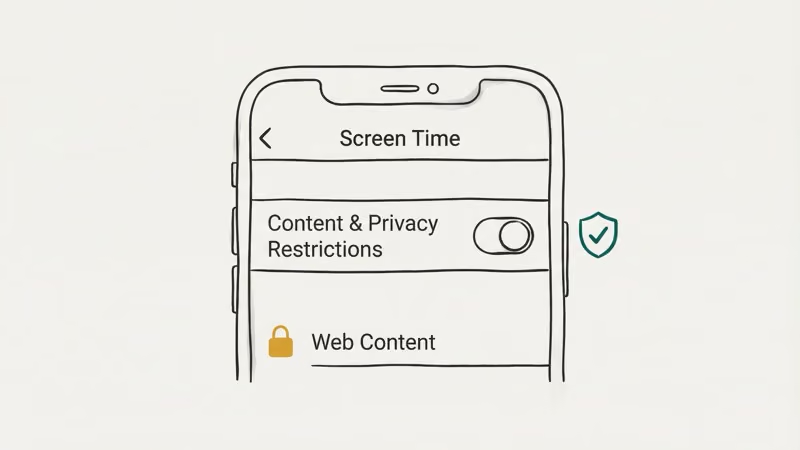
Limit Adult Websites blocks known explicit domains across Safari and any app using Apple’s built-in web view. You can add specific URLs to the “Never Allow” list for sites that slip through.
Allowed Websites Only is stricter. Your child can only visit sites you’ve pre-approved, and everything else gets blocked automatically. This works well for kids under 8 who only need a handful of educational sites and don’t need general browsing access at all. Any domain you add to the “Never Allow” list is blocked immediately after you save the setting.
Set a Screen Time passcode that’s different from the device unlock code. According to Apple’s Screen Time documentation, content restrictions apply to Safari and all apps using the system web view. Kids sometimes figure out how to change their Screen Time passcode, so locking the passcode behind a parent-only account avoids that risk entirely.
If you manage your child’s device through Family Sharing, you control Screen Time remotely.
#Google Family Link Content Filtering on Android
Family Link is Google’s free parental control tool, and it works on any Android device running 5.0 or later. Download it on your phone and your child’s phone, then create or link a supervised Google account for your child.
Go to Controls > Content restrictions > Google Chrome and select Try to block explicit sites. This turns on Google’s blocklist for Chrome. You can also add specific sites to the approved or blocked lists manually.
Here’s the catch most parents miss. According to Google’s Family Link help page, Chrome filtering only applies to Chrome itself. If your child installs Firefox or Opera, those filters won’t touch it. Use Family Link to block alternative browser installations under Controls > Content restrictions > Google Play and set the maximum app rating to prevent mature-rated downloads.
On a supervised account, blocked sites show a “Site blocked” page in Chrome right away. The filter catches major explicit domains reliably but misses a few with misleading names. For broader coverage, combine Family Link with DNS filtering, which catches requests from every app on the device, not just Chrome. Our guide on blocking porn on Android covers the full Family Link setup in detail.
#What Is DNS Filtering and Why Does It Matter?
DNS filtering blocks inappropriate content at the network level before any app can load it. Every browser, every app, and every background service on the phone goes through DNS to reach a website. Block the DNS lookup and the page never loads.
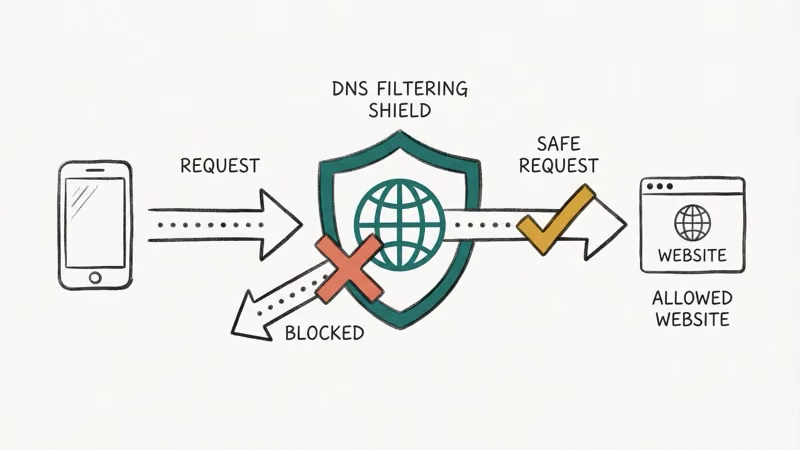
This is the single most important layer most parents skip.
On Android 9 and newer, go to Settings > Network & internet > Private DNS (Samsung: Connections > More connection settings > Private DNS), select Private DNS provider hostname, and enter family-filter-dns.cleanbrowsing.org. That’s it. CleanBrowsing’s filter documentation confirms that their family filter blocks pornography, mixed-content domains, and phishing sites at the DNS level.
On iPhone, DNS setup is a bit different. Go to Settings > Wi-Fi, tap the info icon next to your network, scroll to Configure DNS, select Manual, and enter 185.228.168.168 and 185.228.169.168. This only covers one Wi-Fi network though. Install CleanBrowsing’s downloadable configuration profile from their site to cover all networks including cellular data automatically.
Because the block happens at the DNS layer, explicit domains are filtered across Chrome, Safari, Firefox, and even in-app browsers once either setup is in place.
#Router-Level Website Blocking
Router-level filtering protects every device on your home Wi-Fi at once. Phones, tablets, laptops, smart TVs, gaming consoles. You set it up once and it covers everything without touching individual devices.
Log into your router’s admin panel (usually 192.168.0.1 or 192.168.1.1), find the DNS settings under WAN or Internet, and replace the existing DNS servers with CleanBrowsing (185.228.168.168 and 185.228.169.168) or OpenDNS Family Shield (208.67.222.123 and 208.67.220.123). Save and restart the router.
The limitation is that router filtering only works on your home network. When your child leaves the house and connects to school Wi-Fi or uses cellular data, router protection drops off. That’s why you still need device-level controls. A dedicated parental control router offers more granular scheduling and per-device rules if you want that level of control at home.
#Preventing Kids From Bypassing Filters
Kids are resourceful. A determined teenager will try VPNs, alternative browsers, or changing DNS settings to get around your filters. Here’s how to close those gaps.
On iPhone, go to Screen Time > Content & Privacy Restrictions > iTunes & App Store Purchases and set Installing Apps to “Don’t Allow.” This prevents downloading any new apps, including VPNs and alternative browsers.
On Android, Family Link blocks app installations by default on supervised accounts and prevents your child from changing Private DNS settings. Make sure Install unknown apps is disabled for every app under Settings > Apps > Special app access > Install unknown apps to prevent sideloading APKs from websites. You can also restrict VPN configuration changes on both platforms to stop kids from tunneling around your DNS filters entirely.
Check the device once a month. Open the app list and look for anything you don’t recognize. Apps like Zepeto and certain teen dating apps can expose kids to inappropriate content even when rated for teens.
A hidden app finder can surface apps that don’t appear on the home screen, which is useful when kids try to disguise apps behind calculator or vault icons.
#Building a Layered Protection Strategy
No single method blocks everything. The strongest setup stacks three layers so that if one fails, another catches it.
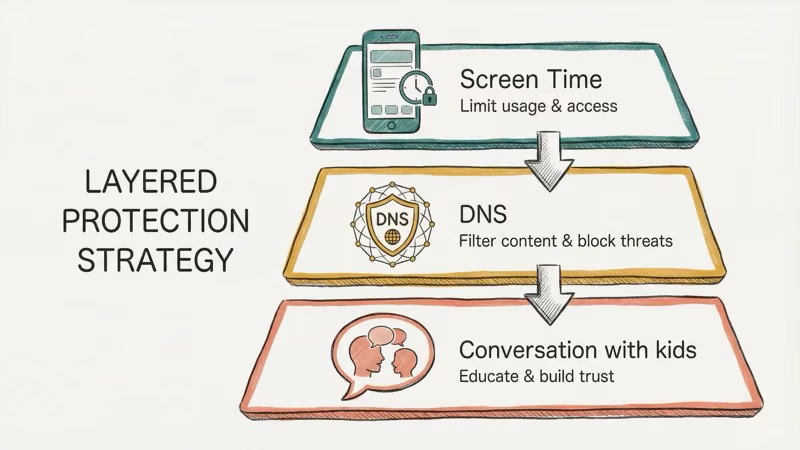
Layer 1: Device controls. Screen Time on iPhone, Family Link on Android. These handle browser filtering and app restrictions. Our guides on blocking inappropriate content on iPhone and Chrome content filtering cover the specifics for each platform.
Layer 2: DNS filtering. CleanBrowsing or OpenDNS on the device and router. This catches what browser filters miss because it works across every app, not just the browser.
Layer 3: Conversation. The Common Sense Media digital citizenship guide states that kids who understand online risks make better choices than kids restricted by software alone. Talk to your kids about what they might see online and why these protections exist.
Revisit your settings every few months as your child grows. Younger kids need tight restrictions like allowed-websites-only mode. Older kids benefit from category-based filtering with gradual freedom. You can use a family calendar app to set monthly reminders for device check-ins, and pairing screen time rules with a chore tracking app turns device access into a reward system that reinforces good habits.
#Bottom Line
Blocking inappropriate websites on a phone takes about 15 minutes across three layers: Screen Time or Family Link for browser controls, DNS filtering for network-level protection, and app installation restrictions to prevent workarounds. Start with the free tools built into your child’s phone, add CleanBrowsing DNS for coverage across all apps, and lock down app installations. That combination stops the vast majority of inappropriate content without spending anything. Check settings monthly and keep talking to your kids about online safety.
#Frequently Asked Questions
Does Screen Time block inappropriate websites in all browsers?
Yes. Screen Time’s filter covers Safari and any app using Apple’s built-in web view, which includes most third-party browsers on iPhone.
Can my child bypass DNS filtering?
On a supervised Android device through Family Link, your child can’t access DNS settings. On iPhone, a CleanBrowsing configuration profile locks DNS across all networks. Without supervision or a profile, a tech-savvy kid could change DNS manually, which is why pairing DNS with device-level restrictions matters.
What’s the difference between Screen Time and Family Link?
Screen Time is Apple’s tool for iPhone and iPad, while Family Link is Google’s tool for Android. Both filter web content, restrict apps, and set usage limits. Screen Time manages restrictions directly on the device or through Family Sharing. Family Link requires a supervised Google account and manages everything from the parent’s phone.
Do I need a paid parental control app?
For most families, Screen Time or Family Link plus DNS filtering covers 90% of what you need for free. Paid apps like Qustodio or Norton Family add cross-platform dashboards, social media monitoring, and detailed activity reports, but they cost $50 to $100 per year. They’re worth that investment if you have kids on both iPhone and Android under one roof or if you need to monitor messaging apps that built-in tools can’t reach.
How do I block inappropriate content on a shared family phone?
On iPhone, set up Content & Privacy Restrictions in Screen Time before handing the phone to your child. On Android, create a separate restricted user profile. For very young children, Guided Access on iPhone locks the device to a single app. These work as quick solutions when your child borrows your phone temporarily.
At what age should I start using website filters?
Start as soon as your child uses any device with internet access. For kids under 7, use Allowed Websites Only mode. For ages 7 through 12, use category-based adult content filtering with Screen Time or Family Link. Teenagers do better with DNS filtering and periodic check-ins as you gradually allow more freedom.
Will website blocking slow down my child’s phone?
No. DNS filtering adds only a tiny amount of latency to page lookups, which isn’t noticeable during normal browsing. Screen Time and Family Link run natively with negligible battery impact.
Can I block specific websites that the filter misses?
Yes. On iPhone, add URLs to the “Never Allow” list under Screen Time > Content Restrictions > Web Content. On Android, add sites to the blocked list in Family Link under Chrome content restrictions. Both let you manually block any domain the automatic filter doesn’t catch.
iPhone 17 Cellular Data Not Working on iOS 26? 9 Fixes
iPhone 17 cellular data still dropping on iOS 26? Apple fixed the launch bug in iOS 26.0.1, but recovery failures persist. Here's the fix ladder.
iPhone Cellular Data Not Working Abroad? eSIM Fixes
Travel eSIM showing no data abroad? Fix iPhone roaming with the data-line check, Data Roaming toggle, APN settings, and network selection steps.
iPhone Cellular Data Not Working for Some Apps? 8 Fixes
Some iPhone apps refuse to load on cellular while others work fine. Check the per-app cellular toggle, Low Data Mode, VPN profiles, and Screen Time.

iPhone Stuck on EDGE? How to Get 5G or LTE Back (2026)
iPhone stuck on EDGE with crawling data? Here's why the E icon appears, which settings force 5G or LTE back, and when the problem is your carrier.