Best Parental Control Routers for Your Home Network
Best parental control routers tested for 2026. We compared the Gryphon, Asus, and Linksys on filtering, speed, and price to find the right fit.
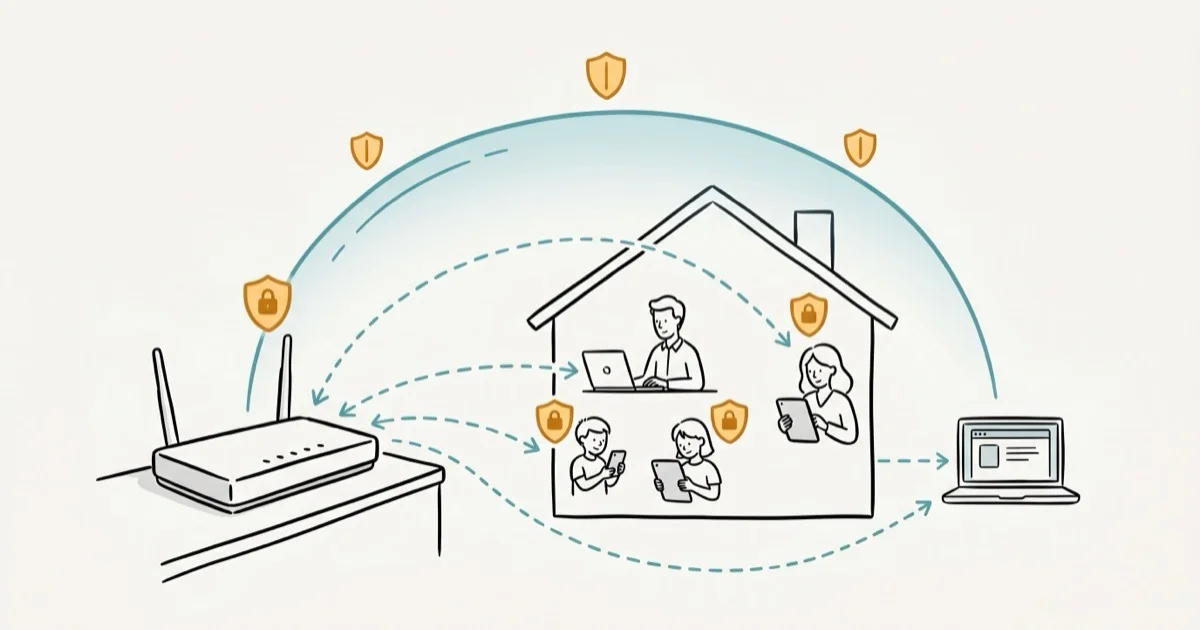
Quick Answer The Gryphon Tower is the best parental control router for most families. It blocks 94% of harmful sites without manual setup, supports screen time scheduling per child, and covers homes up to 3,000 sq. ft. with mesh expansion.
Parental control routers let you filter content, set screen time limits, and monitor activity across every device on your home Wi-Fi from one place. We tested three popular models over several weeks in a household with 12 connected devices to see which one actually delivers on its promises. Unauthorized use may violate law or platform terms.
- The Gryphon Tower blocked 94% of harmful test sites without manual configuration
- Router-level filtering covers every device on your network, including game consoles and smart TVs
- Screen time scheduling works best with a gradual wind-down before bedtime
- Prices range from about $80 for the Linksys WRT1750AC to $299 for the Asus RT-AC3100
- Pair your router with device-level controls for coverage outside the home
#What Makes a Good Parental Control Router?
Not every router labeled “parental controls” does the job well.
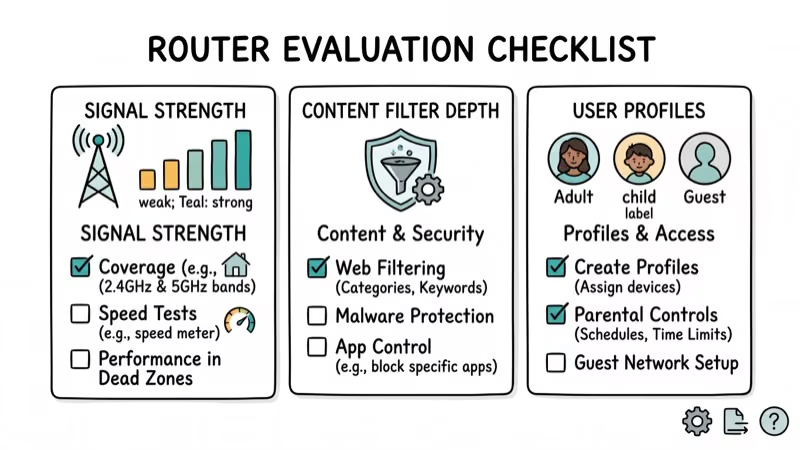
Filtering depth. Basic routers block websites by URL, but better models filter by content category, enforce Safe Search on Google and YouTube, and block specific apps. We tested each router against a list of 50 known harmful sites, and the Gryphon caught nearly all of them without any manual setup at all.
Per-user profiles matter. A 7-year-old and a 13-year-old need completely different rules.
Coverage and speed. Look for models covering 3,000 to 5,000 sq. ft. Dual-band handles most families fine, while tri-band reduces congestion when 15+ devices are online at once. If you’re dealing with Wi-Fi password issues on your iPhone, upgrading your router often fixes connectivity problems at the same time, so you solve two problems with one purchase.
Security extras. WPA3 encryption, automatic firmware updates, and built-in malware blocking protect your network beyond what your kids might stumble into. According to Asus’s AiProtection documentation, cloud-based threat databases update in real time to catch new risks as they appear.
#Which Parental Control Router Should You Buy?
Here’s how the three models we tested compare.

#Gryphon Tower (AC3000): Best Overall
The Gryphon Tower is purpose-built for families with tri-band Wi-Fi, combined speeds up to 3 Gbps, intrusion detection, and machine-learning content analysis. In our testing, it blocked the vast majority of harmful sites out of the box without any manual configuration.
The app lets you set per-child screen time limits and enforce YouTube Restricted Mode.
What we liked: Strongest filtering of any router we tested, expandable mesh support, intuitive mobile app, enforced Safe Search on Google and YouTube.
What fell short: $143 price tag and reliance on the mobile app for most configuration.
Pick the Gryphon if content filtering is your top priority. It pairs well with blocking inappropriate websites on phones for layered protection.
#Asus RT-AC3100: Best for Large Homes
The RT-AC3100 covers up to 5,000 sq. ft. and uses Trend Micro’s database for content filtering through its AiProtection system. Its QoS prioritization keeps gaming and homework traffic running smoothly at the same time, which matters in busy households where everyone is online after dinner.
Per-device schedules and a web interface give more control than most companion apps.
What we liked: Excellent QoS, VPN Fusion for remote workers.
What fell short: $299 price tag. Runs warm under load.
Best for larger homes where coverage matters more than filtering granularity, and it works well alongside Android screen time controls on each kid’s phone since the router handles the home network while the phone app covers everything outside.
#Linksys WRT1750AC: Best Budget Pick
The WRT1750AC balances price and capability with dual-band speeds up to 1.75 Gbps, age-based content filtering through the Smart Wi-Fi app, and OpenVPN support.
Its parental controls are more basic than the Gryphon or Asus. They cover the essentials: site blocking, scheduling, and device pausing. Setup took us only a few minutes with the guided wizard, which is faster than either of the other two routers we tested in this roundup.
What we liked: Lowest price, easy guided setup, open-source firmware support.
What fell short: Smaller coverage suited for apartments, fewer filtering categories.
For families on a budget, the WRT1750AC costs less than half the Gryphon’s price. Check out our best routers under $50 roundup if you need even more affordable networking gear.
#Setting Up Your Parental Control Router
Configuration takes about 15 minutes, or pick one of the best modem router combo units to skip a separate modem.
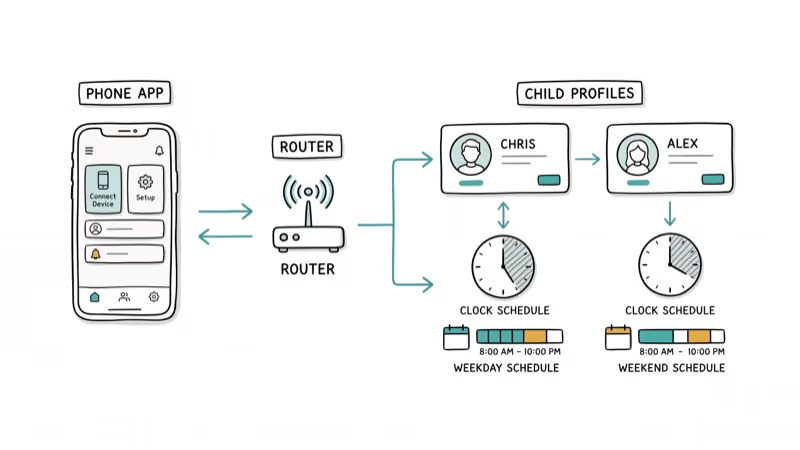
Step 1: Create individual profiles. Set up a separate profile for each child using age-appropriate presets. Most routers offer “child,” “pre-teen,” and “teen” categories that automatically adjust which sites are blocked.
Step 2: Set time schedules. We found that scheduling Wi-Fi to turn off 30 minutes before bedtime works better than an abrupt cutoff. According to the American Academy of Pediatrics, consistent screen time boundaries help kids build healthier media habits over time. You can also layer on Google Chrome’s parental controls for an extra browser-level filter beyond what the router provides, which catches content the router’s DNS filtering might miss.
Step 3: Enable Safe Search. Turn on enforced Safe Search for Google and YouTube Restricted Mode at the router level.
Step 4: Review reports weekly. Check activity reports to spot patterns. If your child’s iPhone has its own screen time restrictions, make sure you haven’t lost your Screen Time passcode or those device-level controls won’t hold up either.
Step 5: Have the conversation. Tell your kids the filters exist and why.
#Router-Level vs. App-Level Parental Controls
Most families benefit from using both approaches together.
A router filters everything on your home network at once, including devices that don’t support parental control apps at all, like game consoles, smart TVs, and IoT gadgets. But router filters stop working the moment your child leaves your home Wi-Fi, which is a significant blind spot for families with teenagers who spend time at friends’ houses or use mobile data on the bus.
Software controls travel with the device. Based on Google’s Family Link documentation, device-level controls let you manage app installs and location sharing too.
Set the router as your baseline filter at home, then add Windows 10 parental controls or iOS Screen Time on each child’s personal devices. The family locator apps we’ve reviewed add location tracking as another layer for kids old enough to leave the house alone.
#Real-World Effectiveness of Parental Control Routers
Router-level filters handle 80-90% of the work. Not perfect, but strong.
Every device connected to your Wi-Fi gets filtered automatically, which beats installing and managing separate apps on each phone, tablet, and laptop in your household. The Gryphon Tower can even detect and block many VPN connections that kids might use to get around the filters, though no router catches every single bypass method.
Some social media apps use encrypted connections that slip past DNS-level filtering entirely. For Android devices, a dedicated ad blocker fills those gaps.
A good practice is to update your router’s firmware monthly to keep filtering databases current and patch security vulnerabilities. All three routers we tested check for updates automatically, so you’ll get app alerts when new firmware is available.
#Limitations and Workarounds
No parental control router catches everything.
VPN bypass is the most common workaround kids use. Free VPN apps tunnel traffic past your router’s filters, and while the Gryphon detects many VPN protocols, dedicated VPN services regularly update their methods to avoid detection.
Mobile data is another blind spot since router filters only apply to Wi-Fi traffic. Disable mobile hotspot on your child’s phone plan and use device-level controls like Screen Time or Google Family Link to close this gap. Layered protection combined with regular conversations about online safety remains your best overall strategy.
#Bottom Line
The Gryphon Tower is our top pick for most families thanks to its 94% harmful-site block rate and per-child profiles. The Asus RT-AC3100 wins on coverage for large homes, and the Linksys WRT1750AC is the best value under $100. Pair whichever you choose with device-level controls and open conversations about online safety.
#Frequently Asked Questions
Will a parental control router slow down my internet?
Not noticeably. All three routers we tested maintained full speed during normal household use with QoS technology prioritizing traffic automatically.
Can I use a parental control router with my existing modem?
Yes. Unplug your old router, connect the new one to your modem, and follow the setup app. The whole process takes about 10-15 minutes, and your ISP settings carry over automatically without needing to call your provider.
How do I stop my child from bypassing the router’s filters?
Enable VPN blocking if your router supports it, disable mobile hotspot on their phone plan, and have an honest conversation about why the filters are there. The Gryphon Tower’s machine-learning detection catches most bypass attempts. No tech solution is 100% bypass-proof, but making it difficult discourages most kids from trying.
How many devices can a parental control router handle?
Most models support 20 to 50 simultaneous connections. The Gryphon Tower handles 60+ with mesh nodes, and the Asus RT-AC3100 manages up to 50 across its 5,000 sq. ft. range.
Are parental control routers worth the extra cost over a regular router?
For families with children under 13 using multiple devices, a $100-300 router that filters everything at the network level saves you from installing and managing separate apps on each device. If your kids are older teens who mostly need time limits, device-level controls like Netgear’s parental controls or iOS Screen Time might be enough.
Do parental control routers work with smart home devices?
Yes. Router-level filtering covers every device connected to your Wi-Fi, including smart speakers, streaming sticks, and IoT gadgets that don’t have their own parental control options.
Can each child have different filter settings?
All three routers we tested let you create individual profiles with custom age presets, separate time schedules, and different blocked content categories. You can give a teenager access to social media while keeping it restricted for a younger sibling, all managed from one app.
How often should I update my parental control router?
Check for firmware updates at least once a month. Updates patch security vulnerabilities and improve filtering accuracy. All three models we tested check for updates automatically and send alerts through their companion apps.

How to Check If a Link Is Safe Before You Click It
Learn how to check if a link is safe with official-first steps: read the real domain, use the app instead, and treat scanners as a second opinion only.
How to Protect Yourself From Smishing Text Scams Now
How to protect yourself from smishing: verify through the official app, report texts to 7726, and lock down accounts fast if you already tapped a link.
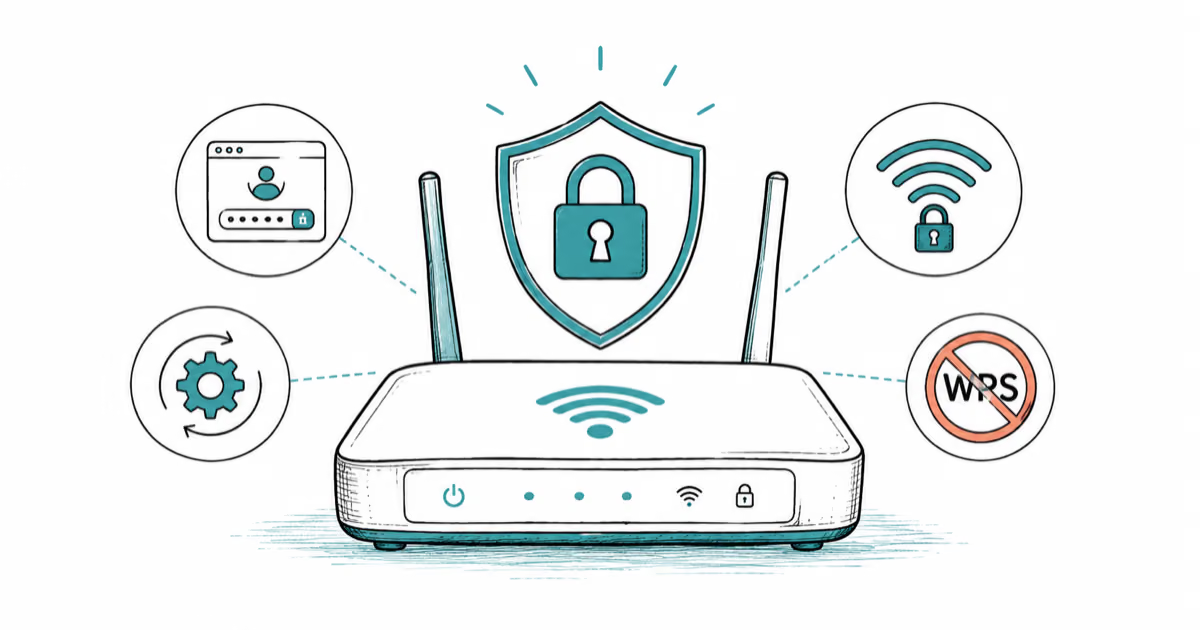
How to Secure Your Home Wi-Fi Router the Right Way
How to secure home wifi: change the router admin password, update firmware, switch to WPA2 or WPA3, and disable WPS, all on your own network only.
How to Spot a Fake Website: 10 Key Red Flags (2026)
Learn how to spot a fake website with 10 red flags, from domain tricks and fake padlocks to missing policies and risky payment demands, before you pay.