Google Chrome Parental Controls: Setup Guide (2026)
Set up Chrome parental controls using Google Family Link, SafeSearch, extensions, and supervised accounts. Free step-by-step guide for parents.
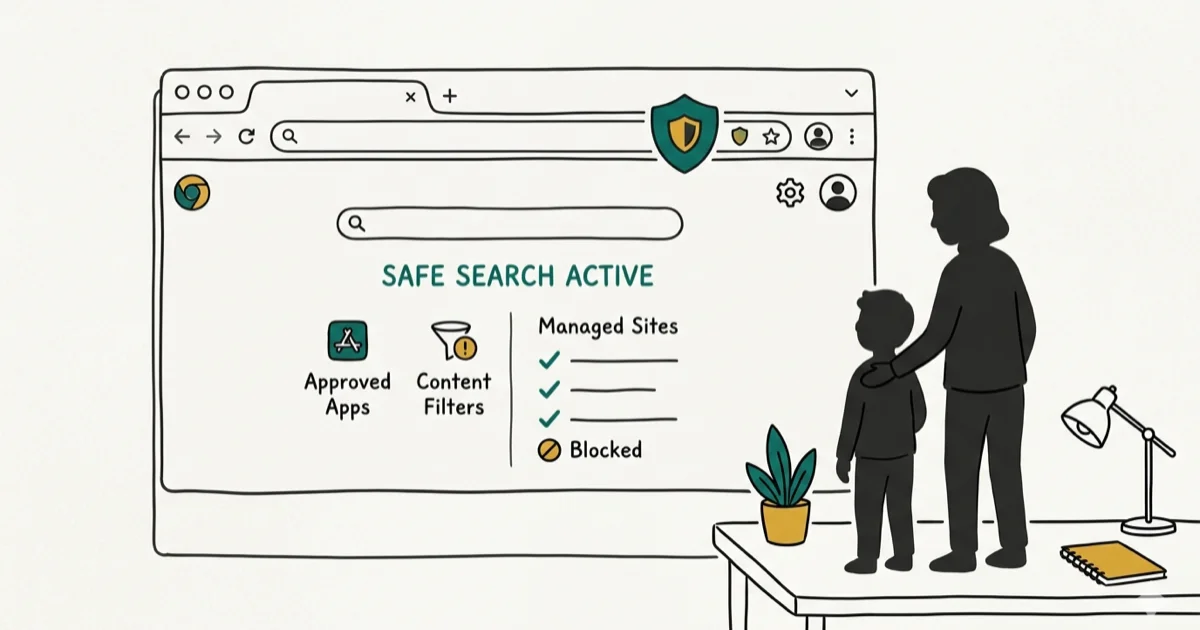
Quick AnswerSet up a supervised Google account through Family Link, then go to Controls > Content restrictions > Google Chrome and select Try to block mature sites. Family Link also locks SafeSearch, disables Incognito Mode, and lets you approve or block every site and app from your phone.
Google Chrome is the default browser on Android, Chromebooks, and millions of desktops, which makes it one of the most important apps to lock down on your child’s devices. The controls below cover supervised Google accounts, Chrome settings, extensions, and network-level filters.
Using these methods on devices or accounts you don’t own may violate applicable laws and platform terms.
- Google Family Link filters Chrome content, locks SafeSearch, and disables Incognito Mode for free
- Supervised accounts under 13 can’t remove parental controls without parent approval
- Chrome extensions like BlockSite add website blocking on desktop browsers
- Family Link’s web filter applies only to Chrome, so block alternative browser installations too
- DNS filtering with CleanBrowsing catches requests that bypass Chrome’s filter across all apps
#How Does Family Link Control Chrome?
Google Family Link is the most powerful free tool for managing Chrome. It integrates directly into the browser on supervised accounts and gives you remote control from your own phone.
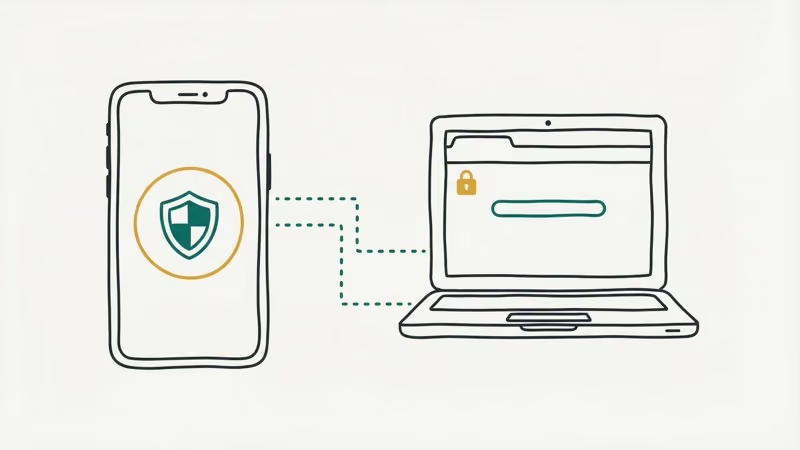
Set up a supervised Google account for your child at families.google.com. On your child’s device, sign in with that account and Family Link supervision activates automatically. Then open the Family Link app on your phone, select your child’s profile, and go to Controls > Content restrictions > Google Chrome.
You get three filtering levels. Allow all sites applies no filtering. Try to block mature sites activates Google’s blocklist for known adult content. Only allow approved sites restricts browsing to a whitelist you create, which is the safest option for younger kids.
According to Google’s Family Link documentation, the web filter applies only to Chrome, so block alternative browser installations under Controls > Content restrictions > Google Play.
#SafeSearch and Incognito Mode
Family Link automatically locks Google SafeSearch to its strictest setting on supervised accounts. Your child can’t disable SafeSearch or change the filter level. Google’s SafeSearch documentation confirms this lock applies across all signed-in devices tied to the supervised account.
Incognito Mode is also automatically disabled for supervised accounts, which prevents your child from browsing without history being recorded.
#Setting Up Chrome Extensions for Desktop
On desktop computers where Family Link isn’t available or you want extra filtering, Chrome extensions add website blocking directly to the browser.

BlockSite lets you add specific URLs or entire domains to a blocklist. When your child visits a blocked site, they see a blocked page instead. Set a password in the extension settings to prevent them from disabling it. The free version handles basic blocking.
uBlock Origin is primarily an ad blocker but can block adult content categories too. Enable the “Fanboy’s Adult/Dating” filter list in its settings.
For a dedicated parental control extension, Limit restricts Chrome to a whitelist of approved sites and provides a management dashboard. It’s designed specifically for parents who want tight control without installing full device management software. Our guide on blocking adult websites in Chrome covers extension-based solutions in more detail.
#How Do You Set Screen Time Limits for Chrome?
Family Link lets you cap how long your child uses Chrome and when they can browse.
Go to Controls > App Limits in the Family Link app, find Chrome, and set a daily time limit. When the timer runs out, Chrome locks and your child can’t open it until the next day. You can also set device-wide daily limits under Controls > Screen Time with different limits for school days and weekends.
Configure Bedtime under Screen Time to lock the device during sleeping hours. When bedtime hits, the device locks and only emergency calls work. Your child can request bonus time, which you approve or deny from your phone.
These limits apply to the device, not just Chrome. If you want to restrict browsing while allowing other apps like educational games or music, set a Chrome-specific limit under App Limits instead of using the device-wide cap. For Samsung devices specifically, our Samsung parental controls guide covers how Digital Wellbeing integrates with these limits.
#Monitoring Browsing History
Reviewing your child’s browsing history helps you spot concerning patterns early.
On the device, open Chrome and press Ctrl+H (desktop) or tap Menu > History (mobile). This shows a chronological list of all websites visited. Family Link also provides weekly activity reports sent to your email, showing which apps were used, how much time was spent in Chrome, and which sites were visited on supervised accounts.
Since Incognito Mode is disabled on supervised accounts, your child can’t browse without history being recorded. According to Google’s Activity Controls page, web and app activity for supervised accounts is visible to parents through Family Link’s activity reports.
If your child uses a school-issued Chromebook with a separate account, those browsing sessions won’t appear in Family Link’s reports. Ask the school about their filtering and monitoring setup for those devices.
#Chrome Controls on Chromebooks
Chromebooks use Chrome as both browser and OS, so Family Link restrictions cover everything.
On managed Chromebooks, you can also restrict which Chrome apps and extensions get installed. Go to Controls > Content restrictions > Google Play and block any extension categories you don’t want. School-issued Chromebooks typically use their own admin policies, so check with the school’s IT department about what’s already filtered on those devices.
#Adding DNS Filtering for Full Coverage
DNS filtering can add another layer of coverage for apps and browsers outside Chrome.

On Android, go to Settings > Network & internet > Private DNS (Samsung: Connections > More connection settings > Private DNS), select Private DNS provider hostname, and enter family-filter-dns.cleanbrowsing.org. CleanBrowsing’s filter documentation confirms that their family filter blocks adult content at the DNS level before any app can load it.
For home Wi-Fi, change your router’s DNS to CleanBrowsing (185.228.168.168) or OpenDNS Family Shield (208.67.222.123) to cover every device. A parental control router adds per-device scheduling, and our guide on blocking inappropriate websites on phones covers DNS filtering in detail.
#Bottom Line
Set up a supervised Google account through Family Link for free Chrome filtering, SafeSearch locking, and Incognito Mode blocking. Add Chrome extensions on desktops for extra site blocking, and configure Private DNS with CleanBrowsing for network-level protection across all apps. That three-layer approach covers the vast majority of what kids encounter online. Review Family Link’s weekly activity reports and adjust restrictions as your child demonstrates responsible browsing habits.
#Frequently Asked Questions
Do Chrome parental controls work on iPhones?
Family Link’s Chrome filtering works on Android and Chromebooks. On iPhones, Chrome uses Apple’s WebKit engine and is covered by Screen Time’s web content filter instead. Screen Time’s “Limit Adult Websites” setting protects Chrome, Safari, and all other iOS browsers. For how to turn off or manage SafeSearch on iPhone, see our dedicated guide.
Can my child use Incognito Mode to bypass monitoring?
Not on a supervised account. Family Link disables Incognito Mode automatically.
Will Chrome extensions slow down browsing?
Most have minimal impact. uBlock Origin actually speeds up browsing by blocking ads and trackers.
Can I set different Chrome restrictions for school days vs. weekends?
Yes. Family Link lets you set different daily screen time limits for each day of the week. You can allow more Chrome time on weekends and restrict it during school hours. Bedtime schedules can also differ between school nights and weekends.
What happens if my child installs a different browser?
If you’ve set up Play Store restrictions through Family Link, your child can’t install alternative browsers without your approval, and managed Chromebook accounts can’t install unapproved apps at all.
How do I block YouTube in Chrome?
Add youtube.com to Family Link’s blocked sites list, or use BlockSite to block the domain on desktop. Family Link also has YouTube-specific controls including Restricted Mode and content rating limits, and for younger kids switching to YouTube Kids is the most effective approach since it offers a fully curated library without access to the main YouTube platform.
Can a tech-savvy teen bypass Chrome parental controls?
The most common bypass methods are Incognito Mode (blocked by Family Link), installing a different browser (blocked by app restrictions), and using a VPN (block VPN apps through Family Link). For supervised accounts under 13, Family Link is particularly difficult to circumvent. Teens 13+ can choose to remove supervision, but this notifies you and locks their device temporarily.
Is Family Link available for Chromebooks?
Yes. Sign in with a supervised Google account and all Family Link restrictions apply automatically.

Apps Crashing After iOS 27 Update? Fix Order (2026)
Apps crashing after the iOS 27 update? Update the app in the App Store first, then offload and reinstall to clear stale cache, then restart. The fix order.

Do AI Translation Earbuds Work Offline? What to Know
Do AI translation earbuds work offline? A few do with downloaded language packs, but most need the cloud. Here's what works offline and what you give up.

How to Set Up Translation Earbuds (Pairing and Modes)
How to set up translation earbuds: charge, install the app, pair over Bluetooth, pick two languages, and choose a mode. A step-by-step first-use guide.

Translation Earbuds Not Translating? How to Fix Them
Translation earbuds not translating? Usually it's the app, the internet, or the language settings. Here's how to fix pairing, sound, and lag fast.