Samsung Phone Overheating? 10 Fixes That Work (2026)
Samsung Galaxy overheating? Learn what's normal, cool it fast, find the rogue app with Safe Mode, and when heat means a hardware fault. 10 proven fixes.
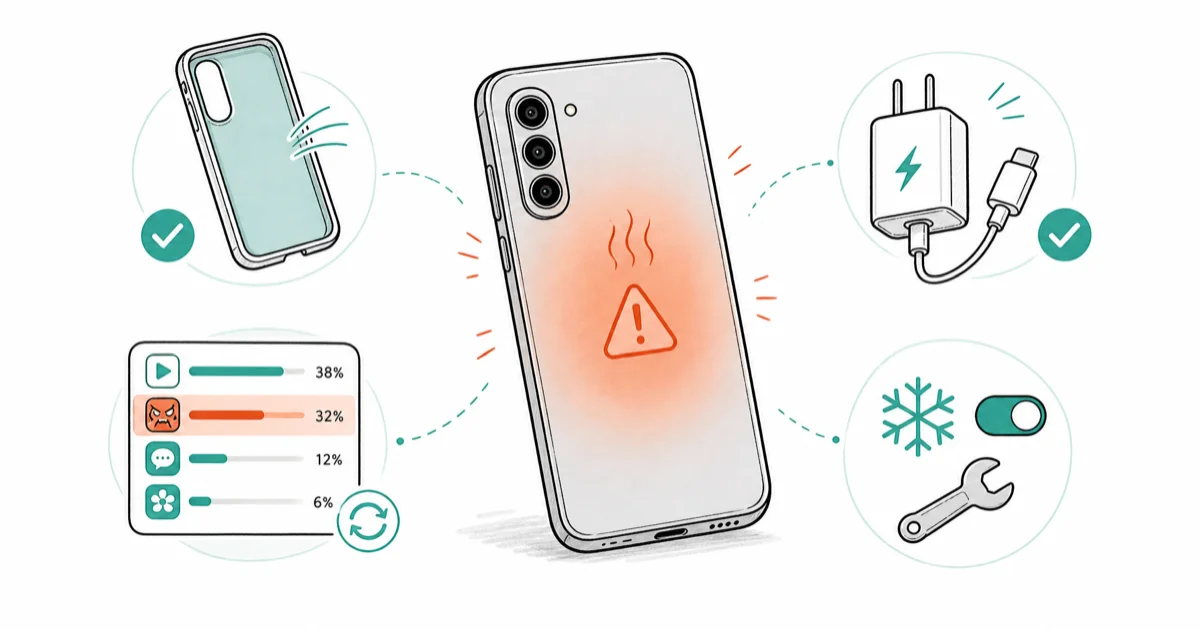
Quick AnswerA warm Samsung Galaxy while charging or gaming is usually normal. If it gets truly hot, take off the case, stop heavy apps, find the rogue app in Battery Usage, and use a certified charger. Idle heat or a swollen battery means a hardware fault.
Samsung phone overheating is one of the most common Galaxy complaints, and most of the time it isn’t a defect. A warm back panel during charging, gaming, or a long video call is expected. The hard part is telling normal warmth apart from a real fault, and knowing which fix actually cools the phone without harming the battery.
This guide assumes the Galaxy is a device you own.
- Samsung lists a normal ambient operating range of 32 to 95 degrees Fahrenheit, so warmth inside that band isn’t a fault
Open Settings>Battery>Battery Usage andtreat any single app above 30 percent as your prime suspect- Safe Mode loads only system apps, so if the heat stops there, a downloaded app is the cause
- Never cool a hot phone in a fridge, freezer, or under cold water, because condensation can short the internals
- Idle overheating after every fix, or a back panel that bulges, points to a failing battery and a Samsung service visit
#Why Is Your Samsung Phone Overheating?
Heat is a byproduct of work. When the processor, modem, and screen run hard at once, the phone warms up, and a Galaxy is built to handle that. According to Samsung’s device temperature support page, the normal range is 32 to 95 degrees Fahrenheit, and the phone throttles before it reaches a damaging level.
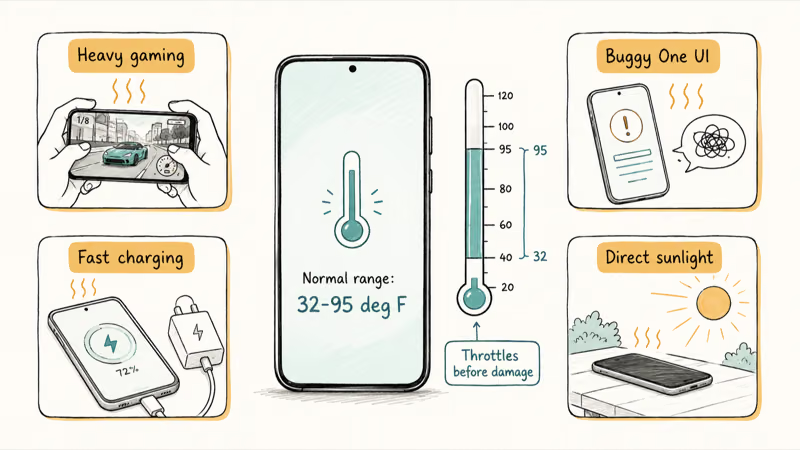
The usual causes are heavy gaming, charging with a non-certified adapter, a software bug from a recent One UI build, a rogue background app, and direct sunlight.
A Galaxy that runs a heavy game for half an hour with the case on can climb to clearly hot, then drop within minutes once you close the game and take the case off. That pattern is normal. The same Samsung guidance states that 95 degrees Fahrenheit is the top of the normal ambient range, so heat at idle, with nothing running, is the pattern to worry about.
The single most useful clue is timing. Heat tied to an activity is usually fine. Heat with no obvious trigger is the one to chase down. If the phone is also dying quickly, our guide to Android system battery drain covers the overlap between heat and power loss.
#Cool It Down Fast Without Damaging the Battery
Start by removing whatever traps the heat. Take off the case and stop any heavy app, game, or recording.
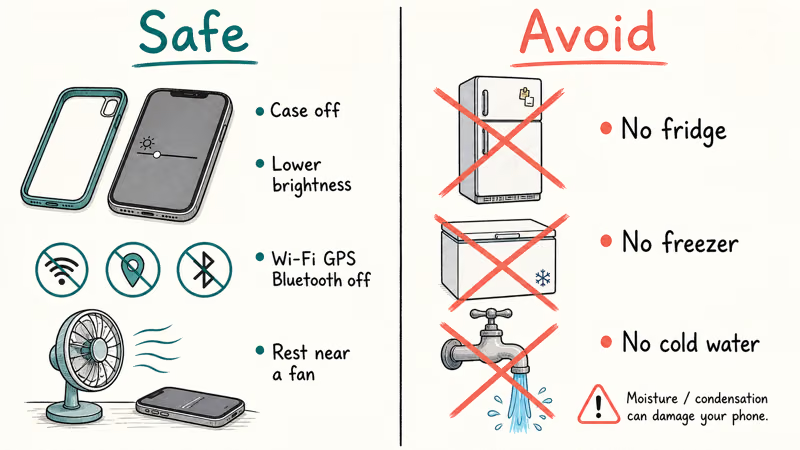
Samsung’s overheating support article recommends restarting the device, lowering brightness, and disabling Wi-Fi, GPS, and Bluetooth when they aren’t needed, then letting the phone rest. Move it out of sunlight too. A fan or air-conditioned room speeds the cooldown safely.
What you must not do is force the cooling. Never use a fridge, freezer, or cold water. The sudden swing creates condensation inside the chassis, and as a Wikipedia overview of lithium-ion batteries explains, those cells are sensitive to moisture and temperature extremes.
#Find the Rogue App With Battery Usage and Safe Mode
If the heat keeps coming back without heavy use, a misbehaving app is the likely cause. Go to Settings > Battery > Battery Usage to see which apps consumed the most power recently. Any single app above 30 percent when you haven’t used it heavily is a suspect. Put unused apps to sleep, or force-stop the suspect and watch whether the heat returns.
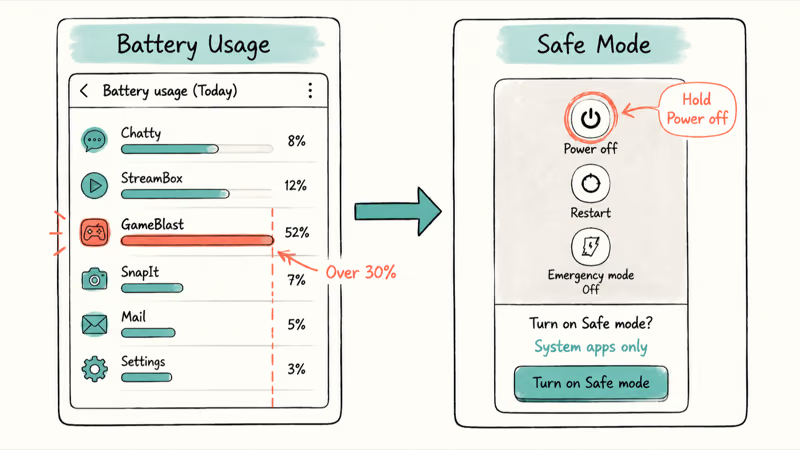
To confirm a downloaded app is the culprit, boot into Safe Mode. It loads only the apps that shipped with the phone.
Press and hold the power button, then touch and hold the Power off icon until the Safe Mode prompt appears, and tap it.
If the phone runs cool in Safe Mode, a downloaded app is causing the heat, so restart normally and uninstall recent installs one at a time. If it still overheats in Safe Mode, the cause is system-level, and a stuck system process like android.process.acore can be part of the picture. When the heat traces back to a single misbehaving app, our notes on an Android app that keeps crashing cover the same uninstall-and-retest logic.
#Fix Charging Heat With a Certified Adapter
Charging generates heat by nature, and fast charging generates more. A modest warmth is normal. A scorching phone during charging often comes down to the charger. Use a genuine Samsung adapter, or a reputable USB-C cable made for fast charging a Samsung phone, rather than a no-name brick that can’t regulate voltage cleanly.
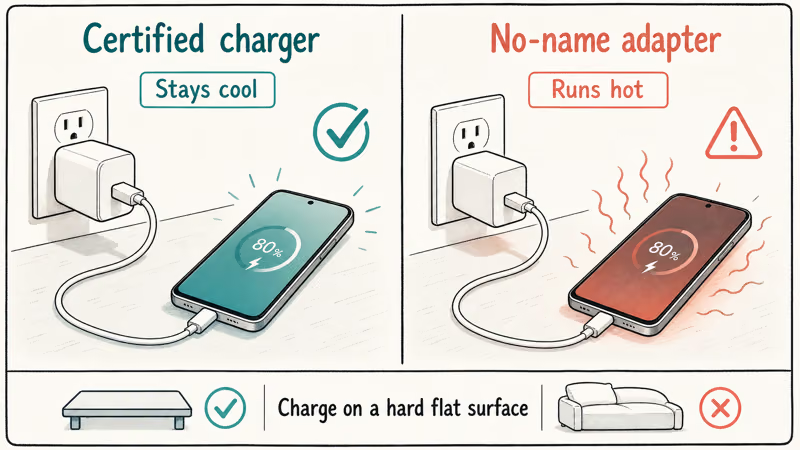
Avoid gaming or streaming while it charges, because you’re then heating it from both the screen and the battery at once. A Galaxy runs noticeably hotter when it charges with a heavy app open than when it charges with the screen off.
Charge on a hard, flat surface rather than a bed or sofa, where soft material blocks airflow and traps heat against the phone.
#Turn Off 5G on WiFi, Lower Refresh Rate, and Update One UI
Several settings quietly raise the temperature. Leaving 5G active on Wi-Fi keeps the modem hunting for a signal it doesn’t need, which adds heat. In Settings > Connections > Mobile networks > Network mode, an LTE-preferred mode while you’re mostly on Wi-Fi can help.
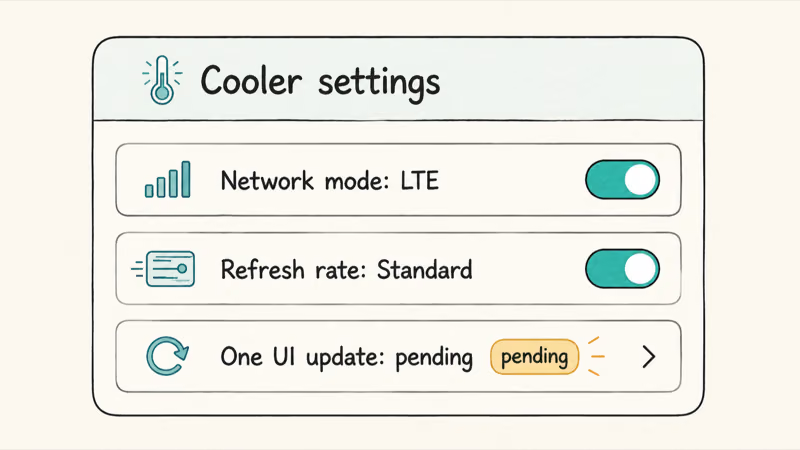
The high refresh-rate display also draws power. Switching from Adaptive to Standard refresh rate in Settings > Display > Motion smoothness cuts the screen’s heat output, as does lowering brightness.
Software is the part people overlook. Samsung recommends keeping the phone on the latest software, since a buggy early One UI build is a frequent overheating cause on newer Galaxy models and a fix usually ships in a later update. Go to Settings > Software update > Download and install and apply anything pending. An update is often the real fix, not any single toggle, so check it before you start a factory reset.
#Should You Clear the System Cache Partition?
When overheating persists after the app and charging checks, clearing the system cache partition is a safe, deeper step. It wipes temporary system files that can become corrupt and cause runaway background processes. It does not delete your photos, messages, apps, or any personal data, much like a routine cache and history clear on Android.
Power off the phone, then connect it to a PC with a USB cable. Press and hold Volume Up and the Side button together until the Android recovery menu appears. Highlight Wipe cache partition with the volume keys, press the Side button to select, confirm, then choose Reboot system now.
If the heat improves after a cache wipe but later returns, an app is likely re-corrupting the cache, which points you back to the Safe Mode test. A cache wipe resets symptoms, but it isn’t always a cure.
#Bottom Line
Some warmth while charging or gaming is normal. Don’t panic at the first warm panel. If the phone is truly hot, remove the case, stop heavy apps, and never use a fridge or cold water.
Open Battery Usage and treat any app above 30 percent as a suspect, then use Safe Mode to confirm a rogue app. Switch to a Samsung-certified charger and update One UI. If the phone still runs hot at idle, or the battery looks swollen, stop using it and contact Samsung, because that’s a hardware fault, not a settings problem.
#Frequently Asked Questions
Is it normal for my Samsung phone to get warm while charging?
Yes. Charging moves energy into the battery, and that produces heat, so a warm phone during a charge is expected. Fast charging runs warmer still. It only becomes a worry if the phone gets too hot to hold.
What temperature is too hot for a Galaxy phone?
Samsung lists a normal ambient operating range of 32 to 95 degrees Fahrenheit. The phone itself warms above that during heavy use, but it’s built to throttle performance and show a warning before it reaches a damaging level. If you see a temperature warning telling you the phone must cool down, take it seriously and let it rest.
Can I cool my phone in the fridge?
No, never do this. Rapid cooling forms condensation inside the phone, and that moisture can short the board. Take off the case and let it cool naturally instead.
Why does my Samsung overheat only when using 5G on WiFi?
When 5G is on but you’re on Wi-Fi, the modem can keep hunting for a 5G signal it doesn’t need, which adds steady background heat. Switching to an LTE-preferred network mode while you’re mostly on Wi-Fi often calms that activity down.
Does clearing the cache partition delete my photos?
No. Wiping the cache partition only clears temporary system files the phone rebuilds on its own. Your photos, messages, contacts, apps, and settings are stored separately and aren’t touched. It’s one of the safest deep troubleshooting steps you can take, well short of a factory reset.
Could overheating be a battery or hardware problem?
It can. If the phone runs hot at idle after you’ve ruled out apps, chargers, and software, or if the back panel bulges or the battery looks swollen, that’s a hardware fault. Stop using and stop charging the phone, and contact Samsung support or an authorized service center, because a swollen battery is a safety risk no setting will fix.

Pixel 11 vs Pixel 10: What Changed and Who Should Upgrade
Pixel 11 vs Pixel 10: same screen and camera resolution, new Tensor G6, 25W wireless, and Gemini Intelligence. Here is who should actually upgrade.

Verizon Not Receiving Texts? How to Fix It in 9 Steps
Verizon not receiving texts? Fix it in 9 steps: check Message Blocking in My Verizon, reset network settings, deregister iMessage, and call support.

Pixel Battery Drain: What Google's July Fix Really Covers
Google marked the Pixel idle battery drain bug fixed in July, but only some phones got the patch. Here is who is covered, who is not, and what to try.

iPhone Stuck on EDGE? How to Get 5G or LTE Back (2026)
iPhone stuck on EDGE with crawling data? Here's why the E icon appears, which settings force 5G or LTE back, and when the problem is your carrier.