iPhone Not Receiving Verification Codes? 8 Real Fixes
iPhone not receiving verification codes? Separate Apple Account codes from carrier SMS short codes, then check filtering, blocking, and trusted numbers.
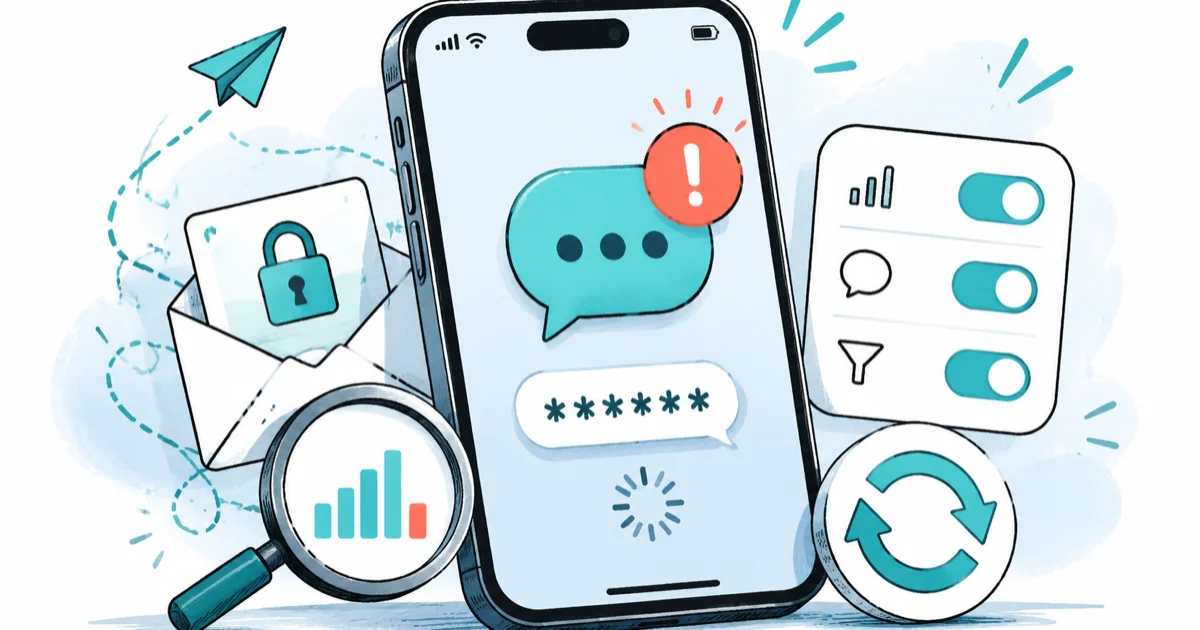
Quick AnswerFirst send and receive a normal text to prove SMS works at all. Then check Blocked Contacts and message filtering. Apple Account codes come through trusted devices and trusted phone numbers, while app and bank short codes usually need the carrier to re-enable them.
iPhone not receiving verification codes is two different problems wearing the same costume, and treating them as one is why so many fixes fail. Apple Account two-factor codes travel one path, while the SMS short codes from your bank or an app travel another. On your own iPhone and your own accounts, the first move is to figure out which path is broken, because the fix for each is completely different.
- Apple Account codes appear automatically on your trusted devices and through trusted phone numbers, separate from regular SMS
- Bank and app codes arrive as carrier SMS short codes, which can be blocked at the carrier level even when normal texting works
- Sending and receiving a plain text first proves whether SMS delivery works at all before you blame any single code
- Blocked Contacts, message filtering, and Focus modes can silently hide incoming codes without any error
- Account recovery and backup codes are the safe official fallbacks, not third-party forwarding or recovery services
#Why Is Your iPhone Not Receiving Verification Codes?
Missing codes split into two clean categories, and you have to know which one you’re chasing.
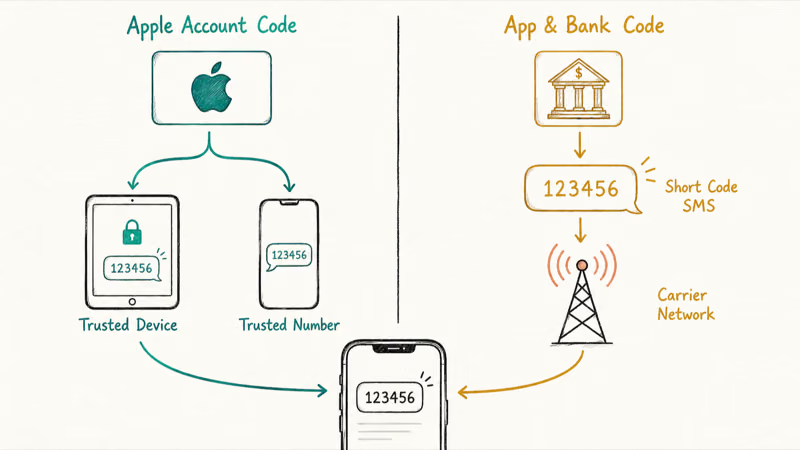
Apple Account codes are tied to two-factor authentication for your Apple ID. They surface automatically on devices already signed into your account and can be sent as a text or call to a trusted phone number. App and bank codes are ordinary SMS messages from short codes, the 5- or 6-digit sender numbers many services use. These ride your carrier’s regular SMS path, which means a carrier-side block or filter can stop them even while texts from friends arrive normally.
These two paths can fail independently. An Apple Account code may still appear on a trusted device while a bank’s short-code text is blocked upstream, so naming the category first prevents a pointless network reset.
According to Apple’s two-factor authentication page, “the verification code is displayed automatically on your trusted devices” when you sign in, and you can also receive it as a text message or phone call from Apple. Apple confirms that filtering Unknown Senders can hide these codes, which is exactly why the message-filtering check below matters so much.
#Check Signal, SMS Filtering, and Blocked Contacts
Before anything fancy, prove your iPhone can send and receive a normal text.
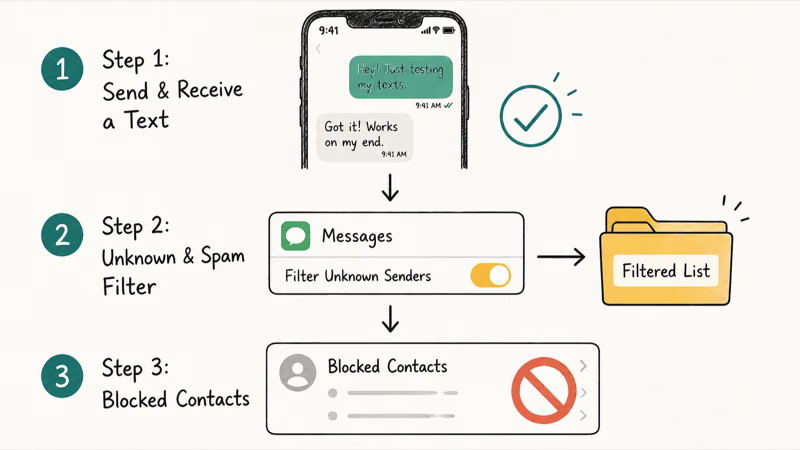
Text a friend and have them reply. If that round trip works, basic SMS is healthy, and your missing codes are being blocked or filtered somewhere specific. If the round trip fails, you have a signal or carrier problem first, and the same connectivity gaps that break iPhone Personal Hotspot are worth ruling out. Toggle Airplane Mode on and off, confirm you have bars, and check that you’re not in a dead zone.
Next, check the two places codes hide. Go to Settings > Apps > Messages > Unknown & Spam and see whether filtering is on; if it’s enabled, codes from short codes can land in a separate Filtered list you never open. Then check Settings > Phone > Blocked Contacts and Settings > Apps > Messages > Blocked Contacts to confirm you haven’t accidentally blocked the sender.
Apple’s guide on blocking and filtering messages confirms that filtered texts move to a separate list rather than your main inbox, which is why a code can look “missing” when it actually arrived.
#Confirm the Trusted Phone Number for Apple Account Codes
For Apple ID codes specifically, the trusted phone number on file has to match the number you can actually receive on.
Go to Settings > [your name] > Sign-In & Security > Two-Factor Authentication and check the trusted phone numbers listed. If an old number is still listed, or your current number isn’t, Apple will send codes to a phone you can’t reach. Add your current number and remove any you no longer control. Apple lets you register more than one trusted number, which is smart insurance if you switch SIMs often.
If you have another Apple device signed into the same account, the code should appear there as a notification regardless of SMS. This is the cleanest path, since it skips the carrier entirely. When the on-screen prompt keeps failing, the broader steps for Apple ID verification walk through the full trusted-device flow. A device you no longer own should be removed from your account so its codes don’t get stranded.
#What If Bank or App Short Codes Still Do Not Arrive?
When normal texts work and Apple codes work, but a bank or app code never comes, the carrier is almost always the cause.
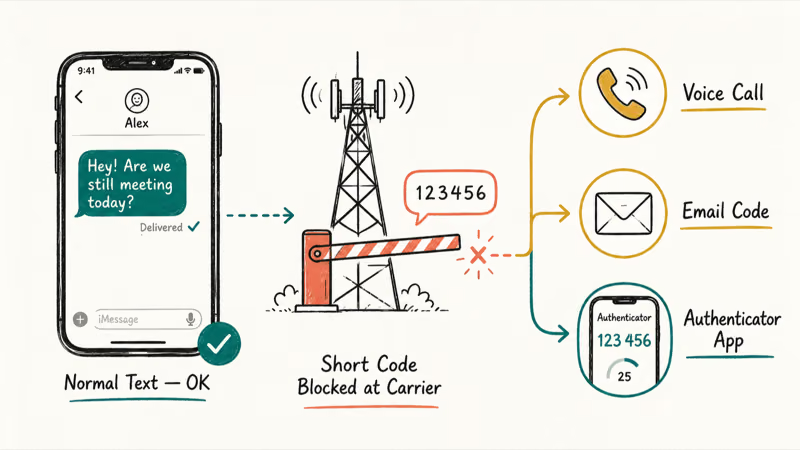
Carriers maintain short-code delivery as a separate service, and they sometimes disable it on a line, especially after a recent plan change, port, or fraud flag. Contact your carrier and ask them specifically to confirm that SMS short-code messaging is enabled on your number. This is a known issue that no setting on your iPhone can override, because the block sits upstream of your device entirely.
In the meantime, most banks and apps offer an alternate delivery method. Use the service’s “didn’t get a code?” link to request a voice call, an email code, or a code through an authenticator app instead. Switching one critical login to a dedicated 2FA authenticator app sidesteps SMS short codes completely and is more reliable for the long term. Don’t be tempted by third-party “code forwarding” services, since they’re a security risk and never an official path.
#Reset Network Settings Only After Carrier Checks
Reset Network Settings sits near the bottom of the ladder, useful only after the carrier and filtering checks come up empty.
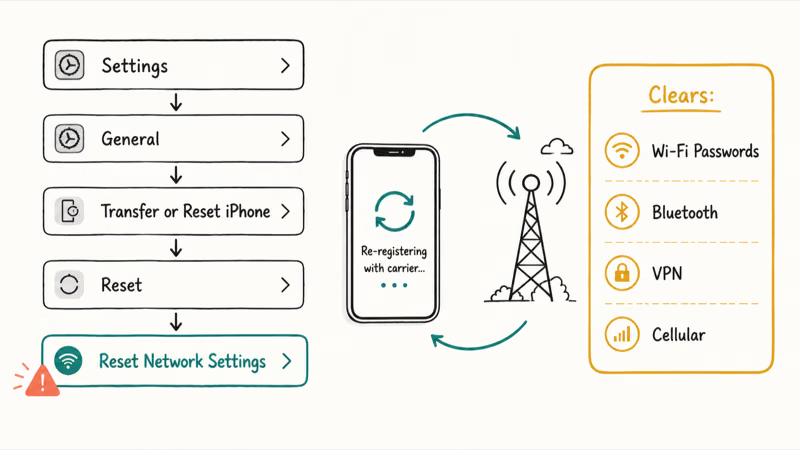
Go to Settings > General > Transfer or Reset iPhone > Reset > Reset Network Settings. This clears Wi-Fi passwords, Bluetooth pairings, VPN configs, and cellular settings, then forces your phone to re-register with the carrier’s network. It can clear a stale cellular registration that’s quietly dropping incoming messages. Be aware you’ll have to re-enter every saved Wi-Fi password afterward, which is the trade-off for a clean network slate.
If a recent SIM or eSIM change preceded the trouble, the reset is more likely to help, since the phone may still be holding old carrier provisioning. The same “verification failed” wall has its own targeted steps when you hit a verification failed error on iPhone during setup or sign-in. Reset network settings once, retry the code, and move on if it doesn’t resolve it.
#Use Backup Codes or Account Recovery Safely
If you truly can’t receive any code, the official recovery paths exist for exactly this situation, and they keep your account secure while you regain access.
For Apple ID, use account recovery through Apple’s official process when no trusted device or number is reachable. Apple’s account recovery page walks through requesting recovery and the built-in waiting period that protects your account from someone else triggering it.
For banks and apps, the backup or recovery codes you saved at setup are the intended fallback, which is why generating and storing them matters. If you can retrieve an iCloud security code through Apple’s flow, that’s another legitimate route in.
Stick to official recovery only. Unofficial recovery services, SIM-swap tricks, and code-forwarding tools are exactly the methods attackers use, and they put your own account at risk.
The slower official path is the safe one, built to confirm you’re the real owner. If your account is already locked, the steps to handle a locked Apple ID cover that specific state.
#Bottom Line
Start with the simplest proof: send and receive a normal text. Then check Blocked Contacts and message filtering before you touch account recovery. Handle Apple Account codes through trusted devices and numbers, and treat missing bank or app short codes as a carrier issue to escalate. When codes won’t come, use official backup codes and account recovery, never unofficial forwarding tools.
#Frequently Asked Questions
Why is my iPhone not receiving verification codes?
Either your Apple Account trusted number is outdated, message filtering is hiding the code in a separate Filtered list, or your carrier has disabled SMS short-code delivery on your line. Sending a normal text first tells you whether basic SMS even works, which is the single fastest way to split an Apple problem from a carrier problem before you change anything.
What should I check first?
Send and receive a plain text message to prove basic SMS works at all.
Can an iOS update cause missing codes?
Indirectly, yes. A major update or a SIM change can leave your cellular registration stale, which delays incoming messages. Reset Network Settings re-registers your phone with the carrier and often clears that specific kind of delay, especially right after you swap a SIM or eSIM.
Will resetting settings delete my data?
No. Reset Network Settings only clears saved Wi-Fi passwords and cellular configs, leaving your photos, messages, and apps untouched.
When should I contact official support?
Contact your carrier if bank or app short codes never arrive while normal texts work, since that block sits upstream of your phone and no setting can override it. Contact Apple if you can’t receive Apple ID codes on any trusted device or number and need official account recovery rather than a third-party service.
How do I keep this from happening again?
Keep your trusted phone number current and move critical logins to an authenticator app instead of SMS.

Apple Siri Settlement: Who Qualifies and How to Claim
Apple's $250 million Siri settlement covers iPhone 15 Pro and iPhone 16 models bought June 2024 to March 2025. See who qualifies and how claims work.

iOS 26.6.1 Security Update: What Apple Fixed and Who Gets It
Apple released iOS 26.6.1 on August 17 with 29 security fixes, including an IPSec interception bug. See what it patches, who gets it, and how to update.

iPhone Adaptive Power: How It Works and When to Use It
Learn how iPhone Adaptive Power works, which models support it, what it changes, and when Low Power Mode is still the better battery-saving choice.

How to Transfer Data to a New iPhone Without iCloud
Move everything to your new iPhone without iCloud: Quick Start device-to-device transfer, wired migration, and encrypted Finder or iTunes backups.