How to Scan Multiple Pages Into One PDF: iPhone, PC, Mac
Learn how to scan multiple pages into one PDF using iPhone Notes, Google Drive, Microsoft Lens, or your computer. Step-by-step methods for every device.
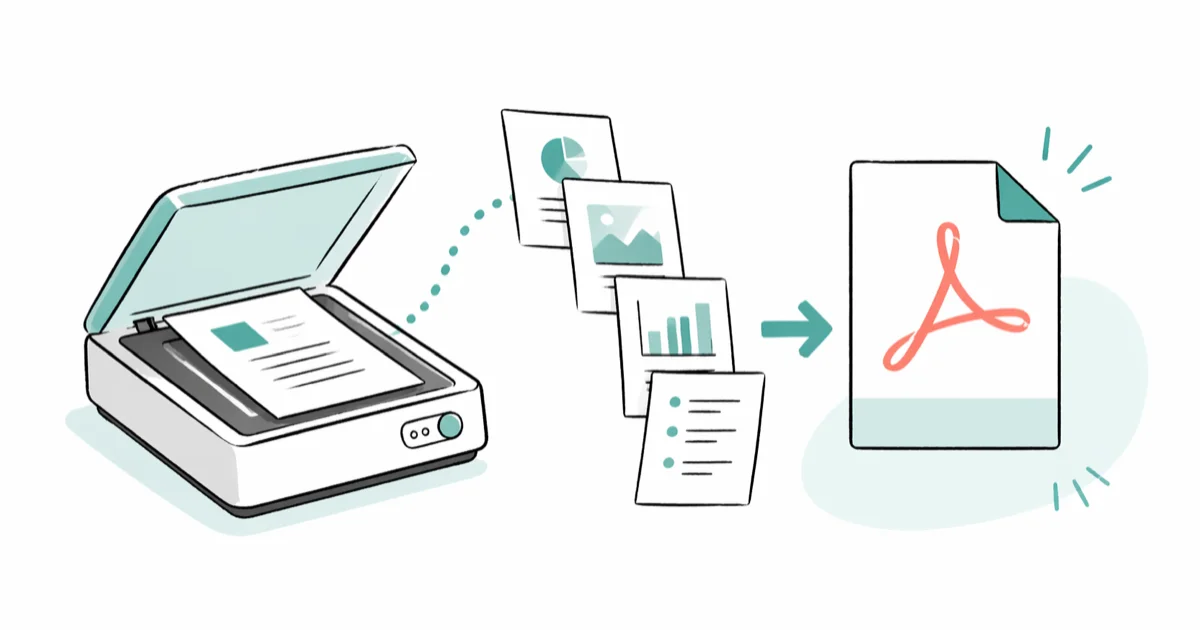
Quick AnswerOn iPhone or iPad, open Notes, tap the camera icon, choose Scan Documents, capture each page, then tap Save to export everything as a single PDF. On Windows or Mac, scan each page with your scanner app and merge the files using Adobe Acrobat, Preview, or PDFelement.
Learning how to scan multiple pages into one PDF saves you from emailing four separate JPEGs or rebuilding a tax return from a stack of receipts. Every modern phone and laptop has a built-in path that produces a single, searchable file.
- iPhone and iPad: the stock Notes app scans, auto-crops, and saves a multi-page PDF with no third-party app needed
- Android: Google Drive’s built-in scanner stores the file straight to your Drive account and recognizes color, grayscale, or black-and-white at capture time
- Windows 11: Microsoft Lens (free) handles phone-side capture, and Adobe Acrobat or PDFelement merges scanner output into one file on the desktop
- macOS: Preview’s Thumbnail sidebar lets you drag PDFs together visually, and the iPhone Continuity Camera sends scans directly into a Finder window
- Final file size for a five-page text document lands around 800 KB to 2.5 MB depending on color mode and resolution, with 200 to 300 DPI offering the best size-to-clarity balance
#How to Scan Multiple Pages Into One PDF on iPhone or iPad
The Notes app on iOS does this without any download. Open Notes, create or pick a note, tap the camera icon above the keyboard, then tap Scan Documents. Position the first page inside the yellow frame and the app captures automatically. After each shot, the next page is queued up. When you’ve captured the last sheet, tap Save in the corner and the file appears inside the note as a single multi-page PDF.
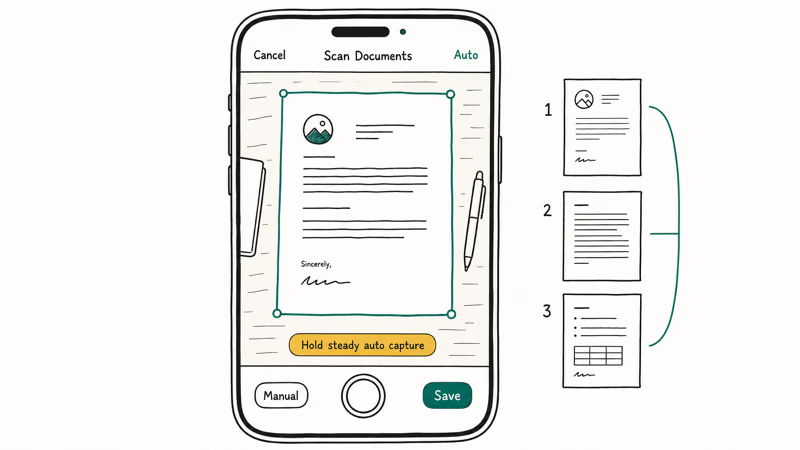
No app store install needed.
According to Apple’s Notes scanning support article, the scanner offers 4 filter modes (Color, Grayscale, Black and White, or Photo) and exports the multi-page document as a PDF to Files, Mail, or any installed app. The scanner uses on-device edge detection, so corners snap to the page boundary even on a busy desk, and the same flow has shipped on iPad since iPadOS 11 with no change in steps over the last seven years.
Notes is the simplest built-in iPhone option for quick document capture. Its auto-shutter and edge detection are useful when you want a clean PDF without installing a scanner app.
If you need to share the scan as a Word file later, the Files app can hand it off to apps like Microsoft Word. Our walkthrough on how to insert a PDF into a Word document covers the next step.
#Reorder pages before saving
Inside the scan preview, you can drag thumbnails to rearrange pages, retake a single sheet, or apply a filter. Tap Done, then tap the share icon and pick Save to Files. Choose iCloud Drive or On My iPhone, name the file, and tap Save. That single PDF now lives wherever you saved it.
#How Do You Scan Multiple Pages Into One PDF on Android?
Most Android phones don’t ship with a dedicated scanner, but the Google Drive app already has one built in. Open Drive, tap the + button, then tap Scan. Aim at the first page, tap the shutter, then tap the + icon to add another page. Repeat for each sheet, tap the checkmark, and Drive uploads the combined PDF to your account.
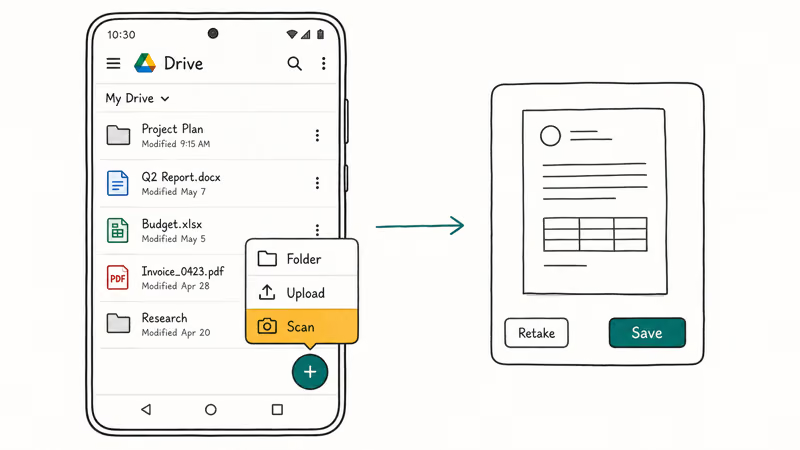
Google’s Drive document scanning documentation confirms that you get 4 capture modes (Auto, Color, Grayscale, and Black-and-white) plus a manual shutter option. The PDF goes straight to the Drive folder you select.
That’s handy when you want a backup the moment the scan finishes.
If you’d rather scan offline, Microsoft Lens is a free alternative that works the same way and exports to OneDrive, Word, or local storage.
#How to Scan and Combine Pages on Windows 10 and 11
Windows handles this job in two parts.
The Windows Scan app (or your printer manufacturer’s utility) captures pages one at a time, and a separate PDF tool stitches them together. Plug in your scanner, open the Windows Scan app from the Start menu, pick PDF as the file type, then click Scan for each page. Save each capture into one folder so they sit side by side for the merge step.
Open Adobe Acrobat (or PDFelement), choose Combine Files, drag the scanned PDFs into the order you want, then click Combine. The output is a single multi-page file.
Some links on this page are affiliate links, which means fone.tips may earn a commission at no extra cost to you.
Adobe’s Combine files into a PDF guide states that the Combine Files tool accepts at least 4 input formats (PDFs, Word documents, JPEGs, and PNGs) in the same job, so you can mix scanned pages with digital files in one pass. If your printer’s software supports ADF (automatic document feeder) scanning, every page in the tray will land in a single PDF without a merge step. That’s the cleanest workflow on Windows when you have the right hardware.
#Free Windows option: Microsoft Lens for desktop scans
Microsoft Lens runs on iOS and Android but exports straight to Word, PowerPoint, PDF, or OneDrive. The desktop side of the workflow opens that PDF in Word, Acrobat, or any editor you already use.
It’s a solid free path when you don’t want a paid PDF tool and your “scanner” is your phone.
#How to Scan and Merge PDFs on a Mac
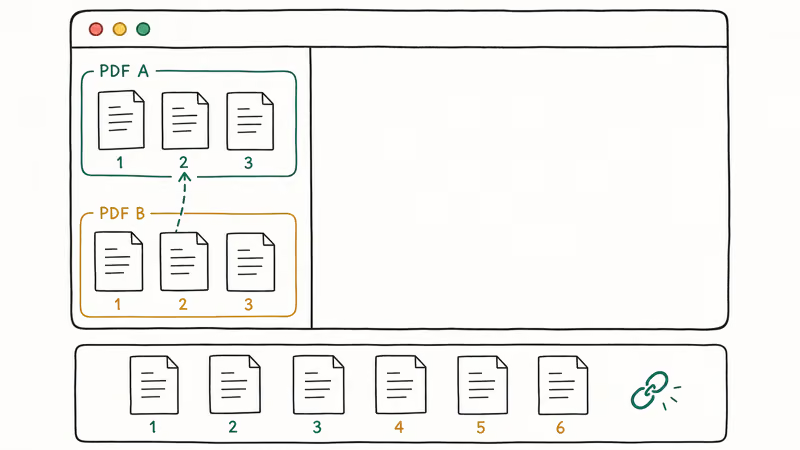
macOS gives you two ways to do this. Method one uses Preview to merge separate scan files. Open the first PDF in Preview, choose View > Thumbnails to show the sidebar, then drag your other PDFs onto the sidebar in the order you want. Save the file with File > Export as PDF and you’ve got a single document.
Method two uses Continuity Camera. Open Finder, right-click in the destination folder, choose Import from iPhone or iPad, then pick Scan Documents. Capture each page on your iPhone, tap Save, and the multi-page PDF appears in the Finder window on your Mac.
The Mac and iPhone need to be signed into the same Apple ID with Bluetooth and Wi-Fi turned on.
Apple’s Preview combine PDFs documentation confirms that this sidebar drag is the supported way to merge PDFs without third-party software, and it works on every macOS version from 10.13 onward. Preview keeps text searchable as long as the source scans had OCR applied.
#Which Desktop App Should You Use for Bulk Scanning?
If you scan more than two or three documents a week, a dedicated PDF tool earns its keep. Here’s how the most common options compare for multi-page scanning specifically.
Table 1. Desktop PDF tools for combining scanned pages, compared on price, OCR support, and platform availability.
| Tool | Price | OCR included | Platforms | Best for |
|---|---|---|---|---|
| Adobe Acrobat Pro | $19.99/month | Yes | Windows, Mac | Heavy daily use, business |
| PDFelement | $79.99/year | Yes | Windows, Mac | One-time payment alternative |
| Preview (Mac) | Free | No (read only) | Mac | Casual merging on macOS |
| Windows Scan + free PDF merger | Free | No | Windows | Occasional scans |
| Microsoft Lens + Word | Free | Yes | Cross-platform | Quick mobile captures |
PDFelement’s Combine Files feature supports mixed JPEG and PDF inputs without requiring you to resize the originals first.
For one-off jobs, free tools are enough.
#How to Reorder, Rename, and Compress Your Scanned PDF
A scan that looks good on capture can balloon to 20 MB once you stack five color pages at 300 DPI. After you create the multi-page file, three quick edits keep it readable and easy to email.
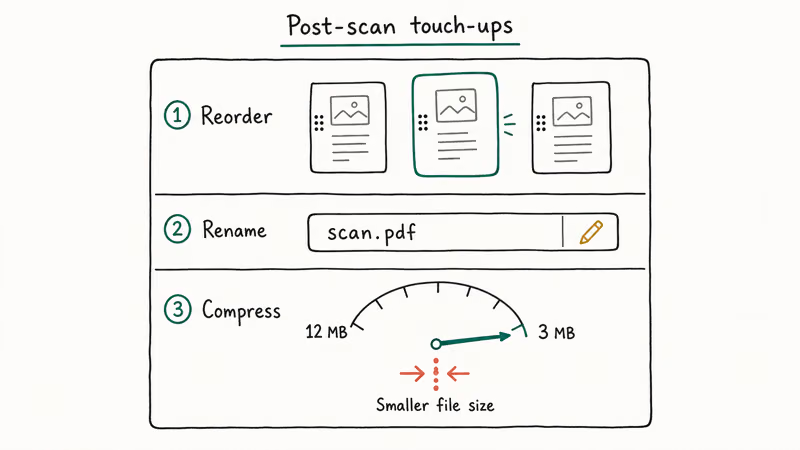
First, rename the file. A name like 2026-05-lease-agreement.pdf beats Scan_20260514_142308.pdf for searching later.
Second, drag pages into the right order inside Preview’s sidebar, Acrobat’s Organize Pages panel, or PDFelement’s thumbnail view. Third, run a compression pass.
Adobe’s PDF optimization guide recommends using the Reduce File Size tool in Acrobat to compress oversized PDFs. On Mac, Preview’s Export as PDF dialog has a Quartz Filter dropdown; picking Reduce File Size delivers the same effect.
If your source isn’t a fresh scan but an existing TIFF stack from an old scanner, our guide on converting TIFF to PDF covers the same multi-page consolidation from that angle.
#Add OCR so the PDF is searchable
A plain image-based PDF can’t be searched or copied. Both Acrobat and PDFelement have a Recognize Text feature that runs OCR across every page and adds an invisible text layer, and on Mac the free PDF-OCR-X app does the same job for documents you’d rather not open in a heavyweight editor. After OCR runs, you can search the document, copy quotes, and screen readers can announce the contents to anyone using accessibility tools.
#Bottom Line
For most one-off scans, the phone you already own is the right tool: Notes on iPhone, Google Drive on Android. Both produce a single multi-page PDF and save it where you can email it or drop it into iCloud or Drive.
For weekly or business-volume scanning, pair a flatbed scanner with PDFelement for a one-time-payment workflow, or with Adobe Acrobat Pro if you also need advanced redaction and form features.
Skip the dedicated scanner apps with watermarks. If you already have one and want it cleaned up, our piece on removing the CamScanner watermark covers that.
#Frequently Asked Questions
Can you scan multiple pages into one PDF without a computer?
Yes. The iPhone Notes app and Google Drive on Android both do this natively.
What resolution should I use when scanning documents?
For text-only contracts or receipts, 200 to 300 DPI gives clear OCR results. Photos or pages with fine detail benefit from 400 to 600 DPI. Most phone scanners default to roughly 300 DPI, which handles almost everything.
How do I add a new page to an existing scanned PDF?
In Adobe Acrobat, open the PDF, choose Tools > Organize Pages, then drag a new scanned PDF into the thumbnail strip where you want it inserted. In Preview on Mac, drag the new PDF into the Thumbnails sidebar at the right spot. On iPhone, open the Notes scan, tap the camera icon, and add another page directly to the same document.
Why is my scanned PDF so large?
Resolution and color mode are the usual culprits. Drop to 300 DPI grayscale and the file shrinks 60 to 80 percent.
Can I password-protect a scanned PDF?
Yes. Adobe Acrobat, PDFelement, and Preview on Mac all support password protection at export time. Pick a strong unique password and store it in a password manager so you don’t lose access later. If you’ve forgotten the password to an older scan, our walkthrough on PDF password recovery covers the options for cracking or resetting it without losing the content.
Does scanning to PDF work with handwritten notes?
Yes, but OCR accuracy varies by handwriting style. Acrobat and Google Drive handle neat printing well; both struggle with cursive. Standard print font on plain white paper produces near-perfect OCR on both engines.
How do I scan a long receipt or legal-size page?
Phone scanners auto-crop to whatever fits in the camera frame, so a long receipt scans as one tall image. For legal-size paper (8.5” by 14”) on a flatbed scanner, set the page size to Legal before you scan, otherwise the bottom inch gets cut off, and most multi-page PDF tools handle mixed page sizes without complaint as long as each page was captured at the correct preset.
Can I scan an iMessage thread into a PDF?
Not directly through a scanner. Take screenshots of the conversation, then drop the images into Notes’ scanner or use the Print > Save as PDF gesture. Our guide on exporting iMessage chats to PDF walks through the cleanest method.
Best Apple Watch Band for Working Out: Tested Picks
The best Apple Watch band for working out handles sweat and stays put on your wrist. Compare silicone, nylon, and titanium picks for runs and lifts.
Best Apple Watch Bands: Tested Picks by Size and Style
The best Apple Watch bands depend on your case size group first, then your use. Compare silicone, nylon, stretchy, and steel picks for the right fit.
Best iPhone 17 Pro Max Screen Protector: Tested Picks
The best iPhone 17 Pro Max screen protector fits the 6.9-inch panel. Compare value, privacy, and premium glass and find the easiest pick to install.
Best iPhone 17 Screen Protector: AR-Coated Picks (2026)
The best iPhone 17 screen protector keeps Ceramic Shield 2 anti-reflective. Compare AR-coated, matte, and privacy glass matched to your exact model.