How to Reply to a Specific Message on Instagram (2026)
Reply to a specific Instagram DM in seconds: long-press the message, tap Reply, type your response. Works on iPhone, Android, and instagram.com.

Quick AnswerLong-press any direct message and tap Reply (or swipe right on iPhone) to quote it in your response. The gesture works on iPhone, Android, and instagram.com (right-click on desktop).
To reply to a specific message on Instagram, you long-press the message and tap Reply. It’s the same gesture that works in iMessage and WhatsApp, just buried slightly differently. The steps below cover iPhone, Android, and the desktop site, plus the fix when Reply doesn’t show up at all.
- Long-press, then Reply is the universal gesture across iPhone, Android, and instagram.com web; the same steps work in 1-on-1 chats and group threads.
- iPhone users get a shortcut: swipe a message to the right and the reply box opens with the message already quoted above your cursor.
- Web users on instagram.com hover over the message and click the three-dot menu, since browsers can’t do a long-press.
- The quoted-reply option lives inside the merged Messenger inbox that rolled out alongside the Instagram Direct refresh in 2020; older accounts may still see a one-time Update Messaging prompt before it appears.
- If Reply is missing, the message is probably from an unmerged inbox (paper-plane icon vs. chat-bubble icon); finishing the Messenger update under Settings restores the option.
| Platform | Gesture | Confirmation cue |
|---|---|---|
| iPhone | Swipe right, or long-press then tap Reply | Quoted preview above text field |
| Android | Long-press, then tap Reply | Quoted preview above text field |
| instagram.com (web) | Hover, three-dot menu, click Reply (or right-click) | Quoted preview above text field |
#How to Reply to a Specific Instagram Message on iPhone
Open the chat thread on the Instagram app and find the message you want to answer. Press and hold the message until a small menu appears with Like, Reply, Forward, and More. Tap Reply, type your response, and the original message gets quoted above your text when you send.
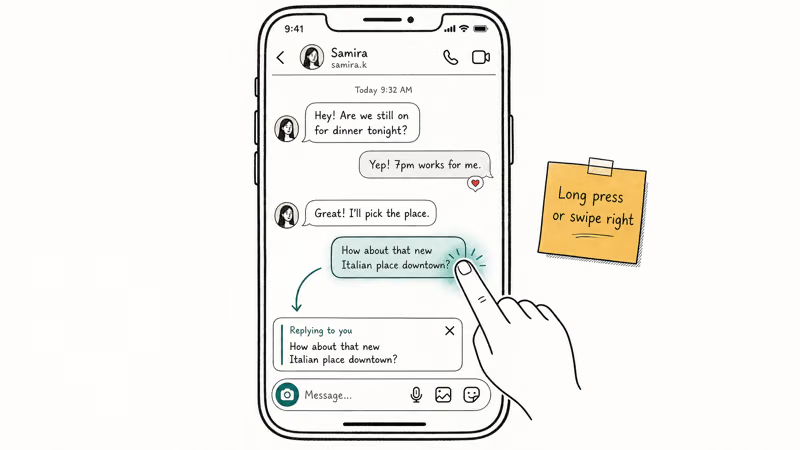
That’s the slow way.
There’s a faster shortcut on iPhone: swipe the message to the right. The Reply box opens instantly with the quoted message already in place. The swipe gesture works on sent and received messages when the account has the updated messaging inbox; photos, voice notes, and shared posts can be quoted too.
If Reply isn’t in the menu, your Instagram app probably needs an update through the App Store. According to Meta’s 2020 announcement on the Messenger and Instagram messaging integration, the unified inbox added cross-app replies, reactions, and a richer chat action set, and the feature has shipped with every major Instagram release since then.
Still no Reply? Check the inbox icon.
A paper-plane icon means your messaging is still on the legacy Instagram-only system. The broader fix is covered in the guide on Instagram direct messages not working if the inbox itself is acting up.
#How to Reply to a Specific Instagram Message on Android
The Android flow is almost identical, though the long-press registers slightly differently on older phones. Open the chat, press and hold the message for about a second, and watch for the action menu. Tap Reply, write your message, and send.
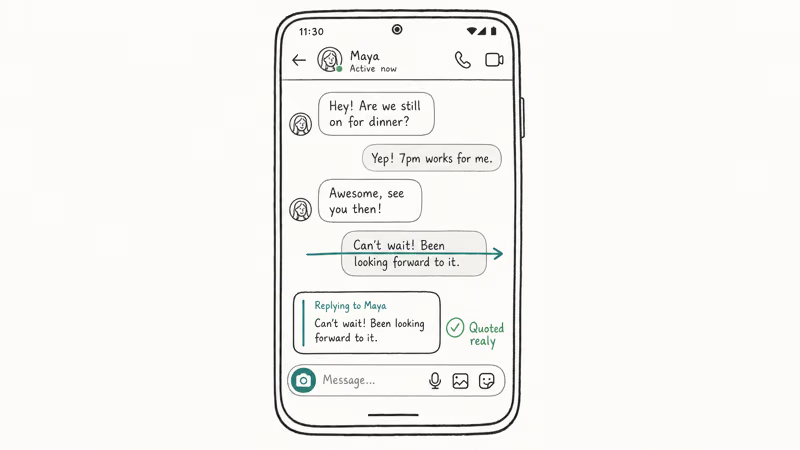
Android uses the long-press path. Some phones need a slightly longer hold before the menu shows up. Swipe-to-reply from iPhone isn’t present on Android, so long-press is the only path.
A common trap: pressing too lightly opens the message preview instead of the action menu. Use a firm, steady press for about a full second. If the menu still doesn’t show, try a different message in the same thread to check whether the app is responding at all.
Want to read it without leaving a trace? Turn off read receipts first; the walkthrough on turning off read receipts on Instagram explains how.
#How Do You Reply to Instagram Messages on a Desktop?
On the desktop version of Instagram, the long-press doesn’t exist, so the steps shift to a hover-then-click pattern. Go to instagram.com, sign in, and click the paper-plane or chat-bubble icon in the top bar to open your inbox.
Pick the conversation, then hover your cursor over the message you want to answer. Three dots appear next to the bubble. Click them, choose Reply from the dropdown, type your response, and press Enter. The desktop site quotes the message exactly the same way the mobile app does.
Right-click works as a shortcut.
A common gotcha: on a touchscreen laptop, the hover trigger doesn’t fire because there’s no cursor sitting on the message. You’ll need to tap and quickly move your finger off, or switch to right-click. Right-click also surfaces the same menu in any browser, which is handy if the three-dot button feels finicky on a trackpad or with a stylus.
Instagram’s Help Center for direct messages confirms that the Reply option appears in the long-press, hover, and right-click menus on every supported platform, alongside Forward, Save, and Unsend. If yours is missing all of those, the issue is almost always the Messenger update.
#Why Is the Reply Option Missing on Instagram?
If Reply is absent from the menu, one of three things is usually the cause.
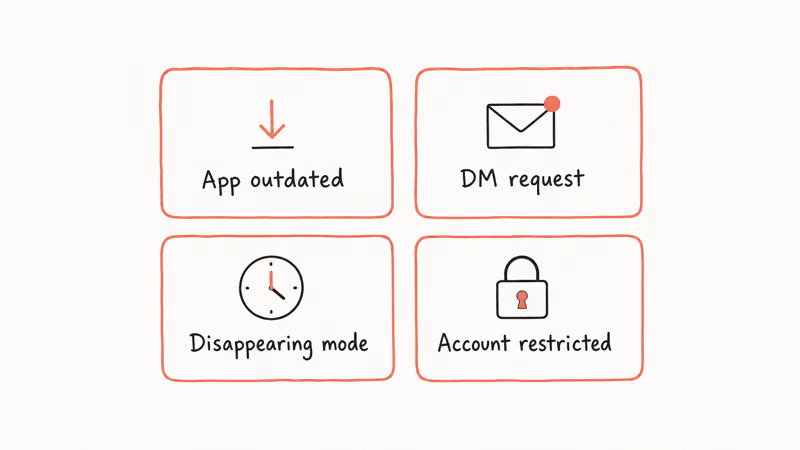
The first is an outdated app. Open the App Store or Play Store, search Instagram, and apply any pending update. Older builds from before late 2020 didn’t include quoted replies because the feature shipped alongside the Messenger inbox merge.
Second comes the merge itself. According to Wikipedia’s overview of Instagram messaging, Meta combined Facebook Messenger and Instagram Direct in 2020 so accounts on both apps share an inbox. Users who never accepted the one-time switch still see the legacy paper-plane icon and a stripped-down DM experience without quoted replies, reactions, or cross-app chat.
To accept the prompt, tap your profile picture, open Settings and activity, then look for Update Messaging near the top. The inbox icon changes from a paper plane to a chat bubble once you accept it.
Third, a handful of edge cases stop Reply from appearing: the message is from someone who has blocked you (the chat opens but actions are limited), the thread is a request you haven’t accepted yet, or you’re trying to reply to a vanish-mode message that already expired. Reply isn’t shown on disappearing messages by design.
#Replying in Group Chats vs. Direct Messages
Reply works the same way in group threads, but the social etiquette changes. In a group chat with five or more people, quoting the exact message you’re answering helps everyone follow which thread you’re picking up. Without it, three people talking over each other turns into a mess.
Same mechanic as a one-on-one: long-press, tap Reply, type. The quoted block carries the original sender’s name above your text.
Quoted replies also work in group chats. Voice notes and photos quote too; the quoted block shows a small preview thumbnail of the original media. Deleted messages also matter here, and the guide on recovering Instagram direct messages covers what’s salvageable when someone unsends.
#When to Use Quoted Reply vs. Emoji Reactions
The long-press menu has two ways to acknowledge a message: a quoted Reply and an emoji reaction. They look similar, but they behave differently. A quoted reply shows up as a brand new message in the thread, visible to everyone, with the original message attached.
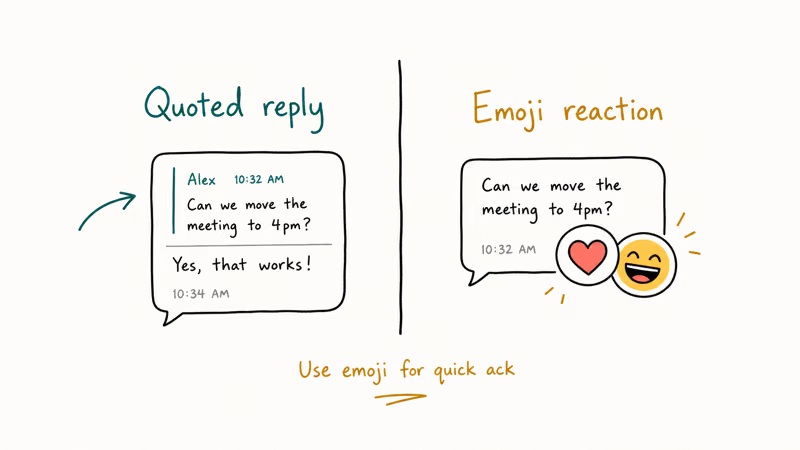
Reactions are quieter.
An emoji reaction attaches a small emoji badge directly to the original message bubble. By default, only the message’s sender gets a notification for it. In a group chat, the reaction is visible to everyone, but it doesn’t push a new message into the timeline.
Pick a reaction when you want a quiet ”👍” or “❤️” without bumping the thread. Pick Reply when you want everyone to know which thread you’re responding to, or when you have more than a one-character response. If you’ve muted a noisy chat, a tap reaction is also kinder than a full reply, and you can unmute it later with the guide on unmuting someone on Instagram.
#Bottom Line
For the fastest way to reply on Instagram, use long-press then Reply on mobile, or right-click then Reply on desktop. The swipe-right shortcut on iPhone is the quickest of all if you’re answering a lot of messages in a row.
If Reply doesn’t appear, update the Instagram app first, then accept the Update Messaging prompt under your profile Settings to switch to the merged chat-bubble inbox. After that, the feature works the same on iPhone, Android, and instagram.com. If notifications aren’t pushing through at all, check the guide on Instagram notifications not working before troubleshooting further.
Instagram Tips & Tricks
#Frequently Asked Questions
Can you reply to your own messages on Instagram?
Yes. Long-press your own message, choose Reply, and the quoted block goes above your follow-up.
Does the other person know when you reply to a specific message?
They see the quoted block above your new message and know exactly which message you’re answering. The app doesn’t push a separate notification for the quoting action. The only ping is the standard new-message alert. There’s no read-receipt difference between a quoted reply and a regular reply, and there’s no way to mark a reply as anonymous, so the recipient always sees your username.
Why does my reply not show the original quote?
The most common reason is that you typed in the regular text field instead of tapping Reply first. If the quoted block doesn’t appear above your cursor before you hit Send, your message ships as a plain reply with no quote attached. Long-press the original message again, tap Reply, and check that the small quoted preview is sitting above the keyboard before typing.
Can I reply to a message after the other person unsends it?
No. Once a message is unsent, both the message and any quoted replies referencing it disappear from your thread. If you’d already typed a quoted reply and hit Send before the original was deleted, your reply remains as text but loses the quoted block.
Does Reply work in vanish mode or disappearing messages?
Reply is disabled on vanish-mode messages because those threads delete themselves once the chat closes. Switch the thread back to standard mode first.
How do I reply to an Instagram message with a GIF or sticker?
Tap Reply on the original message so the quoted block appears above your input field. Then tap the GIF icon (the smiley face on iPhone, or the GIF tab on Android) and pick the sticker or animation you want to send. The GIF posts as a quoted reply with the original message still attached above it.
Can you reply to a story instead of a DM the same way?
Story replies are separate from message-reply quoting. When you reply to someone’s Instagram Story, you start a brand new DM thread, not a quoted reply inside an existing one. To quote a specific message inside an existing thread, the message has to already be sent into that DM thread.
Instagram Parental Controls: Family Center Setup (2026)
Set up Instagram Family Center, privacy settings, Hidden Words, content filters, and time limits with your teen's consent on iPhone or Android.
Instagram Notifications Not Working? Quick Fixes (2026)
Instagram notifications not working? Fix push alerts, DMs, likes, and Stories on iPhone and Android in under 5 minutes with proven 2026 steps.
Instagram "We Limit How Often" Error: How to Fix It 2026
Instagram says "we limit how often you can do certain things"? Wait 24-48 hours, slow down likes and follows, then appeal through Help Center.

Instagram Name Checker: Find Available Usernames Fast
Check Instagram username availability instantly with free tools like Namechk and KnowEm. Find perfect handles and avoid the frustration of taken names.