How to Hide Chat on TikTok Live on iPhone and Android
Hide chat on TikTok Live using Clear Display, a left swipe, or long press. Works on iOS 18 and Android 14. Takes under 5 seconds with no settings change.
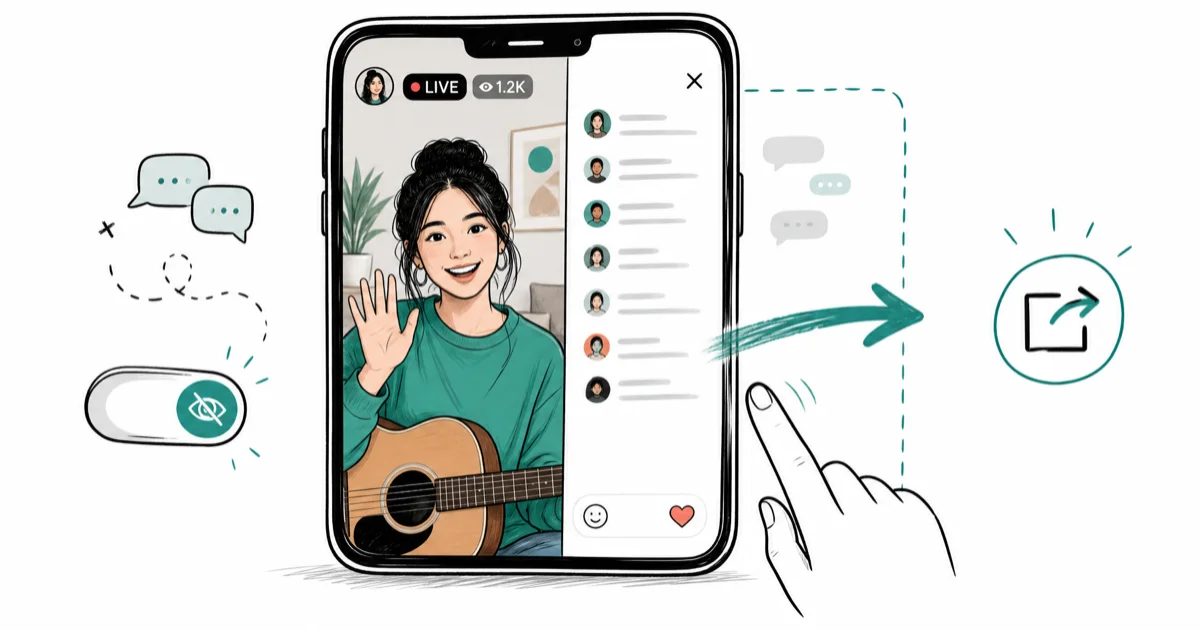
Quick AnswerTap the share icon in the lower-right corner during a TikTok Live, then tap "Clear Display" to hide all chat messages instantly. If the button is not visible, swipe left on the chat panel instead.
TikTok Live chat fills fast during popular streams. Within seconds of a creator going live, the comment panel scrolls so quickly you can’t see the video. There are three ways to clear it, and you can also block a sound on TikTok to reduce audio distractions at the same time.
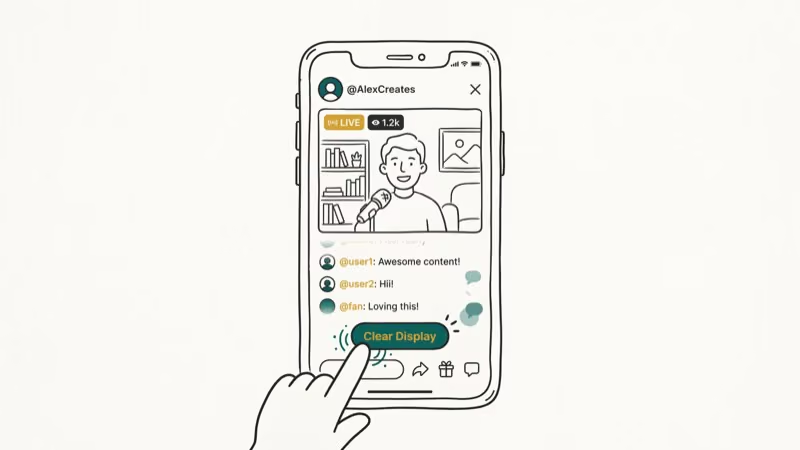
- Tap the share icon in the lower-right corner, then tap “Clear Display” to remove all chat messages from the screen immediately.
- If “Clear Display” isn’t visible, swipe left on the chat panel to slide it off-screen without closing the stream.
- Long-pressing the screen for 2 seconds reveals a hidden “Clear Display” button on versions where the share menu doesn’t show it.
- According to TikTok’s help center, chat visibility settings are viewer-side only and don’t affect what the broadcaster sees in their moderation panel.
- If Clear Display is missing, the swipe method is the fallback inside the live viewer.
TikTok’s chat overlay sits over the entire video feed. During a busy live, comments can cover the full screen. Hiding it only takes a couple of taps once you know which button to use.
#Method 1: Tap “Clear Display” to Hide All Chat
This is the official TikTok method. According to TikTok’s Live help documentation, the Clear Display button removes comments and reaction animations in one tap. TikTok states that the feature is available to all users on app version 26.0 and above. According to TikTok’s Followers and Following help page, account-level controls such as muting and blocking live under user settings, so chat visibility fixes should stay inside TikTok’s own controls.
Here’s what to do:
- Open the TikTok Live you want to watch.
- Tap the share icon in the lower-right corner of the screen.
- In the panel that slides up, tap Clear Display.
All chat messages and gift animations disappear immediately. The stream continues normally, and the button appears in the share panel on supported app versions.
Why this sometimes doesn’t work: TikTok rolls out features by region. If you’re on an older app version or in a region where the feature is still in rollout, the button may not appear. Use Method 2 instead.
#Hiding Chat When Clear Display Doesn’t Appear
TikTok’s Clear Display feature isn’t available in every region or app version. When it’s missing, a direct swipe works just as reliably.
Method 2: Swipe the Chat Away
During the live stream, place your finger on the chat panel and swipe left. The chat window slides off-screen and stays hidden even as new messages arrive.
To bring it back: swipe right from the left edge of the screen. The chat panel returns with all recent messages loaded.
The swipe may work in either direction depending on the layout. If an edge swipe doesn’t respond, start from the center of the chat box rather than the edge.
Method 3: Long Press for Hidden Clear Display
Some TikTok users reported that the Clear Display button wasn’t in their share menu but appeared when they long-pressed the screen. Try this sequence:
- During the TikTok Live, tap and hold anywhere on the video for about 2 seconds.
- A small popup appears with a Clear Display option.
- Tap it to hide all comments and reactions.
This works even on versions where the share menu doesn’t show the button.
#Is There a Way to Permanently Hide Chat on TikTok Live?
No built-in setting exists to auto-hide chat when you join a live stream. TikTok’s design keeps chat visible by default. You’ll need to manually clear it each time you open a new live.
That said, if you re-enter the same live after quitting the app, the chat will reappear. A quick swipe or Clear Display tap fixes it.
#What Causes Chat to Reappear on TikTok Live?
When you re-enter a live stream after closing the app, TikTok resets the view to show chat by default. This is by design — the app doesn’t store your “Clear Display” preference between sessions. You’ll need to swipe or tap Clear Display again each time.
#Managing TikTok Comments as a Creator
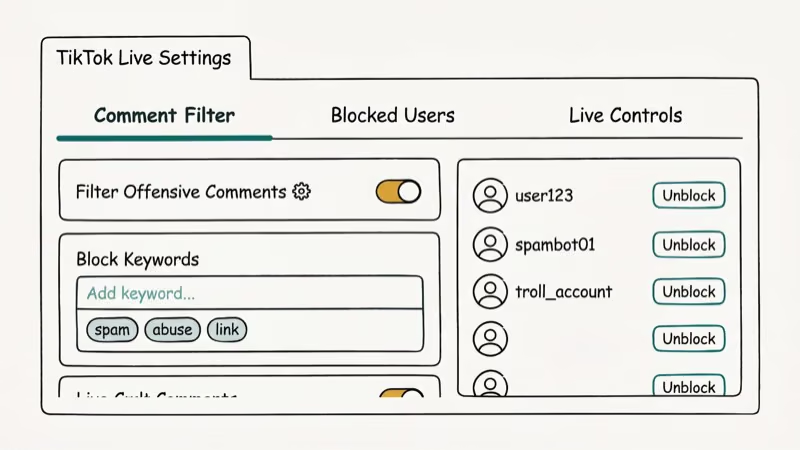
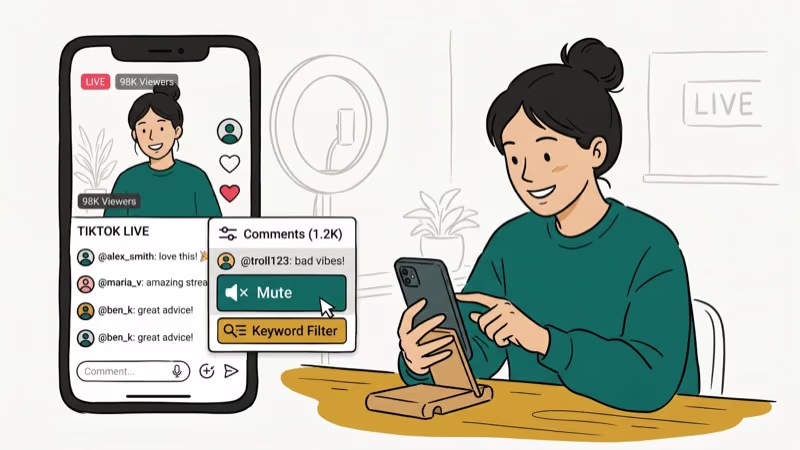
If you’re the broadcaster and want to limit who can comment, go to Settings > Privacy > Comments in your TikTok account. You can restrict comments to followers only or to friends only. TikTok’s help center confirms that keyword filters in Live settings can block specific words automatically — saving you from manually clearing chat during the stream.
For more on TikTok Live interactions, see how to join someone’s live on TikTok and how to DM someone on TikTok.
Want more TikTok controls? Check how to unfollow everyone on TikTok and TikTok auto-scroll tips.
For broadcasters, how to send likes on TikTok Live covers engagement basics.
#Bottom Line
Use Method 1 first. Tap the share icon and tap Clear Display. If the button isn’t there, swipe left on the chat panel instead.
TikTok Tips & Tricks
#Frequently Asked Questions
Can viewers still send messages when I hide chat?
Yes. Hiding chat on your screen is viewer-side only. Other viewers and the broadcaster can still see all messages. Your Clear Display action doesn’t affect anyone else’s view.
Does hiding chat affect my TikTok engagement?
No. Your viewing session continues normally in the background. TikTok counts watch time and engagement regardless of whether the chat overlay is visible on your screen.
Why can’t I see the Clear Display button?
TikTok rolls features out region by region. If you’re on an older app version or in a region where it hasn’t launched yet, the button won’t appear. Update the app first. If it still doesn’t show, use the swipe method instead.
Can I reposition the chat window on TikTok Live?
No. TikTok’s chat window position is fixed and can’t be moved or resized. Your only options are to clear it, swipe it away, or leave it in place.
Can I hide chat on TikTok Live from the desktop browser?
Yes. When watching a TikTok Live on a desktop browser, there’s usually a panel toggle in the upper right of the live player. Clicking it collapses the chat sidebar entirely.
Will hiding chat stop gift notifications from showing?
Yes. Clear Display removes gift animations and chat messages together. Swiping away the chat panel may leave gift notifications visible depending on your app version.
How do I hide specific users’ comments instead of all chat?
As a viewer you can’t filter individual users’ comments. As a broadcaster, go to Live settings and use the keyword filter or block specific accounts to prevent their messages from appearing.
How to Block TikTok on iPhone and Android: Parent Guide
Block or limit TikTok on your child's iPhone or Android using Screen Time, Family Link, and router settings. Step-by-step parental control guide.
TikTok Parental Controls: Setup Guide for Families
Set up TikTok parental controls using Family Pairing, Restricted Mode, and privacy settings. Step-by-step guide to protect your child on TikTok.
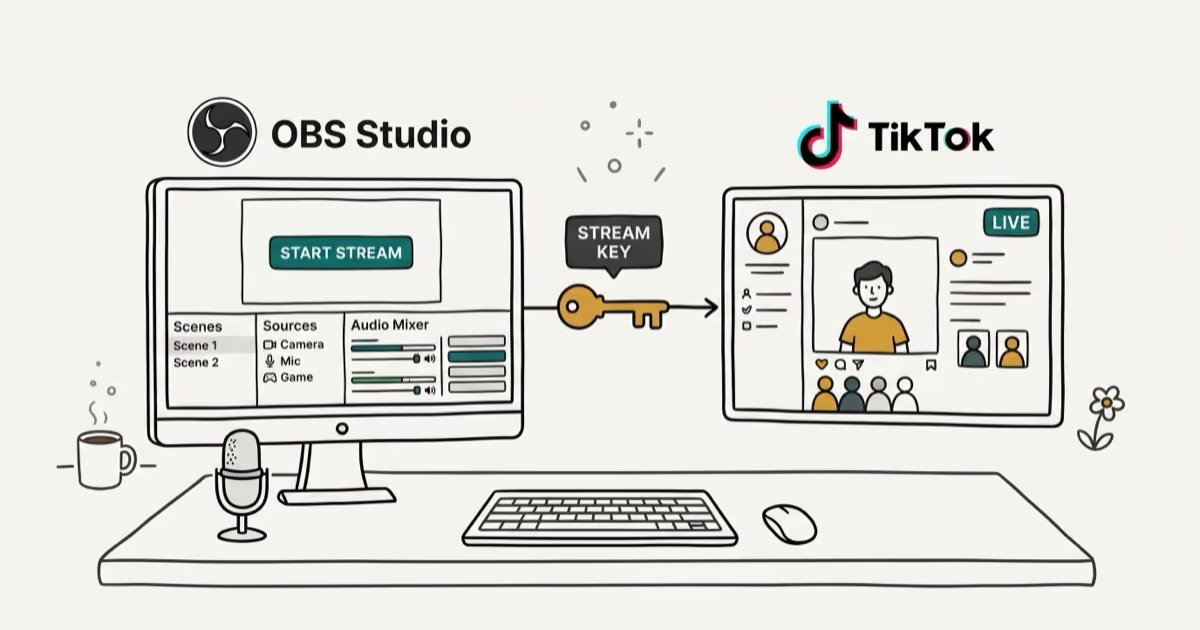
How to Get a TikTok Stream Key for OBS and Streamlabs
Get a TikTok stream key to broadcast from OBS or Streamlabs. Covers the 1,000-follower requirement, CarterPulse application, and OBS setup steps.

How to Make a Joint TikTok Account With Friends (2026)
Set up and manage a joint TikTok account with friends. Covers shared login setup, content planning, security tips, and the Collaboration Post alternative.