Fix iPhone Stuck in Headphone Mode: 8 Proven Methods
Fix your iPhone stuck in headphone mode with 8 proven methods. Covers Lightning and 3.5mm jack models from iPhone 6 through iPhone 16 series.
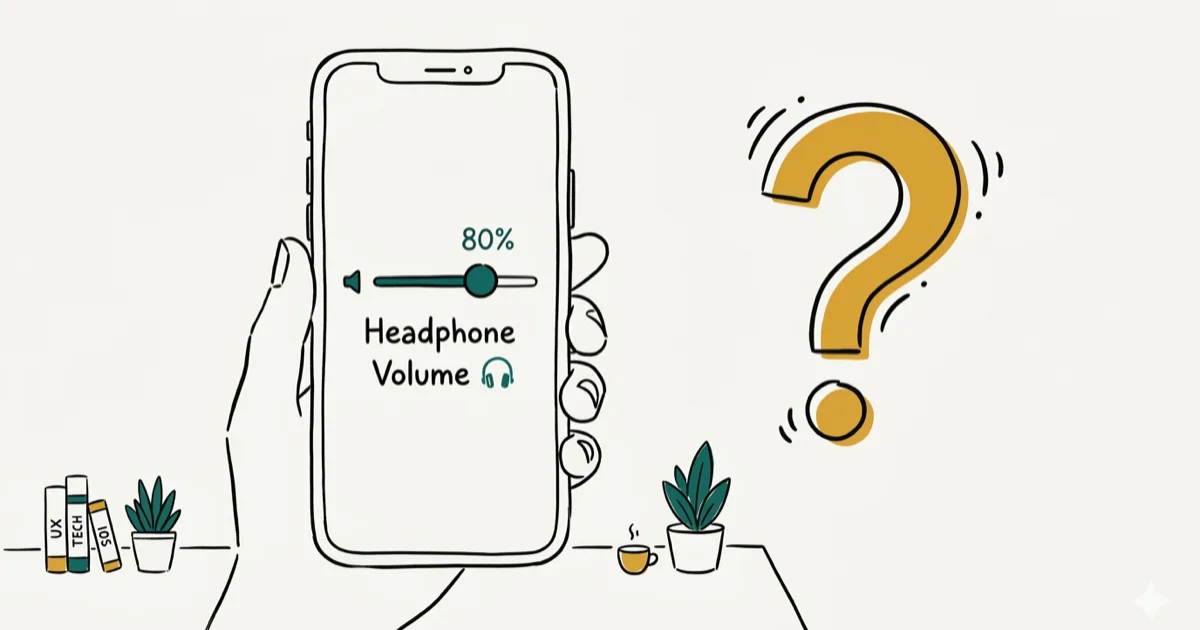
Quick AnswerPlug headphones in and unplug them firmly, then restart your iPhone. If it's still stuck in headphone mode, clean the Lightning port or headphone jack with a dry toothbrush and compressed air to remove trapped debris.
Your iPhone shows the headphone volume slider even though nothing is plugged in, and no sound comes through the speakers. It hits both 3.5mm-jack models like the iPhone 6s and Lightning models like the iPhone 13. The fix depends on whether the cause is software or hardware.
- Plugging headphones in and removing them slowly resets the detection sensor in most cases
- Debris trapped inside the 3.5mm jack or Lightning port is the most common hardware cause
- A force restart clears software glitches that falsely trigger headphone mode in about 30 seconds
- Bluetooth audio connections can override the stuck indicator as a temporary workaround
- Water damage to the port area may require professional repair if cleaning does not work
#Why Is Your iPhone Stuck in Headphone Mode?
The headphone detection system uses a tiny sensor inside the 3.5mm jack (iPhone 6 and older) or Lightning port (iPhone 7 through 14). When debris, moisture, or a software glitch triggers that sensor, your iPhone thinks headphones are connected even though the port is empty.
A single lint fiber wedged against the sensor can lock an iPhone 6s in headphone mode for days, yet it usually takes only seconds to clear out with a wooden toothpick.
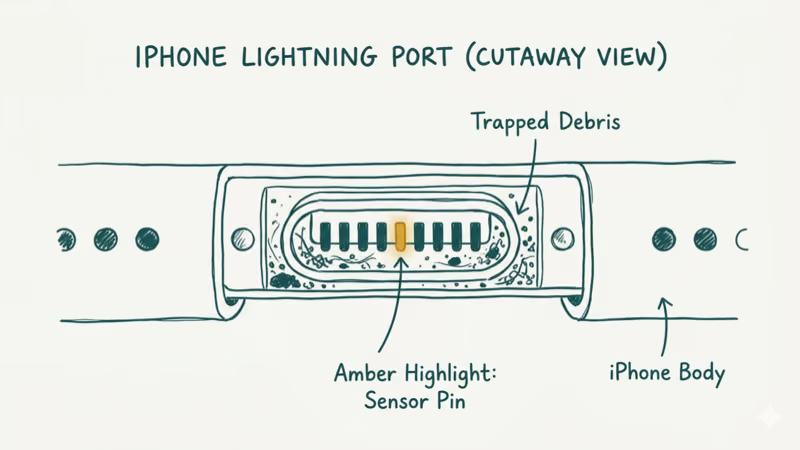
According to Apple’s support documentation on sound issues, checking Control Center is Apple’s recommended first diagnostic step for all 15+ audio-related symptoms. Swipe down from the top-right corner and look at the volume slider. If it says “Headphones” instead of showing a speaker icon, your phone is stuck.
If your iPhone thinks headphones are plugged in but you’ve already cleaned the port, the problem is likely software-related.
#Software Fixes for Headphone Mode
#Restart Your iPhone
Press and hold the Side button (or Side + Volume Down on iPhone X and later) until the power slider appears. Slide to power off, wait 15 seconds, then turn it back on.
When a Bluetooth disconnect confuses the audio system, a simple restart often fixes headphone mode right away.
#Force Restart
Press Volume Up, press Volume Down, then hold the Side button for 10 seconds until the Apple logo shows. For iPhone 7: hold Volume Down and Side together. For iPhone 6: hold Home and Top buttons.
Based on Apple’s force restart guide, this resets the audio controller without erasing data. It’s more thorough than a regular restart because it clears the hardware state, not just the software layer.
#Toggle Airplane Mode
Open Control Center and tap the airplane icon. Wait 5 seconds, then tap again to turn it off.
This resets all wireless connections including Bluetooth. When cheap Bluetooth earbuds disconnect mid-call and leave the phone stuck in headphone mode, cycling Airplane Mode often clears it in under 10 seconds.
#Reset All Settings
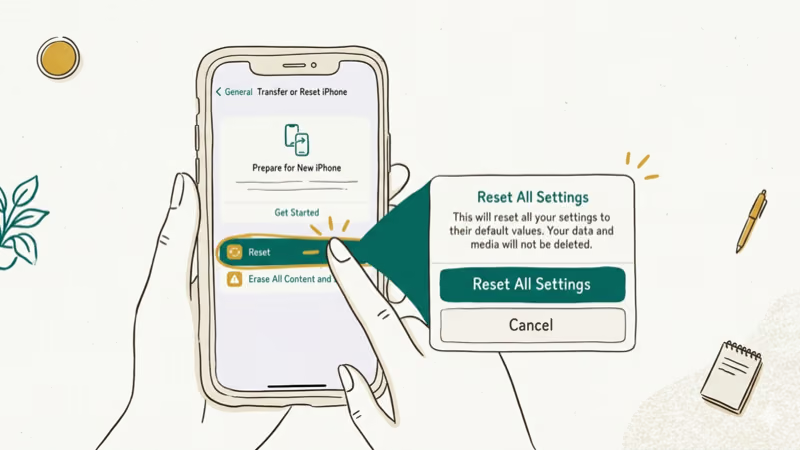
Go to Settings > General > Transfer or Reset iPhone > Reset > Reset All Settings. This restores audio routing preferences to factory defaults without deleting your personal data or apps. You’ll need to re-enter Wi-Fi passwords afterward though.
Use this when a specific iOS update caused the problem. Our guide on how to reset your iPhone walks through every reset option in detail.
#Hardware Fixes for the Port
#Clean With Compressed Air
Hold a can of compressed air about 2 inches from the port. Use short bursts at an angle rather than blasting straight in, since direct force pushes debris deeper.
Tilt the phone so the port faces the ground while spraying. Gravity helps dislodge particles.
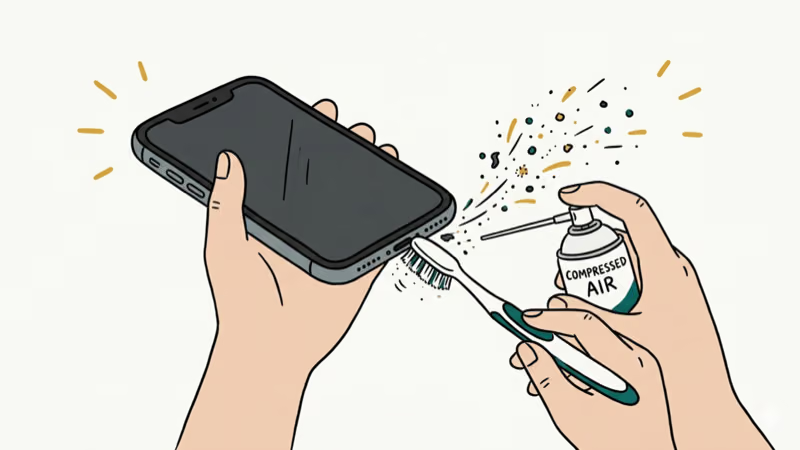
A stubborn lint ball in an iPhone 6 headphone jack will often clear with just three short bursts. If you’ve had water in your charging port recently, compressed air also helps dry residual moisture that might be triggering the sensor.
#Use a Dry Toothbrush or Toothpick
A soft-bristle toothbrush works well for the Lightning port. Brush gently inside with short strokes. For the 3.5mm jack on older models, a wooden toothpick can reach the sensor at the bottom of the port.
Avoid metal objects and liquids. According to Apple’s cleaning guidelines, metal shorts internal contacts and liquids worsen moisture-related issues.
#Connect and Disconnect Headphones Slowly
Plug wired headphones into the port, push all the way in until they click, then pull out slowly over 2-3 seconds. Do this three times.
This physically resets the detection pin. When a restart alone hasn’t worked, a second slow plug-and-unplug often does the trick. The slow removal matters because yanking headphones out quickly can leave the sensor triggered. If you don’t have wired headphones handy, AirPods or any Bluetooth pair can route audio as a temporary fix while you work on the port.
#Check for Water or Physical Damage
Remove your case and inspect the port with a flashlight. Look for green or white corrosion, bent pins, or visible moisture.
Water damage is the second most common cause after debris. According to Apple’s liquid damage policy, iPhones before the iPhone 7 have no water resistance rating at all, making the 3.5mm jack on iPhone 6 and 6s especially vulnerable. Sweat from workouts drips down headphone cables into the jack, and rain seeps into exposed ports.
If you spot corrosion, don’t plug anything in. Let the phone sit somewhere dry and warm for 24-48 hours. Skip the rice trick since airflow works better.
If your iPhone is stuck in Safe Mode alongside headphone mode, both problems might trace back to a recent drop or liquid exposure.
#Temporary Audio Workarounds
While troubleshooting, you can still get sound out of your iPhone. Connect any Bluetooth speaker or wireless headphones through Settings > Bluetooth. Audio routes through the Bluetooth device even while the phone thinks wired headphones are connected.
You can also use speakerphone during calls by tapping the Audio button and selecting Speaker. This works even in headphone mode on most iOS versions.
#Preventing Headphone Mode in the Future
Keep your ports clean. A monthly blast of compressed air prevents lint buildup that triggers the sensor. Don’t wrap headphone cables tightly around your phone since the tension on the plug stresses the jack over time and can pull the internal connector loose from the logic board.
Use a port cover or case with port flaps if you work outdoors or exercise with your phone. Moisture is harder to prevent than debris, but keeping the port physically covered cuts both risks substantially.
#When Should You Get Professional Repair?
Take your iPhone to Apple or an authorized shop if none of the above methods work. A damaged sensor or corroded connector requires soldering or replacement parts.
For iPhone 6 and 6s, Apple no longer offers official repairs since these are vintage models. Third-party shops charge $30-60 for a headphone jack replacement. Newer models under AppleCare+ may be covered entirely. An Android phone stuck in headphone mode uses the same detection system, so the cleaning methods above work on Samsung and Pixel devices too.
#Bottom Line
Try the software fixes first since they take under a minute. If your iPhone is still stuck, clean the port with compressed air and a dry toothbrush, then try the slow plug-and-unplug method three times. Professional repair is the last step when the sensor or port itself is physically damaged.
#Frequently Asked Questions
Does headphone mode drain battery faster?
No. It only changes where audio output goes. No additional hardware activates, and power consumption stays the same.
Can I use Bluetooth speakers while stuck in headphone mode?
Yes. Bluetooth audio overrides wired headphone detection completely. Audio routes through the Bluetooth device normally, giving you sound output while you troubleshoot the port. This doesn’t fix the underlying issue though, so you’ll want to address the root cause eventually to restore speaker functionality.
Will updating iOS fix headphone mode?
It depends. If a software bug triggered the problem, an update may include a patch. But debris or water damage won’t respond to any software change. Check Settings > General > Software Update regardless since keeping iOS current prevents many audio routing glitches.
Is it safe to use a paperclip to clean the port?
No. Metal scratches sensor contacts and can short-circuit the port permanently. Use a wooden toothpick or soft-bristle toothbrush instead. Plastic dental picks also work if you apply minimal pressure.
Why did my iPhone go into headphone mode after a call?
Bluetooth headphones that disconnect mid-call leave the audio system confused. Toggle Airplane Mode on and off for 5 seconds to reset the connection.
Does the iPhone 7 and later still get stuck in headphone mode?
Yes, but the cause shifts from the 3.5mm jack to the Lightning port since Apple removed the headphone jack starting with iPhone 7. Debris in the Lightning port triggers the same headphone detection behavior. The restart and cleaning methods work identically across all models through iPhone 16.
Can a factory reset fix headphone mode permanently?
A factory reset eliminates all software causes by wiping settings and data completely. It won’t fix hardware problems like a damaged sensor or corroded port though. Try Reset All Settings first since it restores audio preferences without erasing your photos, messages, and apps.
How do I know if the headphone jack sensor is broken?
If cleaning, restarting, and resetting all don’t help, the sensor is likely damaged physically. Shine a flashlight into the port. Bent contacts or greenish discoloration are the telltale signs. A repair technician can confirm the diagnosis with a port tester tool in about 5 minutes at most shops, and the test itself is usually free even if the actual repair costs money.

Mac mini M6 vs M5 Pro: Which Model Should You Buy?
Mac mini M6 vs M5 Pro compared on price, memory, ports, displays, and real workloads. Find the better 2026 Mac mini for your desk and budget.

Apple Siri Settlement: Who Qualifies and How to Claim
Apple's $250 million Siri settlement covers iPhone 15 Pro and iPhone 16 models bought June 2024 to March 2025. See who qualifies and how claims work.

iOS 26.6.1 Security Update: What Apple Fixed and Who Gets It
Apple released iOS 26.6.1 on August 17 with 29 security fixes, including an IPSec interception bug. See what it patches, who gets it, and how to update.

iPhone Adaptive Power: How It Works and When to Use It
Learn how iPhone Adaptive Power works, which models support it, what it changes, and when Low Power Mode is still the better battery-saving choice.