How to Delete Books From Apple Books on iPhone and iPad
Remove an Apple Books download, hide a purchased title, or delete it from iCloud while keeping each action and its cross-device scope clear.
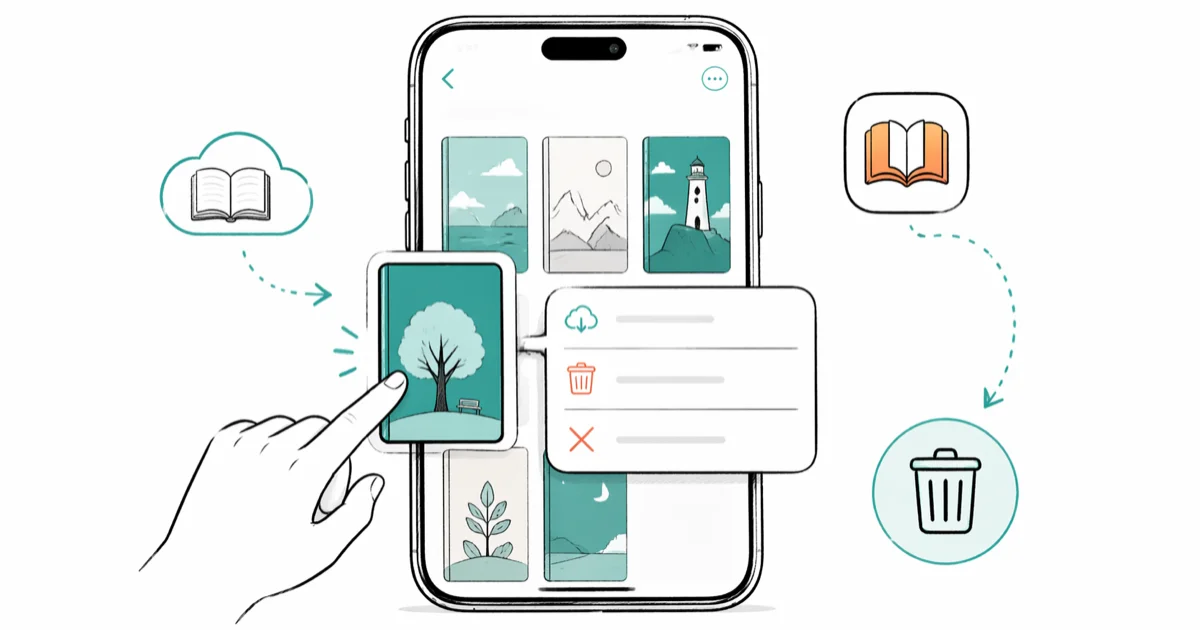
Quick AnswerIn Books, open Library, tap More below a title, then tap Remove. Remove Download clears the local copy; after that, Hide Book hides a purchase; Delete Everywhere removes it from iCloud and your devices.
Apple Books can show several removal choices, and they do different things. If you only want storage back, use Remove Download. Don’t choose a library-wide option unless you also want the item removed from other devices.
- Remove Download removes the copy stored on this iPhone or iPad. You can download an eligible title again later.
- Hide Book hides a purchased title that isn’t downloaded on the device. Remove a downloaded copy first; hiding does not erase the purchase record.
- Delete Everywhere, when available, removes the item from iCloud and all of your devices.
- Button names can vary by content type and software version, so read the confirmation sheet before approving the removal.
- Back up an imported PDF or personal document before deleting it; it may not appear in your Apple purchase history.
#How Do You Remove One Book From Apple Books?
Apple’s current iPhone guide uses the More button rather than the old long-press instructions found in many iBooks tutorials:
- Open Books and tap Library.
- Find the book or audiobook.
- Tap the More button below its cover.
- Tap Remove.
- Choose the option that matches what you want to do.
The wording in the last step matters. Apple’s current Books guide says Remove Download removes the title’s content and associated data from that iPhone. The same menu may instead offer Hide Book or Delete Everywhere, depending on the item.
If your only goal is to reclaim device storage, stop at Remove Download. It’s the narrowest action and leaves a supported route to download the title again.
#Remove Download and Local Storage
Remove Download clears the local copy from the device you are using. Apple says you can return to the title’s More menu and tap Download to retrieve it again.
This is the right choice when:
- You finished an audiobook and no longer need it offline.
- A large PDF or book is using space on one device.
- You want the title to remain visible in your library.
- You expect to read or listen again later.
Removing a download affects device storage, not your iCloud storage plan. If the Books entry doesn’t load in iPhone Storage, use our iPhone storage display checks. If the warning is about cloud capacity, use the iCloud storage full guide instead of deleting books at random.
According to Apple’s guide, Remove Download removes the content and data associated with the title from the iPhone. It doesn’t promise that every annotation in every type of document can always be recovered. If notes or markup are important, confirm that they have synced or keep a separate copy before removing the download. If you copied reading notes into the Notes app, troubleshoot that separate service with our iCloud Notes sync guide.
#What Is the Difference Between Hide Book and Delete Everywhere?
These controls have a wider scope.
Hide Book is for a purchased book or audiobook that you don’t want displayed. Apple says a hidden item no longer appears in your library on devices using your Apple Account, unless it was already downloaded on a device. Family Sharing members also stop seeing the hidden item unless they previously downloaded it.
The purchase itself isn’t erased. According to Apple’s hide and unhide instructions, its record remains in purchase history.
To unhide an eligible title later, go to Books > Home > your account icon > Manage Hidden Purchases.
Delete Everywhere is broader. Apple describes it as removing the book from iCloud and all of your devices. Use it only when that’s the result you intend. The confirmation wording on your device is the best description of the scope for that specific item.
An imported PDF isn’t the same as a Book Store purchase. Don’t assume that Apple’s Purchased list can restore a file you added yourself. Save a copy in Files, on a computer, or in another backup location before using a delete-everywhere option. If you’re unsure where a document is stored, our guide to checking what is in iCloud can help you inspect the account first.
#Redownloading a Purchased Book
Usually, yes. Apple maintains a separate redownload process for Books purchases:
- Open Books and tap Home.
- Tap your photo or the account button.
- Under My Purchases, tap Books or Audiobooks.
- Tap Not on this iPhone.
- Find the title and tap the download button.
This route applies to items previously purchased through Apple Books. It isn’t a recovery system for an imported PDF, a file from another store, or a document that was never part of your purchase history.
If a purchased title is missing, check Manage Hidden Purchases as well. A hidden title and a removed download can look similar in the Library, but they’re restored through different menus.
#Organizing Books Without Deleting Them
Use a collection when the problem is clutter rather than storage. In Books > Library, tap the Collections button, choose New Collection, give it a name, and add titles with each book’s More menu. Apple’s guide confirms that the same book can belong to more than one collection.
Apple says deleting a collection leaves its books in your library, so use collections when you only want cleaner organization.
After removing any local download, hiding is another option for purchased titles you don’t want to see. Because hidden purchases can be managed later, it’s preferable to a broad delete action when your goal is simply to reduce visual clutter.
#From iBooks to Apple Books
According to Apple’s June 2018 announcement, the redesigned Apple Books app would replace iBooks when iOS 12 launched.
That history explains why older instructions refer to an iBooks bookshelf or different buttons. It doesn’t mean every old step still maps exactly to the current interface. On current software, follow the labels shown in Books and use Apple’s current guide for the removal choices.
If Books content is missing on another device, diagnose sync before deleting anything. Our iCloud account and device guide covers the account check.
#Bottom Line
Use Remove Download when you want to free space on one iPhone or iPad. Once a purchased title is no longer downloaded, use Hide Book to take it out of view without erasing its purchase record. Treat Delete Everywhere as a cross-device action, and back up personal PDFs or imported documents before selecting it.
The safest rule is simple: read the final confirmation and choose the narrowest option that solves the problem.
iPhone tips & tricks
#Frequently Asked Questions
Does Remove Download delete a book from every device?
No. Apple’s guide describes Remove Download as removing the content and associated data from the iPhone where you choose it. A broader option such as Delete Everywhere has a different scope.
Does hiding a book erase the purchase?
No. Apple says the purchase record remains in purchase history. A copy already downloaded on a device stays visible there until you remove the download.
Yes. Open Books, tap Home, tap your account icon, and choose Manage Hidden Purchases. Tap Unhide beside the title.
Can I redownload a book I bought from Apple?
Apple provides a redownload list under Home > account icon > My Purchases. Choose Books or Audiobooks, open the list of items not on the device, and tap the download button.
Will a deleted PDF appear in My Purchases?
Only items purchased through Apple belong in Apple’s purchase history. Treat an imported PDF as your own file and keep a separate backup before deleting it.
Does deleting a collection delete its books?
No. Apple’s iPhone guide says deleting a collection leaves its books and audiobooks in the library.
How to Transfer Data to a New iPhone Without iCloud
Move everything to your new iPhone without iCloud: Quick Start device-to-device transfer, wired migration, and encrypted Finder or iTunes backups.
Best Wireless Earbuds for iPhone in 2026: USB-C Era Picks
Best wireless earbuds for iPhone in 2026, comparing AirPods Pro 3, Sony WF-1000XM6, Bose QC Ultra, and Anker Liberty 4 NC on the USB-C iPhone lineup.
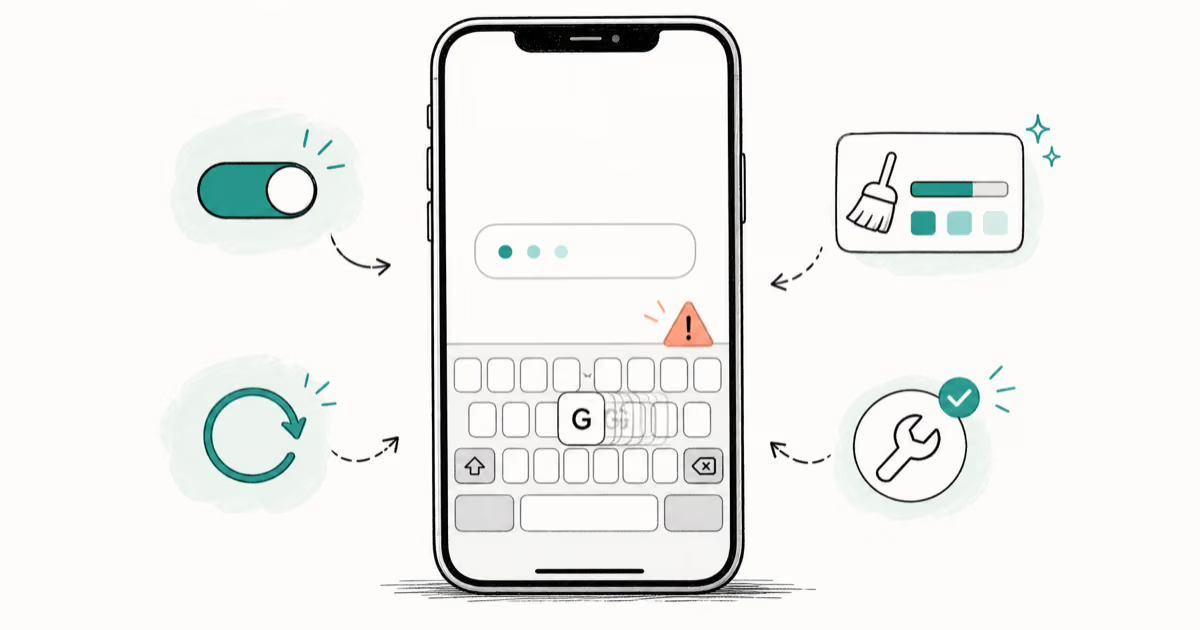
iPhone Keyboard Lag? 7 Proven Fixes for iOS 26 (2026)
Fix iPhone keyboard lag with 7 proven fixes for iOS 26. Covers restart, storage, predictive text, third-party keyboards, and dictionary reset.
How to Block Porn on an iPhone: A Guide for Parents
Learn how to block porn on iPhone using Screen Time, DNS filtering, and safe browsers. Step-by-step guide for parents to protect kids' devices.