Best Tablet for Kids in 2026: 7 Safe Family Picks Ranked
Best tablet for kids in 2026, with Fire, iPad, Android, school, travel, and family-control picks ranked by age, safety, apps, and setup steps.
Quick AnswerThe Amazon Fire HD Kids line is the best tablet for younger kids. Older kids are better served by an iPad or supervised Android tablet.
The best tablet for kids is a family-safe model you can lock down before handoff. Start younger kids on Amazon Fire HD Kids. Move older kids to iPad or supervised Android when school apps and video calls matter.
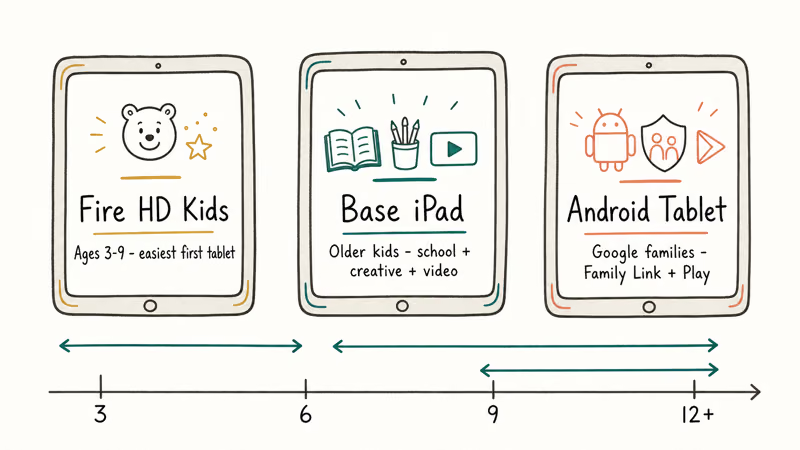
- Amazon Fire HD Kids tablets are the easiest starting point for ages 3 to 9 because profiles, age filters, and screen limits are built around parents.
- A base iPad is the better long-term family tablet for older kids who need school apps, FaceTime, creative apps, and stronger resale value.
- Android tablets work best when your family already uses Google accounts and Family Link for apps, location, and screen time.
- Set up child profiles, content filters, store approvals, and bedtime limits before the first day, not after a bad download.
- Buy a case, keep the charger in a shared room, and review app history weekly during the first month.
#Which Tablet Is Best for Kids?
The best tablet for kids under 10 is usually an Amazon Fire HD Kids model because setup, content limits, and age filters are parent-facing from the start. It’s not the fastest tablet, and it doesn’t have Google Play by default, but it solves the first family problem: giving a child a screen without giving them the whole internet.
For the full lineup beyond kid-focused models, see our best tablet guide.
Amazon’s Fire setup guide states that parents can add up to 4 Child Profiles during setup and then choose default or custom child profile settings. That real number matters if siblings share one tablet, because each child can have a separate age filter and content path.
A practical decision flow starts with setup pages, parent dashboards, app approval paths, and child-account requirements for Fire, iPad, and Android. The Fire path is the simplest for a first tablet. The iPad path fits older kids who need school and creative apps.
#Best Overall for Young Kids: Amazon Fire HD Kids
Amazon Fire HD Kids is the first tablet most parents should consider for preschool and early elementary kids. The hardware is not the point. The value is the child profile, bundled kid-friendly setup, and parent dashboard that makes limits visible.
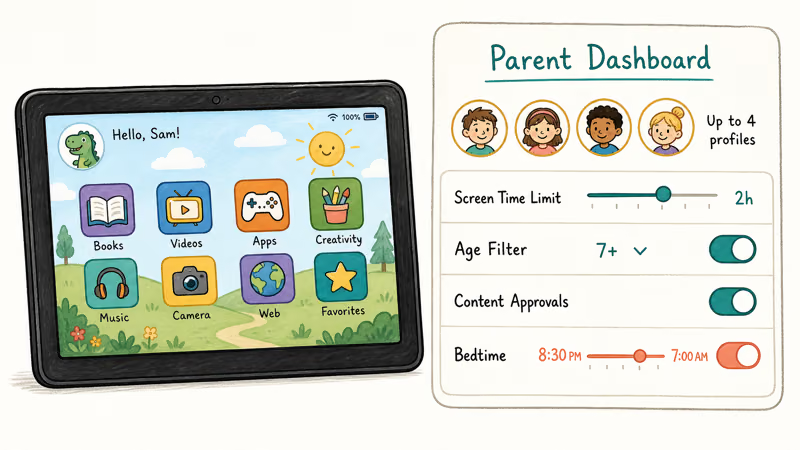
According to Amazon’s Parent Dashboard guide, Parent Dashboard is a free tool for managing screen time limits, age filters, educational goals, web restrictions, and content across compatible Amazon devices. It also states that parents can manage books, apps, games, videos, Alexa skills, and activity from the web or app.
The biggest limitation is the app store. Fire tablets lean on Amazon’s ecosystem, so a school app, Google app, or Android game may not be available. If your child mainly reads, watches approved videos, and plays age-filtered games, Fire is fine. If school requires Google Classroom, a Chromebook or Android tablet may fit better.
#Best Long-Term Pick: Base iPad
The base iPad is the best long-term kids tablet if your family already uses Apple devices. It costs more than a Fire tablet, but it gives you the App Store, FaceTime, iMessage family controls, better creative apps, and stronger performance as your child gets older.
Apple’s parental controls guide confirms that Screen Time can manage downloads, purchases, communication, apps, web content, privacy settings, and health or safety settings for a child’s iPhone or iPad. Apple also recommends setting up Family Sharing and adding the child’s Apple Account to the family group before turning on Content & Privacy Restrictions.
The iPad is the strongest shared-family option when the same device needs to move from kid mode to homework to video calls without feeling like a toy. The trade-off is setup: Family Sharing, Screen Time, App Store purchase controls, and app limits should be configured before the iPad becomes kid-ready.
#Best Android Pick for Google Families
An Android tablet is the best pick if your family already uses Google accounts, Google Play, YouTube Kids, and Android phones. It gives you a fuller app store than Fire and usually costs less than an iPad. Pick a Samsung Galaxy Tab A-series or discounted Tab S-series model with enough storage and a sturdy case.
Google confirms that Family Link can manage apps, screen time, and location on supervised devices. Google’s requirements also state that parents can use Android 6.0+, iPhone or iPad with iOS 16+, or a compatible Chromebook to run Family Link, while a child’s supervised device needs Android 6.0+, ChromeOS 71 or higher, or a compatible Fitbit.
That compatibility spread makes Android the most flexible parent-control path if your own phone is not an iPhone. The warning is that Family Link does not make every app kid-safe. You still need app approvals, YouTube settings, browser filters, and conversations about what the tablet is for.
#What Age Should a Kid Get a Tablet?
A kid should get a tablet when the parent has a clear use case and the controls are set before handoff. For ages 3 to 6, the tablet should be shared, time-limited, and used for short reading, drawing, or video sessions. For ages 7 to 10, add homework apps, educational games, and stricter store approvals.
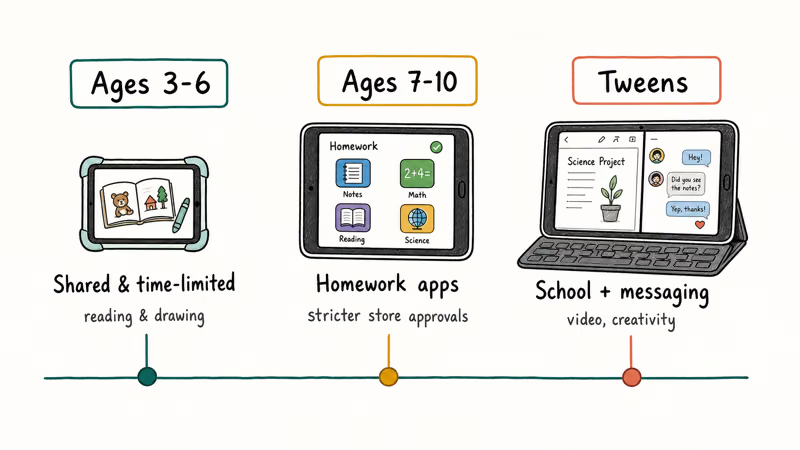
For tweens, the question changes. You are no longer buying a toy screen. You are buying a school, messaging, video, and creativity device that needs rules. An iPad or Android tablet makes more sense than a Fire tablet once your child needs class apps, video calls, keyboard support, and better file handling.
If you are also buying a computer for homework, don’t let the tablet consume the whole budget. Our best laptop under $500 guide covers the low-cost laptops that handle typing, browser homework, and school portals better than most tablets.
#Best Safety Setup Before You Hand It Over
Set up the tablet before your child sees it. Create the child profile, turn on content filters, block store access without approval, set bedtime, limit video apps, and test the first app download request. Five minutes of setup is not enough.
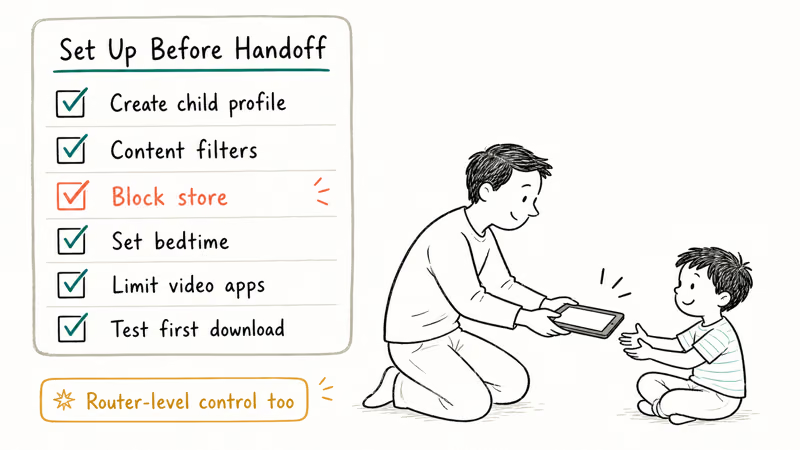
Use the same rule for the home network. A device-level control helps on the tablet, but a router-level control helps when a friend visits or a device slips out of the child profile. Our best parental control router guide explains the network layer, while our best family locator app guide covers location sharing once phones enter the picture.
Keep account ownership with the parent. Use your email for purchase approvals, keep recovery codes in your password manager, and write down the Screen Time or dashboard passcode somewhere safe. The tablet should teach independence slowly, not hand over the store on day one.
#Best Tablet by Family Scenario
#1. First Personal Tablet
Choose a Fire HD Kids tablet for the first personal screen, road trips, reading, and younger siblings who need separate profiles. It’s the lowest-stress pick when the tablet lives mostly inside kid content and short sessions.
#2. Older Apple Family
Choose a base iPad for older kids, art, music, FaceTime, school portals, and families already using Apple devices. The iPad path works best when parents already manage Family Sharing.
#3. Google Family
Choose an Android tablet for Google families, budget flexibility, and app choice. A supervised Galaxy Tab makes sense when a parent uses Android and wants Family Link, Google Play approvals, and a wider app path than Fire.
#4. First Phone Coming Soon
If the child also needs a phone soon, read our best Android phone guide before locking the whole family into one platform.
#5. Shared Travel Screen
For shared trips, pick the tablet with the easiest profiles and offline downloads. The shared screen should be boring to manage.
#Bottom Line
Buy an Amazon Fire HD Kids tablet for younger kids who need reading, videos, games, and firm parent controls. It’s the easiest first tablet because setup is built around child profiles and Parent Dashboard.
Buy a base iPad for older kids who need school apps, creative tools, video calls, and a tablet that will last longer. Buy an Android tablet if your family runs on Google and you want Family Link controls with a fuller app store than Fire. Whichever route you pick, set up limits before the tablet leaves your hands.
#Frequently Asked Questions
What is the best tablet for a 5-year-old?
An Amazon Fire HD Kids tablet is the best pick for most 5-year-olds. It has child profiles, age filters, screen limits, and a parent dashboard built for families. Keep sessions short and use it in shared spaces.
Is an iPad better than a Fire tablet for kids?
An iPad is better for older kids who need school apps, FaceTime, drawing, music, or a stronger app library. A Fire tablet is better for younger kids and lower-stress parental controls. The iPad lasts longer, but it needs more setup.
Do kids need Google Play on a tablet?
Not always. Younger kids can do fine without Google Play if they mostly read, watch approved videos, and play age-filtered games. Older kids may need Google Play for school, creativity, or communication apps, which makes Android or iPad a better fit.
How much storage should a kids tablet have?
32GB works only for light use and streaming. 64GB is a better floor for downloaded videos, games, and offline travel content. Pick 128GB if the tablet will be shared by siblings or used for school projects.
Should each child have a separate profile?
Yes. Separate profiles let each child have age filters, screen limits, and content suited to their maturity. Amazon allows up to 4 Child Profiles during setup, which is enough for many shared-family tablets.
Are parental controls enough by themselves?
No. Parental controls reduce risk, but they don’t replace check-ins, shared rules, and app reviews. Review activity weekly during the first month, then adjust limits based on what your child actually uses.
Can a kids tablet replace a laptop for school?
Sometimes for early grades, but not for typing-heavy classes. A tablet is fine for reading, videos, drawing, and light homework. A laptop is better for essays, school portals, online testing, and multitasking.

Best Laptop for Running LLMs in 2026: Memory Comes First
The best laptop for running LLMs is a memory purchase first. Compare MacBook unified memory against NVIDIA laptop VRAM, and see what each tier really runs.

Pixel 11 vs Pixel 10: What Changed and Who Should Upgrade
Pixel 11 vs Pixel 10: same screen and camera resolution, new Tensor G6, 25W wireless, and Gemini Intelligence. Here is who should actually upgrade.
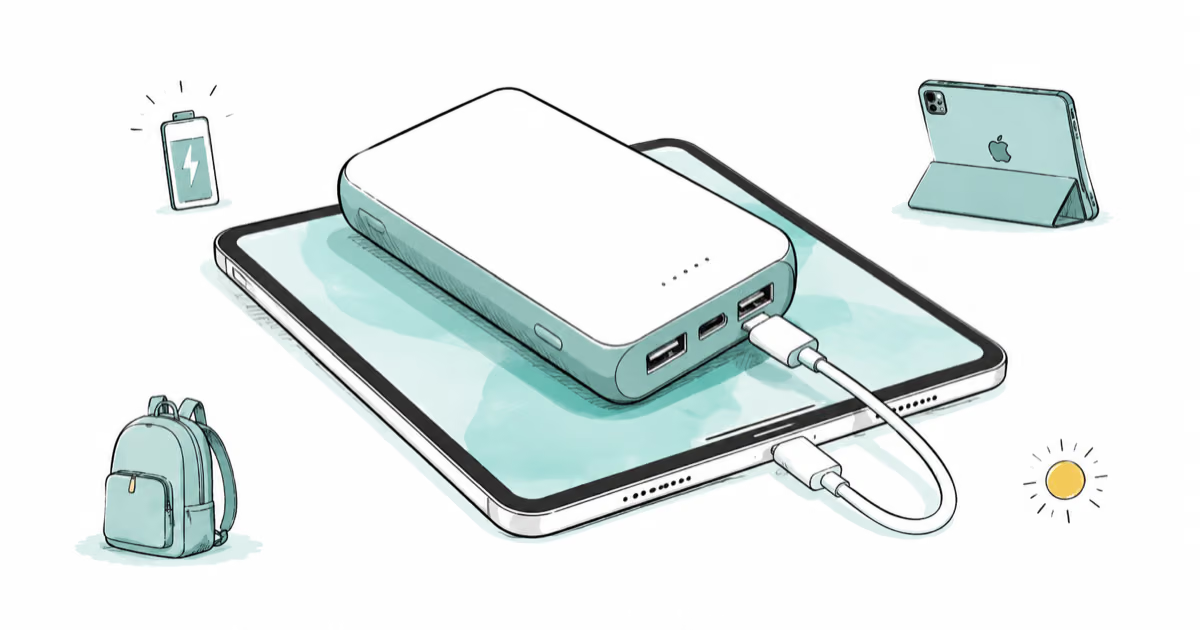
Best Power Bank for iPad in 2026: Pro, Air, and Mini
Best power bank for iPad in 2026. Compare mAh tiers and USB-C PD wattage for iPad Pro, Air, and mini, plus airline Wh math, cables, and travel tips.
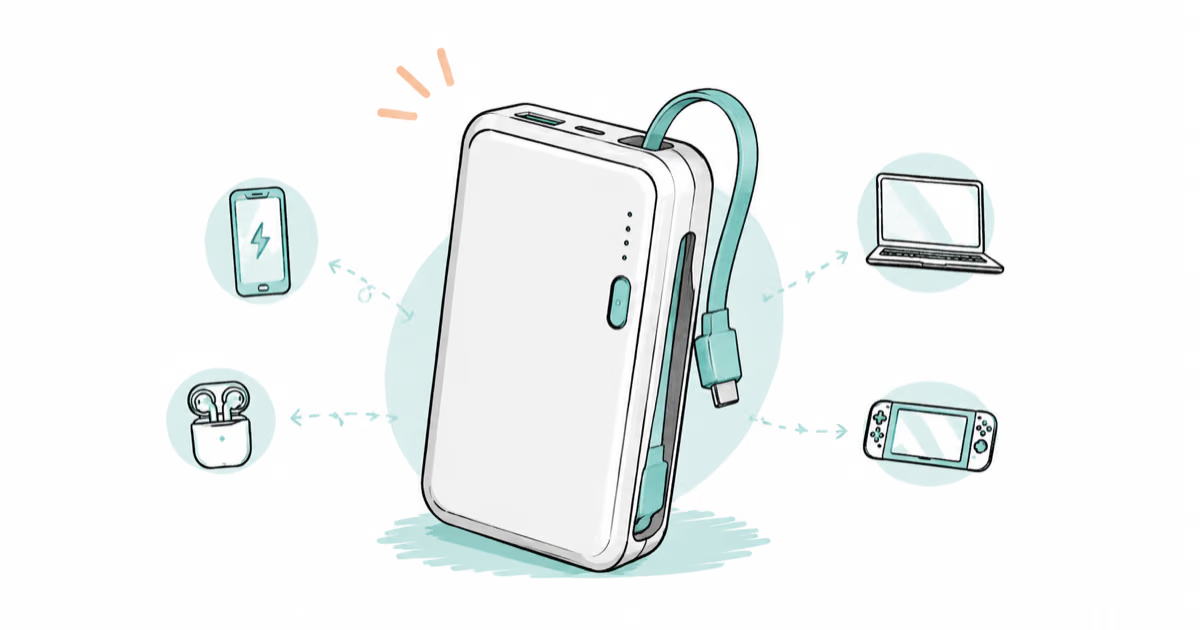
Best Power Bank With Built-In Cable: Top 2026 Picks
Best power bank with built-in cable picks for 2026. Compare single USB-C, multi-connector, and retractable laptop banks, plus airline Wh math.