Best Monitor 2026: Top Picks for Work, Gaming, Creative
Best monitor in 2026 by use case. We pick top OLED, mini-LED, and IPS displays for work, gaming, and creative editing, and match resolution to size.
Quick AnswerThe best monitor for most people in 2026 is a 32-inch 4K QD-OLED like the MSI MPG 321URX, handling work, editing, and 240Hz gaming under $1000.
The best monitor in 2026 is the one matched to how you use your desk, and for most people that’s a 32-inch 4K QD-OLED like the MSI MPG 321URX. Panel type matters more than the number on the box. This guide compares displays across work, gaming, and creative tasks, including desktop and laptop setups.
- For one screen that does everything, a 32-inch 4K QD-OLED is the easiest pick, with USB-C power delivery for laptops.
- Long hours of static desktop work favor 4K mini-LED, which carries zero burn-in risk that OLED still mitigates with care features.
- Competitive gaming on a budget points to a 27-inch 1440p QD-OLED rather than a slower 4K panel.
- Text sharpness scales with pixel density, so a 32-inch 4K beats a 32-inch 1440p for reading and editing.
- Refresh rate above your GPU output is wasted money, so buy the panel your graphics card can actually feed.
#Our Top Monitor Picks for 2026
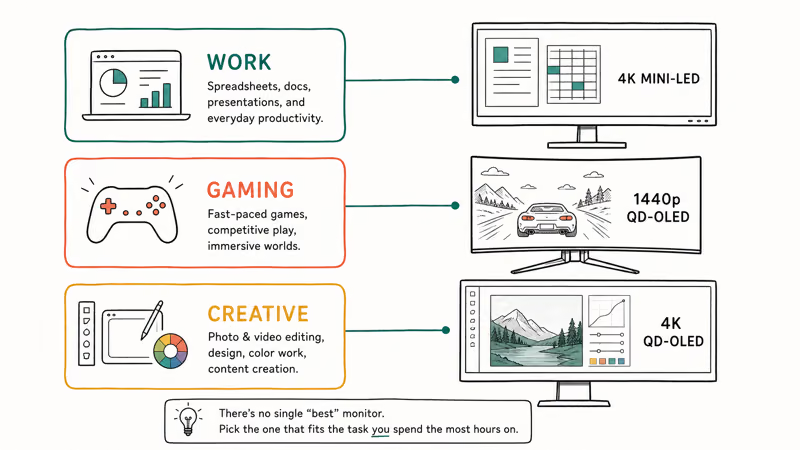
We grouped picks by the job each one does best. There is no single winner for every desk, so start with the task you spend the most hours on.
#MSI MPG 321URX
This is the default recommendation for a do-it-all screen. The MSI MPG 321URX is a 32-inch 4K QD-OLED that handles desktop work, photo editing, and 240Hz gaming in one panel.
As an Amazon Associate fone.tips earns from qualifying purchases.
The productivity advantage is USB-C power delivery: one cable can charge a laptop and drive the screen, while factory color calibration keeps the panel useful for photo review without a profiling step. According to Tom’s Guide’s MSI MPG 321URXW review, the panel pairs 4K resolution with a 240Hz refresh rate. See our best 4K monitor guide for more 4K options across price tiers.
#ASUS ROG Swift PG27UCDM
If 32 inches is too large for your desk, step down to 27. The ASUS ROG Swift PG27UCDM is a 27-inch 4K 240Hz QD-OLED with a much higher pixel density than older 27-inch OLED panels. That density is what you feel first. Text edges look crisp and small UI fonts stay readable, which older 1440p 27-inch panels never managed cleanly.
#OLED or Mini-LED: Which Panel Type Should You Buy?
This is the decision that shapes everything else. Both panel types look excellent, but they fail differently, so the right answer depends on what’s on screen most of the day.
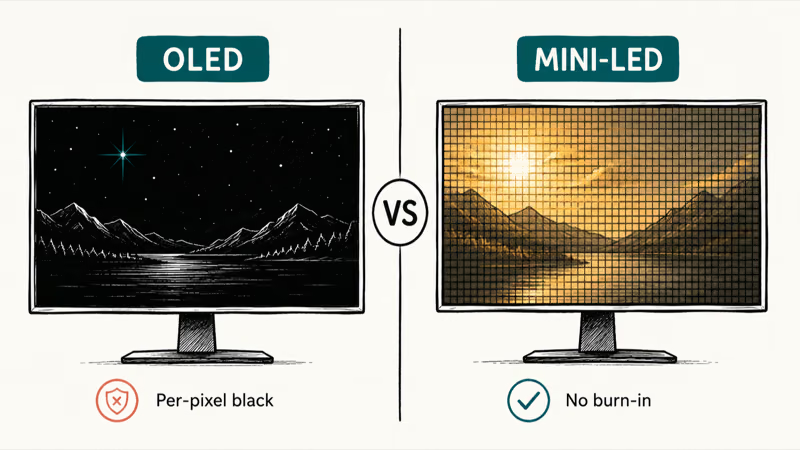
OLED gives per-pixel control, so blacks are truly black and motion stays sharp in fast games. The trade-off is burn-in: a static taskbar left for hours can etch in over time. Modern panels fight this with pixel shifting and scheduled refresh cycles. For mixed gaming and dark-room movies, OLED wins.
Mini-LED takes a different path. It can’t match OLED’s infinite contrast, but it hits far higher peak brightness and carries no burn-in risk at all. Tom’s Guide recommends OLED for gaming-first setups and mini-LED for long static desktop hours, since the brighter, burn-in-free panel is the safer all-day choice.
Here is the short version. Pick OLED for gaming and media. Pick mini-LED for all-day static work. Our best gaming monitor guide matches panels to GPU tiers.
#Which Monitor Is Best for Creative Work?
Color-critical work changes the calculus. Here the panel’s color gamut and brightness consistency matter more than refresh rate.
QD-OLED panels suit creative work because they cover a wide color gamut with high brightness and rich output. WOLED panels hold brightness more consistently, though pushing peak brightness can shift their accuracy. For a dedicated creative pick, Tom’s Hardware points to the BenQ PD3226G, a panel aimed at professionals that still holds up in games.
For editing, the deciding factor is out-of-box accuracy. A QD-OLED that arrives close to its target saves you a calibration step. A budget IPS panel often needs a hardware probe before you trust the colors on a paid job.
#Best Ultrawide and Big-Screen Picks
Ultrawides trade pixel density for horizontal real estate, which suits coding, timelines, and immersive single-player games.
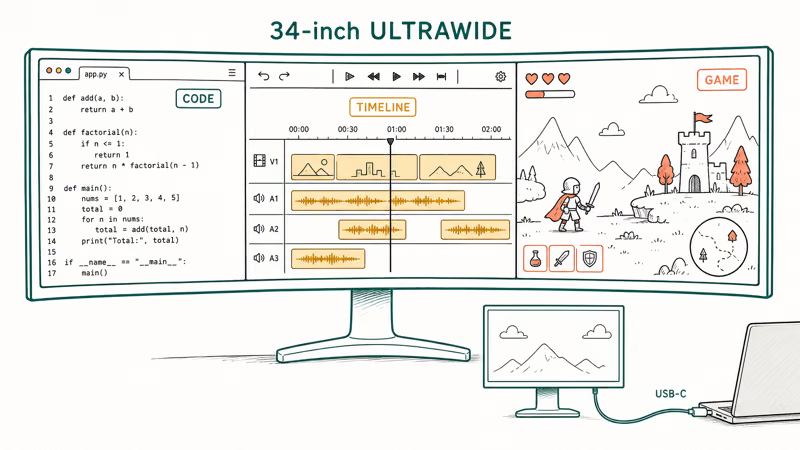
For most ultrawide buyers, the MSI MPG 341CQPX is a strong 34-inch QD-OLED with a 240Hz refresh rate and a USB-C port that delivers enough power to charge most laptops. That single-cable charging is the quality-of-life touch that makes a wide panel feel like a dock as well as a display.
A 39-inch 5K2K Tandem WOLED option also exists for buyers who want maximum sharpness across the width, with a native 165Hz refresh and a dual mode that pushes 330Hz at a lower resolution. It costs far more, so it’s a stretch pick rather than a value one. Many of these big panels also pair well with a travel screen, and our best portable monitor guide covers that second display.
#How Resolution and Size Work Together
Resolution alone tells you nothing without the screen size next to it. The same pixel count looks sharp on a small panel and soft on a large one.
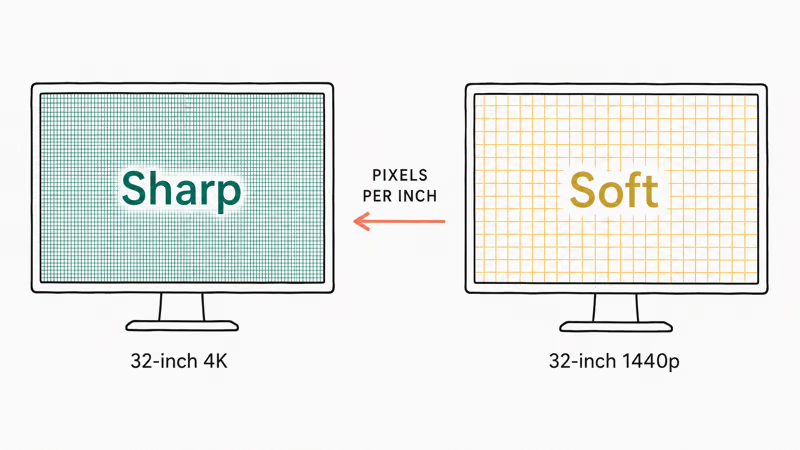
Pixel density is the real metric. A 32-inch 4K panel and a 32-inch 1440p panel hold the same diagonal, but the 4K version packs far more pixels per inch. Text and fine detail look noticeably cleaner. Drop to 1440p at 32 inches and you see the difference immediately in document edges.
Refresh rate sits in tension with resolution. Lower-resolution panels can climb past 500Hz while 4K panels typically top out near 240Hz because of bandwidth limits. Tom’s Guide found that the 27-inch 1440p Alienware AW2725D runs at 280Hz, faster than most 4K screens, which is why a budget competitive player is often better served by a fast 1440p panel. Our best budget monitor picks lean into exactly that trade-off.
#How to Evaluate These Monitors
A practical monitor evaluation should cover a full workday of documents, a photo-editing session on calibrated reference images, and gaming across fast and slow titles.
Connectivity deserves equal weight. Check whether USB-C power delivery can charge your laptop under load, since a port that lists power but can’t sustain it becomes a daily annoyance. HDMI 2.1 behavior also matters for console and high-refresh use, which our best HDMI 2.1 monitor guide covers in more depth.
#Bottom Line
For one monitor that does everything well, buy a 32-inch 4K QD-OLED like the MSI MPG 321URX and use its USB-C power delivery as a laptop dock. If your day is mostly static desktop work, switch to a 4K mini-LED panel to sidestep burn-in entirely. If your budget is tight and you mainly game, a 27-inch 1440p QD-OLED stretches further than a slower 4K screen. Match the panel to your hours, not to the spec sheet.
#Frequently Asked Questions
What is the best monitor size for most desks?
A 27-inch or 32-inch panel suits most desks. Pick 27 inches if your desk is shallow or you sit close, since a 32-inch screen at arm’s length can feel large for text work. Go 32 inches when you want more workspace and you have at least about 30 inches of viewing distance to take in the whole panel comfortably.
Is OLED worth the burn-in risk for a work monitor?
It depends on your hours. Modern OLED panels include pixel shifting and refresh routines that make occasional desktop use safe. If you leave static content on screen for many hours every day, a mini-LED panel removes the risk entirely.
Do I need 4K or is 1440p enough?
For a 27-inch screen, 1440p still looks sharp. At 32 inches, 4K is the better choice because the larger panel spreads 1440p pixels thin enough to soften text.
Can one monitor charge my laptop?
Yes, if it has USB-C with enough power delivery. Many 2026 panels supply 90 watts or more, which charges most thin laptops and keeps a 16-inch MacBook Pro topped up under light load. Check the wattage against your laptop’s own charger before relying on a single cable to do both jobs.
What refresh rate do I actually need?
Buy the refresh rate your graphics card can feed. A 240Hz panel only helps if your GPU pushes near that many frames in the games you play. For desktop work, anything above 60Hz feels smoother for scrolling.
Is mini-LED better than regular LED for HDR?
Mini-LED is a large step up for HDR over standard edge-lit LED. It uses hundreds or over a thousand dimming zones for full-array local dimming, so bright highlights and deep shadows can appear together on screen. A panel labeled HDR without local dimming can’t produce the same contrast no matter how bright it gets.
Should I get an ultrawide instead of a standard monitor?
Choose an ultrawide if you value horizontal workspace for coding, timelines, or immersive games. Skip it if you do color-critical work that needs high pixel density, since many ultrawides trade sharpness for width.

Best Laptop for Running LLMs in 2026: Memory Comes First
The best laptop for running LLMs is a memory purchase first. Compare MacBook unified memory against NVIDIA laptop VRAM, and see what each tier really runs.

Pixel 11 vs Pixel 10: What Changed and Who Should Upgrade
Pixel 11 vs Pixel 10: same screen and camera resolution, new Tensor G6, 25W wireless, and Gemini Intelligence. Here is who should actually upgrade.
Best Power Bank for iPad in 2026: Pro, Air, and Mini
Best power bank for iPad in 2026. Compare mAh tiers and USB-C PD wattage for iPad Pro, Air, and mini, plus airline Wh math, cables, and travel tips.
Best Power Bank With Built-In Cable: Top 2026 Picks
Best power bank with built-in cable picks for 2026. Compare single USB-C, multi-connector, and retractable laptop banks, plus airline Wh math.