Best Keyboard and Mouse Combo 2026: Office to Gaming
Best keyboard and mouse combo 2026 for office, home, and gaming. We compare wireless sets, receivers vs Bluetooth, and value vs buying separately.

Quick AnswerFor most desks the Logitech MX Keys S Combo is the best keyboard and mouse combo in 2026: quiet typing, a precise MX Master mouse, and one receiver that pairs both across three computers.
A keyboard and mouse combo should feel matched, not just bundled.
The best combos share a wireless receiver, a battery philosophy, and a design language so your desk reads as one setup instead of two leftover parts. This guide compares office, home, and gaming sets by value, receiver behavior, Bluetooth tradeoffs, and ergonomics.
- A combo saves money over separates only when both pieces are ones you’d buy anyway; a great keyboard bundled with a throwaway mouse is no bargain
- A unifying receiver pairs both devices through one USB port and survives sleep-wake cycles better than Bluetooth, which sometimes drops on wake
- Bluetooth combos free up a USB port and roam across phones and tablets, but add a second of reconnect lag and occasional pairing drift
- Gaming combos need a 1ms wireless mouse and an actuating keyboard; office combos prioritize quiet keys and multi-device switching instead
- Buying a premium keyboard and mouse as a matched pair from one maker keeps software, battery type, and switching behavior consistent across both
#Does a Combo Save Money Over Buying Separately?
Sometimes. But the savings are smaller than the marketing implies, and they vanish if half the bundle is a part you’d never choose on its own.
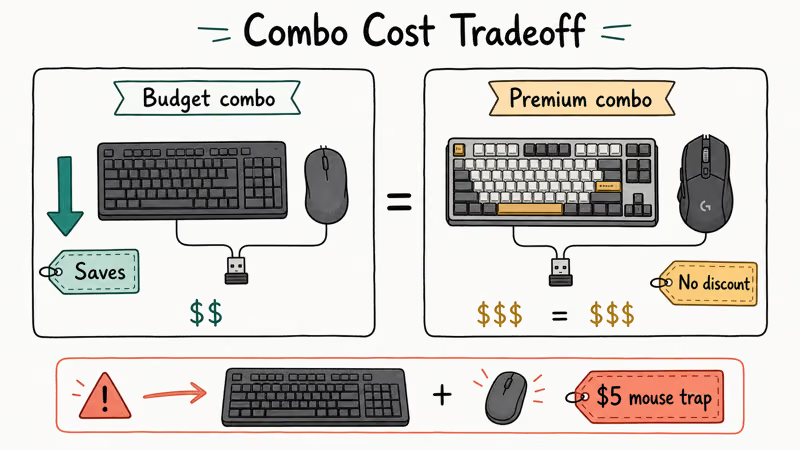
Budget combos really do cut cost. A bundled membrane keyboard and basic mouse share one receiver and box, so they undercut the two bought apart. For a spare workstation, that’s a clear win, and it spares you the hassle of pairing two unrelated dongles to one machine that you’ll rarely touch anyway.
Premium combos flip that math. A matched mechanical keyboard and flagship mouse rarely cost less than the separates; you pay for integration, not a discount. According to PCMag’s peripherals buying advice, the software ecosystem and shared receiver often matter more than the per-piece price for a daily driver you live in for years, which is why premium combos are best judged on how well the two halves work together rather than on the sticker.
The trap is the lopsided bundle. Read the mouse spec, not the headline price. Weigh both halves before calling a combo a deal, because a $40 set with a $5 mouse inside is just a $35 keyboard with a paperweight attached.
#Best Overall Combo: Logitech MX Keys S and MX Master
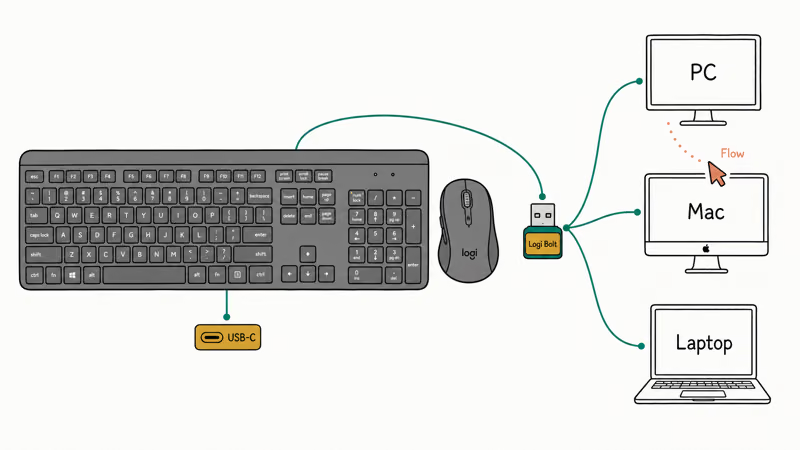
For a serious desk, the strongest combo isn’t sold in one box at all. Pairing the Logitech MX Keys S keyboard with the Logitech MX Master 4 mouse gives you the best matched setup in 2026, because both run on Logi Bolt, charge over USB-C, and switch across three computers from the same software.

- USB-C dongle in box — finally no USB-A adapter dance
- Haptic feedback for scroll detents feels expensive, not gimmicky
- 70-day real-world battery + 3-hour use from 1-min charge
As an Amazon Associate fone.tips earns from qualifying purchases. Prices and availability on Amazon are accurate as of the date above and subject to change.
As an Amazon Associate, fone.tips earns from qualifying purchases.
Logi Bolt is the point of the MX pairing: it keeps both devices on the same dedicated receiver, while the keyboard’s spherically dished keys stay quiet enough for a shared office. According to RTINGS’ MX Keys S review, the keyboard lasts about 10 days per charge with backlighting on and up to five months with it off.

As an Amazon Associate fone.tips earns from qualifying purchases. Prices and availability on Amazon are accurate as of the date above and subject to change.
Shared software is the glue here. Logi Options+ maps buttons, sets app-specific actions, and runs Logitech Flow so a single cursor and copy-paste move across two computers as if they were one machine, and configuring the same three-machine rotation on both devices takes about two minutes start to finish.
The catch is that this is technically two purchases, so there’s no combo discount. For an all-day desk, the consistency justifies it. For a casual setup, the next picks cost far less.
#Best Travel and Multi-Device Combo: MX Anywhere 3S Pairing
For people who hop between a laptop, a tablet, and a desktop, a compact Bluetooth-first pairing wins over a receiver-bound set. Matching a slim wireless keyboard with the Logitech MX Anywhere 3S mouse builds a combo that fits a bag and roams across every device you own.

- 99g pocket form factor — slips next to a 13" MacBook Air
- Darkfield sensor tracks on glass / marble / lap
- Switches between 3 devices with one button
As an Amazon Associate fone.tips earns from qualifying purchases. Prices and availability on Amazon are accurate as of the date above and subject to change.

The MX Anywhere 3S is the anchor here. It tracks on glass, runs near-silent clicks, and pairs over Bluetooth to three devices with a tap, so it moves from a work MacBook to a personal iPad without a dongle. Across a typical laptop-to-desktop routine, the main adjustment is the standard Bluetooth reconnect beat on wake.
Pair it with a thin Bluetooth keyboard and the whole combo weighs less than one full-size mechanical board. That’s the travel trade in a sentence.
If you want quieter keys for late-night typing, a low-profile membrane board pairs well here too, and our best membrane keyboard roundup covers the quiet picks. The downside is Bluetooth itself: wake-from-sleep reconnects add a beat, and a crowded 2.4GHz environment can introduce the occasional stutter that a dedicated receiver avoids.
#Best Gaming Combo: Matched Wireless Set
Gaming combos play by different rules. You want a sub-1ms wireless mouse with a high-polling sensor and a keyboard built for fast, consistent actuation, which is why a matched gaming set from one maker beats a generic office bundle for play.
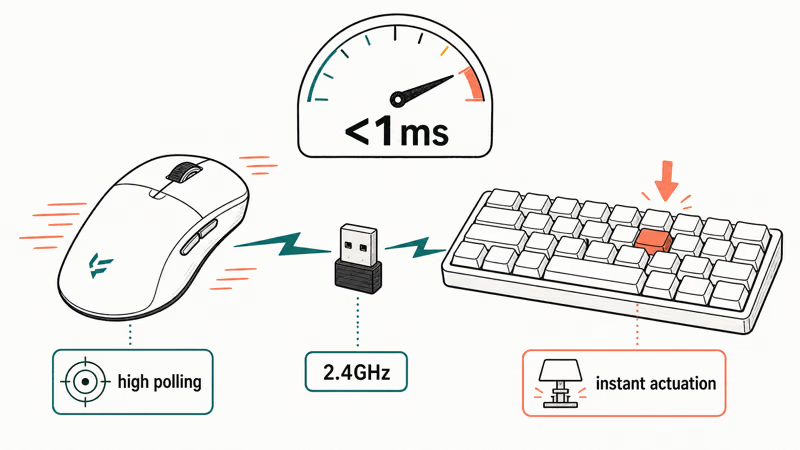
A proper gaming combo pairs a lightweight wireless mouse with a low-latency 2.4GHz receiver and a mechanical or analog keyboard with per-key response tuning. The shared receiver matters less here than raw latency; what you’re buying is a mouse that doesn’t lag in a firefight and a keyboard whose switches register the instant you press. Browse current matched sets with our wireless gaming keyboard and mouse combos search to compare what’s shipping in 2026.
If you’d rather optimize each half, a dedicated gaming mouse plus a separate board almost always beats a bundle, because the best gaming mice and the best gaming keyboards rarely come from the same combo. Our best wireless mouse for gaming and work roundup covers the mouse side, and the best wireless mechanical keyboard guide handles the board.
Gaming combos make the most sense for a console-to-PC setup or a second rig where you want one box, one receiver, and decent-enough performance without chasing esports-grade specs.
#Ergonomics in a Combo Setup
Ergonomics matter a lot if you type all day. Most combos ship a flat keyboard and a symmetrical mouse that work fine for short stints but strain wrists over an eight-hour shift.
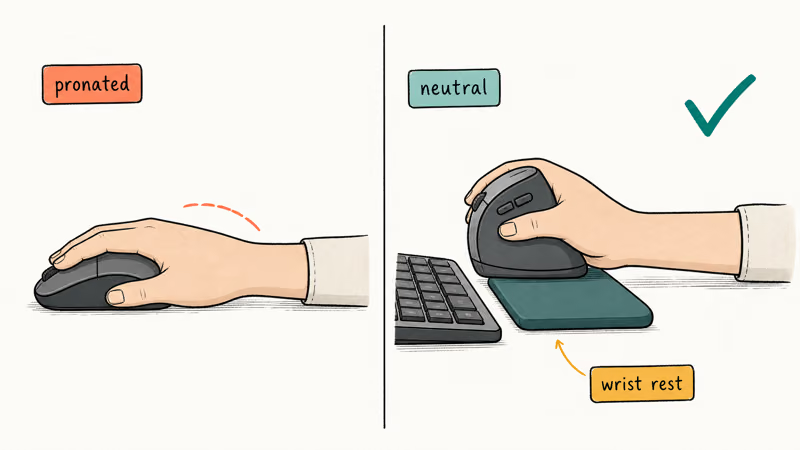
The mouse half is where comfort breaks down first. A standard combo mouse forces a flat palm and a pronated wrist, while an ergonomic or vertical shape keeps the forearm in a more neutral position. If wrist strain is your problem, our best ergonomic wireless mouse for work roundup covers shapes worth pairing with any keyboard.
Keyboards strain the wrist differently. A tall mechanical board with no support tilts the hands back, which is why a wrist rest often matters more than the switch type for comfort. Our best keyboard wrist rests guide covers pads that drop in under any combo board.
Few combos sell a truly ergonomic matched set. For a comfort-first desk, buy the ergonomic mouse and a split keyboard separately; a bundle optimizes for price, not wrist angle.
#Unifying Receiver: Is It Worth a USB Port?
Pick a unifying receiver for a fixed desk and Bluetooth for a setup that moves. Each solves a different problem.
A unifying receiver, like Logitech’s Logi Bolt, pairs both the keyboard and the mouse through one USB dongle. The link is fast, survives sleep-wake cleanly, and resists the interference that nags Bluetooth in a crowded office. The cost is one occupied USB port and a dongle you can lose. For stationary setups, a dedicated 2.4GHz receiver still beats Bluetooth on latency and reconnect speed.
Bluetooth frees that USB port. It lets a combo roam across phones, tablets, and laptops with no extra hardware, at the cost of a slower wake-from-sleep reconnect and occasional pairing drift.
The best combos support both. Many premium sets pair over a receiver at the desk and Bluetooth on the road, so you don’t have to commit to one or the other.
#Bottom Line
Most desk workers want the matched MX Keys S and MX Master 4 setup. It isn’t a discounted bundle, but the shared Logi Bolt receiver, USB-C charging, and three-machine switching make two devices behave like one polished system, and that consistency pays off over a full workday.
People who move between a laptop, tablet, and desktop should build around the MX Anywhere 3S and a slim Bluetooth keyboard. It fits a bag and roams everywhere.
Gamers get more from a matched wireless gaming set than from an office bundle. Play needs sub-1ms latency that office combos don’t chase, and the best of each half still comes from buying the mouse and keyboard separately.
Comfort-first buyers should skip the bundle entirely and pair an ergonomic mouse with a split or tented keyboard. Start with the matched office combo if you live at one desk, step to a Bluetooth travel pairing if your computers move with you, and only reach for a true combo box when convenience beats squeezing the last bit of performance from each half.
#Frequently Asked Questions
Is a keyboard and mouse combo cheaper than buying separately?
At the budget end, yes. A bundled membrane keyboard and basic mouse share one receiver and cost less than the two bought apart, which makes them a smart pick for a spare or family computer. At the premium end, a matched pair rarely saves money, because you pay for integration, not a discount. The real savings only appear when both halves are devices you’d buy anyway, so weigh the keyboard and the mouse on their own merits first.
Should I use a unifying receiver or Bluetooth?
Receiver for a fixed desk, Bluetooth for a setup that moves. The receiver wins on reliability; Bluetooth wins on roaming.
Can one combo work across multiple computers?
Yes. Premium sets like the MX Keys S and MX Master line pair across three computers and switch with a button or software like Logitech Flow.
Do I need a mechanical keyboard in a combo?
Only if you want the tactile feedback and durability that mechanical switches bring, and you don’t mind the noise. Most office combos use quieter membrane or scissor switches that suit shared spaces and cost less, which is why open-plan offices tend to favor them. Gamers and heavy typists usually prefer mechanical, while anyone sharing a room often picks the quietest board they can find regardless of switch type.
Are combo mice good enough for gaming?
Budget office combo mice are not. A dedicated gaming combo with a sub-1ms 2.4GHz mouse is fine, but a standalone gaming mouse beats almost any bundled one if you’re serious about play.
Can a combo keyboard and mouse work on a Mac?
Yes, almost always. Most wireless combos work on macOS over Bluetooth or a receiver, and makers ship Mac-friendly layouts plus software that remaps the Windows-shortcut keys.
What’s the difference between a combo and a matched pair?
A combo ships in one box with a shared receiver and a single price. A matched pair is two separate purchases from the same maker that still share software, battery type, and switching behavior. It costs more but lets you pick the exact keyboard and mouse you want, which is why our top overall recommendation is a matched pair rather than a boxed combo.

Best Laptop for Running LLMs in 2026: Memory Comes First
The best laptop for running LLMs is a memory purchase first. Compare MacBook unified memory against NVIDIA laptop VRAM, and see what each tier really runs.

Pixel 11 vs Pixel 10: What Changed and Who Should Upgrade
Pixel 11 vs Pixel 10: same screen and camera resolution, new Tensor G6, 25W wireless, and Gemini Intelligence. Here is who should actually upgrade.

Best Power Bank for iPad in 2026: Pro, Air, and Mini
Best power bank for iPad in 2026. Compare mAh tiers and USB-C PD wattage for iPad Pro, Air, and mini, plus airline Wh math, cables, and travel tips.
Best Power Bank With Built-In Cable: Top 2026 Picks
Best power bank with built-in cable picks for 2026. Compare single USB-C, multi-connector, and retractable laptop banks, plus airline Wh math.