Android Private Space Not Showing? A 2026 Fix Guide
Android Private Space not showing? Fix it by checking Android 15 eligibility, work profile blocks, and launcher search, with official Google sources.
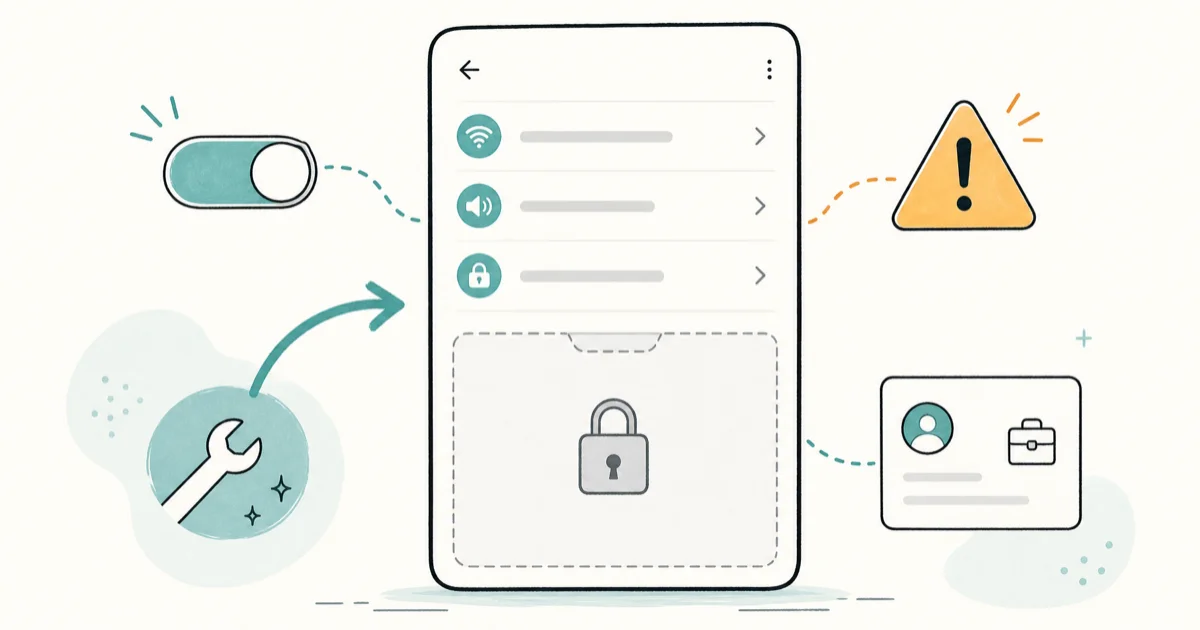
Quick AnswerAndroid Private Space not showing usually means your phone runs an older version than Android 15, a work profile or child account blocks it, or the launcher hides the entry. Confirm your Android version, check for managed-profile restrictions, then search Settings before assuming the feature is broken.
Android Private Space not showing almost always comes down to eligibility, not a bug. The feature needs Android 15 or newer, a current Google Play system update, and a phone that isn’t locked down by a work profile or child account. When any one is missing, the entry doesn’t appear in Settings. That makes the missing menu a compatibility check before it’s a troubleshooting problem.
- Private Space requires Android 15 or newer plus a current Google Play system update
- A work profile, child account, or device-admin policy can hide Private Space entirely
- Samsung phones use Secure Folder instead, so Private Space may never appear on One UI
- The entry lives under
Settings>Security andprivacy, and launcher search finds it fastest - Multiple-user mode and supervised accounts block the feature without any error message
#Why Is Android Private Space Not Showing?
Private Space is a hidden, lockable container for sensitive apps that Google added in Android 15. It only appears when three conditions hold: a supported Android version, a recent Google Play system update, and an account or profile that’s allowed to use it. Miss one and the menu entry stays hidden with no explanation.
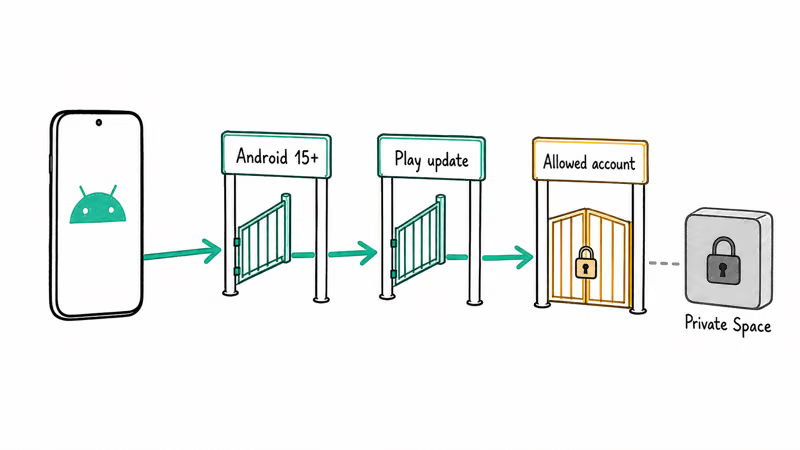
That silent gating is the source of most confusion. There’s no error that says “Private Space unavailable.” The option just isn’t there.
So the first job is figuring out which gate blocked you. According to Google’s Private Space help page, the feature requires a compatible Android version and is set up from the Security and privacy settings once your device qualifies. A missing entry usually means an eligibility gap, not a fault.
There’s a maker angle too. If you followed a tutorial filmed on a Pixel and your phone is a Samsung, that’s already a strong clue. Different makers handle private app storage differently, and some Galaxy models ship their own vault in place of Google’s Private Space, which is why a step-by-step that works perfectly on a Pixel can leave a Samsung owner staring at a menu that simply doesn’t contain the option at all.
#Does Your Phone Actually Support Private Space?
Version is the first gate, and the easiest to check. Open Settings > About phone and look at the Android version. If it reads Android 14 or lower, Private Space won’t exist no matter where you look. The feature shipped with Android 15 and isn’t backported.
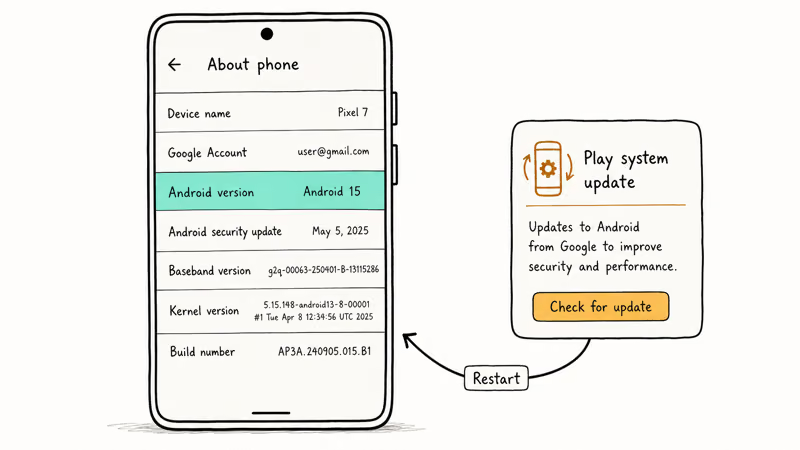
Also check Settings > Security and privacy > Google Play system update, then install anything pending. It updates separately from Android.
According to Google’s guide to checking your Android version, you can confirm both the Android version and the Google Play system update level from the About phone screen, so check them together. A pending Google Play system update can be enough to hide Private Space even when the Android version already looks current.
A quick eligibility checklist:
- Confirm Android 15 or newer under
Settings>Aboutphone - Install any pending Google Play system update
- Reboot after updating, then re-check Settings
- Note that some budget phones skip Private Space even on Android 15
If you’re on Android 15 with updates current and the entry still won’t show, move to the profile and account checks next.
#Check Work Profile, Child Account, and Admin Blocks
Managed restrictions are the second most common reason Private Space hides. If your phone has a work profile from an employer’s mobile device management (MDM) system, the IT policy can disable Private Space outright. The same applies to child accounts supervised through Family Link and to multiple-user setups.
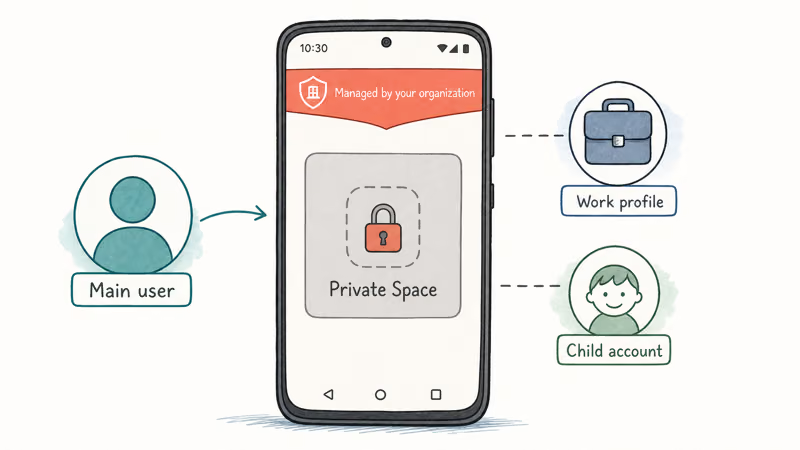
Open Settings and look for a work profile section or a “Managed by your organization” notice. If it’s there, your admin controls which features are available, and you can’t override an MDM restriction from the phone.
Child accounts work the same way. According to Google’s Family Link support documentation, a supervised account lets a parent manage which features and apps a child can use, so it often hides Private Space.
Our guide on Android Screen Time covers those Family Link limits, and Samsung Parental Controls explains the Galaxy version.
Suspect an unwanted monitoring app instead of a parental policy? Our walkthrough on How To Remove Malware From Android helps you audit what’s installed, since a hidden device-admin app can suppress features just like a managed profile does.
One quick test fixes most account-related cases: switch to the device’s main user, not a guest or secondary profile, and re-check Settings. Private Space is tied to the primary user on many devices, so a feature that vanished after you set up a second profile or handed the phone to a guest will usually reappear the moment you’re back on the owner account.
#Find Private Space in Settings and Launcher Search
Sometimes Private Space exists but you’re looking in the wrong menu. The fastest way to find it: use the search bar at the top of Settings. Type “Private Space” and tap the result. This skips the menu hunt and confirms in one step whether the feature is present.
If search returns nothing, the feature isn’t enabled, which sends you back to the version and profile checks. If it returns a result, tap through to set it up. Once created, Private Space sits at the bottom of your app drawer, behind a lock.
Some launchers hide the Private Space row until you scroll to the bottom. A feature that looks “missing” may just be collapsed there. The same gating applies to other Android tools, like How To Use Circle To Search, which also depends on device and version eligibility, so don’t assume an absent menu item always means the feature was stripped from your build entirely.
To recap the search path:
- Open Settings and tap the search icon
- Type “Private Space” and check for a result
- If found, follow the setup prompts
- Look at the bottom of the app drawer for the locked section
#Reboot and Re-check After Updating
Updates don’t always take effect until the phone restarts. After installing an Android or Google Play system update, reboot before you decide Private Space is missing. A post-update restart can be the step that makes the entry appear.
Google’s documentation states that Private Space setup lives under Settings on Android 15 once your device qualifies. So after a reboot, search Settings again rather than scrolling menus by hand, since a held-back update finishing quietly in the background is one of the most common reasons the option finally surfaces a full hour after you thought every update had already installed and the feature still wasn’t there.
Still missing after a clean reboot on a qualifying phone? The cause is almost certainly a profile or maker restriction, not a stuck update, so move on to the account and device-specific checks.
#Samsung Users Should Set Up Secure Folder
Samsung phones cause the most confusion here. One UI shipped its own private-app vault, Secure Folder, years before Google’s Private Space, and on many Galaxy devices the stock feature isn’t present at all. Secure Folder is the intended replacement, so a Samsung owner hunting for Private Space is usually looking for a menu item their phone was never going to have in the first place.
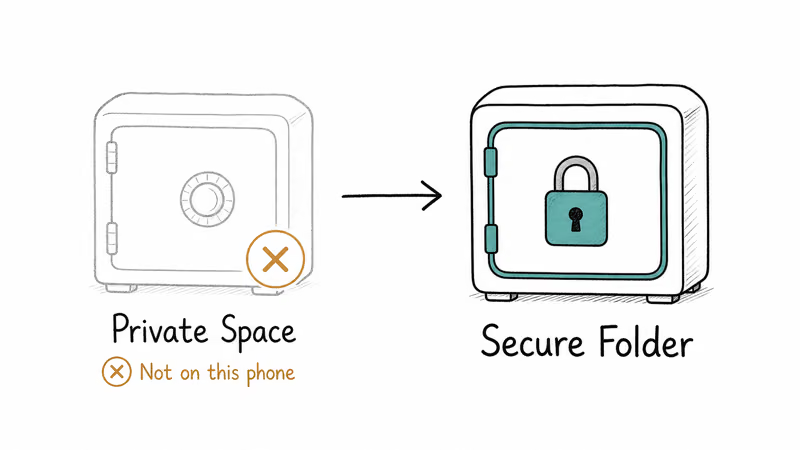
Secure Folder does the same core job. It creates an encrypted, locked space for apps and files. Our guide on Samsung Secure Folder walks through the full setup from Settings > Security and privacy.
Need stock Private Space on a Samsung? Check whether a One UI update has added it, but don’t count on it. Treat Secure Folder as the supported path on Galaxy hardware.
#Bottom Line
Work the gates in order. Confirm Android 15 or newer under Settings > About phone, install any pending Google Play system update, then rule out a work profile or child account. If you’re on a Samsung phone, stop looking for Private Space and set up Secure Folder instead. The fastest single check is searching “Private Space” in Settings.
#Frequently Asked Questions
Android Private Space not showing, what is the first thing to check?
Search “Private Space” in the Settings search bar. If nothing comes up, check your Android version under Settings > About phone, since the feature needs Android 15 or newer.
Why did Private Space disappear after a phone or account switch?
Private Space is tied to the primary user and your device’s profile state. Switching to a secondary user, adding a work profile, or moving to a supervised child account can all hide it. Switch back to the main user, confirm no managed profile is active, then re-check Settings to see whether the entry comes back once the device is in its standard, unmanaged state again.
Does fixing this require a reset or reinstall?
No. A missing Private Space entry is an eligibility or profile issue, not corrupted software. Update Android and the Play system, then check your account type instead.
What official support page should I check first?
Google’s Private Space help page documents the requirements and setup steps, and its Android version guide shows how to confirm your version and Play system update level. Both are linked above and apply directly to a missing Private Space entry.
What should I avoid doing?
Don’t install third-party “app hider” tools, and don’t try to disable a work profile your employer manages. Both can break device policies or expose your data.
Why doesn’t my Samsung phone have Private Space?
Many Samsung Galaxy phones don’t include stock Private Space because One UI ships Secure Folder instead. Secure Folder is Samsung’s encrypted, separately locked vault for sensitive apps and serves the same purpose. Set it up from Settings > Security and privacy > Secure Folder rather than waiting for Private Space.
When should I contact support?
Contact your IT admin if a work profile is hiding Private Space, since only they can change that policy. Contact your phone maker’s support if you’re on Android 15 with updates current, no managed profile, and the feature still won’t appear, which points to a device-specific limitation.

Pixel 11 vs Pixel 10: What Changed and Who Should Upgrade
Pixel 11 vs Pixel 10: same screen and camera resolution, new Tensor G6, 25W wireless, and Gemini Intelligence. Here is who should actually upgrade.

Verizon Not Receiving Texts? How to Fix It in 9 Steps
Verizon not receiving texts? Fix it in 9 steps: check Message Blocking in My Verizon, reset network settings, deregister iMessage, and call support.
Pixel Battery Drain: What Google's July Fix Really Covers
Google marked the Pixel idle battery drain bug fixed in July, but only some phones got the patch. Here is who is covered, who is not, and what to try.
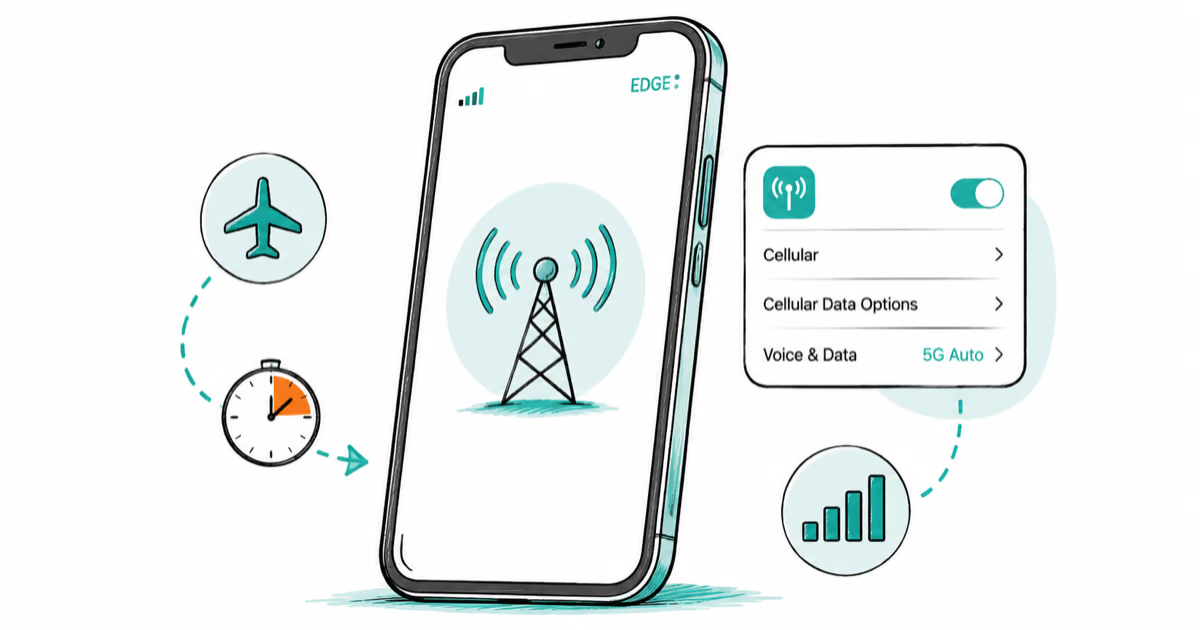
iPhone Stuck on EDGE? How to Get 5G or LTE Back (2026)
iPhone stuck on EDGE with crawling data? Here's why the E icon appears, which settings force 5G or LTE back, and when the problem is your carrier.