How to Use Circle to Search on Android (2026 Guide)
Use Circle to Search on Android: the long-press gesture, circle and scribble actions, translation, supported phones, and fixes when it does not appear.
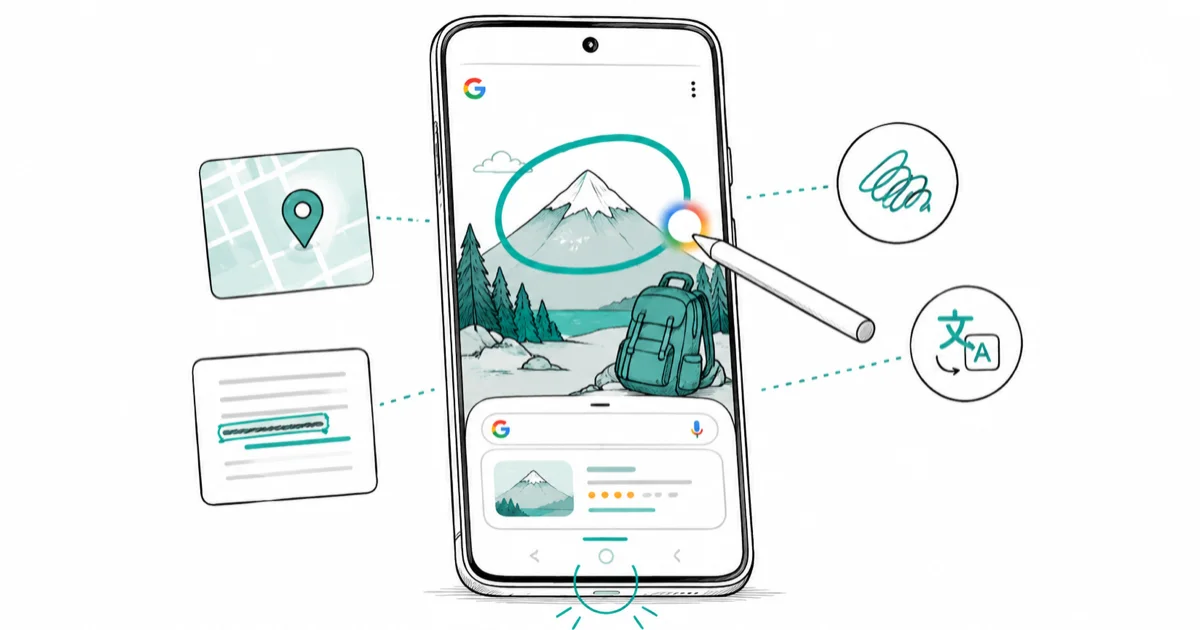
Quick AnswerLong-press the home button or the gesture handle to launch Circle to Search. Then circle, scribble, highlight, or tap anything on screen to search it.
Circle to Search lets you search anything on your screen without leaving the app. Hold the home button or gesture handle, then circle, scribble, highlight, or tap what you want to look up. It works the same way on recent Pixel and Galaxy phones.
- The launch gesture is a long-press: hold the home button on 3-button nav, or hold the bottom handle on gesture navigation, until the colored shimmer appears
- Circle to Search ships on most Samsung Galaxy S, A, and Tab models from the S22 era forward, plus recent Pixel phones, with rolling support across Motorola, OnePlus, Xiaomi, and Honor
- Beyond circling, you can scribble across text, tap an object, or pull up the search bar and type, and a music note icon lets you Shazam the audio playing nearby
- Translation is built in: long-press to launch, tap the translate icon at the bottom, and the on-screen text becomes a tap-to-translate overlay
- If nothing happens on long-press, the cause is almost always a missing Google assistant default, a stale Google app, or the feature toggled off under Settings
#What Circle to Search Actually Does
Circle to Search puts a Google search overlay on top of whatever app you’re in. You don’t screenshot. You don’t paste a URL. You don’t switch tabs.
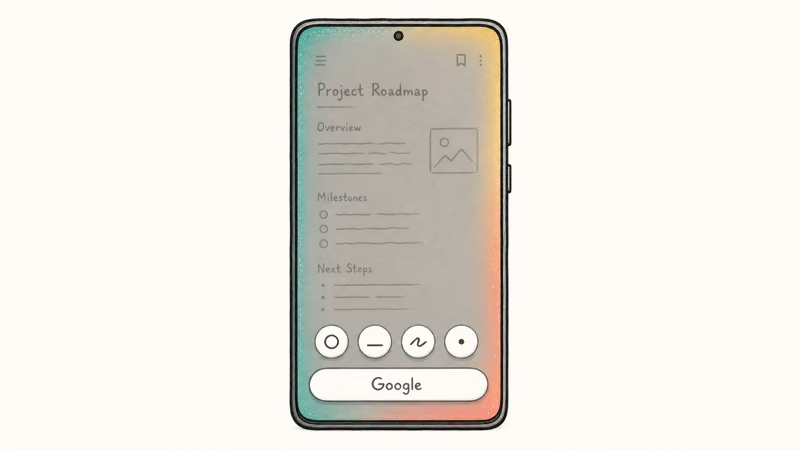
You hold the home button. The screen dims with a colored shimmer along the edges. A search bar appears at the bottom. From there, you can circle a product in a TikTok video, scribble across a paragraph in a PDF, tap a building in a photo, or just type a query.
The feature launched in early 2024 as a joint Samsung and Google push. It runs through the same Google Search and Lens stack you’re signed into. Circling a sneaker pulls up shopping results. Scribbling a recipe name pulls up the dish.
According to Google’s Circle to Search help page, the overlay supports 4 actions: circle, highlight, scribble, and tap. Pinch to zoom first if the item is small.
#How Do You Enable Circle to Search on Android?
Three things need to be true before the long-press gesture does anything. Each one is a common reason the gesture appears to do nothing.
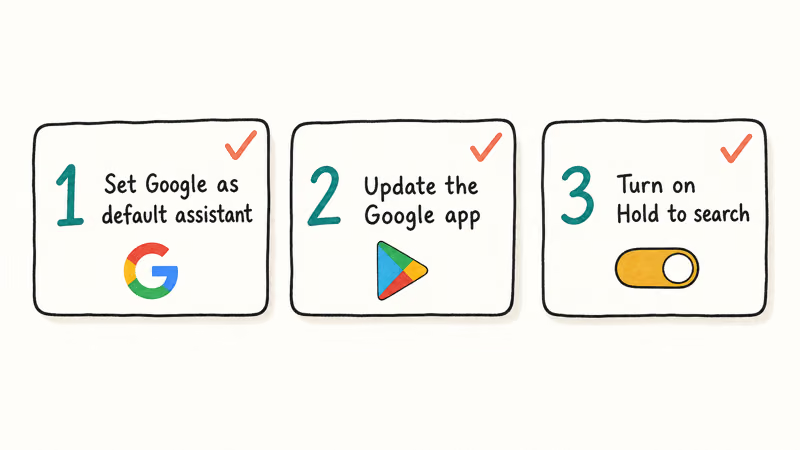
First, Google has to be your default digital assistant. Open Settings, search for Digital assistant app, and confirm Google is selected. If a third-party assistant is the default, the long-press triggers that one. Our guide to turning off Google Assistant covers the same Settings screen if you want to switch back later.
Second, the Google app has to be current. Open Google Play, tap your profile picture, choose Manage apps and device, then Manage, and update Google if an update is pending.
Google’s support page recommends the full Google app, not Google Go. Google Go is the lightweight version for low-RAM phones, and it ships without the Circle to Search overlay.
Third, the feature has to be toggled on. The toggle label depends on your nav style:
- On gesture navigation, look for Hold handle to search.
- On 3-button navigation, look for Hold Home to search.
On a Pixel, open Settings, search for Circle to Search, and flip the switch. On a Galaxy phone, open Settings, tap Display, then Navigation bar, scroll to More options, and turn on Hold handle/Home button to search.
Once all three are set, you’re ready. Long-press the home button or the handle from any app. The overlay should slide up within a second.
#How to Circle, Scribble, Tap, or Type a Search
You don’t actually have to circle. In practice, scribbling is faster for text and tapping wins for objects.
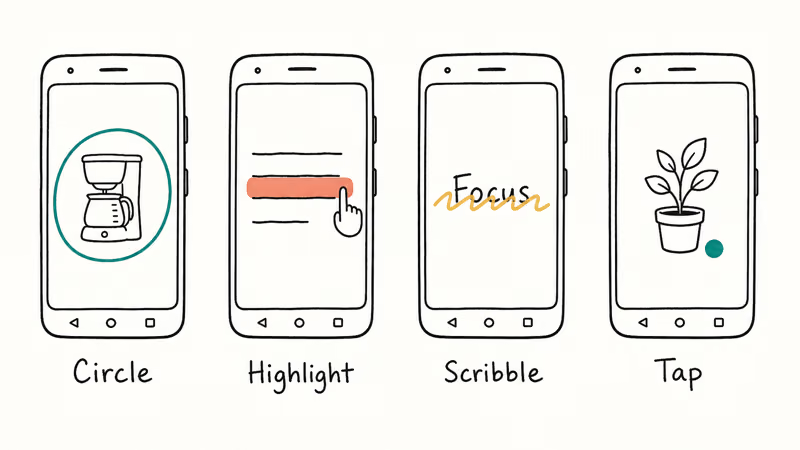
Circle. Draw a closed-ish loop around an item. The loop doesn’t have to be perfect; the overlay snaps to recognizable shapes. Circle a product like a coffee maker in an Instagram Reel, and the results usually return the exact model within a couple of seconds. Use 2 fingers to zoom in first if the item is small.
Highlight. Drag your finger across a line of text the way you’d select text on a desktop. The overlay treats it as a copy-and-search action. It’s the fastest way to look up a name, an address, or a phrase from a screenshot you can’t actually copy.
Scribble. Draw a quick scribble through an item or word. Scribble feels sloppier than circling, but recognition is just as good. It’s noticeably easier when you’re holding the phone one-handed.
Tap. Tap once on a distinct object: a plant, a logo, a piece of furniture. The overlay treats it as a Google Lens point. Tap works best for visually clear subjects on a clean background.
Type. If you don’t want to point at anything, tap the Search bar at the bottom of the overlay and type. The result behaves like a normal Google Search but stays layered over the original app, so you can compare what you found against what you were reading.
After you get results, refine them with multisearch. Add text to the bar (such as “in black”, “under $100”, or “in red leather”), and Google blends your typed query with the visual selection. It’s the same multisearch behavior Google rolled out to Lens, just available without leaving the current app.
When you’re done, swipe down, use the back gesture, or tap the X in the top left. The original app is right where you left it.
#How to Translate Text With Circle to Search
Translation is the hidden killer feature. You don’t need a separate translate app for menus, signs, or articles in another language. The overlay does it inline.
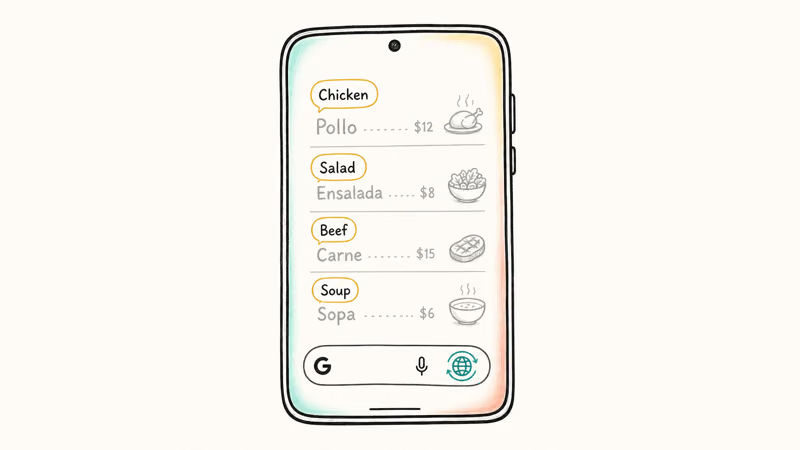
Long-press the home button or handle to bring up Circle to Search. Tap the translate icon in the bottom row. The screen briefly dims, and any text on the page becomes a live overlay in your chosen target language. Tap individual sentences to read the full translation, or tap the language label at the top to switch source or target.
It handles a Spanish-language Wikipedia page or a Korean restaurant menu shown in a photo without trouble. Translation also works inside videos and on text that’s part of an image, which is where dedicated translate apps usually struggle.
For longer documents you’ve saved locally, a full conversion is still better. If your goal is “send these PDF instructions to a friend in English”, a text extraction inside Google Docs gives you cleaner output than a screen overlay. Circle to Search is built for the moment-in-time look-up.
#Why Is Circle to Search Not Working on My Phone?
If holding the home button or the gesture handle does nothing, or fires the wrong thing, work through these in order.
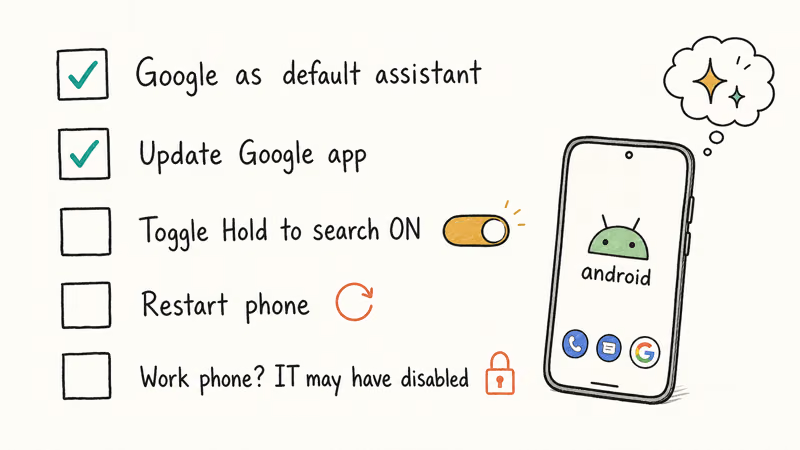
- Confirm Google is the default assistant. This is the most common cause by far. The long-press is hard-coded to the digital assistant, so if Bixby, Samsung’s Assistant, or a third-party assistant is the default, you’ll get that one instead. Re-check
Settings>Digitalassistant app. - Update the Google app. Older builds don’t expose Circle to Search at all. Open the Play Store, find the Google app, and update. Some Samsung phones also need a One UI update; check
Settings>Softwareupdate. - Check the toggle. The Hold home to search or Hold handle to search switch may have been turned off, especially if you ran a setup wizard that disabled extras. Re-enable it.
- Restart the phone. If everything looks right but the gesture still fails, a restart clears the assistant binding. This often resolves cases where the toggle is on but the overlay refuses to appear.
- Work phone. If your phone was issued by an employer, IT admins can disable Circle to Search through device-management policy. The toggle may be greyed out, and you can’t re-enable it from the user side.
- App restrictions. Circle to Search is intentionally blocked in apps that block screenshots, such as banking apps and secure messaging. The handle still long-presses, but the overlay refuses to appear. That’s expected.
If the home button itself feels unresponsive, that’s a separate issue. Our Android home button troubleshooting guide walks through the hardware and gesture-mapping fixes.
For Samsung Galaxy users specifically, there’s one extra wrinkle. On some One UI builds the toggle lives under Settings > Advanced features > Labs before it moves to the navigation bar menu in a later update. If you can’t find the standard path, search Settings for Circle, and the right screen will surface.
#Supported Phones and Software Versions
Any current flagship from the last 3 years probably has it. The exact list depends on manufacturer.
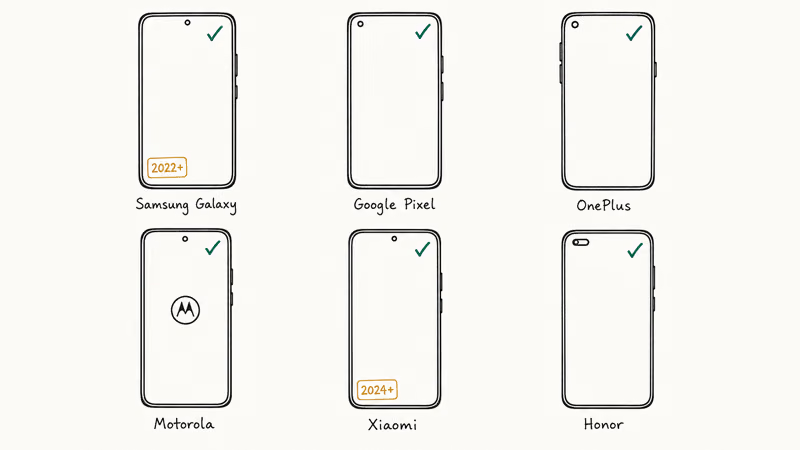
On Samsung, Circle to Search reaches most Galaxy S, Z Fold, Z Flip, A-series 5G, and Tab S models from the S22 generation forward, plus several Tab Active devices. Samsung also rolled it to mid-range A-series phones through 2025 and 2026.
On Pixel, recent Pixel phones and tablets all support it. Newer features like outfit search and virtual try-on land first on the Pixel 10 lineup before trickling down to older Pixels.
Other brands have been adding it through 2025 and 2026. Motorola enabled it for parts of its 2024 lineup via a security update, and OnePlus picked it up in OxygenOS 15. Xiaomi added it to the 14T series through an OTA, with Honor enabling it on selected models.
The rule of thumb: if you’re on a 2024-or-later premium Android phone running an up-to-date version of the manufacturer’s software, you most likely have Circle to Search.
Samsung’s official Galaxy support page states that the gesture is the same across all eligible Galaxy phones from the S22 forward: hold the home button or the handle. Google maintains a current device list on its own Circle to Search overview page, updated as new models are added.
If the toggle is missing on a supported phone, run Settings > Software update.
#How to Turn Off Circle to Search
If you keep triggering the overlay by accident, usually because you press and hold the home button without realizing it, turning it off is one switch.
Open Settings, search for Circle to Search, and flip the toggle off. On Samsung, the same switch lives under Settings > Display > Navigation bar > More options.
Once it’s off, the long-press goes back to its default behavior. That usually means it does nothing (gesture navigation) or surfaces Google Assistant the old way (3-button navigation). You can flip it back on any time without losing settings.
If your real complaint is that long-pressing the keyboard’s space bar surfaces an unwanted feature, that’s a Gboard or SwiftKey behavior, not Circle to Search. Our SwiftKey vs Gboard comparison covers the long-press behavior differences between the two main Android keyboards.
For a quick way to share whatever you found through Circle to Search to another nearby device, Quick Share on Android is the right next step. It sends the page, image, or note in seconds, works phone-to-phone without an internet connection, and lands the file or link on the receiving device almost instantly. It’s handy for shipping a search result from one phone to a tablet on the same desk.
#Bottom Line
Long-press the home button on 3-button navigation, or long-press the gesture handle on gesture navigation, and the Circle to Search overlay appears. From there you can circle, scribble, highlight, tap, or type. The music icon Shazams whatever’s playing nearby.
If the gesture fails, check three things: Google as default assistant, an up-to-date Google app, and the Hold to search toggle.
If you’re on a Samsung Galaxy from the S22 era forward, a current Pixel, or a recent OnePlus, Motorola, Xiaomi, or Honor flagship, you have it. If you’re not sure, search Settings for Circle. If the screen surfaces, you have it.
#Frequently Asked Questions
How do I turn on Circle to Search?
Open Settings and confirm Google is your default digital assistant. Update the Google app from the Play Store. Then search Settings for Circle to Search and turn on the toggle. On Samsung you can also enable it under Settings, Display, Navigation bar, More options, Hold handle to search.
Which phones support Circle to Search?
Most Samsung Galaxy S, Z Fold, Z Flip, A-series 5G, and Tab S devices from the S22 generation forward, plus recent Pixel phones and tablets, support it. Motorola, OnePlus, Xiaomi, and Honor models from 2024 and later are also being added through OS updates. Google maintains a current list on the Android.com Circle to Search page. If your phone shipped before 2022, you almost certainly don’t have it.
Why isn’t Circle to Search working on my phone?
Three usual causes. A non-Google digital assistant is set as default. The Google app is outdated. The Hold handle/Home button to search toggle is off.
Re-check Settings for Digital assistant app, update Google from the Play Store, and confirm the toggle is on. A restart clears most leftover issues. If the phone is work-issued, an IT admin may have disabled the feature, and the user can’t re-enable it in that case.
Can Circle to Search translate text?
Yes, the overlay translates inline. Long-press to open it, then tap the translate icon. Any text on screen becomes a tap-to-translate overlay in your chosen target language, including text rendered inside videos or as part of an image.
How do I turn off Circle to Search?
Open Settings, search for Circle to Search, and turn off the toggle.
Is Circle to Search the same as Google Lens?
They share the visual search engine underneath, but the user experience is different. Circle to Search is the on-device gesture overlay that works inside any app. Google Lens is the standalone app or camera-shortcut version.
Circle to Search keeps you in context. Google Lens usually starts you in the Lens app or inside the Google app, where you’ve moved off your original screen. The same underlying Lens results often appear in both, so the answer you get back is usually identical — the difference is purely how you got there.
Does Circle to Search work without the internet?
No. The overlay opens locally, but the actual search, translation, music identification, and shopping results all go through Google’s servers. You need a working mobile data or Wi-Fi connection for any result to come back. The overlay will still appear if you long-press while offline, but it will simply show no results.

Pixel 11 vs Pixel 10: What Changed and Who Should Upgrade
Pixel 11 vs Pixel 10: same screen and camera resolution, new Tensor G6, 25W wireless, and Gemini Intelligence. Here is who should actually upgrade.

Verizon Not Receiving Texts? How to Fix It in 9 Steps
Verizon not receiving texts? Fix it in 9 steps: check Message Blocking in My Verizon, reset network settings, deregister iMessage, and call support.

Pixel Battery Drain: What Google's July Fix Really Covers
Google marked the Pixel idle battery drain bug fixed in July, but only some phones got the patch. Here is who is covered, who is not, and what to try.

iPhone Stuck on EDGE? How to Get 5G or LTE Back (2026)
iPhone stuck on EDGE with crawling data? Here's why the E icon appears, which settings force 5G or LTE back, and when the problem is your carrier.