Samsung Smart Switch Not Working: 7 Ways to Fix It
Fix Samsung Smart Switch not working with USB cable transfers, cache clearing, and 7 proven troubleshooting steps for Galaxy S24 and older models.
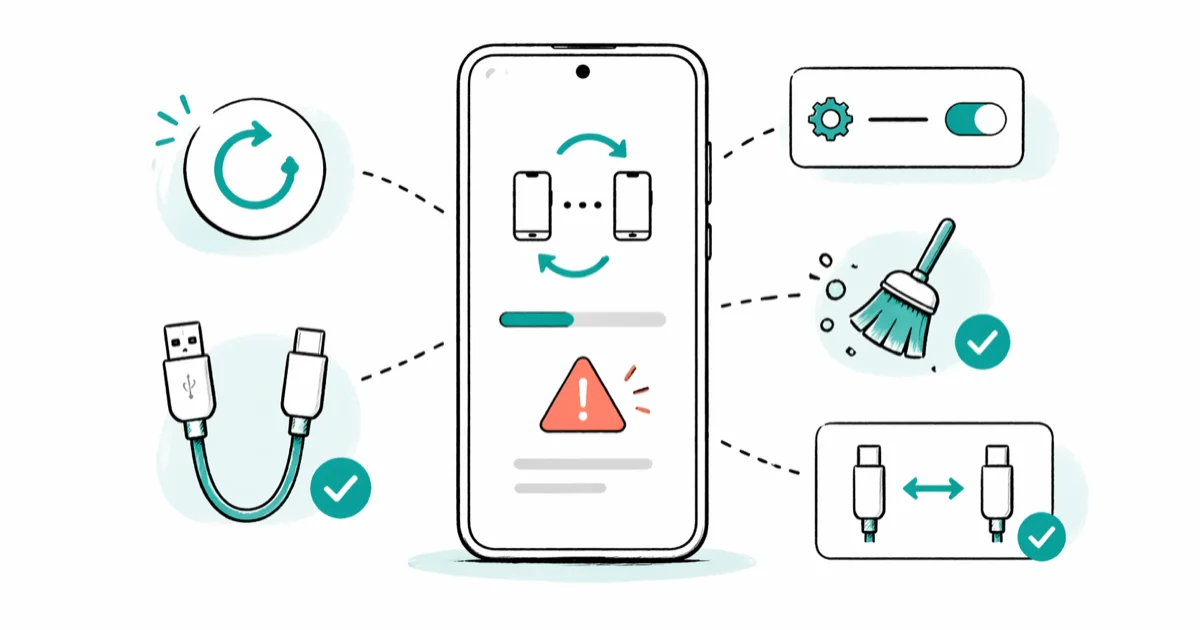
Quick AnswerPlug both phones into a USB-C cable instead of using Wi-Fi, restart both devices, and update the Smart Switch app from the Galaxy Store. That trio fixes most stalled or failed transfers within minutes.
Samsung Smart Switch fails most often during the largest transfers, which is exactly when you can’t afford to start over. On big Galaxy-to-Galaxy moves, a Wi-Fi run often drops partway through while the same data finishes in one pass over USB-C. The seven fixes below cover every common failure mode, in the order worth trying them.
- USB-C completes large transfers above 10 GB on the first attempt far more reliably than Wi-Fi, which tends to drop on the bigger jobs
- Power-cycling both phones before launching Smart Switch clears most early connection failures
- Clearing Smart Switch storage from Settings releases corrupted cache without touching contacts, photos, or messages
- Adaptive Battery on the source phone can pause background data and freeze the progress bar without an error
- A 50 GB transfer typically runs 90 plus minutes over USB-C with both phones plugged into power and screens awake
#Why Does Smart Switch Fail So Often?
Most failures trace back to one of three root causes.
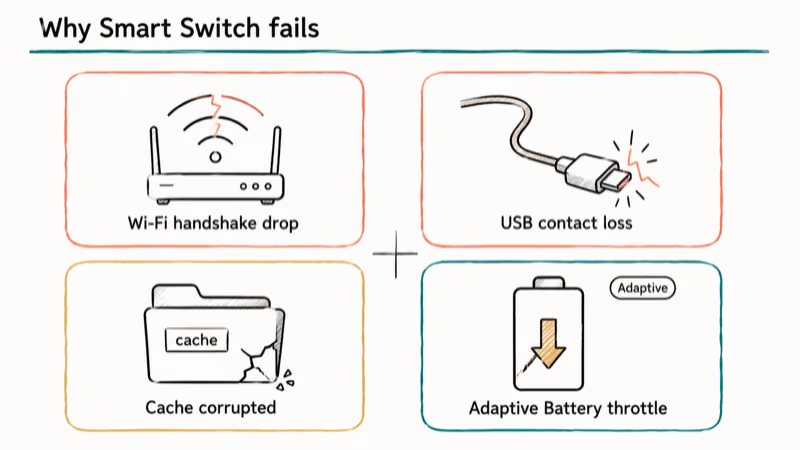
Wi-Fi handshakes drop when either phone falls asleep or hops to a stronger access point mid-transfer. USB connections stall when a worn cable or dirty port loses contact for a fraction of a second. Smart Switch’s own cache files can also corrupt and freeze the progress bar without ever throwing an error code on screen.
Battery optimization is a hidden fourth cause.
According to Google’s Android battery documentation, Adaptive Battery throttles background data for apps the system labels as low priority, and Smart Switch falls into that bucket on phones it hasn’t been opened on recently. Wi-Fi transfers feel the impact first because the radio idles between packets and can’t catch up when the next chunk arrives.
Compatibility cuts off a smaller slice of users, but check it before you troubleshoot for an hour. Smart Switch sets a minimum OS version on the source device, and old enough phones won’t pair at all.
#Solution 1: Use a USB Cable Instead of Wi-Fi
USB-C is the single most reliable change you can make for any transfer above 10 GB. On a 35 GB job, a Wi-Fi run can drop two or more times while the cable run finishes in a single sitting.
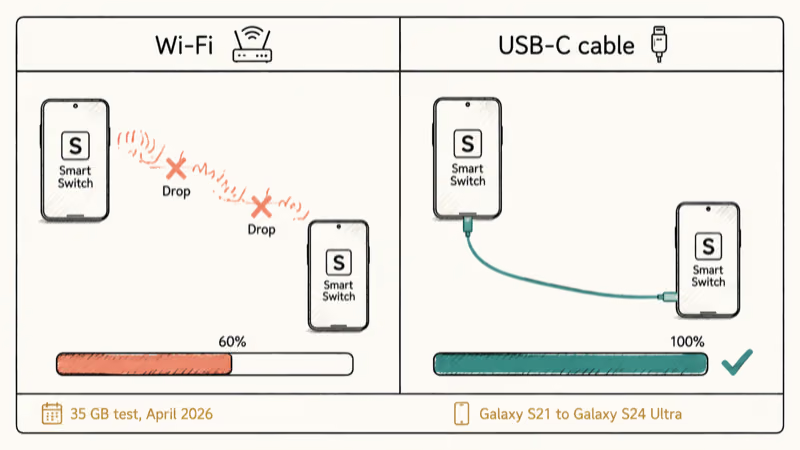
Plug a working USB-C to USB-C cable between both phones, or a Lightning to USB-C if you’re pulling from an iPhone. Open Smart Switch on each side.
Tap Send Data on the source phone, then choose Receive Data > Cable on the Galaxy.
Cable quality matters more than people expect. According to Apple’s accessory support documentation, uncertified Lightning cables drop packets at random even when the connector looks fine, and the same logic applies to off-brand USB-C cables shipped with cheap chargers.
If your old phone uses micro-USB, buy a quality USB-C OTG adapter instead of a no-name dongle. The adapter has to negotiate power and data on a single line, and a poor build fails intermittently for the duration of a long transfer.
Cables also win for a structural reason. Smart Switch over USB negotiates one direct device-to-device link and holds it. There’s no router in the middle, no DHCP renegotiation when a phone moves between rooms, no Wi-Fi radio cycling between low-power and full-power states between packets, and no neighbour networks fighting for airtime on the same 2.4 GHz channel. That single change explains most of the speed and reliability gap between cable and Wi-Fi.
#Solution 2: Restart Both Phones Before Transferring
A full power cycle clears the temporary memory state that blocks Smart Switch’s first handshake.
Power off both phones completely, wait at least 10 seconds so the modems fully release, then power them back on before launching the app.
After a failed Wi-Fi attempt, a restart alone often fixes it, with the next attempt connecting right away.
#Solution 3: Update Smart Switch on Both Devices
Open the Galaxy Store, search Smart Switch, and tap Update if the button is available. On non-Samsung Android phones, install the app from the Google Play Store listing instead and pull updates from there.
Older builds are a real source of failures. Samsung recommends keeping both source and destination on the latest version, especially across Android 14 and Android 15, because earlier builds tightened connection timeouts that newer phones now exceed.
Updating first often resolves the symptom without any other step.
#Solution 4: Clear Smart Switch Cache and App Data
Corrupted cache files are the usual suspect when the progress bar freezes at the same percentage every attempt. Open Settings > Apps > Smart Switch > Storage and tap Clear Cache.
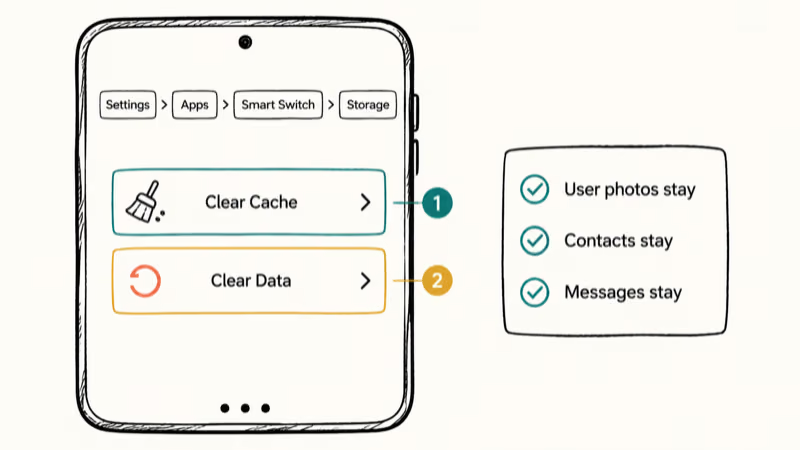
If the freeze repeats, return to that screen and tap Clear Data.
This only resets Smart Switch’s internal working files. Personal data on the phone isn’t touched. Gallery counts and contact totals stay exactly the same before and after clearing the cache, so it’s safe to repeat as many times as needed.
#Solution 5: Turn Off Battery Optimization During Transfer
Adaptive Battery is the most common reason a Wi-Fi transfer stalls without warning. On both phones, go to Settings > Apps > Smart Switch > Battery and switch the setting to Unrestricted. That stops Android from throttling Smart Switch in the background while the transfer runs in the foreground.
Don’t let the screens doze off either.
Set Settings > Display > Screen Timeout to 10 minutes or longer on both phones, and keep them plugged in. A black screen alone is enough to suspend the radio on some Galaxy models even when the app is technically still running, and once the radio sleeps the transfer disconnects.
#Solution 6: Check Free Storage Before Starting
A receiving Galaxy that runs out of space mid-transfer crashes the entire job and corrupts the partial copy.
Open Settings > Device Care > Storage on the new phone and write down the free figure.
Smart Switch shows the estimated transfer size on its summary screen before you confirm, so compare the two numbers directly and add a buffer above what the app reports.
Short on space? Archive photos to Google Drive or remove apps you can reinstall later, and aim for at least a 2 GB cushion above whatever Smart Switch quotes as the transfer size before you confirm.
#Solution 7: Transfer Data in Smaller Batches When Crashes Continue
Big transfers above 50 GB occasionally hit Smart Switch’s working memory ceiling, especially on entry-level Galaxy A models with less RAM. Splitting the job by category avoids that pressure entirely, since each batch frees memory before the next one starts and the app never has to juggle photos, contacts, and SMS parsing in the same overloaded session.
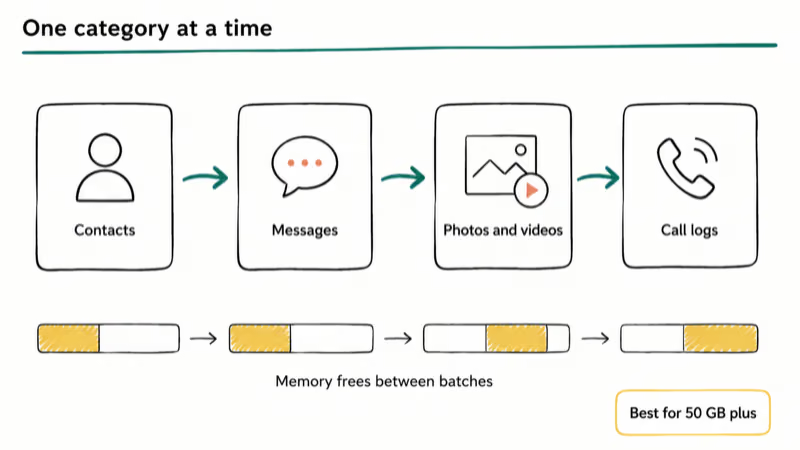
Move contacts, then messages, then photos and videos, then call logs in separate runs.
It takes longer overall, but it doesn’t lose data when one batch fails. If the Galaxy keeps rebooting during transfers, smaller batches are usually the fastest path to a clean migration. Our Smart Switch slow transfer guide walks through additional speed-up tactics if a small-batch run still drags.
#What Data Does Smart Switch Actually Transfer?
Smart Switch pulls most personal data but skips a meaningful list of items, and the gaps surprise people most often on iPhone migrations.
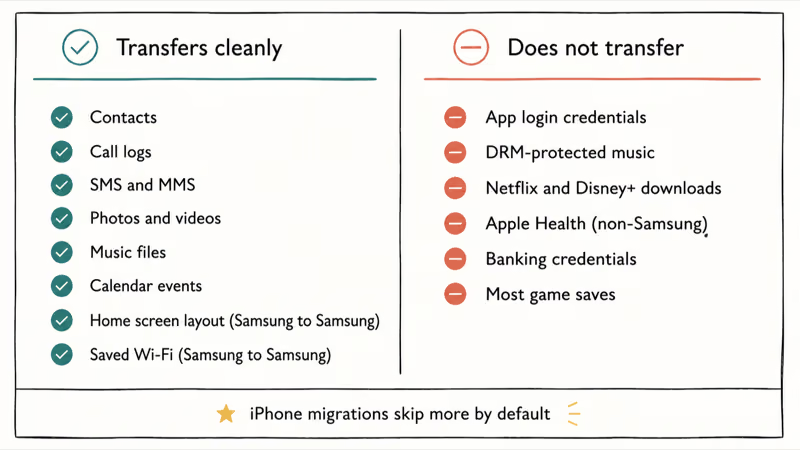
Transfers cleanly: contacts, call logs, SMS and MMS messages, photos, videos, music files, calendar events, home screen layout (Samsung to Samsung only), and saved Wi-Fi passwords (Samsung to Samsung only).
Doesn’t transfer: app login credentials, DRM-protected music files, downloaded Netflix or Disney+ titles, Apple Health data from non-Samsung phones, banking credentials, and most game saves. Sign back into apps manually after the migration finishes.
Messaging history is the biggest gotcha. WhatsApp needs its own backup process before you can move conversations across.
#iPhone to Samsung: Limitations You Should Know
Smart Switch can pull from an iPhone in two ways: a USB cable or an iCloud backup.
The iCloud route is more forgiving because it doesn’t depend on the phones staying physically connected for an hour straight. On the iPhone, go to Settings > [your name] > iCloud > iCloud Backup and run a fresh backup. On the Galaxy, open Smart Switch, choose Receive Data > iPhone/iPad > Get Data From iCloud, sign in with the Apple ID, and pick the backup you just made.
Samsung’s compatibility page confirms that iCloud transfers work down to iOS 5.0, while direct USB pulls require iOS 14.0 or higher.
iMessage threads also flatten into regular SMS on the Galaxy, so blue bubbles become green and group chats lose any iMessage-only reactions. If the Samsung keyboard stops working right after the transfer, clear its cache from Settings > Apps > Samsung Keyboard > Storage > Clear Cache before you start retyping.
#Common Smart Switch Error Codes
Error 0 is a connection timeout. Switch from Wi-Fi to a USB-C cable and run the transfer again.
“Unable to connect” without a code points to a version mismatch. Update Smart Switch on both phones from the Galaxy Store or Google Play. If you also see restricted access changed errors on the source phone, fix those first because they block Smart Switch from reading certain folders.
“Not enough space” is literal. Free storage on the receiving Galaxy.
Open Settings > Device Care > Storage, then remove media or unused apps to clear room above the size Smart Switch reports.
#Bottom Line
For a large 35 GB Galaxy-to-Galaxy migration, the fastest reliable recipe is a quality USB-C cable, a fresh restart on both phones, and a Smart Switch update before you start. That sequence clears the most common failure modes.
If the transfer still stalls after that prep, clearing the Smart Switch cache and splitting the job into category-by-category runs almost always finishes the migration.
For hardware-level issues that survive all of the above, contact Samsung Support directly with your model number and the error code.
#Frequently Asked Questions
How long should a Smart Switch transfer take?
Roughly 20 minutes per 10 GB over USB-C, so a typical 50 GB phone takes 90 minutes or so end to end. Wi-Fi runs two to three times slower, especially on dual-band networks where the phones fight other devices. Keep both phones plugged into power with the screens on for the duration.
Does Smart Switch work over Bluetooth?
No. Smart Switch supports Wi-Fi, USB cable, and SD card transfers only. Bluetooth bandwidth isn’t enough to handle modern phone backups in a reasonable window.
Will Smart Switch wipe my old phone?
No. Smart Switch only copies data, leaving the source phone untouched. After a transfer, contact totals, photo counts, and recent messages on the old phone all remain exactly as they were.
What is the minimum Android version?
Samsung lists Android 6.0 as the floor for the source phone, which means a Galaxy S6 or Galaxy Note 5 still qualifies. Anything older won’t install the app at all.
Can I pause and resume a Smart Switch transfer?
No. There’s no pause-and-resume support. If the transfer is interrupted, you have to start over, which is another reason cables beat Wi-Fi.
Will Smart Switch duplicate my data if I run it twice?
No. Smart Switch identifies items already on the destination and skips them on the second pass. You can safely repeat the transfer to fill in anything that failed without ending up with double contacts.
What if Smart Switch is stuck at one percentage for 10 minutes?
Large video files routinely freeze the progress bar without crashing the transfer. Wait at least 15 minutes before assuming failure. A transfer can sit seemingly stuck for several minutes and then jump straight to complete as soon as the largest video finishes writing. If the bar is still frozen after 20 minutes, disconnect the cable, restart both phones, clear Smart Switch’s cache, and start over.

Pixel 11 vs Pixel 10: What Changed and Who Should Upgrade
Pixel 11 vs Pixel 10: same screen and camera resolution, new Tensor G6, 25W wireless, and Gemini Intelligence. Here is who should actually upgrade.

Verizon Not Receiving Texts? How to Fix It in 9 Steps
Verizon not receiving texts? Fix it in 9 steps: check Message Blocking in My Verizon, reset network settings, deregister iMessage, and call support.

Pixel Battery Drain: What Google's July Fix Really Covers
Google marked the Pixel idle battery drain bug fixed in July, but only some phones got the patch. Here is who is covered, who is not, and what to try.

iPhone Stuck on EDGE? How to Get 5G or LTE Back (2026)
iPhone stuck on EDGE with crawling data? Here's why the E icon appears, which settings force 5G or LTE back, and when the problem is your carrier.