How to Fix Screen Overlay Detected Error on Android
The "Screen Overlay Detected" error on Android blocks app permissions. Disable the conflicting overlay in Settings to fix it in under a minute.
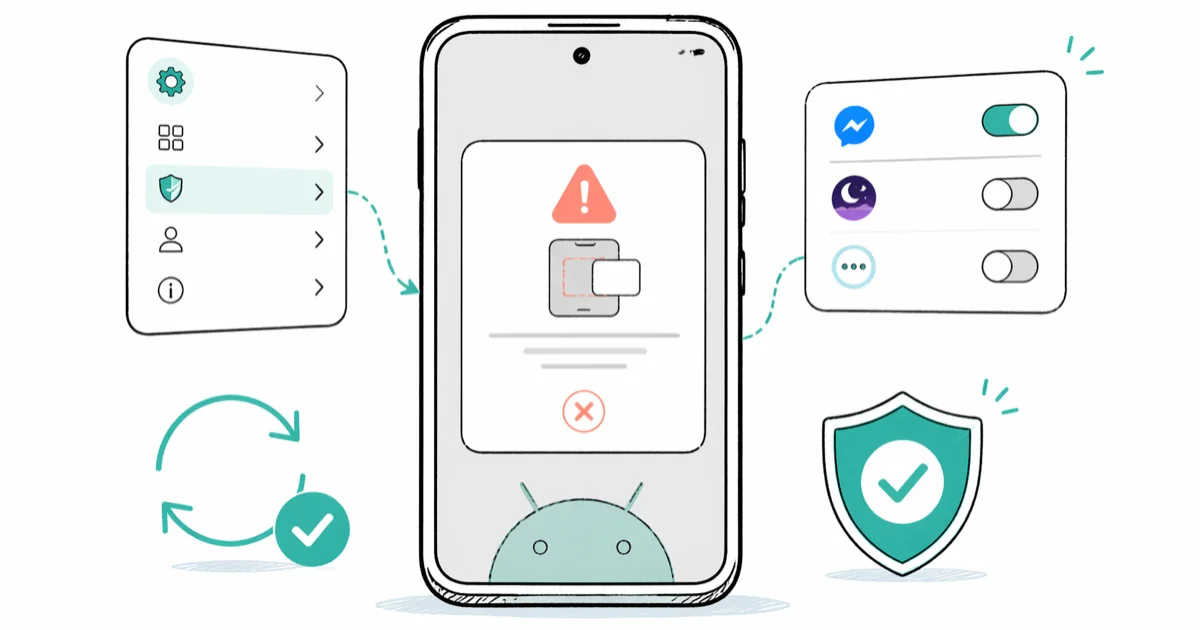
Quick AnswerTurn off screen overlay permissions for apps like Facebook Messenger or Twilight: go to Settings > Apps > Special app access > Display over other apps, then disable the toggle for any app using an overlay. Try the permission request again.
The “Screen Overlay Detected” error on Android pops up when one app draws on top of your screen while another tries to ask for a permission. Android refuses the request so the floating overlay can’t silently approve access you didn’t mean to grant. The fix follows the same pattern on modern Android menus: disable the active overlay, grant the blocked permission, then re-enable only the overlay you still need.
Most readers solve this in about 60 seconds.
- Facebook Messenger chat heads, Twilight, and blue-light filter apps cause this error far more often than malware does
- The basic fix takes about 45 seconds:
Settings>Apps>Specialapp access > Display over other apps, then turn the offending toggle off - Safe Mode boots Android with all third-party apps suspended, which isolates whether a downloaded app is causing it within 2 minutes
- Resetting app preferences clears every overlay permission at once without touching photos, contacts, or installed apps
- Disabling overlay only removes the floating UI like chat heads or screen tints; the underlying app still opens normally
#Why Does the Screen Overlay Error Appear on Android?
Android added this security block in version 6.0 Marshmallow back in 2015, and it’s still active in Android 14. The system watches for any app that holds the Display over other apps permission and is actively drawing on screen. When another app then asks for a runtime permission, Android refuses to show the dialog. The reason is simple: a hidden overlay could intercept your tap on “Allow” and approve something you never agreed to.
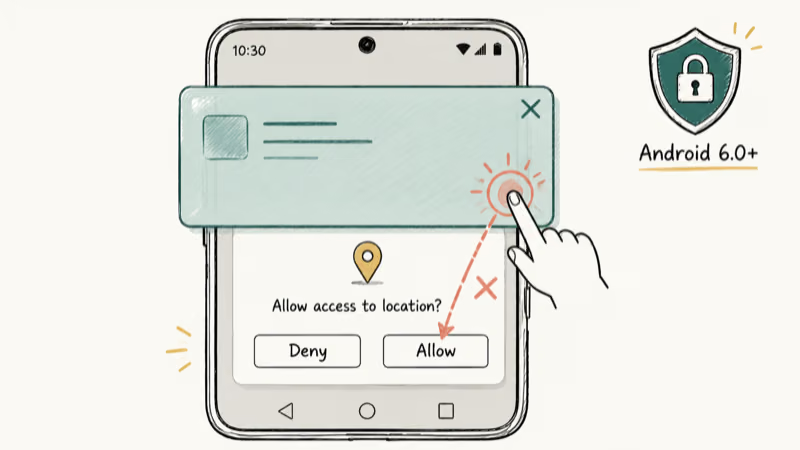
According to Google’s Android developer reference, the SYSTEM_ALERT_WINDOW permission has been treated as dangerous since Android 6.0 (API level 23) precisely because of this clickjacking risk. The page recommends most apps shouldn’t use it.
A blue-light filter such as Twilight can trigger the conflict if its screen tint is active while another app asks for a fresh permission. Disabling that overlay clears the block. Apps that most often trigger this on real phones include Facebook Messenger chat heads, Twilight and Night Owl filters, Drupe’s floating call interface, Clean Master and DU Speed Booster speed indicators, and Omni Swipe gesture launchers.
The error is not a sign your phone is broken. Android caught a conflict before something bad happened.
#Step-by-Step Fix on Most Android Phones
Open Settings and tap Apps. Tap the three-dot menu in the top right, choose Special access, then Display over other apps. Find the app drawing the overlay, flip its toggle off, go back, and grant the permission that was blocked. Re-enable the toggle afterward if you still want chat heads or your filter back.
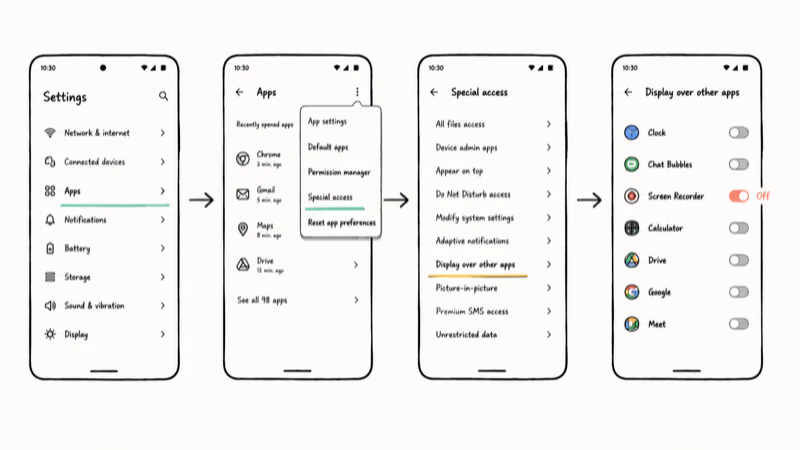
Samsung phones use slightly different labels. On One UI, the path is Settings > Apps > three-dot menu > Special access > Appear on top. The full walkthrough with screenshots lives in the screen overlay detected on Samsung guide.
Don’t know which app is at fault?
Disable every overlay on the list, grant the blocked permission, then re-enable the apps one at a time until the error returns. The culprit is whichever one you re-enabled last. This usually narrows it down within a few minutes, and you don’t have to uninstall anything.
For permission errors that aren’t overlay-specific, our walkthrough on restricted access changed on Android covers the broader family of permission blocks.
#Apps That Commonly Trigger the Error
Commonly reported offenders include the apps below.
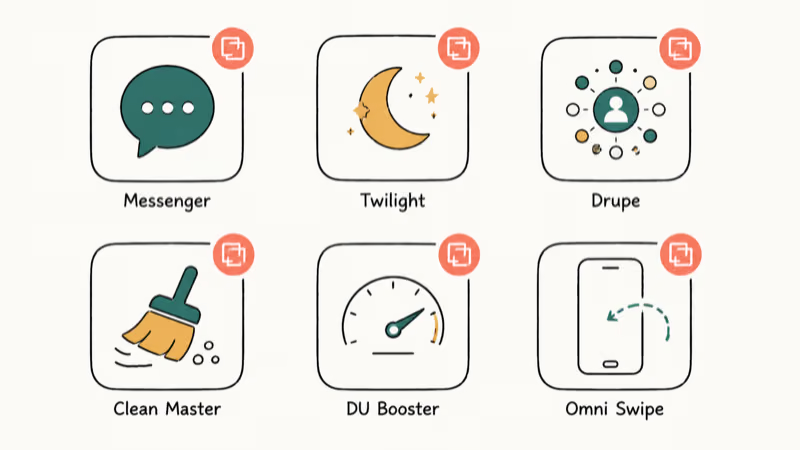
Facebook Messenger uses chat heads, the round avatar bubbles that float over other apps. Twilight and Night Owl tint the screen with a warm overlay during evening hours. Drupe replaces the dialer with a floating contact wheel.
Cleaner apps are the other big group. Clean Master, DU Speed Booster, and similar “RAM cleaner” tools push tiny speed widgets on top of everything you do. Omni Swipe parks a gesture bar at the edge of the display. WhatsApp’s notification bubbles on Android 11+ also count as overlays.
These are all legitimate apps. None of them are malware.
They just happen to use the same SYSTEM_ALERT_WINDOW permission that Android specifically guards against during a permission dialog.
For a blue-light app such as Twilight, disable the overlay toggle in Settings before retrying the blocked permission. Re-enable it afterward if you still want the tint.
Disabling overlay strips only the floating UI; core features stay intact. The app still launches, syncs, and runs in the background like it always did.
#What If the Basic Fix Doesn’t Work?
Sometimes the error sticks around even after you’ve turned off every overlay. Two things usually explain it: an app re-enabled its own overlay in the background, or a system process (like an OEM theme service) is involved.
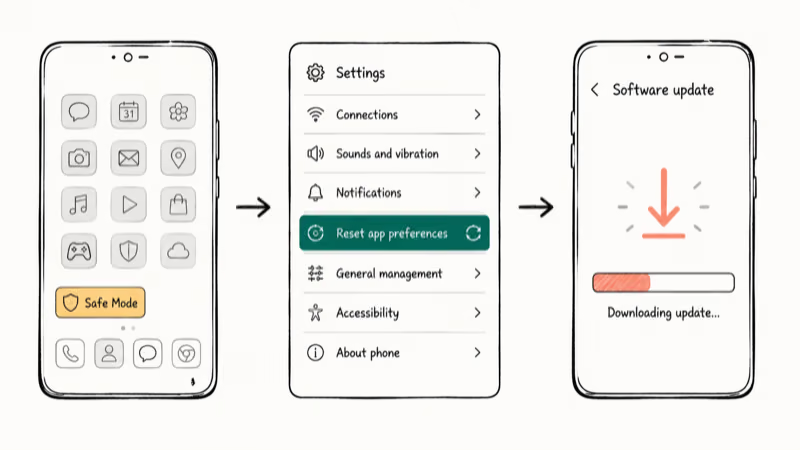
Boot into Safe Mode first.
Press and hold the Power button, then long-press Power off until “Reboot to Safe Mode” appears, and tap OK. Safe Mode suspends every downloaded app. If the blocked permission now works, a third-party app is to blame. Restart normally and uninstall recently added apps one at a time until the error stops returning.
Reset app preferences when Safe Mode doesn’t help. Go to Settings > Apps, tap the three-dot menu, choose Reset app preferences, and confirm. This wipes all permission overrides, default-app choices, and disabled-app states in one shot without deleting any of your photos, files, or installed apps.
System updates are the third lever. Keeping One UI on the latest version is worth doing when a Galaxy phone misbehaves with permissions. Multiple overlay-related bugs in Android 12.0 and 13.0 were patched in point releases, and Google states that Android 11 (API level 30) added stricter Special Use App access vetting, which means newer phones report this error sooner during onboarding. Go to Settings > Software update and install anything pending.
For deeper context, Google’s Android permissions guide confirms that apps requesting SYSTEM_ALERT_WINDOW on Android 11 face stricter review than on Android 6 through 10. If you see the error on a brand-new install, that’s the new vetting kicking in.
Stuck on a different screen instead? Our walkthrough on fixing Android stuck on boot screen covers recovery options. Launcher crashing too? Check how to fix Android SystemUI has stopped.
#When the Error Looks Like Malware
The “Screen Overlay Detected” message is a built-in Android security feature, not a malware alert. The risk Android is guarding against is theoretical. A malicious overlay could potentially intercept the tap you make on a permission dialog. Rather than allow that possibility, Android blocks the request outright until the overlay stops.
If you do see overlay apps you don’t recognize on the Display over other apps screen, that’s worth a closer look.
Revoke their permissions. Then check whether you actually installed them yourself, when, and from where. Our guide on Android system battery drain walks through spotting suspicious background processes, which is a useful audit to run at the same time you’re reviewing overlay permissions.
#Preventing the Error in the Future
You don’t need to uninstall overlay apps to keep the error away. Two habits do most of the work.
When you install something that asks for overlay permission, grant it right away. Then open the app you were originally setting up and finish its permission requests before doing anything else. Settling permissions in sequence avoids the timing collision that triggers the error in the first place.
Audit Display over other apps every few months. Turn off overlay for apps you no longer use.
A lot of cleaner and battery booster apps enable overlay automatically without actually needing it. For broader app maintenance like backing up settings before a phone swap, see the Android app backup and restore guide. Overlay apps left running in the background can also chew through battery silently, so this audit doubles as a quick power-drain triage.
#Bottom Line
The “Screen Overlay Detected” error is Android closing a clickjacking gap, not a malfunction. Open Settings > Apps > Special app access > Display over other apps, turn off the toggle for the offending app, then grant the permission that was blocked.
Start with Facebook Messenger, Twilight, or any cleaner app first.
#Frequently Asked Questions
Why do I keep getting the screen overlay error after fixing it?
Some apps re-enable their overlay permission automatically when they relaunch. Open Settings > Apps > Special app access > Display over other apps and confirm the toggle is still off after a reboot. If it keeps switching itself back on, uninstall the app and find an alternative.
Can I turn off all screen overlays at once?
You can revoke “Display over other apps” for every app on the list, and that will stop all overlay-driven blocks. The trade-off is losing chat heads, floating timers, screen tints, and similar features. A more practical move is to revoke overlay only for apps you no longer use actively, since that fixes the conflict without breaking the features you actually rely on.
Will disabling overlay permission break my apps?
Core functionality stays intact. Chat heads, screen filters, and floating speed indicators go away, but the underlying app still opens and works as expected. Re-enable anytime.
Does this error happen on every Android version?
Yes. The overlay security block has been part of Android since version 6.0 Marshmallow in 2015, and it’s still active in Android 14. Older devices see it more often because they tend to host more legacy apps that still rely on the older overlay APIs. Newer Android versions add finer-grained per-app controls, but the underlying clickjacking guard works the same way.
How do I find which specific app is causing the conflict?
Read the error dialog first; it sometimes names the app directly. If it doesn’t, open Settings > Apps > Special app access > Display over other apps and look for any app with an active toggle. Disable them all, retry the blocked permission, then re-enable apps one by one until the error returns.
Does the fix work the same way on Samsung phones?
The mechanism is identical, but Samsung uses different menu labels. On One UI, go to Settings > Apps > three-dot menu > Special access > Appear on top, find the app with an active toggle, and turn it off.
Is it safe to use apps that need overlay permissions?
Reputable apps from established developers are fine to use with overlay enabled. The only real risk comes from an unknown app that uses the overlay to intercept taps you didn’t intend. Stick to Google Play apps with large install counts and established review history, and audit the Display over other apps list every few months to remove permissions you no longer need.

Pixel 11 vs Pixel 10: What Changed and Who Should Upgrade
Pixel 11 vs Pixel 10: same screen and camera resolution, new Tensor G6, 25W wireless, and Gemini Intelligence. Here is who should actually upgrade.

Verizon Not Receiving Texts? How to Fix It in 9 Steps
Verizon not receiving texts? Fix it in 9 steps: check Message Blocking in My Verizon, reset network settings, deregister iMessage, and call support.

Pixel Battery Drain: What Google's July Fix Really Covers
Google marked the Pixel idle battery drain bug fixed in July, but only some phones got the patch. Here is who is covered, who is not, and what to try.

iPhone Stuck on EDGE? How to Get 5G or LTE Back (2026)
iPhone stuck on EDGE with crawling data? Here's why the E icon appears, which settings force 5G or LTE back, and when the problem is your carrier.