Samsung Galaxy Wi-Fi Keeps Disconnecting: 8 Quick Fixes
Samsung Galaxy Wi-Fi keeps disconnecting? Turn off Switch to Mobile Data, reset network settings, and switch bands. 8 proven fixes for Galaxy phones.
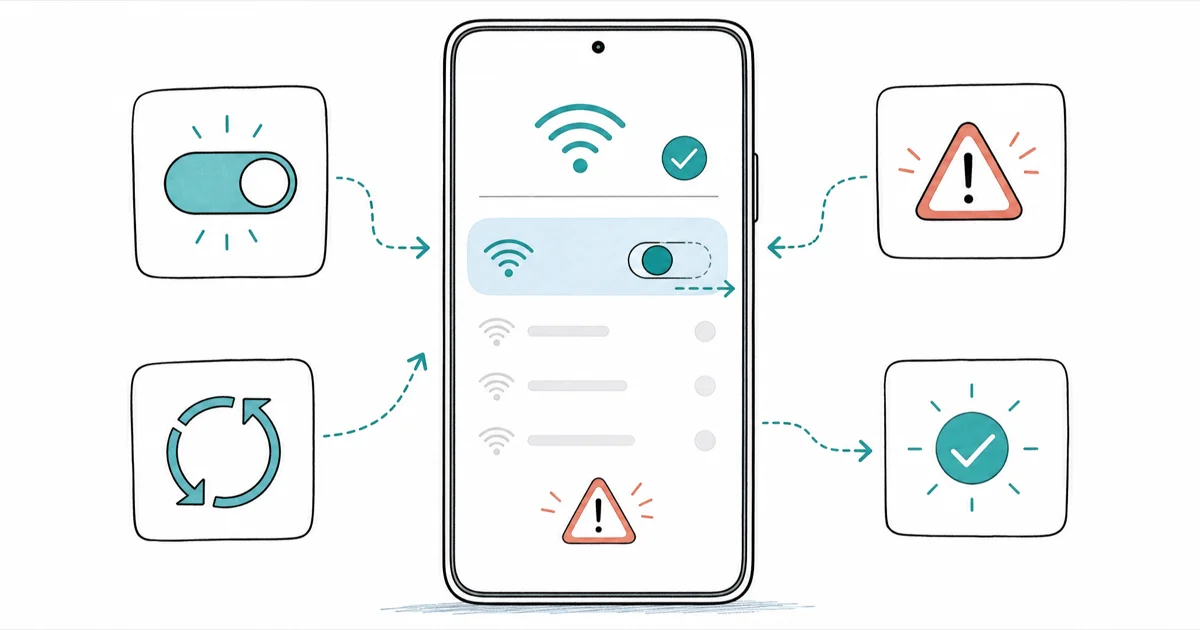
Quick AnswerSamsung Galaxy Wi-Fi usually disconnects because Intelligent Wi-Fi switches you to mobile data when the signal dips. Turn off Switch to Mobile Data in your Wi-Fi settings to stop it.
Samsung Galaxy Wi-Fi that keeps disconnecting almost always traces back to a setting or network condition, not bad hardware. Start with Intelligent Wi-Fi before replacing hardware.
- Intelligent Wi-Fi’s Switch to Mobile Data toggle is the most common reason a Galaxy drops Wi-Fi, jumping to cellular the moment it judges your signal weak
- Turning off Switch to Mobile Data and Wi-Fi power-saving mode under Settings, Connections, Wi-Fi, Advanced fixes most automatic disconnects
- A network settings reset clears corrupted saved networks but wipes every saved Wi-Fi password and Bluetooth pairing, so keep your passwords handy first
- If your Galaxy drops on one network but stays solid on others, the problem is that router or network, not your phone
- A Private DNS entry or always-on VPN can silently break the connection on some One UI builds, so pausing it isolates the cause fast
#Why Does My Samsung Galaxy Wi-Fi Keep Disconnecting?
The most frequent trigger is a feature that drops Wi-Fi on purpose. Intelligent Wi-Fi watches your connection, and when it decides the signal is slow or unstable, it hands you to mobile data without asking. On a strong home network that still fires when the signal dips for a second.
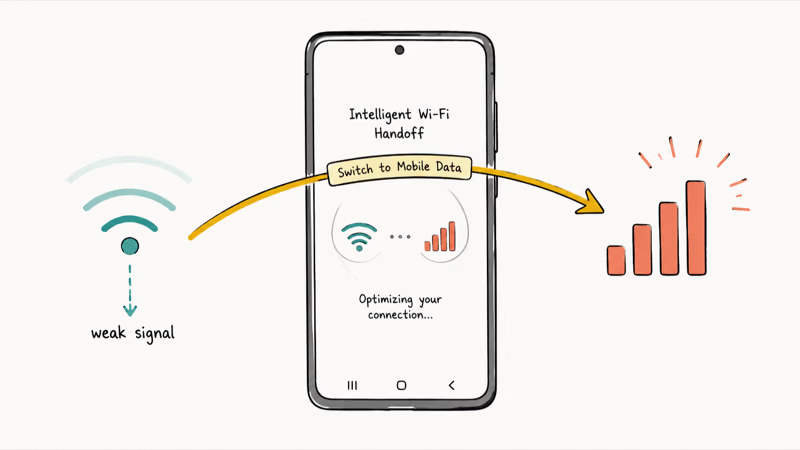
Hardware is rarely the problem.
According to Samsung’s Galaxy Wi-Fi troubleshooting guide, most connection drops trace back to network settings or interference rather than the phone, which fits the usual pattern: a phone that drops one network but holds others is pointing straight at the router. Stack a recent One UI bug, a stalled Private DNS, or aggressive power saving on top of that, and the drops get worse.
Work the fixes below in order. The first one takes about 30 seconds.
#Turn Off Switch to Mobile Data and Wi-Fi Power Saving
Start here. This single change controls the classic “Wi-Fi connected, then suddenly mobile data” pattern that frustrates most Galaxy owners, and it’s the first toggle to check.
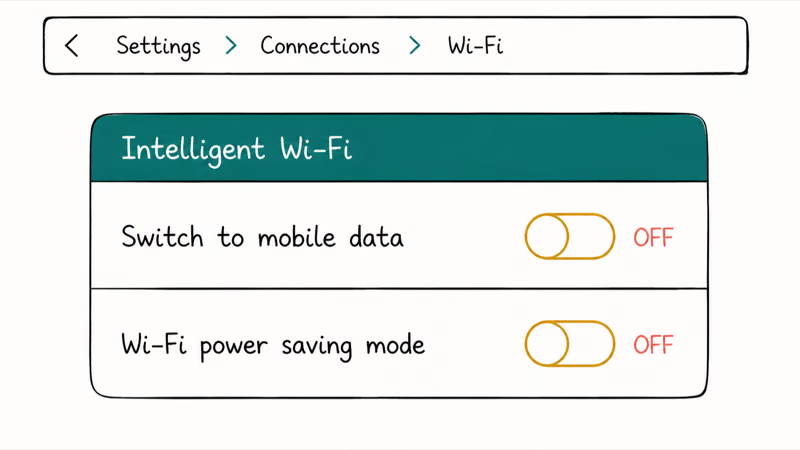
Open Settings > Connections > Wi-Fi, tap the three-dot menu, choose Intelligent Wi-Fi, and turn off Switch to mobile data. On some builds that toggle sits under Settings > Connections > Wi-Fi > Advanced instead. While you’re there, turn off Wi-Fi power saving mode too, since it throttles the radio to save battery and makes drops worse on a phone that already disconnects.
After both toggles are off, the phone no longer has permission to jump to cellular just because Wi-Fi looks weak.
Prefer a shortcut? Long-press the Wi-Fi tile in Quick Settings.
#Forget the Network and Rejoin
A saved network can hold stale security details that fail on the next reconnect. Forgetting it forces a clean handshake.
Go to Settings > Connections > Wi-Fi, tap your network, choose Forget, wait a few seconds, then tap it again and re-enter the password. This is the same first move that fixes a Wi-Fi authentication error on Android, where the phone can’t verify credentials it should already have. If rejoining sticks for a while and then drops again, the saved profile was not the only problem.
Keep going.
#Is the Problem Your Phone or Your Router?
Run one test before changing anything else. These fixes are all for your own Galaxy phone, so connect it to a different network, like a friend’s Wi-Fi or a hotspot, and use it for a few minutes. Stays connected there? Your phone is fine, and your home router is the suspect.
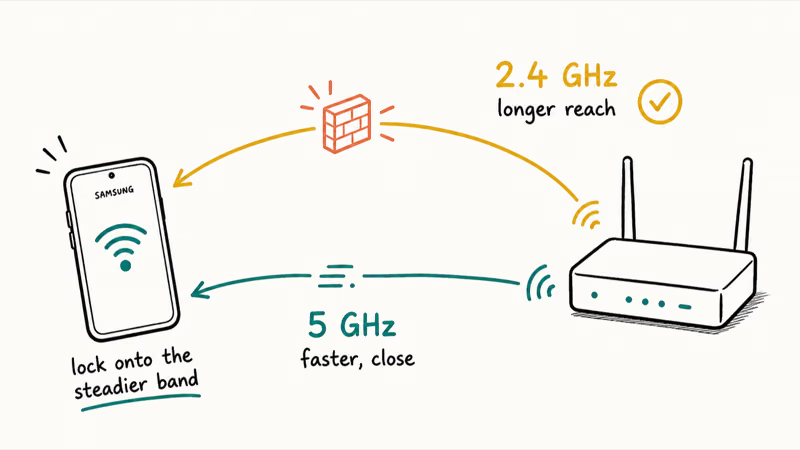
Band choice decides a lot. Some Galaxy models hold 2.4 GHz more steadily at range, while others prefer 5 GHz up close. If one band is unstable, splitting the 2.4 GHz and 5 GHz networks into separate names lets you choose the steadier one. Log into your router, give each band its own name, and join the one that holds.
Interference does the rest. Microwaves, cordless phones, and thick walls all chip away at a 2.4 GHz signal, so move closer to the router while you test.
#Reset Network Settings as a Last Resort
When toggles and rejoining both fail, wipe every network preference at once. Go to Settings > General management > Reset > Reset network settings, then confirm with your PIN.
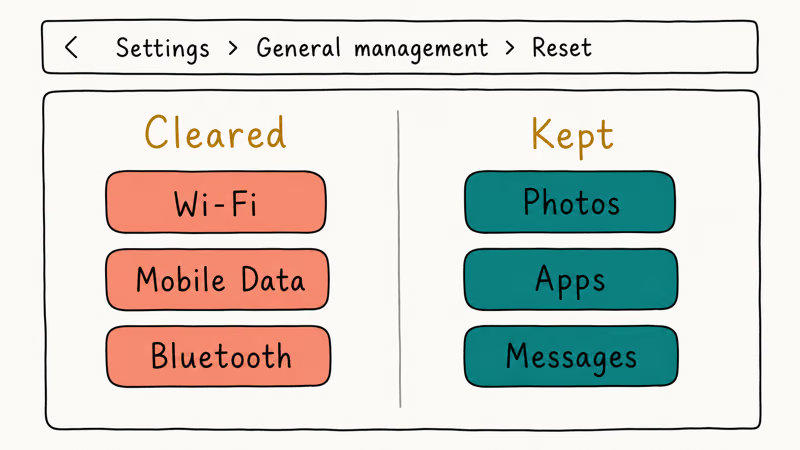
Know what you’re trading. Samsung’s network reset guide states that the reset clears all 3 connection categories (Wi-Fi, mobile data, and Bluetooth) back to default, though your photos, apps, and messages stay untouched. Have your Wi-Fi password ready so you can rejoin afterward, and re-pair any Bluetooth headphones or watches.
If a reset finally settles things, the old saved state was the culprit. While you’re tidying up connectivity, it’s a good moment to clear Other storage on your Samsung, since a bloated cache partition drags down system services too.
#Update One UI and Pause Private DNS or VPN
Network bugs get patched constantly, so an outdated build can be the whole story. Open Settings > Software update > Download and install and apply anything waiting.
According to Google’s Android Wi-Fi support page, your phone and the router exchange keys through a handshake before connecting, so a Private DNS or VPN layer that misbehaves can stall the whole process. Go to Settings > Connections > More connection settings > Private DNS, switch it to Off, pause any VPN, and test again for a steady link.
Some glitches just look like Wi-Fi faults. The com.samsung.android.incallui error or a Samsung Keyboard has stopped crash can surface after the same update that broke your connection. A clean restart before all of this clears the simplest gremlins.
#Bottom Line
Turn off Switch to Mobile Data first. That toggle directly controls the disconnect-and-jump-to-cellular loop, and it’s quick to check.
If your Galaxy still drops only at home, treat it as a router problem and split your bands into separate names so you can lock onto the steadier one. Save the full network reset for last, since you’ll be re-entering every Wi-Fi password afterward. Locked out while troubleshooting and can’t recall a credential? Here’s how to recover if you forgot your Samsung Galaxy password.
#Frequently Asked Questions
Why does my Samsung keep switching to mobile data?
Intelligent Wi-Fi is doing it on purpose. When it judges your Wi-Fi as slow or unstable, it hands the connection to mobile data automatically. Turn off Switch to Mobile Data under Settings, Connections, Wi-Fi, Intelligent Wi-Fi to stop it.
Does resetting network settings delete my photos or apps?
No. A network settings reset only touches Wi-Fi, mobile data, and Bluetooth preferences, so your photos, apps, messages, and files all stay put. You’ll need to re-enter Wi-Fi passwords and re-pair Bluetooth devices afterward, so gather those first. It’s a safe step that never wipes personal data.
Should I use the 2.4 GHz or 5 GHz band?
It depends on distance. 5 GHz is faster up close, while 2.4 GHz reaches farther through walls but runs slower.
Why does my Galaxy drop Wi-Fi only at home?
Because the fault is almost certainly your router or home environment, not the phone. A Galaxy that stays connected on other networks but drops at home points to router firmware, band settings, or interference from walls and appliances. Restart the router first, then split the 2.4 GHz and 5 GHz bands into separate names so you can lock onto the stronger one. If every device in the house drops too, update the router firmware or call your ISP.
Can a software update fix Galaxy Wi-Fi drops?
Yes, and it often does. Samsung patches network bugs through One UI updates, and waves of post-update Wi-Fi problems frequently clear with the next release. Install anything waiting under Settings, Software update before trying harder fixes.
Will a VPN cause my Wi-Fi to disconnect?
It can. An always-on VPN or a Private DNS entry sits between your phone and the network, and a misbehaving one can stall the connection or look like a Wi-Fi drop. Pause both temporarily, watch whether the link steadies, then switch them back on one at a time to find the culprit.
What if none of these fixes work?
Then the problem is likely the router or your ISP line, not the phone. Update the router firmware, factory reset it, or call your provider.

Pixel 11 vs Pixel 10: What Changed and Who Should Upgrade
Pixel 11 vs Pixel 10: same screen and camera resolution, new Tensor G6, 25W wireless, and Gemini Intelligence. Here is who should actually upgrade.

Verizon Not Receiving Texts? How to Fix It in 9 Steps
Verizon not receiving texts? Fix it in 9 steps: check Message Blocking in My Verizon, reset network settings, deregister iMessage, and call support.
Pixel Battery Drain: What Google's July Fix Really Covers
Google marked the Pixel idle battery drain bug fixed in July, but only some phones got the patch. Here is who is covered, who is not, and what to try.
iPhone Stuck on EDGE? How to Get 5G or LTE Back (2026)
iPhone stuck on EDGE with crawling data? Here's why the E icon appears, which settings force 5G or LTE back, and when the problem is your carrier.