One UI 7 Hidden Features and Tips Worth Turning On
One UI 7 hides some of its best features. Fix lock screen notifications, master the Now Bar, set custom charging limits, and unlock the Gallery search tab.
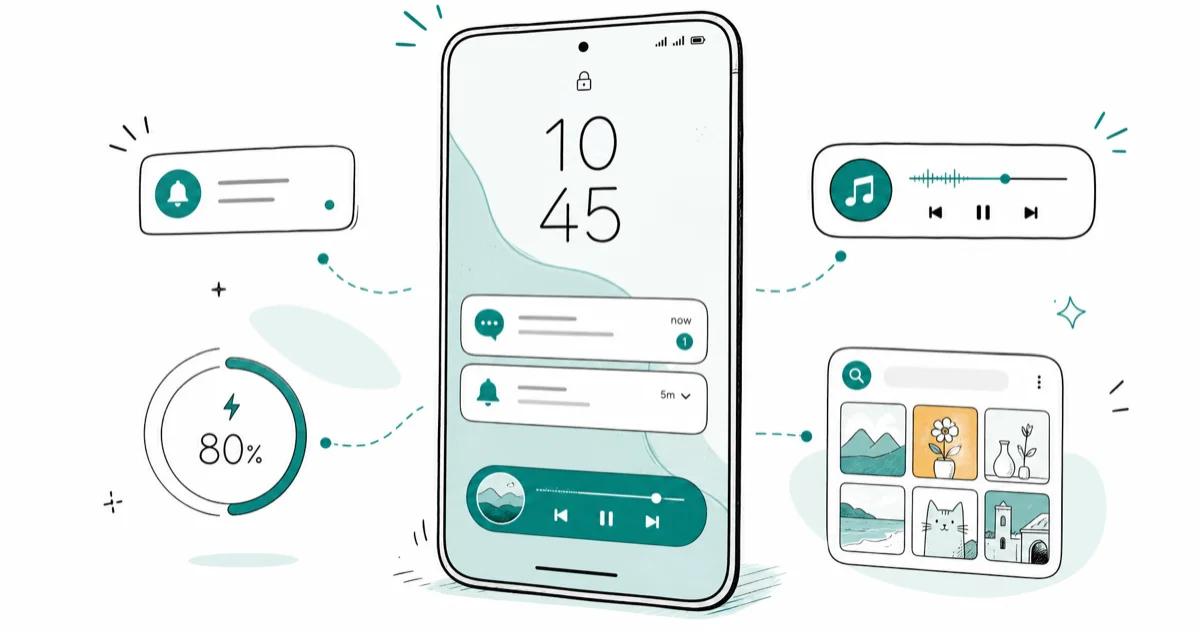
Quick AnswerSwitch lock screen notifications from icons to cards, learn the Now Bar media trick, set a custom 80-95% charge limit, and enable the hidden Gallery search tab.
One UI 7 ships with several of its best features turned off or buried in submenus. This guide covers the Now Bar, the lock screen fix everyone misses, custom charging limits, and a few well-hidden toggles.
- One UI 7 defaults lock screen notifications to tiny icons, but switching to Cards restores full notification text at a glance.
- The Now Bar puts live activities on the lock screen, and double-tapping its media controls works without unlocking the phone.
- Custom charging limits in One UI 7 let you cap charging anywhere from 80% to 95% to slow battery wear.
- One UI 7 split the notification and quick settings panels into left and right swipe gestures, which you can recombine if you prefer.
- A hidden Gallery Labs menu adds a dedicated Search tab, unlocked by tapping the version number repeatedly.
#How Do I Fix the One UI 7 Lock Screen Notifications?
This is the change most One UI 7 users want first. Out of the box, the lock screen shows notifications only as tiny icons in the top corner, so you can’t glance down and see what you missed without tapping each one.
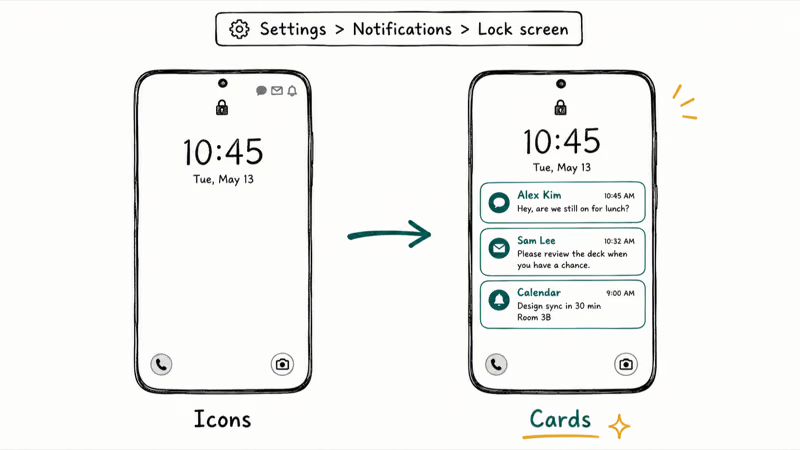
The fix takes 20 seconds. Open Settings > Notifications > Lock screen notifications, then under Notification style, tap Cards instead of Icons. Your lock screen now shows full notification cards with sender and preview text.
According to Android Police’s One UI 7 settings guide, this icon-only default is the single most polarizing change in the release. If your notifications still feel off afterward, the guide on fixing the Samsung keyboard has stopped issue covers a related input glitch some users hit after updating.
#What the Now Bar Can Actually Do
The Now Bar is One UI 7’s headline feature, similar in spirit to Apple’s Live Activities. It surfaces live information on your lock screen, like a running timer, workout progress, or active media, so you don’t have to unlock and open the app.
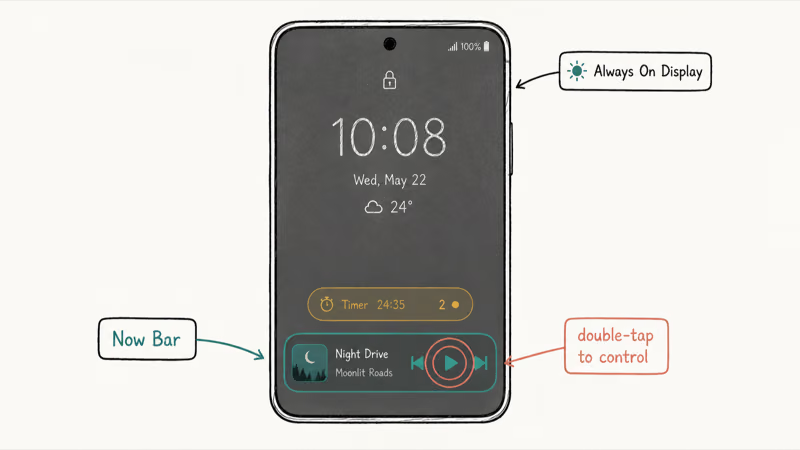
The best trick is hidden in plain sight. If music is playing with the phone locked, the play, pause, next, or previous controls can appear right on the Now Bar without opening the full screen.
According to Samsung’s official One UI 7 overview, the Now Bar is designed to bring real-time activities to the lock screen so you skip unlocking entirely for quick checks.
To control which apps appear, go to Settings > Lock screen and AOD > Now Bar and toggle individual apps on or off. If more than one activity is live, swipe up on the Now Bar from the lock screen to cycle between them. You can also enable it inside Always On Display mode for at-a-glance status without waking the phone.
#How Do I Set a Custom Charging Limit?
Battery protection got more flexible in One UI 7. Earlier versions let you pick adaptive charging or a fixed 80% cap, and that was it. Now you can choose a custom ceiling.
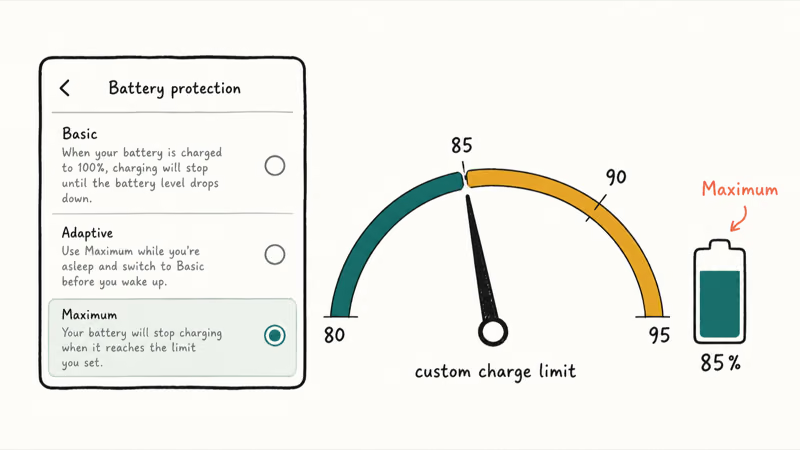
Go to Settings > Battery > Battery protection, choose Maximum, and set the limit to 80, 85, 90, or 95 percent. A higher cap gives you more usable battery while still reducing the long-term wear that comes from sitting at 100%. Pairing this with a quality cable helps too; the pick for the best USB-C cable for fast charging Samsung explains why.
This pairs well with general storage and battery housekeeping. If your phone is also running low on space, the guide on how to clear other storage on Samsung walks through reclaiming the hidden cache that builds up over time.
#The Split Gesture Change Everyone Notices
One UI 7 separated the notification shade and quick settings into two gestures. Swipe down from the top left for notifications, and from the top right for quick settings. It’s a real shift in muscle memory.
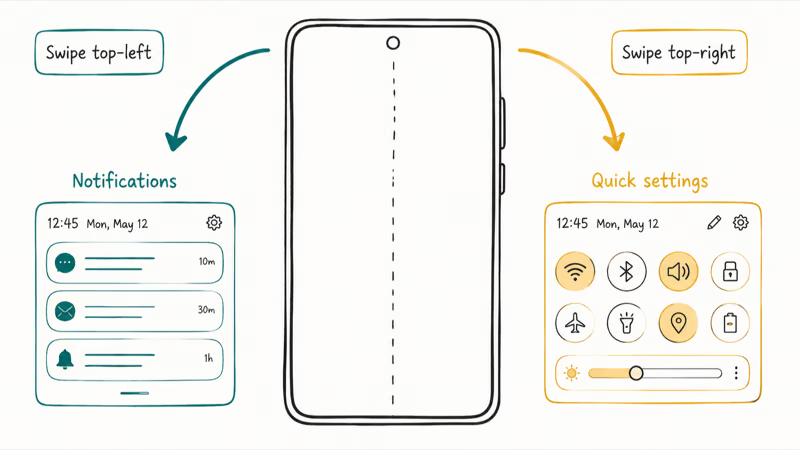
Not everyone likes it. If you’d rather have the old unified panel, swipe down from the top right, tap the pencil (Edit) icon, choose Panel settings, then Notification and quick settings view, and select Together. Tap back and Done. Now a single swipe from anywhere up top opens both at once.
There’s a tradeoff worth knowing. According to Android Authority’s One UI 7 walkthrough, the split design is faster once you adapt, since each gesture goes straight to what you want. Give it a few days before you switch back.
#The Hidden Toggles Worth Enabling
A few One UI 7 features are buried behind labs menus or long-press gestures. These are useful ones to check first.
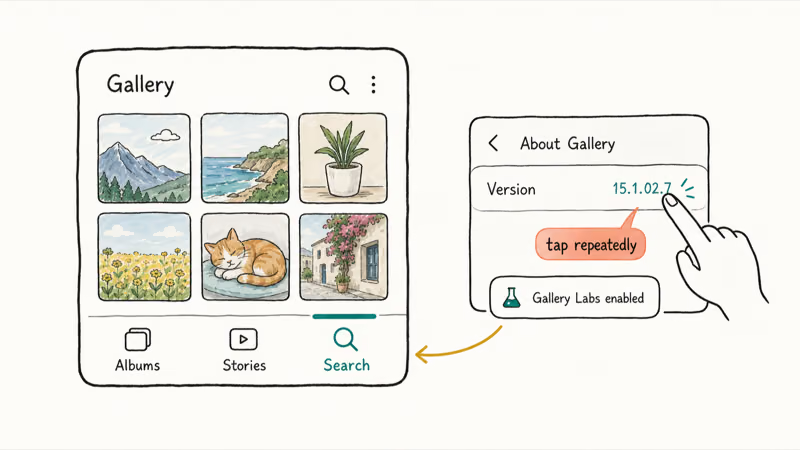
The Gallery search tab adds a dedicated Search button at the bottom of the Gallery, next to Albums and Stories. Open Gallery, tap Menu > Settings > About Gallery, then tap the version number repeatedly until “Gallery Labs enabled” appears. Go back to Settings > Gallery Labs and turn on Add search tab.
Lock screen mini widgets let you add up to two always-visible widgets. Long-press the lock screen, unlock, then tap Add widgets.
Vertical app drawer sorting finally lets you order apps alphabetically. Open the drawer, tap the three-dot menu, choose Sort, then Alphabetical order.
For deeper customization, Samsung’s Good Lock app adds modules like Home Up for gesture animation tuning. Samsung no longer bundles it, so grab it from the Play Store, where it’s now listed worldwide rather than locked to a handful of regions like it used to be.
#Customizing the Home Screen and Now Brief
One UI 7 folds in two features that used to need extra apps. Home Up is now built in, so you can place apps and widgets freely on the home screen without snapping to the old grid.
Now Brief is the other one. It gathers personalized updates through the day, like weather, your calendar, and reminders, and surfaces them on the Now Bar, a home screen widget, or the Edge panel. Tap into it from the Now Bar at the bottom of the lock screen to see your daily summary at a glance.
These two work well together once the lock screen and Now Bar tips above are in place, turning the home screen into something you actually arrange rather than accept.
#Bottom Line
Start with the lock screen Cards fix; it’s the change you’ll feel every time you pick up the phone. Then learn the Now Bar media double-tap and set a custom 85% charge limit to protect the battery long term. The Gallery search tab and vertical app drawer are quick wins once you know where they hide.
Moving to a new Samsung and want your data intact first? The guide on backing up WhatsApp messages on Samsung devices covers that step. And if you ever spot the com.samsung.android.incallui process and wonder what’s running, that explainer covers it too.
#Frequently Asked Questions
How do I turn off the new One UI 7 split gestures?
Swipe down from the top right, tap the pencil Edit icon, open Panel settings, then Notification and quick settings view, and choose Together. One swipe then opens both panels.
Does every Galaxy phone get the Now Bar?
The Now Bar shipped with One UI 7 and works on any Galaxy phone that got the update. Only apps built for live activities populate it, so a fresh setup may look empty until your apps update and start feeding live status into the bar.
Is a custom charging limit bad for my battery?
No, it’s the opposite. Capping the charge below 100% reduces the high-voltage stress that ages lithium-ion cells fastest, so a limit of 80 to 85% extends battery lifespan with only a modest cut to daily runtime, which is exactly why Samsung added the custom-limit option to One UI 7 in the first place.
What is Gallery Labs in One UI 7?
Gallery Labs is a hidden menu of experimental Gallery features. Unlock it by tapping the version number in About Gallery several times. The Add search tab option is the standout.
Did One UI 7 remove any features?
Yes, a few. Samsung dropped the diagonal corner swipe that used to launch the voice assistant, and that gesture now opens recent apps instead. It also removed transparency control from most home screen widgets. You can restore some customization through the QuickStar module in Good Lock.
Do I need Good Lock for these tips?
No. Every tip in the main sections works with stock One UI 7, no extra app required. Good Lock only comes up for advanced extras like gesture animation tuning and widget transparency. Download it from the Play Store if you want that deeper control, since Samsung no longer bundles it.

Pixel 11 vs Pixel 10: What Changed and Who Should Upgrade
Pixel 11 vs Pixel 10: same screen and camera resolution, new Tensor G6, 25W wireless, and Gemini Intelligence. Here is who should actually upgrade.

Verizon Not Receiving Texts? How to Fix It in 9 Steps
Verizon not receiving texts? Fix it in 9 steps: check Message Blocking in My Verizon, reset network settings, deregister iMessage, and call support.
Pixel Battery Drain: What Google's July Fix Really Covers
Google marked the Pixel idle battery drain bug fixed in July, but only some phones got the patch. Here is who is covered, who is not, and what to try.
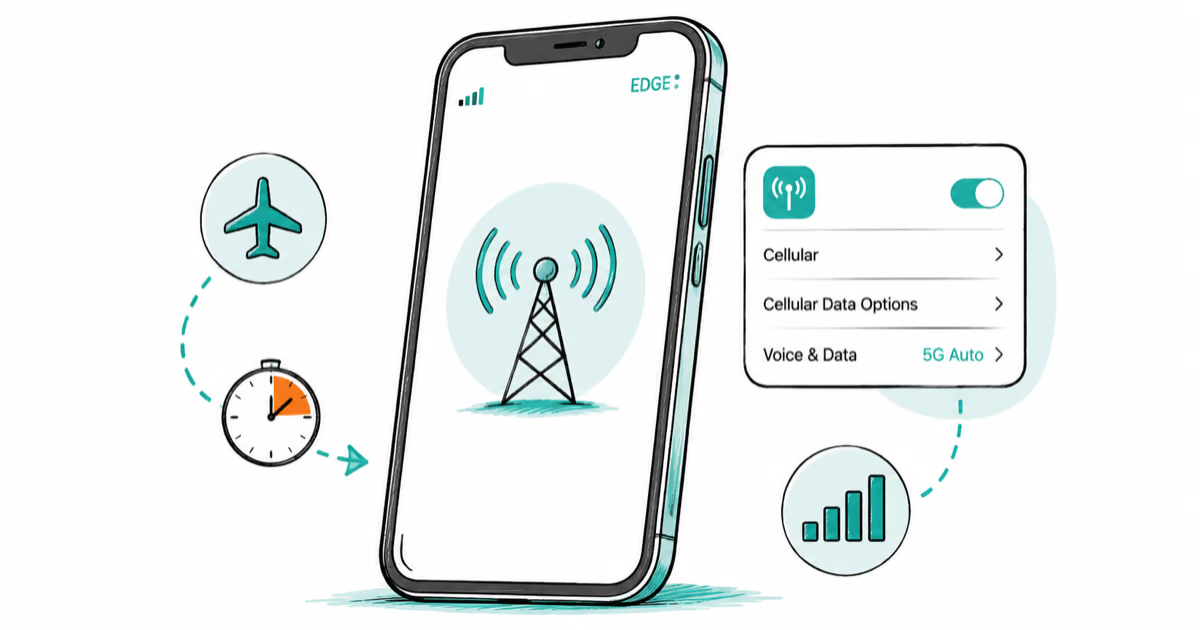
iPhone Stuck on EDGE? How to Get 5G or LTE Back (2026)
iPhone stuck on EDGE with crawling data? Here's why the E icon appears, which settings force 5G or LTE back, and when the problem is your carrier.