How to Answer Phone Calls With AirPods Pro on iPhone
Answer phone calls with AirPods Pro using the stem controls. Includes Siri call announcements, AirPods Pro 3 steps, and troubleshooting tips.
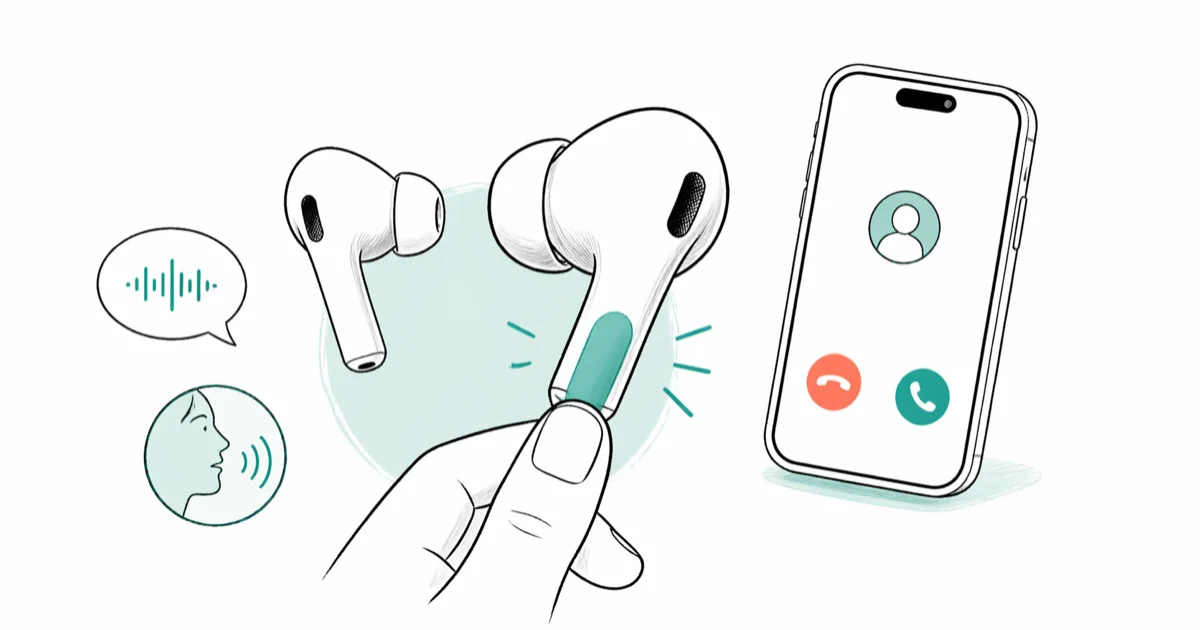
Quick AnswerPress the stem on either AirPods Pro earbud once to answer a call. Double-press to decline an incoming call or end an active call.
Your AirPods Pro can answer, end, and manage phone calls without touching your iPhone. The whole setup takes about 30 seconds, and the controls work whether you’re on a walk, cooking, or driving.
- Press the stem once on any AirPods Pro generation to answer calls
- Siri announces caller names through your AirPods Pro before you pick up
- AirPods Pro auto-switch between iPhone, iPad, and Mac for calls
- A single AirPod handles calls with the same microphone quality
- AirPods Pro work on Android too, but without Siri or auto-switching
#Answering and Ending Calls on AirPods Pro
The gesture depends on which generation you own. Here’s the breakdown:
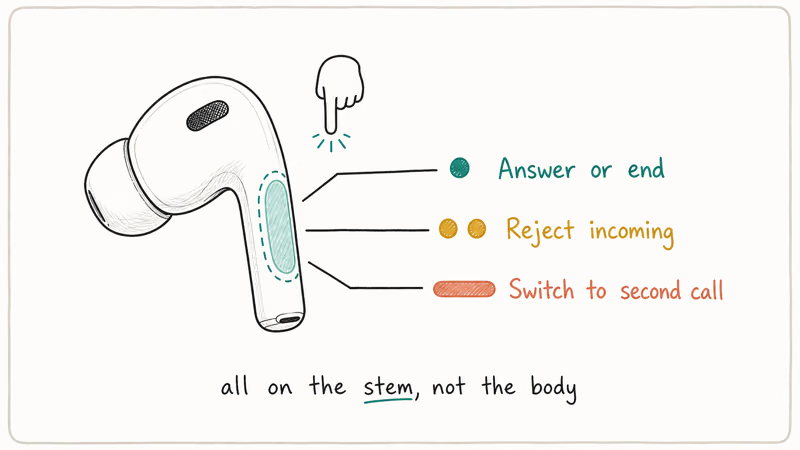
AirPods Pro 1, AirPods Pro 2, and AirPods Pro 3:
- When a call comes in, press the stem on either earbud once
- To end the call, double-press the stem
- To decline an incoming call, double-press the stem
Apple’s current AirPods guide confirms these controls for AirPods Pro. AirPods Pro 2 and AirPods Pro 3 can also use head gestures when that feature is enabled.
If your AirPods won’t connect at all, you’ll need to fix that before call controls will work.
#How to Set Up Siri Call Announcements
This is one of the most useful features if you get frequent calls. Siri reads the caller’s name (or number if they’re not in your contacts) through your AirPods Pro before you answer.
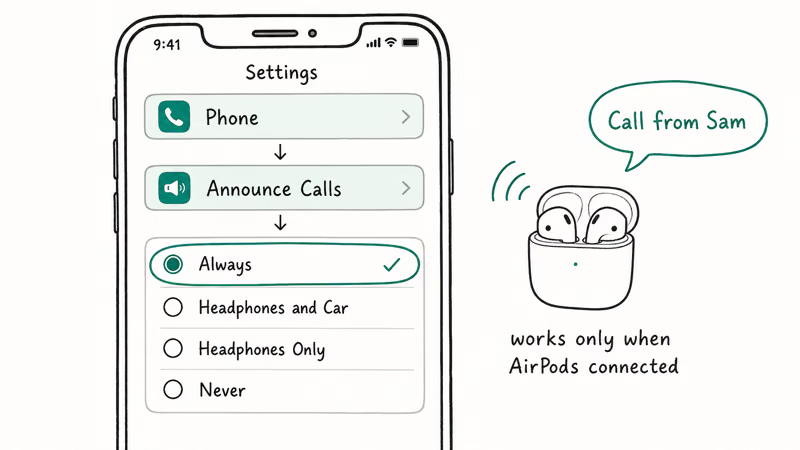
Go to Settings > Siri (or Apple Intelligence & Siri) > Announce Calls and select the option for headphones.
Then say “Answer” or “Decline” hands-free.
According to Apple’s AirPods guide, Siri can announce calls through AirPods and let you answer or decline by voice.
#Can You Use AirPods Pro for Calls on Android?
Yes, but with limits. AirPods Pro connect to any Bluetooth device, including Android phones, Windows laptops, and tablets.
On Android, you get call answering via force sensor or double-tap, microphone input, and basic audio playback. But Siri call announcements, automatic device switching, and automatic ear detection won’t work since those features rely on Apple’s proprietary software stack that only runs on iOS devices.
To pair with Android:
Put both AirPods in the case and open the lid. On AirPods Pro 1 or 2, hold the setup button on the back until the status light flashes white. On AirPods Pro 3, double-tap the front of the case until the light flashes white. Then go to Settings > Bluetooth on your Android phone and tap AirPods Pro in the available devices list.
If they don’t show up, close the lid for 15 seconds, reopen, and hold the setup button again. Google’s Bluetooth troubleshooting guide recommends clearing the Bluetooth cache on Android, which can also help with stubborn pairing failures.
Having cellular data issues during a call? That’s a network problem, not AirPods.
#Automatic Device Switching for Calls
If your iPhone, iPad, and Mac are all signed into the same Apple ID, AirPods Pro automatically route audio to whichever device needs it. You’re listening to a podcast on your Mac, your iPhone rings, and the audio switches to the call without you doing anything.
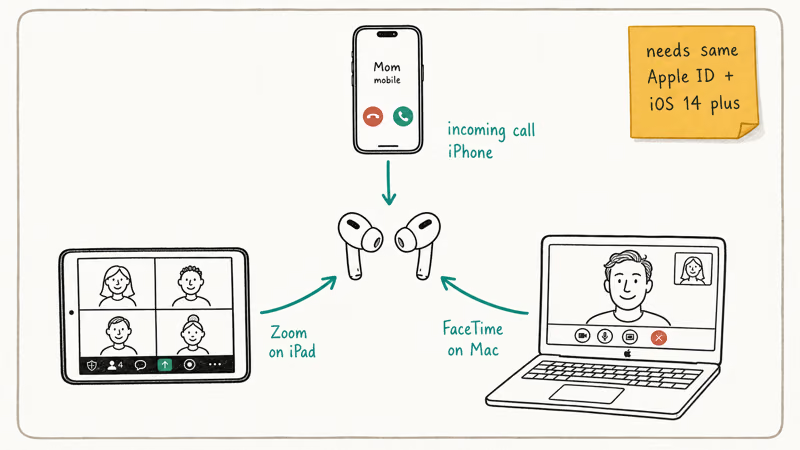
Apple introduced this in iOS 14 and macOS Big Sur. The switch is designed to happen automatically when a call comes in on a nearby signed-in Apple device.
To confirm automatic switching is on:
Go to Settings > Bluetooth, tap the i next to your AirPods Pro, and under Connect to This iPhone, select Automatically.
You can also manually switch audio output mid-call. Tap the speaker icon in the Phone app, choose your AirPods Pro, and audio routes to them. This manual override is useful when automatic switching picks the wrong device, which occasionally happens if you have multiple Apple devices in the same room running different apps.
If you’re curious about AirPods microphone quality during calls, the beam-forming mics can help filter background noise.
#Troubleshooting AirPods Pro Call Problems
Here are the fixes for each problem:
Sound plays through phone instead of AirPods: Tap the speaker icon during a call and select AirPods Pro. That fixes it immediately. If the problem keeps coming back, read the full guide on AirPods connected but sound coming from phone for permanent fixes including resetting audio routing and disabling Automatic Ear Detection, which is often the hidden culprit behind this issue.
Muffled call audio: Clean the mesh grilles with a dry cotton swab. If it’s still off, the AirPods sound muffled guide covers deeper fixes.
Calls dropping or cutting out: Bluetooth interference is one possible cause. Move closer to your phone and away from busy Wi-Fi areas, microwaves, or wireless speakers. Apple’s wireless headphone guidance recommends keeping the source device close and moving away from places with heavy Wi-Fi activity or other interference.
One AirPod not working: Put both back in the case for 30 seconds, then try again. Still broken? Could be a battery imbalance.
Can’t answer calls at all: Reset your AirPods Pro. The steps differ for AirPods Pro 3, so follow Apple’s model-specific reset instructions, re-pair them, and test a call.
#Can You Adjust Call Volume on AirPods Pro?
AirPods Pro don’t have separate volume buttons. You have three options:
- Ask Siri. Say “Hey Siri, turn up the volume” during a call
- Use your phone. Press the volume buttons on your iPhone
- Use the on-screen slider. Swipe down from the top-right corner to open Control Center and drag the volume slider
AirPods Pro 2 and AirPods Pro 3 support touch-based volume control on the stem. Swipe up to increase volume or down to decrease it. This works during calls too.
If your AirPods are too quiet even at full volume, there might be debris in the speaker mesh or an audio balance setting that’s off.
#Bottom Line
Press either stem once to answer a call. Set up Siri call announcements if you want hands-free control. If calls aren’t routing to your AirPods, check the audio output selection first, then reset the AirPods if needed.
iPhone tips & tricks
#Frequently Asked Questions
Can you use just one AirPod Pro for phone calls?
Yes. Each AirPod has its own beam-forming microphone, so call quality stays the same with just one in.
Do AirPods Pro work for FaceTime and WhatsApp calls?
They work with any app that uses your phone’s audio system, including FaceTime, WhatsApp, Zoom, Microsoft Teams, and Telegram. Audio routes through AirPods Pro automatically, and the force sensor gesture answers calls in these apps the same way it does for regular phone calls. You don’t need to change any settings.
How do you decline a call with AirPods Pro?
Double-press the stem on either AirPod Pro. The call goes to voicemail.
Why does my AirPods Pro microphone sound bad to callers?
Dirty microphone meshes are the most common cause. Clean the small grilles at the bottom of each stem with a dry, soft brush. Wind noise is another factor, and cupping your hand over the stem area when outside can block enough wind to make a noticeable difference. If callers still complain about audio quality after cleaning, try making a call in a quiet room to rule out environmental noise as the issue.
Can you answer calls with AirPods Pro while connected to a Mac?
Yes, they’ll switch to your iPhone automatically. FaceTime calls on Mac also work through AirPods Pro.
Do AirPods Pro automatically answer calls?
No. You always need to squeeze the force sensor, double-tap, or use Siri to accept. iOS has a separate auto-answer accessibility feature under Settings > Accessibility > Touch > Call Audio Routing > Auto-Answer Calls, but that’s an iPhone setting that works with any audio output, not an AirPods-specific feature.
How do you switch a call from phone speaker to AirPods Pro mid-call?
Tap the speaker icon on the call screen. Pick AirPods Pro from the list. Audio transfers to the earbuds.
What is the Bluetooth range for AirPods Pro during calls?
AirPods Pro use Bluetooth, so call range depends on the room, walls, interference, and how far the phone is from the earbuds. Keep the phone nearby for the most stable call audio.
How to Transfer Data to a New iPhone Without iCloud
Move everything to your new iPhone without iCloud: Quick Start device-to-device transfer, wired migration, and encrypted Finder or iTunes backups.
Best Wireless Earbuds for iPhone in 2026: USB-C Era Picks
Best wireless earbuds for iPhone in 2026, comparing AirPods Pro 3, Sony WF-1000XM6, Bose QC Ultra, and Anker Liberty 4 NC on the USB-C iPhone lineup.
iPhone Keyboard Lag? 7 Proven Fixes for iOS 26 (2026)
Fix iPhone keyboard lag with 7 proven fixes for iOS 26. Covers restart, storage, predictive text, third-party keyboards, and dictionary reset.
How to Block Porn on an iPhone: A Guide for Parents
Learn how to block porn on iPhone using Screen Time, DNS filtering, and safe browsers. Step-by-step guide for parents to protect kids' devices.