Screencast-O-Matic Review: Features, Pricing, and Verdict
Honest Screencast-O-Matic (ScreenPal) review: free vs paid plans, core recording limits, and how it stacks up against OBS, Loom, and Camtasia.
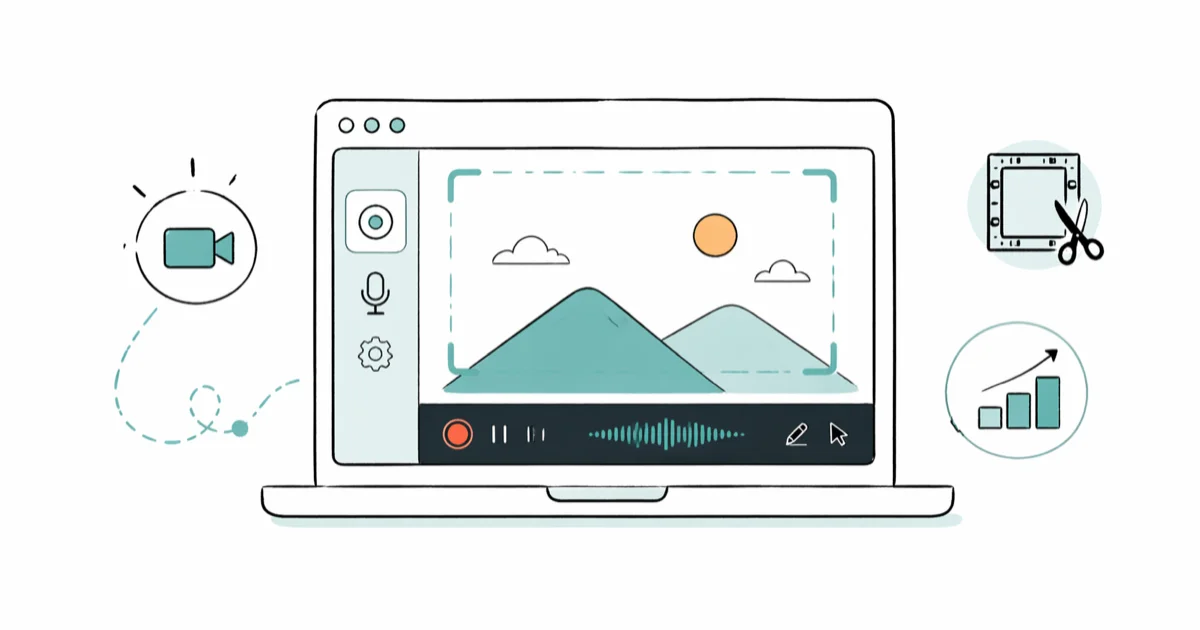
Quick AnswerScreencast-O-Matic, now called ScreenPal, is a screen recorder with a 15-minute free cap and a watermark; the $3/month Deluxe plan removes both, adds system audio recording, and exports at 1080p.
Screencast-O-Matic became ScreenPal in 2023, but the screen recorder, pricing tiers, and feature set stayed the same. This review compares the free plan, the $3/month Deluxe plan, and the $6/month Premier plan for tutorial creators, teachers, and small business owners who need a quick recorder with basic editing, webcam overlay, classroom-friendly sharing, and fewer moving parts than a full video editor.
- The free plan caps recordings at 15 minutes and stamps a watermark across every frame; the $3/month Deluxe plan removes both.
- ScreenPal exports at 720p on free, 1080p on Deluxe, and 4K only on the $6/month Premier tier.
- System audio recording (button click sounds, app feedback, system alerts) is locked behind paid plans on Windows and Mac.
- Deluxe exports at 1080p MP4, while the free plan stays limited to 720p.
- Both paid tiers come with a 30-day money-back guarantee, so trialing the upgrade is risk-free.
This review focuses on recording your own screen for tutorials, classroom content, and product walkthroughs. Recording someone else’s device or account without permission is unlawful in most regions and a privacy violation regardless of jurisdiction.
#What You Get With Each Pricing Tier
ScreenPal has three plans, and the gap between free and Deluxe is wider than the gap between Deluxe and Premier. According to ScreenPal’s plans page, the free tier caps recordings at 15 minutes, while the paid Solo plans unlock unlimited recording time and the full video editor.
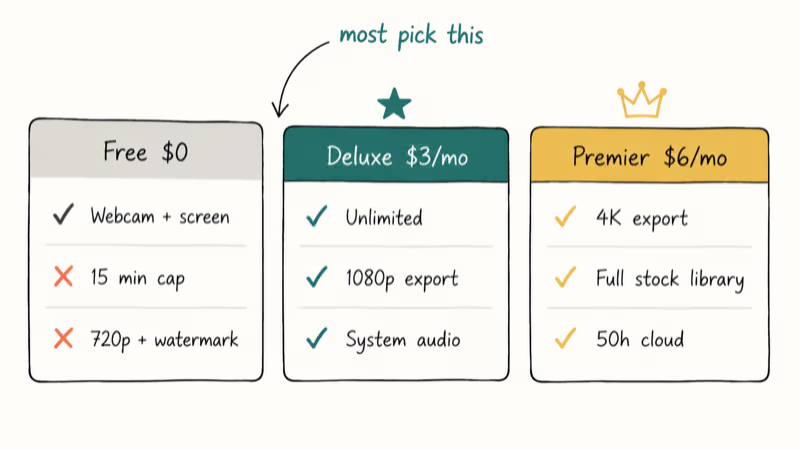
| Feature | Free | Deluxe ($3/mo) | Premier ($6/mo) |
|---|---|---|---|
| Recording limit | 15 minutes | Unlimited | Unlimited |
| Watermark | Yes | No | No |
| System audio | No | Yes | Yes |
| Export resolution | 720p | 1080p | 4K |
| Editor | Basic trim | Full editor | Full editor + effects |
| Stock media library | None | Limited | Full access |
| Cloud storage | None | 25 hours | 50 hours |
The free tier is a demo, not a workflow. You can’t record system audio, export above 720p, or hide the watermark by cropping. Deluxe is where ScreenPal becomes a real tool. Premier mostly adds 4K export and a larger stock library, which only matters if you ship polished marketing videos with branded intro slates and stock B-roll.
Most people land on Deluxe and stay there.
#Setup and First Recording on Windows and Mac
Going from a fresh signup to a saved recording takes about 5 minutes. The desktop launcher is a 60 MB download for Windows and 80 MB for Mac. ScreenPal’s feature documentation confirms that the app runs on Windows 10 and later, macOS 11 Big Sur and later, plus iOS and Android companion apps.
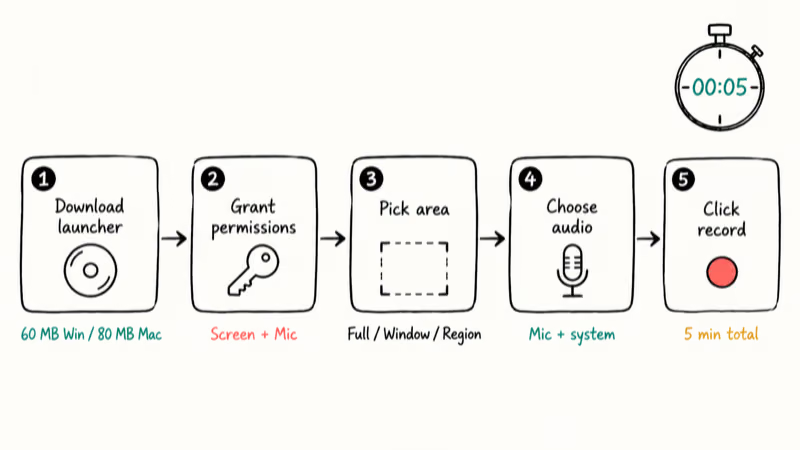
On macOS Sonoma, ScreenPal asks for Screen Recording and Microphone permissions on first launch, matching what Apple’s Mac screen recording guide recommends.
Once the launcher is open, you choose a recording area (full screen, a single window, or a custom region), pick your audio source, and click record. The capture overlay shows a live frame so you can adjust the box before starting.
Paid plans support webcam overlay, system audio, and 1080p MP4 export. The free plan stays at 720p.
#Should You Use the Free Plan?
The free plan only makes sense for clips under 15 minutes that don’t need polish. The watermark sits in the lower right of every frame and can’t be cropped out, and system audio capture is disabled.
The free version is most convincing for short, low-stakes clips. 720p output can look acceptable on phone screens but soft on sharper desktop displays. If your audience watches on a phone screen and you don’t need system audio, the free plan can carry you. For everything else, it’s a 5-minute trial that nudges you toward Deluxe.
If your screen recordings are mostly Zoom replays or meeting captures, our computer crashes during Zoom guide covers a different failure mode worth ruling out before blaming the recorder.
Free is fine. Free isn’t a workflow.
#Why the $3 Deluxe Plan Pays Off
Deluxe is the plan most people should buy. For $36 a year, it removes the watermark, lifts the 15-minute cap, unlocks system audio, and bumps export quality to 1080p. The full editor adds cuts, fades, captions, callouts, and overlay images, all of which the free editor locks out.
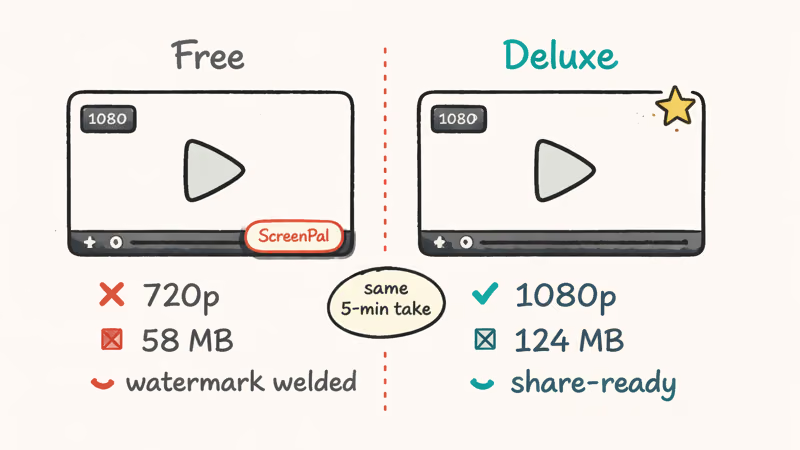
The practical difference is presentation quality: paid exports remove the watermark and raise resolution.
The catch: ScreenPal bills paid plans annually, not monthly. The $3 sticker price is $36 charged once. If you only need a recorder for a single project, Loom’s free 5-minute clips or QuickTime on Mac are cheaper for one-off use.
#How Does ScreenPal Compare to OBS, Loom, and Camtasia?
ScreenPal sits between bare-bones free tools and full-blown editors. Here’s how it stacks up.
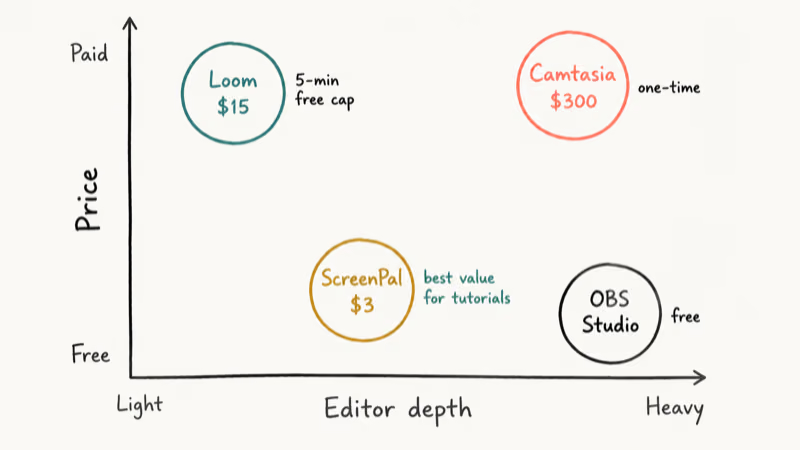
| Tool | Price | Best For | Main Tradeoff |
|---|---|---|---|
| ScreenPal | Free / $3-6/mo | Quick tutorials, educators | Limited editor vs dedicated NLE |
| OBS Studio | Free | Streaming, advanced users | Steep learning curve, no editor |
| Loom | Free / $15/mo | Instant team sharing | 5-minute free cap, no real editor |
| Camtasia | $300 one-time | Professional productions | Expensive, heavier on older machines |
OBS Studio is more powerful for livestreaming but expects you to know what bitrate and keyframe interval mean. Loom’s pricing page states that the Starter (free) tier caps individual recordings at 5 minutes, which makes ScreenPal’s 15-minute free window the more generous option for longer tutorials. Camtasia is the closest direct competitor for editor depth, but it costs roughly 8x what ScreenPal Deluxe does over a year.
Pick by primary use case, not feature lists.
For heavier color grading or speed ramps, our DaVinci Resolve speed-up clip walkthrough covers the workflow ScreenPal can’t do natively.
On the upstream hardware side, best streaming PC and audio interfaces for Mac matter more for team comms than recorder choice.
#When ScreenPal Is the Right Choice
Pick ScreenPal Deluxe if you record tutorials weekly, run a course or YouTube channel, or train coworkers on internal software. The trim-and-caption workflow is fast enough that a 10-minute lesson can go from raw record to published in under 20 minutes. Teachers and small business owners get the most out of the no-configuration setup, since they don’t need to learn encoder settings to ship a clean recording.
The built-in editor also saves a separate subscription. DaVinci Resolve’s free tier handles light editing, but if you want a single tool that records and edits in one window, Deluxe at $3/month is the cheapest path that doesn’t ask you to learn a node-based color grader.
#When to Skip ScreenPal
Skip ScreenPal if you livestream regularly to Twitch or YouTube. OBS Studio is free and built for that workflow. Skip it if you only need 30-second clips for Slack or Teams chat, since Loom embeds and shares faster. Skip it if you produce daily marketing videos with motion graphics or speed ramps, since Camtasia or Premiere Pro will save you hours per project.
If your final output is a smaller MP4 to email a client, our compress video for email guide covers the post-export step ScreenPal won’t optimize for you.
#Bottom Line
Buy ScreenPal Deluxe at $3/month if you record tutorials or course content more than twice a month. The 1080p export, system audio capture, and removed watermark turn the same workflow from “demo” into “shippable.” Skip Premier unless you specifically need 4K export; the stock library alone doesn’t justify the extra $36 a year. Free is fine for one-off clips you’ll throw away, and not for anything else.
#Frequently Asked Questions
Is Screencast-O-Matic the same as ScreenPal?
Yes. The company rebranded to ScreenPal in 2023 with identical features, pricing, and account login.
Can I use ScreenPal for free forever?
Yes, but with hard limits. The free plan records up to 15 minutes per session, stamps a watermark on every frame, exports at 720p, and locks out system audio recording. The editor is trim-only with no captions or overlay images, and there’s no cloud storage. For anything you’ll share with a client or paying audience, plan to upgrade to Deluxe at $3/month.
Does ScreenPal work on Chromebook?
Yes, through the browser recorder at screenpal.com. The browser version has fewer features than the desktop app: no system audio, no full editor, and no fast batch export. If Chromebook is your main machine, Loom is more polished for browser-first recording.
Can I record my screen and webcam at the same time?
Yes, on every plan including free. Webcam overlay is built into the recorder, so you can keep your camera feed visible beside the screen capture.
How do I remove the ScreenPal watermark?
Upgrade to Deluxe at $3/month or Premier at $6/month. The watermark is rendered into the recording itself on the free plan and can’t be cropped out, since it sits inside the safe area. Both paid tiers include a 30-day money-back guarantee, so you can test the upgrade before committing.
What video formats does ScreenPal export to?
MP4, AVI, and FLV. MP4 is the default and the right choice for almost everyone.
Is ScreenPal good for recording gameplay?
Not really. It records up to 60fps, which is fine for older or casual titles, but it lacks the GPU encoding tuning OBS gives you for high-action games. For Twitch streaming or competitive gameplay capture, OBS Studio is the better free choice.

Best Laptop for Running LLMs in 2026: Memory Comes First
The best laptop for running LLMs is a memory purchase first. Compare MacBook unified memory against NVIDIA laptop VRAM, and see what each tier really runs.

Pixel 11 vs Pixel 10: What Changed and Who Should Upgrade
Pixel 11 vs Pixel 10: same screen and camera resolution, new Tensor G6, 25W wireless, and Gemini Intelligence. Here is who should actually upgrade.
Best Power Bank for iPad in 2026: Pro, Air, and Mini
Best power bank for iPad in 2026. Compare mAh tiers and USB-C PD wattage for iPad Pro, Air, and mini, plus airline Wh math, cables, and travel tips.
Best Power Bank With Built-In Cable: Top 2026 Picks
Best power bank with built-in cable picks for 2026. Compare single USB-C, multi-connector, and retractable laptop banks, plus airline Wh math.