Screen mirroring doesn’t need WiFi. You can do it with a $10 cable, or wirelessly using technology that creates its own direct device-to-device link. Most people don’t know this. They assume no router means no mirroring. Not true.
Here are five methods ranked by reliability, with the most foolproof options first.
- A wired HDMI adapter is the most reliable method and works on every TV made since 2009, but Android phones need DisplayPort Alt Mode support over USB-C.
- Miracast creates a direct WiFi Direct connection without a router, works up to about 30 feet, and introduces 100-200ms of latency.
- Peer-to-peer AirPlay uses Bluetooth for discovery then creates its own WiFi link, so both WiFi and Bluetooth must be enabled on your iPhone even with no network.
- Peer-to-peer AirPlay works to Apple TV devices but generally not to AirPlay 2 smart TVs from LG, Samsung, or Sony, which require a shared network.
- Streaming 1080p video over a mobile hotspot uses roughly 3-4 GB per hour, so reserve that method for short sessions or unlimited plans.
#Method 1: HDMI Adapter (Most Reliable)
A wired connection is zero-lag, zero-setup, and works on every TV made since 2009. This is what to use for presentations, gaming, or any time quality matters.
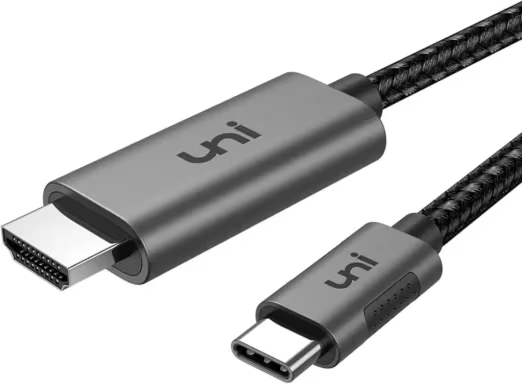
#For Android and Windows (USB-C to HDMI)
Most phones made after 2017 have a USB-C port that outputs video, but not all of them. You need a phone that supports “DisplayPort Alt Mode” over USB-C.
Check your phone spec sheet or search “[your model] USB-C video output” before buying an adapter.
- Plug a USB-C to HDMI adapter into your phone
- Connect an HDMI cable from the adapter to your TV
- Switch your TV to the correct HDMI input
- Your screen appears automatically on most Android 9+ devices
Works on: Samsung Galaxy S8 and later, Google Pixel 2 and later, most Windows laptops with USB-C.
Doesn’t work on: Many budget Android phones, Samsung Galaxy S21 series (Samsung removed DisplayPort Alt Mode on those specific models).
#For iPhone and iPad (Lightning or USB-C)
Apple’s approach is simpler since every adapter is purpose-built for the job.
- iPhone 15 and later / iPad Pro with USB-C: Use a USB-C to HDMI adapter (same as above)
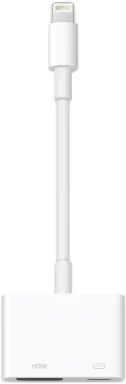
- iPhone 14 and earlier: You need Apple’s Lightning Digital AV Adapter, which runs about $49
- Plug the adapter into your iPhone’s charging port
- Connect an HDMI cable from the adapter to the TV
- Select the HDMI input on your TV
The official Apple adapter does something third-party cables often can’t: it plays DRM-protected content like Netflix at full quality. Cheap knockoffs frequently fail on streaming apps. According to Apple’s support documentation, the Lightning Digital AV Adapter supports up to 1080p output.
#Method 2: Miracast (Wireless with No Router, Android & Windows)
Miracast creates a direct WiFi Direct connection between your phone and display. No router involved. It’s built into Android 4.2+ and Windows 8.1+, and it’s supported by most modern smart TVs.
According to Miracast’s Wi-Fi Alliance certification, the connection is peer-to-peer. Your phone and TV talk directly to each other without any network in between.
#How to enable Miracast on Android
- On your TV, go to Settings and look for “Screen Mirroring,” “Miracast,” or “Wireless Display” (the name varies by brand)
- On your Android phone, pull down the notification shade and tap “Cast,” “Screen Cast,” or “Smart View”
- Your TV should appear in the list within 10-15 seconds
- Tap it to connect
Range: Works reliably up to about 30 feet. Walls reduce this significantly.
Latency: Expect 100-200ms. Fine for video, but noticeably laggy for gaming or drawing apps.
#How to enable Miracast on Windows 11
Go to Settings > System > Display > “Connect to a wireless display.” Your TV must have Miracast enabled. Windows laptops work much better with Miracast than phones do; the connection is more stable.
Heads up: If your Android phone is also connected to a WiFi network, Miracast sometimes gets confused and routes through the router anyway. Turn off WiFi on your phone before pairing to force a true direct connection.
For Pixel phones specifically, the screen mirroring options on Google Pixel include Miracast on most models from the Pixel 3 onwards.
#Method 3: Peer-to-Peer AirPlay (iPhone to Apple TV)
This is Apple’s offline mirroring solution, and it actually works well. Your iPhone uses Bluetooth to discover a nearby Apple TV, then creates its own temporary WiFi link for the actual video stream. No router needed.
Requirements:
- iPhone 5 or later, iPad mini 2 or later, or any Mac
- Apple TV 3rd generation (late 2012) or later, or an AirPlay 2-compatible smart TV
- WiFi and Bluetooth both enabled on your iPhone (they don’t need to be connected to anything)
- Make sure Bluetooth and WiFi are both turned on your iPhone (even with no network connected)
- Swipe into Control Center and tap the Screen Mirroring icon
- Your Apple TV should appear, even with no shared network
- Tap it and enter the AirPlay code shown on your TV if prompted
The Apple Community forum has confirmed this works for users in hotel rooms and conference venues where the Apple TV isn’t on the same network as guest devices.
One thing that trips people up: peer-to-peer AirPlay works to Apple TV but generally not to AirPlay 2 smart TVs from LG, Samsung, or Sony. Those TVs need to be on the same network. For WiFi-free mirroring to a smart TV, use HDMI or Miracast instead.
For a deeper look at this feature, see the full guide on AirPlay without WiFi.
#Method 4: Chromecast Guest Mode
Chromecast normally requires both your phone and the Chromecast to be on the same WiFi network. Guest Mode sidesteps this.
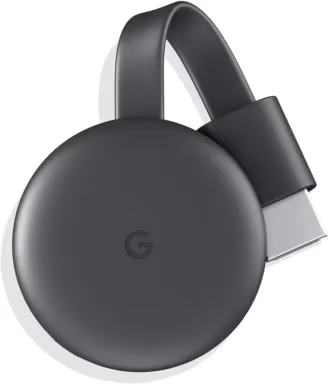
When Guest Mode is active, your Chromecast broadcasts a short-range ultrasonic audio signal (or shows a PIN on screen). Your phone detects this and establishes a direct connection without a shared network.
- Open the Google Home app on a phone that’s already set up with the Chromecast
- Go to your Chromecast device settings and enable Guest Mode
- On the guest phone (the one without network access), open a Cast-compatible app like YouTube or Netflix
- Tap the Cast icon. Nearby Chromecasts in Guest Mode will appear
- Enter the 4-digit PIN shown on the TV if prompted
Limitation: This only casts specific apps. It doesn’t do full-screen mirroring of your phone’s display. For that, you need the phone and Chromecast on the same network, or use a different method.
#Method 5: Mobile Hotspot as a Bridge
This isn’t truly “no WiFi,” but it works when you don’t have access to a shared network. Your phone creates a hotspot, and both your mirroring device and the display connect to it.
- Enable the mobile hotspot on your main phone
- Connect your Chromecast or smart TV to that hotspot
- Connect your phone to the same hotspot (or it’s already the source)
- Use normal screen mirroring methods (they’ll work because both devices share a network)
Data usage: Streaming video over a hotspot burns through data faster than you’d expect. A 1080p stream uses roughly 3-4 GB per hour. Use this for short sessions or when you have an unlimited plan.
For device-to-PC mirroring over USB without any network at all, AirDroid Cast and AnyMiro both support wired USB connections with latency under 20ms. This is the best option if you’re mirroring an Android phone to a Windows laptop for gaming or app demos.
If you want to compare all the dedicated apps, see the best screen mirroring apps roundup.
#Device Compatibility at a Glance
| Device | Best Wireless Method | Best Wired Method |
|---|---|---|
| iPhone 15+ | Peer-to-Peer AirPlay | USB-C to HDMI |
| iPhone 14 and earlier | Peer-to-Peer AirPlay | Lightning Digital AV Adapter |
| Android (flagship) | Miracast / WiFi Direct | USB-C to HDMI (if DisplayPort Alt Mode supported) |
| Android (budget) | Mobile Hotspot + Cast | Micro-USB to HDMI (rare) |
| Windows laptop | Miracast | HDMI out port |
| MacBook | Peer-to-Peer AirPlay | USB-C to HDMI |
#Troubleshooting
Miracast not showing the TV in the device list: Make sure Miracast/wireless display is enabled in your TV settings. Samsung TVs label this “Screen Mirroring,” LG calls it “Screen Share,” Sony uses “Screen mirroring.” Turn both devices off and back on if it still doesn’t appear.
Peer-to-peer AirPlay not discovering Apple TV: Both Bluetooth and WiFi must be on your iPhone even with no network. Bring the devices within 15 feet. If Apple TV is connected to a network, try temporarily disconnecting it. Some users report this actually makes peer-to-peer discovery faster.
HDMI adapter showing black screen on iPhone: This almost always means the adapter is a counterfeit. Apple chips in the official adapter handle DRM. Amazon reviewers on the official Lightning AV Adapter frequently note cheap knockoffs fail with Netflix and other streaming apps while working fine with photos and local video.
For issues specific to Android screen casting, the Android full-screen mirroring guide has a dedicated troubleshooting section.
#Bottom Line
Start with the HDMI adapter. It’s the most reliable method regardless of device, and it costs less than a streaming dinner. If you can’t use a cable, Miracast is your best bet on Android, and peer-to-peer AirPlay is the one to use on iPhone. Both work with zero network infrastructure.
The hotspot and Chromecast Guest Mode approaches are situational workarounds, not primary solutions. Use them when the first three methods aren’t available.
#Frequently Asked Questions
#Does screen mirroring work on a plane without WiFi?
Yes, using HDMI or Miracast. Both work completely offline. Peer-to-peer AirPlay also works anywhere as long as Bluetooth and WiFi are toggled on (you don’t need to be connected to a network). Chromecast Guest Mode won’t work on a plane unless you set it up in advance.
#Can I screen mirror from iPhone to a non-Apple TV without WiFi?
Not wirelessly, at least not with AirPlay. Peer-to-peer AirPlay only works with Apple TV devices and a handful of AirPlay 2 TVs that require network access anyway. Your options without WiFi are an HDMI adapter, or for some Android-based smart TVs, a third-party app that supports USB connections like AirDroid Cast. See the guide on mirroring iPhone to Philips TV for a brand-specific example.
#Why is my Miracast connection laggy?
Miracast over WiFi Direct uses the 2.4 GHz band by default, which is crowded in most homes and offices. Move closer to the TV, close other apps on your phone, and check whether your TV supports 5 GHz Miracast (some newer models do). Wired HDMI is the fix if you need zero lag.
#Does Miracast work on iPhone?
No. Apple doesn’t support Miracast or WiFi Direct on iOS. It’s an Android and Windows standard. iPhone users need AirPlay or a physical adapter. If you want to mirror an iPhone to a TV that only has Miracast, a Lightning HDMI adapter is the only reliable path.
#Can I use screen mirroring to a car’s display without WiFi?
Yes, and it’s common. Most modern cars support wired CarPlay (iPhone) or Android Auto (Android) over a USB cable with no network required. Some cars also support wireless CarPlay over Bluetooth and WiFi Direct. For older head units, HDMI input adapters exist for some models. More options are covered in the mirror phone to car screen guide.
#Will screen mirroring drain my battery faster?
Yes, noticeably. Wireless methods like Miracast and AirPlay use constant WiFi Direct transmission, which can drain your battery at roughly twice the normal rate. HDMI adapters are a bit better since they don’t use the radio, but driving an external display still pulls significant power. If you’re using a Lightning or USB-C adapter, get one that also has a charging passthrough port.
#What’s the difference between screen mirroring and casting?
Screen mirroring duplicates your entire phone display on the TV: every app, notification, and tap. Casting sends a specific stream (a YouTube video, a Spotify playlist) to the display device, which then plays it independently without your phone’s display being involved. Casting uses less battery and runs on lower-quality connections. Mirroring needs more bandwidth and works better for gaming, presentations, or anything where you need full control.