Best USB Flash Drive 2026: Everyday, Boot, and Secure
Best USB flash drive in 2026 for everyday transfer, bootable media, and encryption. The SanDisk Extreme PRO USB-C is our top pick, with USB-A picks too.
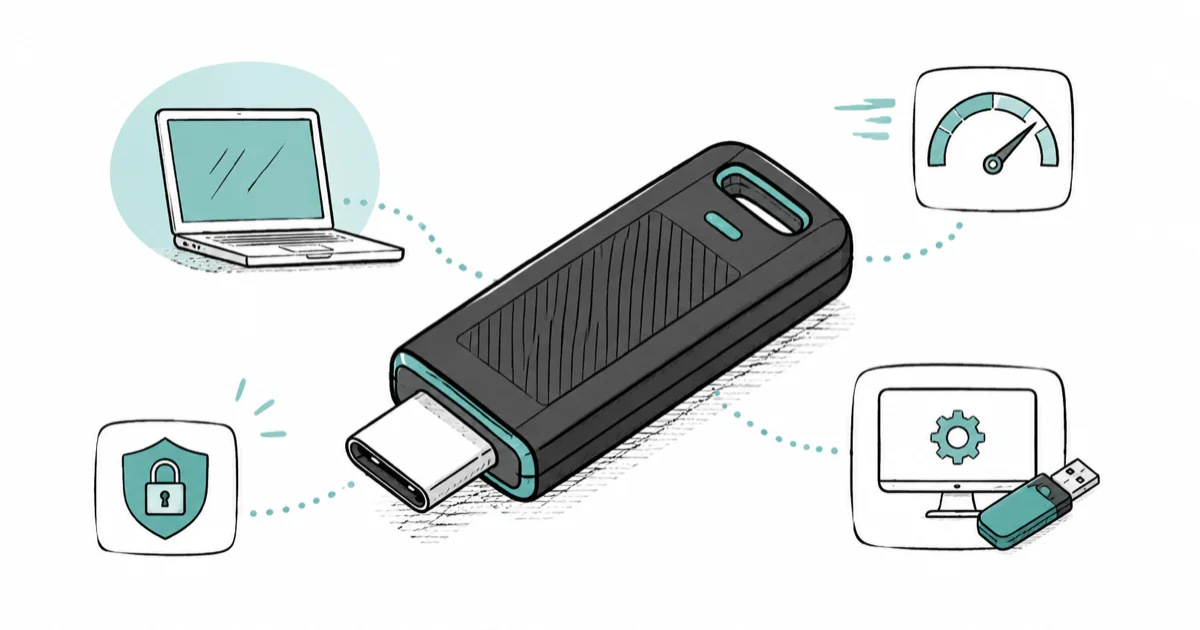
Quick AnswerThe best all-around USB flash drive is the SanDisk Extreme PRO USB-C; its solid-state design holds fast transfer speeds where cheap thumb drives collapse, and it doubles as bootable install media.
The best USB flash drive for most people is a solid-state model with a USB-C connector, because the cheap thumb drives most of us own collapse to a crawl the moment you copy a large folder. A good drive holds its speed, survives a drop, and doubles as bootable install media.
- Solid-state flash drives (SanDisk Extreme PRO, Kingston DataTraveler Max) hold fast write speeds where budget drives stall after the first gigabyte
- A drive with both USB-C and USB-A reach (or a dual connector) is the safest buy for mixed laptop and desktop fleets
- For Windows or Linux bootable media you need at least 8GB, and any reputable USB 3.2 drive is fast enough
- Hardware-encrypted drives like the Kingston IronKey line protect data with an onboard keypad or PIN, not just software
- Capacity sweet spot for everyday use in 2026 is 128GB to 256GB, where price per gigabyte is lowest
A flash drive is the one piece of storage almost everyone still keeps in a drawer.
The trouble is that the no-name 32GB stick from a conference booth and a real solid-state drive both look identical, yet behave nothing alike under a real workload. One holds its speed through a large transfer; the other stalls to single digits after the first gigabyte, turning a quick job into a long one.
This guide sorts the picks by what you actually do with a drive: shuttle files between machines, build a bootable installer, or carry data that has to stay private.
#What Makes a USB Flash Drive Fast in Real Use?
The number printed on the package is almost always the peak read speed, measured in a lab moving one giant sequential file. That figure rarely matches what you feel when copying a folder of mixed photos, documents, and video clips.
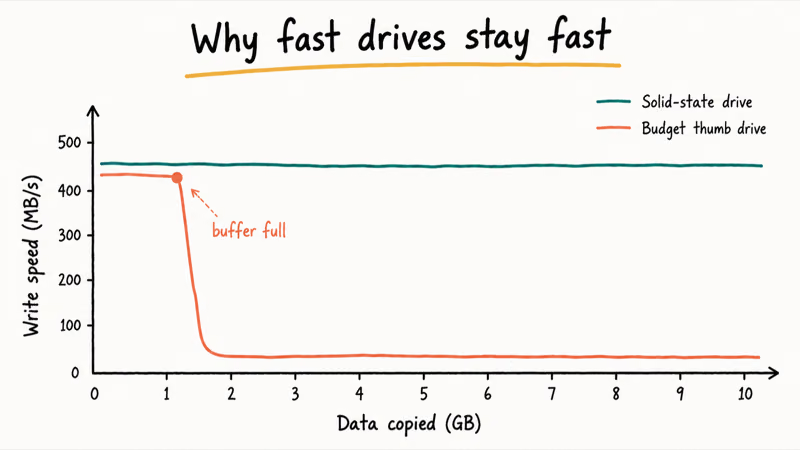
Two things separate a drive that stays fast from one that stalls. The first is whether the drive uses true solid-state flash with a proper controller, or cheap TLC NAND with no cache. According to the USB Implementers Forum’s USB 3.2 specification overview, the bus itself can carry 5 to 20 Gbps depending on the generation, so the bottleneck is nearly always the drive, not the port.
The second is sustained write speed. Budget drives post a respectable read number and a write number that falls off a cliff once their tiny buffer fills. Copy a large video folder to a generic stick and a solid-state drive like the SanDisk Extreme PRO side by side, and the budget drive typically drops to single-digit MB/s after about a gigabyte while the solid-state drive holds steady to the end.
That collapse is the whole reason solid-state flash drives exist. They cost more, but the price buys a write speed that won’t betray you halfway through a transfer.
The bus generation is the second number to check. A drive sold as USB 3.2 Gen 1 caps at 5 Gbps, while a Gen 2 drive can reach 10 Gbps, and the connector shape (USB-A or USB-C) tells you nothing about which generation is inside, so two identical-looking USB-C drives can differ in speed by double. Read the spec, not the plug.
If a card or drive ever stops showing up after a transfer like that, the fix is usually a driver or letter-assignment issue, and our guide on resolving an SD card that won’t show up walks through the same diagnostic flow that applies to flash drives.
#Best Overall: SanDisk Extreme PRO USB-C
For most people the SanDisk Extreme PRO is the drive to buy. It uses solid-state flash rather than ordinary thumb-drive NAND, so it holds its write speed through a long copy, and the USB-C connector matches every recent laptop, tablet, and phone.
Check the SanDisk Extreme PRO USB-C on Amazon
As an Amazon Associate fone.tips earns from qualifying purchases.
The Extreme PRO is built to finish a large mixed-media copy without the mid-transfer slowdown that defines cheaper drives. The aluminum housing also runs cooler than plastic sticks during sustained writes, which matters because heat is what throttles a flash drive on long jobs.
The trade is price. You pay two to three times what a generic drive costs.
For anyone who moves real working files, that premium pays for itself the first time a transfer that would’ve taken twenty minutes finishes in three. SanDisk also sells the Extreme PRO in a USB-A version for older machines, so check the connector before you order.
One habit makes a fast drive last longer: leave some free space on it. A drive that runs near full has fewer spare blocks to write to, so it slows down and wears out sooner. Keeping a working drive below about 80 percent full is a sensible rule of thumb.
#Best USB-A Pick: Samsung BAR Plus
Not every machine has a USB-C port, and plenty of desktops, TVs, and car stereos still expect the older rectangular USB-A plug. For those, the Samsung BAR Plus is the pick.
Check the Samsung BAR Plus on Amazon
The BAR Plus is built into a solid metal shell with a keyring loop, and it carries Samsung’s five-proof durability rating against water, temperature, magnets, X-rays, and shock. It’s not a solid-state drive, so its sustained write speed sits below the Extreme PRO, but among USB-A sticks at its price it’s near the top.
That keyring loop matters more than it sounds.
A full backup of a large photo library to a 256GB BAR Plus finishes comfortably faster than a typical budget USB-A drive, and the metal shell holds up to daily keychain carry. For a daily-carry stick that mostly reads files and writes the occasional backup, it’s the right balance of speed, build quality, and cost. Samsung’s BAR Plus product page states that the drive has a metal body and a five-proof durability rating.
#Best for Bootable Media: Kingston DataTraveler Max
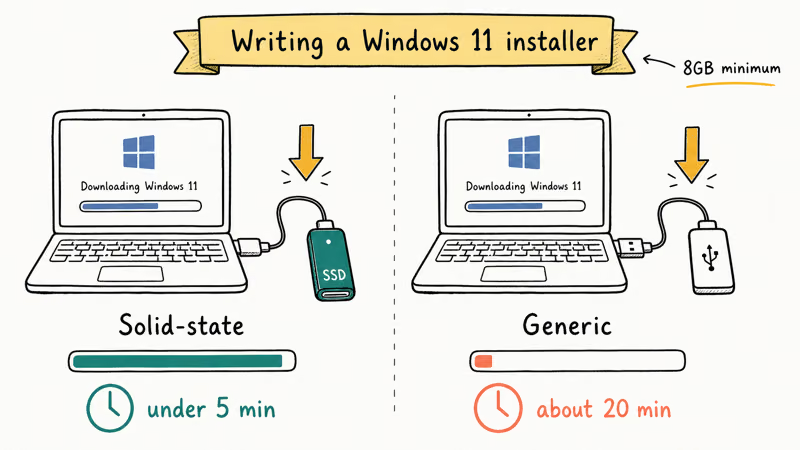
Bootable media does not demand the fastest stick, but a fast one cuts the wait. The Kingston DataTraveler Max is a solid-state USB-C drive that writes an installer image in a fraction of the time a budget drive takes.
Check the Kingston DataTraveler Max on Amazon
The DataTraveler Max behaves like a small external SSD, not a thumb drive. Microsoft’s Windows installation media documentation lists 8GB as the floor for a bootable USB, and this drive starts well above that, with a controller built for sustained throughput.
Building a Windows 11 install drive on a solid-state stick like the DataTraveler Max writes the image in a fraction of the time a generic drive needs on the same machine. That gap is the whole reason a solid-state drive earns its keep for anyone who rebuilds install media more than once a year.
The slide-out connector means there’s no cap to lose. For a permanent recovery key you build once and forget, that detail alone earns it a spot.
One caution for bootable media: build the installer fresh from the current official image, because an old recovery drive may carry a release that fails on newer hardware, and a fast drive makes rebuilding quick enough that there’s no reason to trust a stale one. If you also work with bare external SSDs alongside flash drives, our guide to the best USB4 cable for an external SSD covers the cable side.
#Best Secure Drive: Kingston IronKey Vault Privacy 50
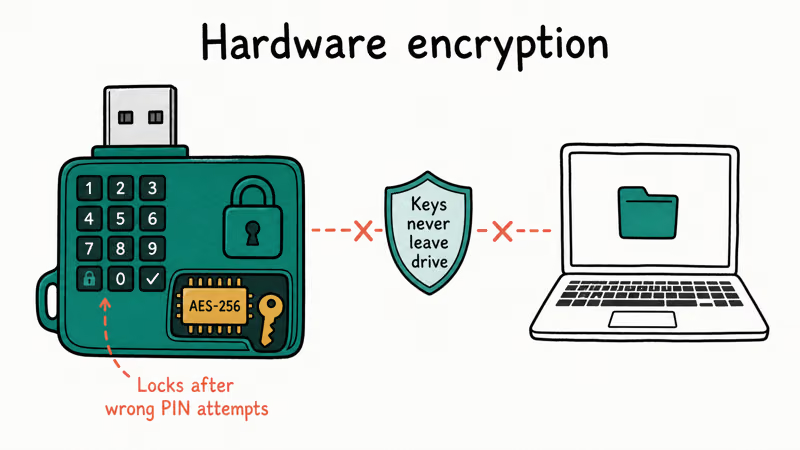
When a drive carries data that absolutely can’t leak, software encryption you can uninstall isn’t enough. A hardware-encrypted drive keeps the keys on the device itself, so the data is unreadable without the PIN even if the drive is stolen.
Check the Kingston IronKey Vault Privacy 50 on Amazon
The IronKey line uses onboard AES-256 hardware encryption and locks the drive after a set number of wrong PIN attempts, which defeats brute-force guessing. NIST’s cryptographic standard FIPS 197 states that AES-256 is approved for protecting sensitive data, and hardware drives in this class implement it on a dedicated chip. The keys never touch the host computer, so malware on a laptop can’t scrape them.
On Windows and macOS, the drive presents its encrypted volume only after a correct PIN, then re-locks on eject.
The trade-offs are real. Hardware-encrypted drives cost far more than ordinary sticks, and their transfer speeds sit below a fast solid-state drive because the encryption adds overhead, but for anyone carrying client records, legal documents, or recovery keys, that’s the right tax to pay for keys that can’t be scraped off the drive.
A cheaper middle path exists for lighter needs. Software encryption built into Windows (BitLocker To Go) or macOS can lock an ordinary drive without buying special hardware, though it ties the drive to those operating systems and offers weaker protection against a determined attacker. A good password manager pairs well with this approach, and our 1Password vs Bitwarden comparison covers the two we trust most. Hardware encryption is the right answer only when the data truly can’t leak.
#How Much USB Flash Drive Capacity Do You Actually Need?
Bigger is not automatically better, because the price per gigabyte and your real workload both matter.
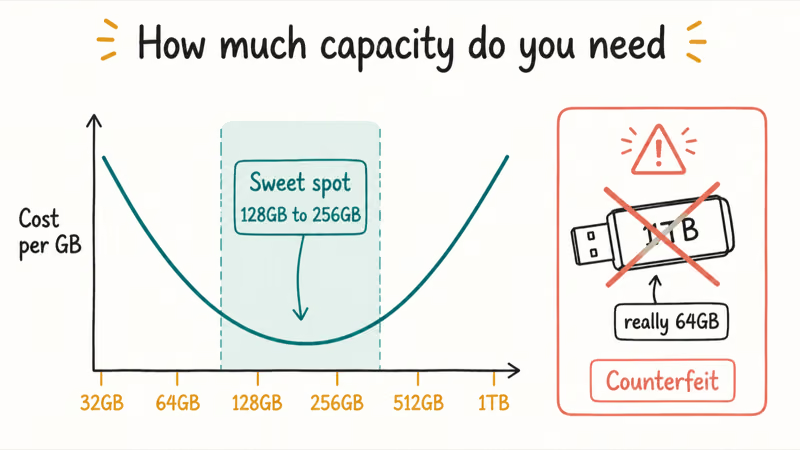
For everyday file shuttling and document backup, 128GB to 256GB is the sweet spot in 2026, where the cost per gigabyte bottoms out and the capacity covers almost any single transfer job. Smaller 32GB and 64GB drives still make sense for a dedicated bootable installer that never changes.
Capacities of 512GB and 1TB exist, but a flash drive at that size starts to overlap with a small external SSD that is faster and barely larger. If you regularly move more than a couple hundred gigabytes, a portable SSD is usually the better tool, and our roundup of the best portable SSD for a MacBook Pro covers those options. For desktop archival where you swap bare drives, the best hard drive docking station is the companion piece.
One more practical note: counterfeit high-capacity drives are common on marketplaces. A fake 1TB drive that is really a relabeled 64GB stick will appear to accept your files, then corrupt them silently once it passes the real limit, which is why the failure is so easy to miss until your data is already gone. Buy from the brand or a verified seller, and run a quick capacity test before you trust a new drive with anything important.
#Bottom Line
For most people the SanDisk Extreme PRO USB-C is the drive worth buying, because its solid-state design holds fast write speeds through long transfers and the USB-C connector fits modern machines. If your gear still runs on USB-A, the Samsung BAR Plus gives you a durable metal-body stick without overpaying.
Anyone building install media should reach for the Kingston DataTraveler Max, which writes an image in a fraction of the time a budget drive needs and never loses a cap.
When the data has to stay private, the Kingston IronKey Vault Privacy 50 is the only category here where you should accept slower speeds in exchange for onboard hardware encryption. Match the drive to the job and you’ll never fight a stalled transfer again.
#Frequently Asked Questions
What’s the difference between a solid-state flash drive and a regular thumb drive?
A solid-state flash drive uses a proper controller and higher-grade NAND to hold its write speed through a long transfer. A regular thumb drive posts a decent read number, but its write speed collapses after its small buffer fills, often to single-digit MB/s, and you only feel that collapse on a big folder. The difference is invisible on tiny files and dramatic on a multi-gigabyte copy.
Do I need USB-C or USB-A for a flash drive?
It depends on your devices. Modern laptops, tablets, and phones use USB-C; many desktops, TVs, cars, and older machines still use USB-A. If you mix both, buy a dual-connector drive.
How big does a USB drive need to be for a bootable Windows installer?
Microsoft lists 8GB as the minimum for Windows 11 installation media.
A 16GB or 32GB drive gives comfortable headroom and costs almost nothing extra. Any reputable USB 3.2 drive is fast enough; a solid-state drive just writes the image faster.
Are hardware-encrypted USB drives worth the extra cost?
For sensitive data, yes. Hardware-encrypted drives keep the keys on a dedicated chip and lock after repeated wrong PIN attempts, so the data stays unreadable even if the drive is lost or stolen. The protection holds even against malware on the host computer, which makes the higher price and slower speed worth it for client records or recovery keys, though it’s overkill for casual transfers.
Why does my fast USB drive slow down during big transfers?
Heat and a full write cache are the two usual causes.
Cheaper drives have a small buffer that fills quickly, after which the controller writes directly to slow NAND, and sustained writes heat the drive until a hot controller throttles to protect itself. Solid-state flash drives in metal housings resist both problems, which is why they hold their speed all the way through a long copy where a plastic budget stick collapses to single digits.
Can a USB flash drive replace an external SSD?
For light, occasional use it can. At 512GB and above, an external SSD is faster and more reliable for frequent writes. A flash drive only wins on pocketability and price at small capacities.
How do I tell if a high-capacity USB drive is counterfeit?
Fake drives report a large capacity but contain far less real storage, so they accept files and then corrupt them once the true limit is passed. Buy only from the brand or a verified seller, then run a capacity-verification test before trusting a new drive with important data. A price that looks too good for a 1TB drive is the clearest warning sign.

Pixel 11 vs Pixel 10: What Changed and Who Should Upgrade
Pixel 11 vs Pixel 10: same screen and camera resolution, new Tensor G6, 25W wireless, and Gemini Intelligence. Here is who should actually upgrade.
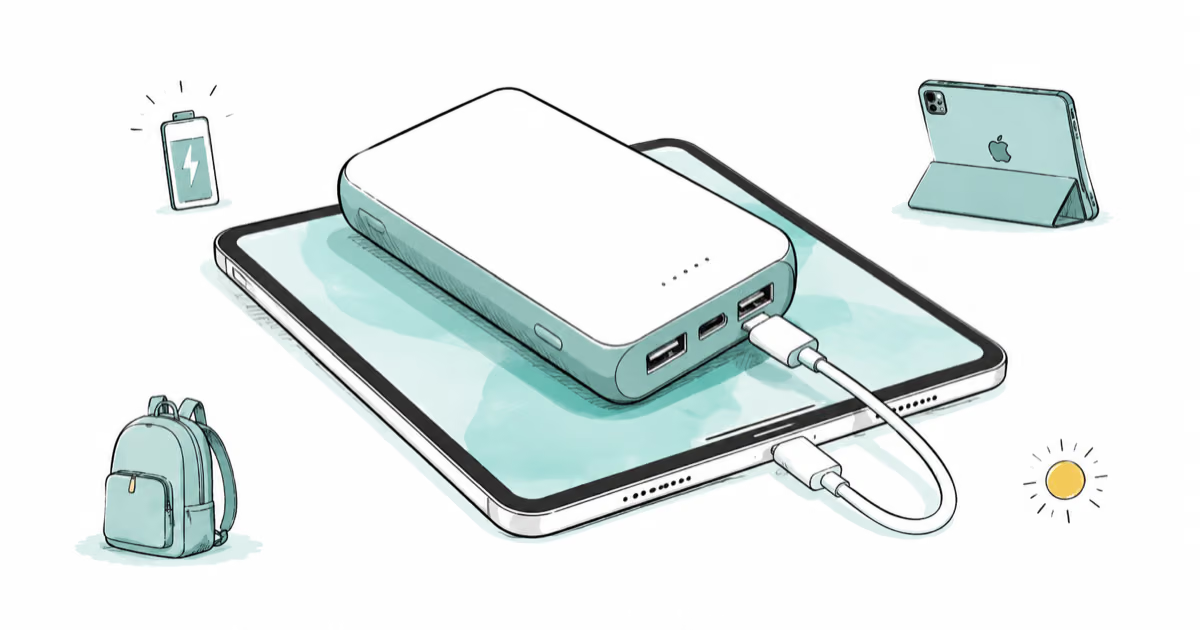
Best Power Bank for iPad in 2026: Pro, Air, and Mini
Best power bank for iPad in 2026. Compare mAh tiers and USB-C PD wattage for iPad Pro, Air, and mini, plus airline Wh math, cables, and travel tips.
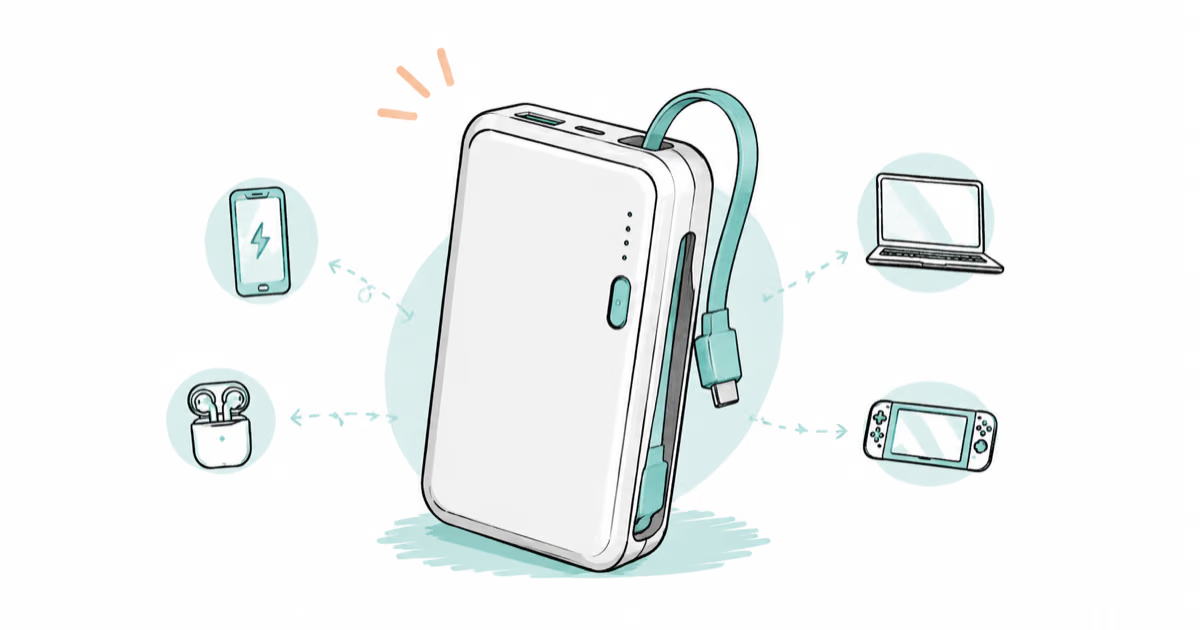
Best Power Bank With Built-In Cable: Top 2026 Picks
Best power bank with built-in cable picks for 2026. Compare single USB-C, multi-connector, and retractable laptop banks, plus airline Wh math.
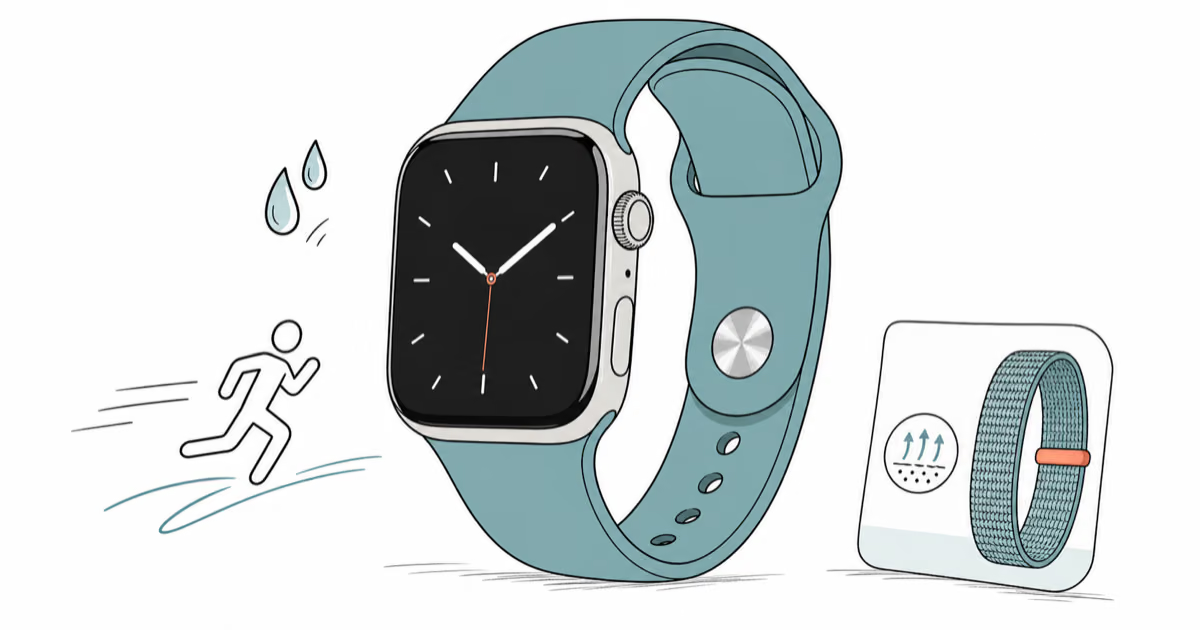
Best Apple Watch Band for Working Out: Proven Picks
The best Apple Watch band for working out handles sweat and stays put on your wrist. Compare silicone, nylon, and titanium picks for runs and lifts.