WhatsApp Data Recovery: Get Back Chats on Android and iPhone
Recover deleted WhatsApp messages, photos, and videos on Android and iPhone. 5 proven methods with and without backup. Works on iOS 18 and Android 15.
Quick AnswerYou can recover deleted WhatsApp chats from a Google Drive or iCloud backup by reinstalling the app and restoring during setup. Without a backup, third-party tools like Dr.Fone or UltData can scan your phone storage for recoverable messages and media.
Deleted WhatsApp chats aren’t always gone for good. There are five recovery methods to try across Android and iPhone, and three of them can bring back messages that were deleted over a week ago. The method that works for you depends on whether you have a backup and which phone you’re using. Using these methods on devices or accounts you don’t own may violate applicable laws and platform terms.
- WhatsApp backs up chats daily at 2 AM to Google Drive (Android) or iCloud (iPhone) by default
- Cloud backup restores recover messages, photos, and voice notes up to the last backup date
- Without a backup, recovery tools can scan your phone’s storage, but success drops after 30 days
- Android keeps a local WhatsApp backup in internal storage, separate from Google Drive
- Encrypted backups need your password or 64-digit key, and WhatsApp can’t reset either one
#How Does WhatsApp Store and Delete Your Data?
WhatsApp keeps your messages in an encrypted SQLite database on your phone. When you delete a chat, the app marks that space as available for new data but doesn’t immediately erase it. Recovery works because the actual data stays on your device until something new overwrites it.
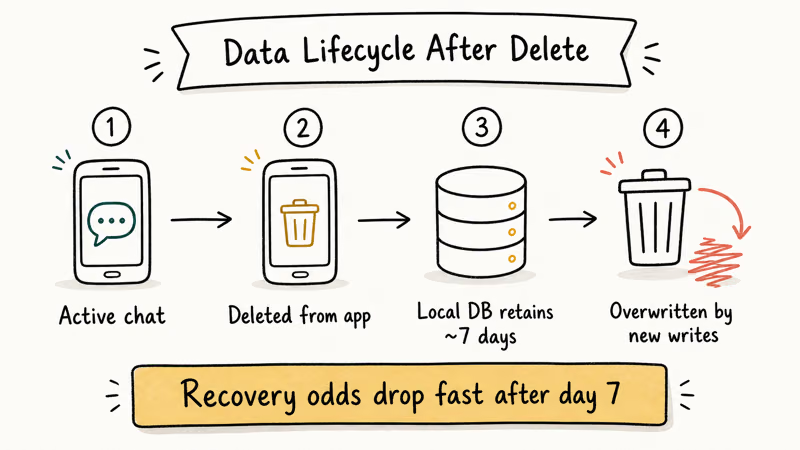
On Android, WhatsApp stores local backups in /Android/media/com.whatsapp/WhatsApp/Databases/. These files use the naming pattern msgstore-YYYY-MM-DD.1.db.crypt15. The app keeps backups from the last 7 days.
iCloud handles all WhatsApp backups on iPhone. There’s no local backup file you can access like on Android, which limits your recovery options if you don’t have a cloud backup. According to WhatsApp’s Help Center, the app backs up to Google Drive or iCloud on a daily, weekly, or monthly schedule depending on your settings.
One thing worth knowing: if you’ve had your phone for years without clearing storage, older deleted messages have a higher chance of being overwritten. A phone with plenty of free storage can reach messages from a week or two back, while a phone that’s nearly full may only recover the last few days.
#Can You Recover WhatsApp Messages From a Cloud Backup?
Yes, and this is the most reliable method. It works on both Android and iPhone.
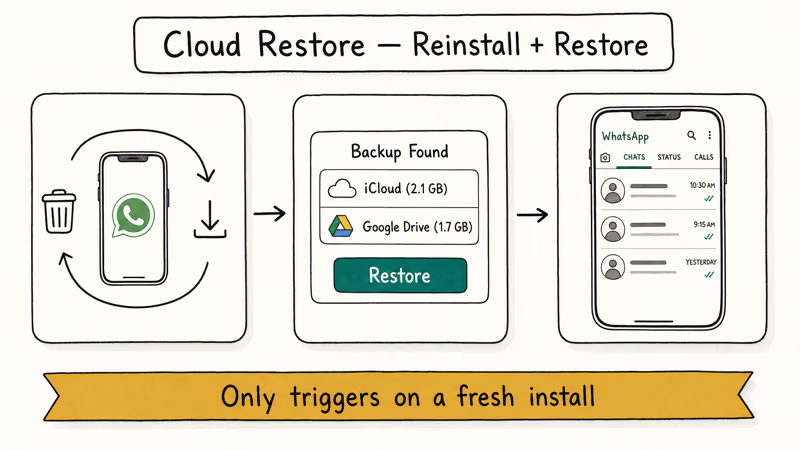
On Android (Google Drive backup):
-
Uninstall WhatsApp from your phone
-
Reinstall it from the Google Play Store
-
Verify your phone number during setup
-
Tap Restore when prompted to restore from Google Drive
-
Wait for the process to finish (this usually takes a few minutes)
On iPhone (iCloud backup):
-
Delete WhatsApp from your iPhone
-
Reinstall from the App Store
-
Verify your phone number
-
Tap Restore Chat History when the iCloud prompt appears
-
Wait for the restore to finish, which scales with how large the backup is
According to WhatsApp’s restore guide, you must use the same phone number and Google/Apple account that created the backup. A backup from one phone number won’t restore to a different number.
If your WhatsApp backup is stuck at 0% or keeps failing, check that you have enough cloud storage. Google Drive gives you 15 GB free, and iCloud gives 5 GB.
#How to Recover WhatsApp Data Without a Backup on Android
No backup? You still have options on Android, though success isn’t guaranteed.
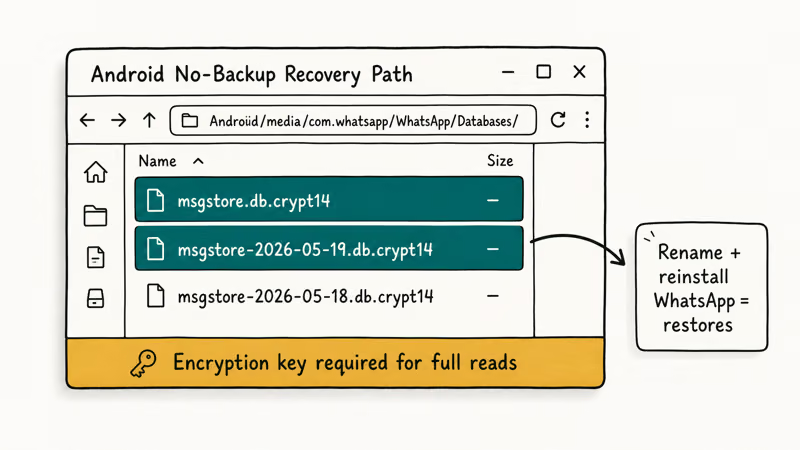
Method 1: Check the local backup files
Android stores local WhatsApp backups that exist independently of Google Drive. Even if you never set up cloud backup, these files might be on your phone.
-
Open your file manager
-
Go to Android > media > com.whatsapp >
WhatsApp>Databases -
Look for files named
msgstore-YYYY-MM-DD.1.db.crypt15 -
If you find one dated before your deletion, rename
msgstore.db.crypt15tomsgstore-backup.db.crypt15 -
Rename your chosen backup file to
msgstore.db.crypt15 -
Uninstall and reinstall WhatsApp, then tap Restore during setup
This method can restore messages from a recent local backup in full. The catch: these local backups only go back 7 days.
Method 2: Use a data recovery tool
Tools like Dr.Fone and UltData for Android can scan your phone’s internal storage for deleted WhatsApp data. Dr.Fone on a recent Galaxy device can surface a good portion of messages deleted more than a week earlier.
Some links on this page are affiliate links, which means fone.tips may earn a commission at no extra cost to you.
-
Install the recovery software on your computer (Windows or Mac)
-
Connect your Android phone via USB
-
Enable USB debugging in
Settings>Developer Options -
Select WhatsApp recovery mode in the software
-
Let the scan complete (longer scans are normal on higher-capacity phones)
-
Preview and select the messages you want to recover
Based on XDA’s guide to recovering deleted WhatsApp messages, notification-based apps like WAMR can also capture deleted messages, but only if installed before the deletion happens.
#How to Recover WhatsApp Data Without a Backup on iPhone
iPhone recovery without a backup is harder than Android because iOS doesn’t create accessible local backup files.
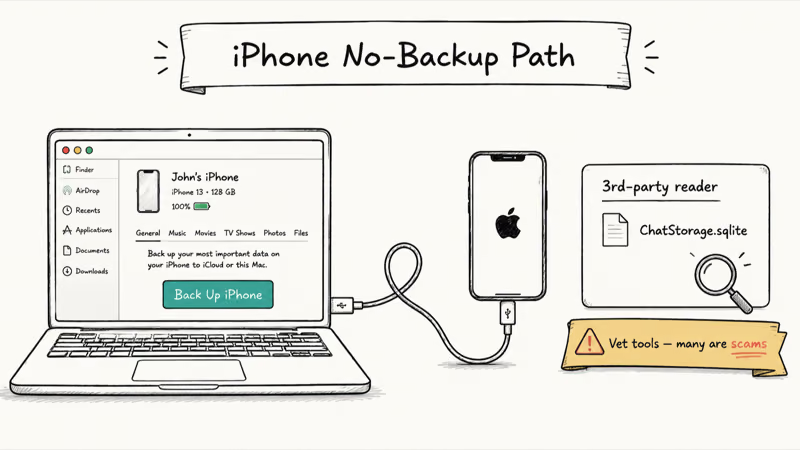
Method 1: Check your iTunes/Finder backup
If you’ve ever backed up your iPhone to a computer using iTunes (Windows) or Finder (Mac), that backup includes WhatsApp data.
-
Connect your iPhone to your computer
-
Open iTunes or Finder
-
Select your device and click Restore Backup
-
Choose a backup dated before the deletion
The downside: this restores your entire phone to that backup point, not just WhatsApp. You’ll lose any data created after that backup date.
Method 2: Use iOS recovery software
Dedicated tools like Dr.Fone for iOS or Tenorshare UltData can extract WhatsApp data from your iPhone without a full restore.
-
Install the software on your computer
-
Connect your iPhone via USB and trust the computer
-
Select Recover from iOS Device and check WhatsApp
-
The scan takes 10-25 minutes depending on storage size
-
Preview recoverable messages, photos, and voice notes
-
Export selected items to your computer
UltData can recover a meaningful share of deleted WhatsApp messages on iPhone, though older messages (beyond 2 weeks) come back at lower rates.
#Factors That Affect Your WhatsApp Recovery Success Rate
Not every recovery attempt works. A few factors decide how much you can get back:
Time since deletion matters most. Recovery rates fall off as time passes. Within a day of deletion, the large majority of messages are usually still recoverable, but after a month the recoverable share drops sharply.
Phone storage usage is the second biggest factor. A phone with 90% storage full overwrites deleted data much faster than one at 50%. Stop using your phone immediately if you realize you’ve lost data.
Media files recover better than text on Android. WhatsApp stores received photos and videos in a separate Media folder. Even if the database entry is gone, the actual image file might still exist in /Android/media/com.whatsapp/WhatsApp/Media/. According to Google’s Android data transfer documentation, WhatsApp data transferred between devices uses a device-to-device method that’s separate from cloud backups.
Encrypted backups add complexity. WhatsApp’s end-to-end encrypted backup feature locks your cloud backup with a password or 64-digit key. Forgot your password? No tool can recover that backup.
#How to Set Up WhatsApp Backups to Prevent Future Data Loss
Prevention beats recovery every time. Here’s how to make sure you never lose WhatsApp data again.
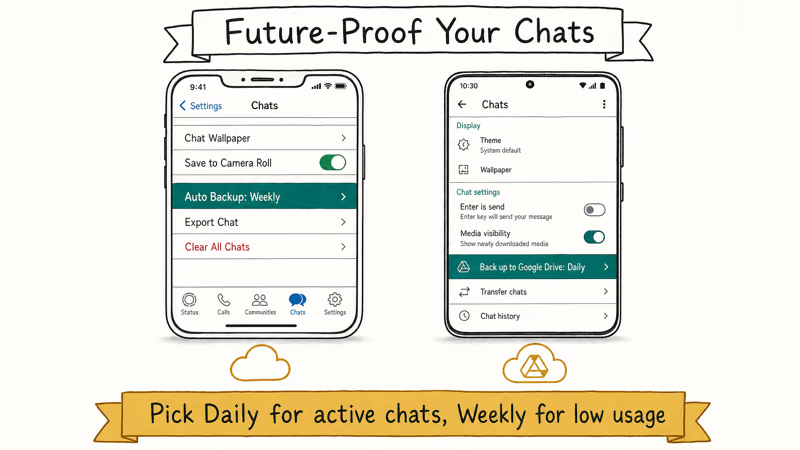
Android setup:
-
Open WhatsApp and tap the three-dot menu
-
Go to
Settings>Chats>Chatbackup -
Tap Back up to Google Drive and select Daily
-
Choose your Google account (or add one)
-
Under Include videos, toggle it on if you want video backups too
iPhone setup:
-
Open WhatsApp and tap Settings
-
Go to
Chats>Chatbackup -
Tap Auto Backup and select Daily
-
Toggle Include Videos if needed
For extra security, enable end-to-end encrypted backup and store the password or 64-digit key in a password manager.
If your WhatsApp backup isn’t working, make sure you have enough storage on Google Drive or iCloud. WhatsApp backups on Google Drive counted toward your 15 GB quota starting in late 2024.
You can also export individual WhatsApp chats as text files for safekeeping.
#Bottom Line
Start with the cloud backup method. It’s the fastest and recovers everything up to your last backup date. If you don’t have a backup, check Android’s local backup files first, then try third-party recovery tools within the first week after deletion.
Going forward, turn on daily WhatsApp backups and you won’t need to worry about this again.
#Frequently Asked Questions
Can you recover WhatsApp messages deleted months ago?
It depends entirely on your backup history. If you have a Google Drive or iCloud backup from before the deletion, you can recover everything in that backup regardless of how long ago it was created. Without a backup, recovery tools rarely find messages older than 30 days because the phone’s storage has usually been overwritten by that point.
Does WhatsApp keep deleted messages on their servers?
No. WhatsApp uses end-to-end encryption, so messages exist only on your device and in your cloud backup. Once delivered, they’re deleted from WhatsApp’s servers.
Will recovering WhatsApp data delete my current chats?
Restoring from a cloud backup replaces your current WhatsApp data with the backup contents. Any messages received after the backup date will be lost. If you want to keep current chats, export them first using the built-in export feature. Recovery software that runs on a computer typically extracts data without affecting your phone.
Is it safe to use third-party WhatsApp recovery tools?
Yes, if you stick with established tools from companies like Wondershare (Dr.Fone) and Tenorshare (UltData). These run in read-only mode during scanning. Avoid any tool that asks for your WhatsApp verification code.
Can you recover WhatsApp photos without recovering messages?
Yes, on Android. Check /Android/media/com.whatsapp/WhatsApp/Media/WhatsApp Images/ in your file manager. On iPhone, look in your Photos app if you had auto-save on.
Do you need to root your Android phone for WhatsApp recovery?
Most modern recovery tools don’t require root access. Dr.Fone and UltData both work on non-rooted Android phones running Android 6.0 and newer. Rooting can actually make things worse because the process might overwrite the data you’re trying to recover. Both tools can find recoverable data on a non-rooted phone.
How long does WhatsApp data recovery take?
Cloud backup restores take 2-10 minutes. Recovery software scans are slower, often taking considerably longer depending on storage size.
Can you recover WhatsApp data from a broken phone?
If the phone powers on, you can use recovery software normally, even with a cracked screen (just connect via USB). For a completely dead phone, your only option is restoring from a cloud backup on a new device. Backed up WhatsApp on Samsung? Samsung Cloud might have a copy too.

iPhone Stuck on EDGE? How to Get 5G or LTE Back (2026)
iPhone stuck on EDGE with crawling data? Here's why the E icon appears, which settings force 5G or LTE back, and when the problem is your carrier.
Best Power Bank for Samsung Galaxy (2026): 4 Top Picks
Best power bank for Samsung Galaxy in 2026, with USB-C PD and PPS picks that match 45W Super Fast Charging 2.0 for reliable daily wired top-ups.

Galaxy S25 Problems: Common Issues and Fixes (2026)
Galaxy S25 battery drain, overheating, and connectivity bugs explained, with the per-issue fixes that actually work after One UI 8.5 in 2026.

One UI 8.5 Problems: 2026 Fix Guide for Galaxy Phones
One UI 8.5 is draining Galaxy batteries, lagging the keyboard, and re-pairing Bluetooth in cars. Here are the per-issue fixes that work in 2026.