WhatsApp’s built-in export is one of those features most people don’t know exists until they desperately need it. Whether you’re switching phones, keeping records for legal reasons, or just want a backup that isn’t locked inside an app, it takes about 30 seconds once you know where to look.
One important thing to know upfront: exported chats can’t be re-imported into WhatsApp. If your goal is moving chat history to a new device, you want the WhatsApp transfer or backup process instead. But if you want a portable copy you can open in any text editor, read on.
- WhatsApp’s built-in export takes under 30 seconds: open a chat, tap the menu, select Export Chat, and choose with or without media.
- The export limit is 40,000 messages without media or 10,000 messages with media; for longer chat histories, a desktop tool like iMazing or MobileTrans is the only option.
- Exported chats are plain .txt files that cannot be re-imported into WhatsApp; they are read-only documents, not restorable backups.
- If the Export Chat option is missing, check whether Advanced Chat Privacy is enabled in that conversation, as this feature (introduced April 2025) blocks all exports.
- Once exported, the .txt file is no longer encrypted; store it in a secure location or delete it after use if the conversation contains sensitive information.
#How to Export a WhatsApp Chat on Android
Open the chat you want to export. Tap the three-dot menu in the top-right corner, then go to More > Export chat.
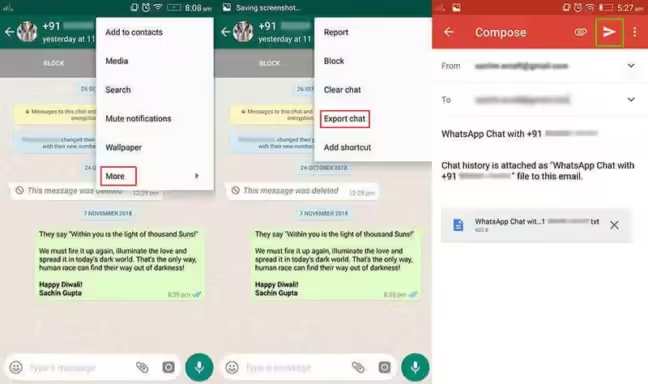
WhatsApp will ask whether to include media or not. Pick one:
- Without media: exports up to 40,000 messages as a plain .txt file. Fast, small, works with any text editor.
- With media: limited to 10,000 messages but includes photos and videos zipped together.
After that, the standard Android share sheet opens. You can email it to yourself, save to Google Drive, or send it anywhere else.
This works on Android 8 and above. The menu path is the same whether you’re on a Samsung, Pixel, or any other Android brand running WhatsApp 2.24 or later.
#How to Export a WhatsApp Chat on iPhone
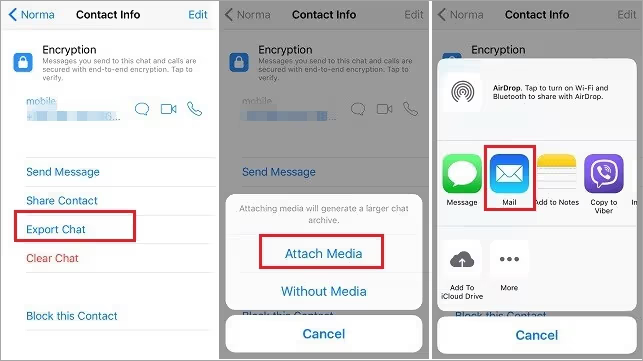
Open the chat and tap the contact or group name at the very top of the screen. Scroll down on the info page until you see Export Chat.
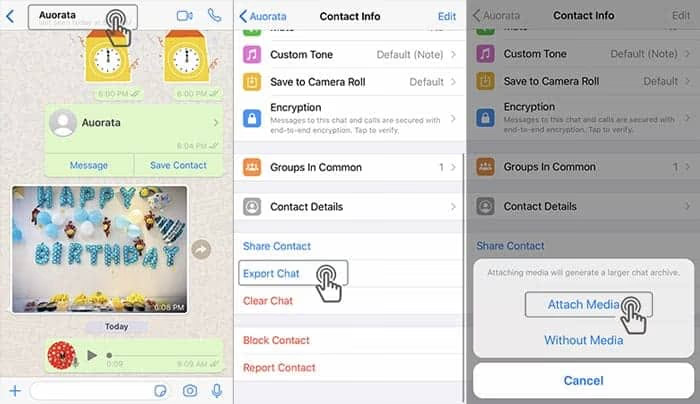
Tap it, choose Attach Media or Without Media, and iOS’s share sheet appears. AirDrop, Mail, Files, Google Drive: all available right there.
The limit is the same as Android: 40,000 messages without media or 10,000 with. WhatsApp’s official help page confirms this is a hard cap tied to email attachment size limits, not something WhatsApp can easily change.
#What the Exported File Actually Looks Like
The export is a plain .txt file. Every message follows this format:
12/30/24, 10:42 AM - Jane: Hey, are you free this weekend?
12/30/24, 10:45 AM - You: Yes! What did you have in mind?
Timestamps, sender names, message text are all there. Emojis too, though some older text editors render them as odd characters. If you open the file in Notepad on Windows, the formatting is usually fine. Google Docs works well too.
One thing that surprises people: deleted messages are gone from the export. If someone deleted a message before you exported, it won’t show up.
#What to Do When You Hit the 40,000-Message Limit
This is a real problem for long-running group chats. The built-in export only grabs the most recent messages, so years of history get cut off.
Two ways around it:
Export in batches: There’s no native way to select a date range inside WhatsApp, so this means doing multiple exports over time and storing each one. Tedious but free.
Use a desktop tool: Apps like iMazing (iPhone, paid) can extract the full WhatsApp chat database from a backup and export everything without limits. For Android, tools like Dr.Fone or MobileTrans read from a local backup file and can export thousands of messages at once.
The desktop tool approach is the only realistic option if you need five years of a group chat in one file.
#How to Export a WhatsApp Chat to PDF
WhatsApp doesn’t export to PDF directly, but converting the .txt file takes two minutes.
- Export the chat as a .txt file using the steps above.
- Open it in Google Docs (drag and drop the file into Google Drive, then open it).
- Go to File > Download > PDF Document.
For a cleaner result, paste the text into a new Google Doc first and do basic formatting (font size, line spacing) before saving as PDF. If you need a more polished output, the export WhatsApp chat to PDF guide covers several other methods including third-party tools.
#The New Advanced Chat Privacy Setting (2025)
WhatsApp rolled out Advanced Chat Privacy in April 2025. If someone in a chat turns this on, you won’t be able to export that conversation. The export option simply disappears from the menu.
To check if a chat has this enabled: tap the contact or group name. If you see “Advanced Chat Privacy: On,” that’s why your export isn’t working.
You can enable it for your own chats too. Go to the chat info screen and tap Advanced Chat Privacy. Toggle it on and everyone in the chat gets a system message. The WhatsApp blog post announcing this feature explains what it does and doesn’t cover (screenshots are still allowed, for example).
Worth knowing: this setting blocks export but not manual copying of messages. It also prevents AI features from reading that chat’s content.
#Troubleshooting: Export Not Working
A few things that cause export failures:
“Export chat” option is missing: Either the chat has Advanced Chat Privacy enabled (see above), or your WhatsApp version is outdated. Update to the latest version and check again.
Export fails mid-way: Usually a storage issue. WhatsApp needs free space to package the export. Clear some phone storage and try again. Exporting without media usually solves this.
File arrives empty or truncated: This happens when you try to export via email and the attachment is too large. Try exporting without media, or use cloud storage (Google Drive, iCloud) instead of email as the destination.
Emojis look broken: Open the .txt file in a different app. On Windows, try Notepad++ or VS Code. On iPhone, the built-in Files app handles the formatting correctly.
If the backup side of things is also broken, the WhatsApp backup not working guide covers the most common fixes.
#Bottom Line
Start with the built-in export. It covers most use cases and takes under a minute. For chats over 40,000 messages, a desktop tool like iMazing or MobileTrans is the only way to get everything. And if you can’t find the export option at all, check whether Advanced Chat Privacy is enabled in that conversation before troubleshooting anything else.
If your goal is actually moving a chat to a new phone rather than saving a file, look at importing WhatsApp chats through a backup instead.
#Frequently Asked Questions
#Can I export a WhatsApp chat without the other person knowing?
Yes. WhatsApp doesn’t notify anyone when you export a chat. The exception is if someone has Advanced Chat Privacy turned on for that conversation. In that case, the export option won’t appear for anyone in the chat, but no notification goes out when you attempt to export.
#Why does WhatsApp only export 40,000 messages?
The limit exists because the default sharing method is email, and most email providers cap attachment sizes. WhatsApp’s own help documentation confirms the 40,000-message (no media) and 10,000-message (with media) caps. The only workaround is a third-party tool that reads from a local backup rather than using the in-app export.
#Does the exported chat include deleted messages?
No. If a message was deleted before you exported, it’s gone from the export file. The same applies to “disappearing messages”: if they’ve already vanished, they won’t appear in the export. There’s no way around this using the built-in method.
#Can I re-import an exported WhatsApp chat back into the app?
No, you can’t. The .txt export is read-only. It’s a document, not a backup. To actually restore chat history to WhatsApp, you need a proper backup from Google Drive, iCloud, or a local backup file. That’s a completely separate process from the chat export.
#What’s the difference between exporting and backing up WhatsApp?
A backup saves your entire chat history in a format WhatsApp can restore. An export saves a specific chat as a human-readable .txt file. Backups go to Google Drive or iCloud; exports go wherever you send them. Use backups when switching phones, use exports when you need a portable copy you can open and search outside of WhatsApp.
#Can I export a WhatsApp group chat the same way?
Yes, the process is identical. Open the group chat, tap the group name at the top, scroll down to Export Chat. Group chats tend to hit the 40,000-message limit faster since multiple people are sending messages. If that’s a problem, the desktop tool approach is the same.
#Why can’t I find the Export Chat option?
Three likely reasons: the chat has Advanced Chat Privacy enabled (check the chat info screen), your WhatsApp version is outdated (update through the App Store or Play Store), or you’re looking in the wrong place. On Android it’s under three-dot menu > More > Export Chat. On iPhone it’s under the contact/group name > scroll down > Export Chat.
#Is the exported chat file secure?
Once exported, the file is no longer protected by WhatsApp’s end-to-end encryption. It’s a plain text file that anyone with access to your email, cloud storage, or device can read. If the chat contains sensitive information, store the export in an encrypted location or delete it after use.