Tenorshare ReiBoot Review: Worth Paying for iOS Recovery?
A Tenorshare ReiBoot review: what it fixes, how it compares to free Finder and iTunes restores, current pricing, and when paying is worth it.
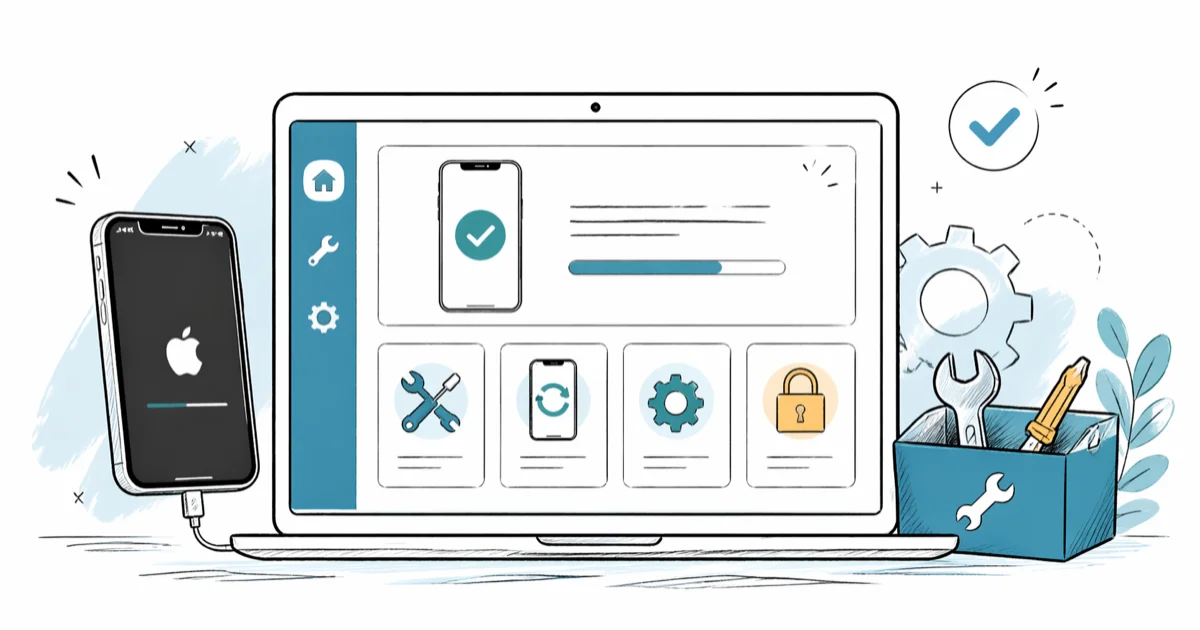
Quick AnswerTenorshare ReiBoot is a paid iOS recovery tool that fixes boot loops, recovery mode loops, and Apple-logo freezes on your own iPhone or iPad in about 10 to 20 minutes. Free Finder or iTunes restores handle most of the same fixes if you have time and a backup, so ReiBoot earns its keep on second attempts and DFU pain.
This Tenorshare ReiBoot review is for the person whose iPhone is stuck on the Apple logo at 11pm and Finder won’t talk to it. ReiBoot is a paid iOS recovery tool that re-flashes firmware on your own iPhone or iPad through a guided flow.
It runs on both Windows and macOS, and the fair benchmark is Apple’s own free tools on real boot-loop and recovery-mode failures. It isn’t magic, but it earns its keep on the narrow band of failures Finder gives up on. This review only covers ReiBoot’s use on iPhones and iPads you legally own. ReiBoot is not a passcode bypass, not an iCloud unlock, and not a tool for someone else’s device.
- ReiBoot’s Standard Repair downloads the matching iOS firmware and re-flashes it; it’s designed to fix Apple-logo loops without erasing data.
- Deep Repair erases the device. Use it only when Standard Repair fails twice and you have a backup.
- The free version only enters and exits recovery mode. Every actual fix lives behind the Pro paywall, currently $35.95 to $49.95 for one year on the Tenorshare site.
- Apple’s free Finder or iTunes restore does the same job for most stuck-on-logo cases if you have 30 to 60 minutes and a recent backup.
- ReiBoot earns the price when DFU mode keeps failing, when Finder throws a 4013 or 9 error, or when you have one shot before a workday starts.
#What Is Tenorshare ReiBoot, and Who Should Use It?
Tenorshare ReiBoot is desktop software (Windows and macOS) that automates the firmware download and restore steps Apple normally hides behind Finder, iTunes, or DFU mode. You plug your iPhone into the computer, click one of two repair modes, and ReiBoot fetches the right IPSW for your model, puts the device into recovery mode for you, and re-flashes iOS.
The audience is narrow but real: people whose iPhone is stuck on the Apple logo, frozen on the recovery-mode cable screen, looping after a failed iOS update, or refusing to start past the spinning wheel.
According to Apple’s force-restart guide, the official first step is the volume-up, volume-down, side-button sequence held for 10 seconds. When that doesn’t bring the phone back, your next free option is a Finder or iTunes restore, and after that it’s DFU mode. ReiBoot collapses those last two steps into a single guided flow.
Skip ReiBoot if your iPhone boots normally and you just want to factory reset it. Settings > General > Transfer or Reset iPhone is faster and free.
#The Failures ReiBoot Targets
ReiBoot 11.0 is built for three common, real failure types:
- An iPhone stuck on the Apple logo after a failed iOS OTA update.
- An iPhone caught in recovery mode after a botched iTunes restore on Windows.
- An iPad frozen on the spinning wheel after a battery drain.
The sensible order is to try the free Apple path first (force restart, then Finder restore on macOS), and only hand the device to ReiBoot if the Apple route fails or throws an error. The two things to watch are wall-clock time from “open the app” to “home screen”, and whether photos, messages, and installed apps survive the repair.
ReiBoot 11.0 runs on current macOS builds without driver issues. A Windows install can need a one-time Apple Mobile Device Support reinstall, which Tenorshare’s support page flags up front.
#ReiBoot Standard Repair vs Deep Repair
Standard Repair is the mode you’ll reach for most of the time. It downloads the signed IPSW for your exact model, walks the phone through recovery mode, and re-flashes iOS without wiping user data. Standard Repair typically clears an Apple-logo loop in well under half an hour, with photos and Messages threads intact afterward. Older models can take a little longer, especially if a corrupted firmware file has to be re-downloaded.
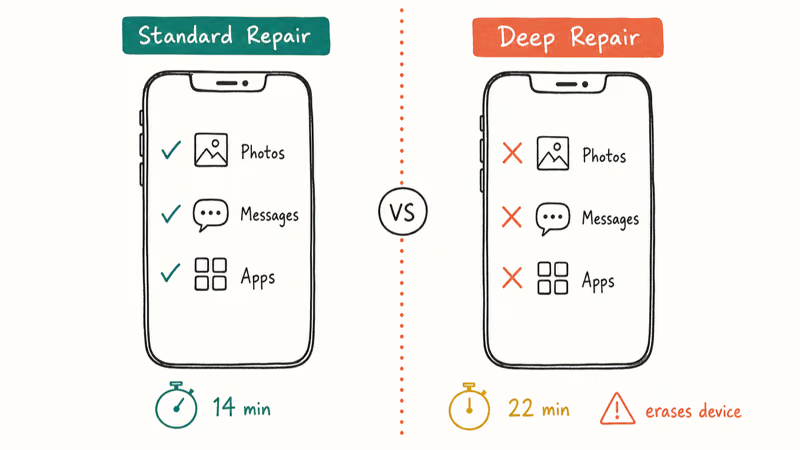
Deep Repair is the one to dread. It does what Standard Repair does, except it erases the device first.
Tenorshare’s ReiBoot product page states that Deep Repair is reserved for “rare, severe iOS issues” and warns about data loss in the same paragraph. It’s the mode to reach for only after Standard Repair stalls more than once. Deep Repair generally finishes in around 20 minutes and brings the device back, but everything not in iCloud is gone.
The honest summary: Standard Repair earns the money. Deep Repair is a last resort that’s no better than a Finder erase-and-restore, except it does the work for you.
#ReiBoot vs Free Apple Tools (Finder, iTunes, DFU)
Apple gives you three free recovery paths before you ever need to pay anyone: force restart, Finder/iTunes restore, and DFU mode restore. ReiBoot is worth paying for when the free path is breaking, not when it’s working.
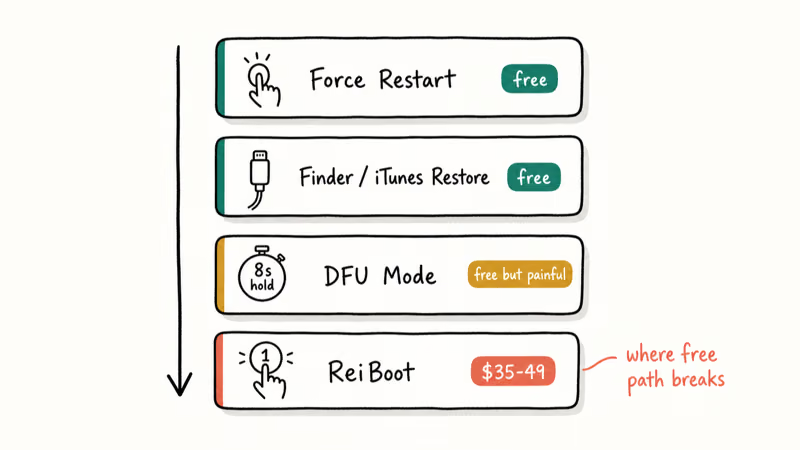
Force restart is free and fixes most short freezes. If your iPhone unfreezes after the volume-up, volume-down, side-button sequence, close this article and go to bed.
Finder (on macOS Catalina and later) or iTunes (on Windows and older Macs) handles the next tier. Apple’s documentation states that errors 4013 and 9 typically point to USB cable, Apple Mobile Device Service, or third-party security software, and the iTunes update/restore error guide recommends updating to the latest macOS or iTunes version before retrying. When the restore completes, you’re at the same outcome ReiBoot would have given you, for free.
DFU mode is where free options get painful. The button timing is unforgiving (8 seconds plus a side-button-and-volume-down hold), and a bad cable will fail you silently. ReiBoot’s “One-Click to Enter Recovery Mode” sidesteps all of that. When Finder refuses to detect a phone in DFU, ReiBoot can usually get it there on the first try without any button gymnastics.
Verification failures during update are their own category. If you’re hitting the verification failed error on your iPhone, the fix is usually network-side, not firmware-side, and ReiBoot won’t help.
#Pricing, Compatibility, and Free vs Pro Features
The free version of ReiBoot is mostly a teaser. It enters and exits recovery mode in one click, which is actually useful and worth the download. Every actual fix (Standard Repair, Deep Repair, iTunes error resolution, factory reset without iTunes) requires Pro.
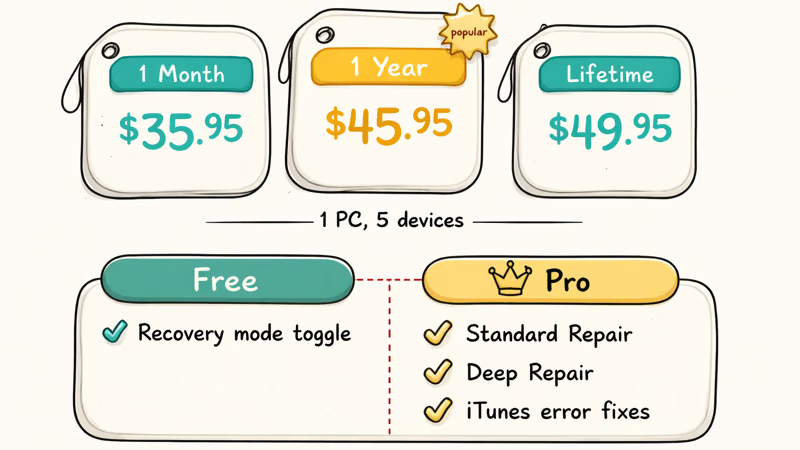
Pricing on the Tenorshare site at the time of writing:
- 1-Month License: $35.95 (1 PC, 5 devices)
- 1-Year License: $45.95 (1 PC, 5 devices)
- Lifetime License: $49.95 (1 PC, 5 devices)
Discount codes float around constantly. The 1-year license often drops to around $25.95 during a checkout retry. If you’re buying, abandon the cart once and check your email for a discount popup before paying full price.
Compatibility is broad. ReiBoot supports every iPhone from the iPhone 5s through the iPhone 15 lineup, all current iPad Pro, iPad Air, iPad mini, and standard iPad models, and iOS versions through iOS 17. Windows 11, 10, 8, and 7 are supported on the PC side; macOS 10.11 and later on the Mac side. The footprint is small (about 200 MB installed, 1 GB free for firmware downloads).
If you want to try it before paying, download Tenorshare ReiBoot for iOS and run the free recovery-mode toggle on a healthy device first to confirm it sees your phone.
Some links on this page are affiliate links, which means fone.tips may earn a commission at no extra cost to you.
#When Does ReiBoot Save Time, and When Should You Skip It?
ReiBoot earns the $46 in three specific situations.
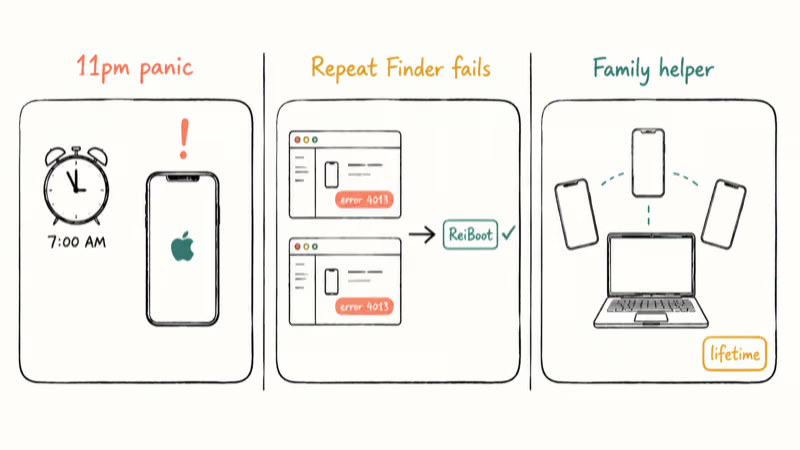
The first is the 11pm panic. Your phone is dead, you have a 7am alarm, and you don’t have time to learn DFU mode. ReiBoot’s automation collapses the recovery-mode and restore sequence into a single click and a 15-minute wait. Apple’s free path gets you there too, but slower and with more steps.
Repeat Finder failures are the second case. After two failed Finder restores throwing error 4013 or error 9, the problem is usually a flaky USB connection, a corrupted IPSW download, or Apple Mobile Device Service crashing. ReiBoot ships its own connection layer and re-downloads the IPSW on retry, which dodges two of those three causes. That alone often clears a recovery-mode loop that Finder keeps failing on with error 4013.
The third is the family-helper scenario. If you’re the person who fixes everyone’s phone, the per-license-5-devices structure makes the lifetime price reasonable. A single install covers several household iPhones under one license.
Skip ReiBoot if your iPhone boots normally, if you have time and a recent iCloud backup, or if your problem is a white screen of death caused by hardware (cracked display cable, water damage). No software tool fixes hardware.
#Bottom Line
Buy the 1-month license at $35.95 the night your iPhone is stuck on the Apple logo and Finder won’t cooperate. Don’t buy the lifetime upfront unless you regularly fix iPhones for family or work. For everyone else, the free Apple path (force restart, then Finder restore) is the right first move, and ReiBoot is the smart fallback when the free path fails twice in a row. Get Tenorshare ReiBoot if you’re already at that point tonight.
If your phone won’t even reach the Apple logo, run through the iPhone stuck on Apple logo walkthrough first; it covers force-restart variants ReiBoot can’t help with.
#Frequently Asked Questions
Is Tenorshare ReiBoot safe to use on my own iPhone?
Yes, when used on a device you own. ReiBoot uses Apple’s signed IPSW firmware files and the same restore mechanism Finder and iTunes use, so the iOS install you end up with is the standard Apple build.
Will ReiBoot’s Standard Repair erase my photos and messages?
No, Standard Repair is designed to preserve photos, Messages threads, installed apps, and account logins. Tenorshare’s product page confirms that Standard Repair fixes iOS issues without data loss, but Apple’s signing rules occasionally force a full erase mid-restore. Always make an iCloud or computer backup before running any repair tool, including this one. The cost of a backup is twenty minutes; the cost of skipping one is everything you haven’t synced.
How much does ReiBoot actually cost after discounts?
The list prices are $35.95 for one month, $45.95 for a year, and $49.95 for a lifetime license. The 1-year license often drops to around $25.95 during a checkout-abandonment retry, so abandon the cart, wait for the discount popup email, and come back.
Can ReiBoot fix a disabled iPhone or one I forgot the passcode to?
No. ReiBoot is an iOS system recovery tool, not a passcode bypass. If your iPhone shows “iPhone is disabled” because of too many wrong passcodes, the only Apple-sanctioned fix is a full erase via Finder, iTunes, or iCloud Find My, which removes both the lockout and your data. ReiBoot’s Deep Repair will also erase the device, but it doesn’t bypass Activation Lock or iCloud lock afterward, so the phone still needs the original Apple ID to set back up.
Does ReiBoot work on iOS 17 and the latest iPhone 15 models?
Yes. ReiBoot 11.0 supports iOS 17 and the iPhone 15 lineup. Check the Tenorshare site for the current compatibility list before any critical repair on a brand-new beta build.
What’s the difference between ReiBoot and a free Finder restore?
A Finder restore needs you to do the recovery-mode dance and DFU timing by hand. ReiBoot automates both and ships its own USB layer. Same end result, less friction.
Can I use ReiBoot to downgrade iOS to an older version?
Only if Apple is still signing the older iOS version, which usually stops within two weeks of a new major release. ReiBoot’s Deep Repair flow lets you choose from currently signed firmware, but it won’t bypass Apple’s signing requirement. If the version you want isn’t signed, no tool, free or paid, can downgrade you. Check ipsw.me before buying ReiBoot if downgrading is your only reason.
What happens if ReiBoot fails to fix my iPhone?
If Standard Repair fails twice and Deep Repair fails once, the issue is almost certainly hardware: a damaged charging port, a cracked battery connector, or a failed logic board. Apple’s iTunes-error guide is worth a final read before you book a Genius Bar appointment. Tenorshare offers email support and a 30-day refund window if the tool can’t recover your device. The refund policy is real and honored when a device turns out to be hardware-bricked.

Best Laptop for Running LLMs in 2026: Memory Comes First
The best laptop for running LLMs is a memory purchase first. Compare MacBook unified memory against NVIDIA laptop VRAM, and see what each tier really runs.

Pixel 11 vs Pixel 10: What Changed and Who Should Upgrade
Pixel 11 vs Pixel 10: same screen and camera resolution, new Tensor G6, 25W wireless, and Gemini Intelligence. Here is who should actually upgrade.
Best Power Bank for iPad in 2026: Pro, Air, and Mini
Best power bank for iPad in 2026. Compare mAh tiers and USB-C PD wattage for iPad Pro, Air, and mini, plus airline Wh math, cables, and travel tips.
Best Power Bank With Built-In Cable: Top 2026 Picks
Best power bank with built-in cable picks for 2026. Compare single USB-C, multi-connector, and retractable laptop banks, plus airline Wh math.