How to Fix Error 927 on Google Play Store (7 Methods)
Fix Google Play Error 927 with practical Android steps: clear cache, check storage, reset app preferences, refresh your account, and more fixes.
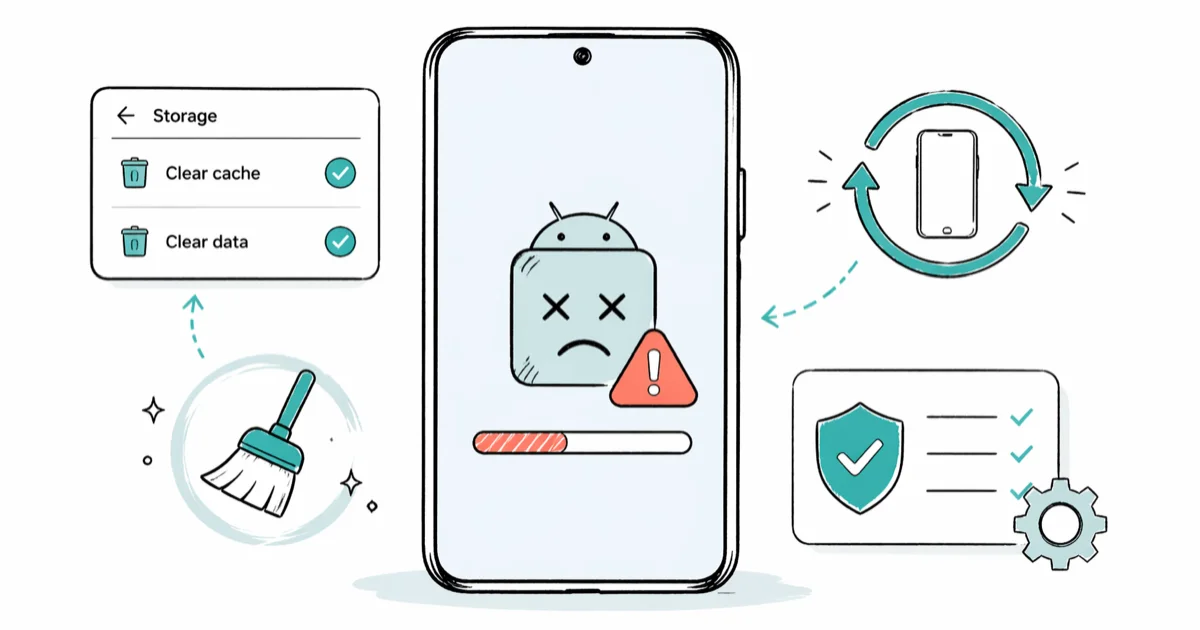
Quick AnswerOpen Settings, tap Apps, select Google Play Store, then Storage, and tap Clear Cache followed by Clear Data. Restart the phone and sign back in. This single fix resolves Error 927 on most Android 10 through Android 15 devices in under three minutes.
Google Play Error 927 stops downloads cold with a single line: “Could not be downloaded due to an error (927).” Clearing the Play Store cache is the best first step because corrupted cache files are a common cause. If the error remains, move to deeper fixes like an account refresh or a storage cleanup.
- Error 927 happens when Play Store cache files get corrupted mid-download
- Clearing Play Store cache and data fixes it on most Android 10+ devices in under 3 minutes
- Free space below 500 MB triggers this error even when Wi-Fi looks healthy
- Removing and re-adding your Google account forces fresh authentication tokens
- A factory reset belongs at the end of the list, never the start
#What Causes Error 927 on Google Play?
Error 927 is a client-side problem. The breakage lives on your phone, not on Google’s servers, which means a server-status check at downdetector.com almost never explains it. The Play Store leans heavily on cached metadata to speed up downloads, and once those cache files get corrupted, the install pipeline simply refuses to continue.
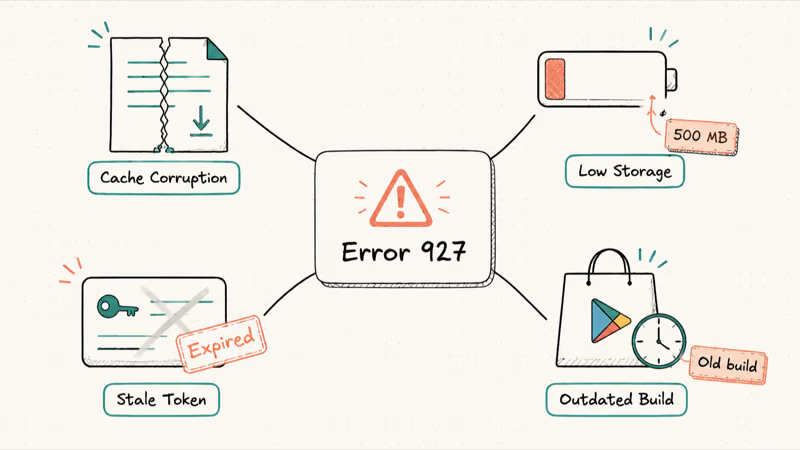
The single most common trigger is an interrupted download.
When Wi-Fi drops mid-install, the Play Store can still write a partial file to its cache. On the next attempt it may try to resume from that broken file and throw 927 instead. Clearing the cache removes that stale download state.
Low storage is the runner-up. Google’s official Play Store help guide confirms that Android needs at least 500 MB of free space for installs to complete cleanly (see Play Store troubleshooting). Below that threshold, the Play Store can’t finish writing temporary install files and surfaces a generic 927 instead of a clearer “storage full” message.
Two smaller suspects round out the list: an outdated Play Store binary and stale Google account tokens. They show up less often but they’re easy to rule out, and both are covered below.
#Clear Google Play Store Cache and Data
Try this first. The whole sequence is quick and clears the most common cache-related cause of the error.
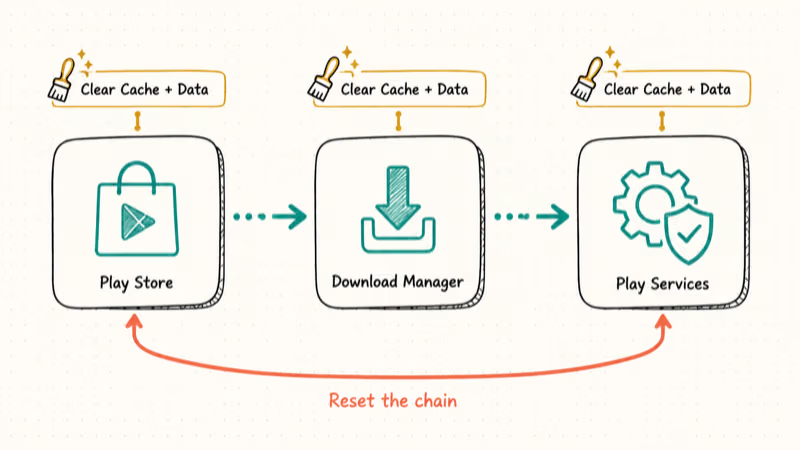
- Open
Settings>Appsand tap Google Play Store - Tap Storage, then tap Clear Cache
- Tap Clear Data (this signs you out of the Play Store temporarily)
Restart the phone after the data wipe. Sign back into the Play Store with your usual Google account and retry the failed download.
If 927 still shows up, repeat the same Storage > Clear Cache + Clear Data routine for Google Play Services and Download Manager. These three apps run as a chain. Play Store hands the download to Download Manager, which then talks to Play Services for license verification. Corruption inside any link can poison the whole flow even when the Play Store’s own cache looks fine, which is why a single-app wipe sometimes isn’t enough on its own.
For a closely related family of install failures, our guide on fixing Error 491 on Google Play walks through the same cache-stack reset.
#Does Error 927 Mean Your Phone Has a Problem?
Almost never.
Error 927 is overwhelmingly a software issue. Think of it as a browser refusing to load a page because its cache has gone stale. Wipe the cache and the page loads, no hardware repair required.
That said, watch for repeats. If 927 returns within hours of every fix, the device’s internal storage may be the real culprit. Phones built before 2018 used eMMC modules that can develop bad sectors as they age, and those bad sectors quietly corrupt newly written app data over and over. On a phone that old, a backup-and-upgrade conversation makes more sense than another cache wipe.
The error skews toward older operating systems too. Android distribution dashboards track version fragmentation across the ecosystem, and the 927 error clusters heavily in the older-OS tail. Updating to a current Android build is one of the cleanest preventative fixes you can apply.
#Free Up Storage Space on Your Android Device
Below 500 MB free, Play Store installs can fail. Check storage before deeper fixes.
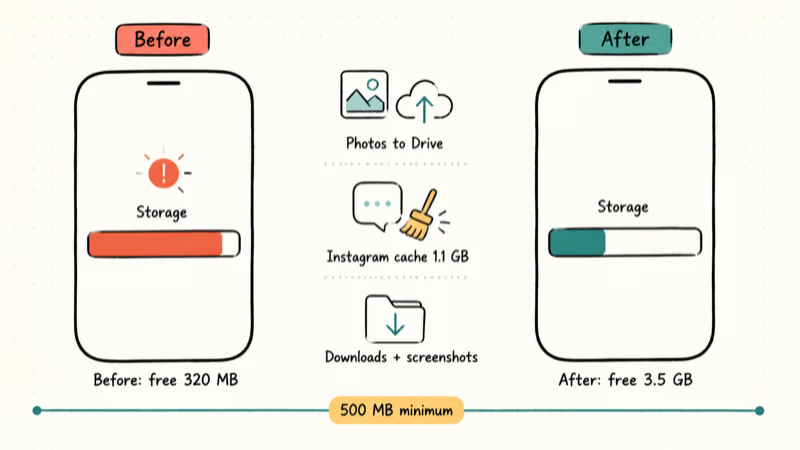
Go to Settings > Storage to see the breakdown. On Samsung phones the path is Settings > Battery and Device Care > Storage.
Quick wins to free space:
- Delete apps you haven’t opened in three months
- Clear the cache for heavy apps like Instagram, TikTok, and Chrome (commonly 500 MB to 2 GB each)
- Move photos and videos to Google Drive or your computer
- Empty the Downloads folder and the Recently Deleted bin
Clear space, then retry the Play Store download before moving to account or factory-reset steps.
Storage-driven Play Store issues usually echo across a few error codes. Our guide on Google Play Error 505 walks the same diagnostic but for permission conflicts rather than free space.
#Reset App Preferences
Resetting app preferences puts every app’s defaults back to factory while leaving your data alone. It’s the cleanest way to undo a quietly disabled system service that may be choking the Play Store.
- Go to
Settings>Apps - Tap the three-dot menu at the top right
- Select Reset App Preferences and confirm
The reset re-enables disabled apps, restores default openers for links, and clears notification blocks. None of your photos, contacts, or app data are touched, and every installed app stays right where it was: it’s a one-tap reset of preferences, not a wipe, so there’s nothing to back up first and nothing to restore afterward.
Restart the phone and retry the download.
If broader Android settings keep nagging you, our walkthrough on restricted access changed covers a closely related set of permission resets.
#Re-add Your Google Account
Removing and re-adding your Google account forces the Play Store to mint fresh authentication tokens. Re-adding the account forces Google to issue fresh authentication tokens, which clears many stale-token download failures, according to Google’s account help.
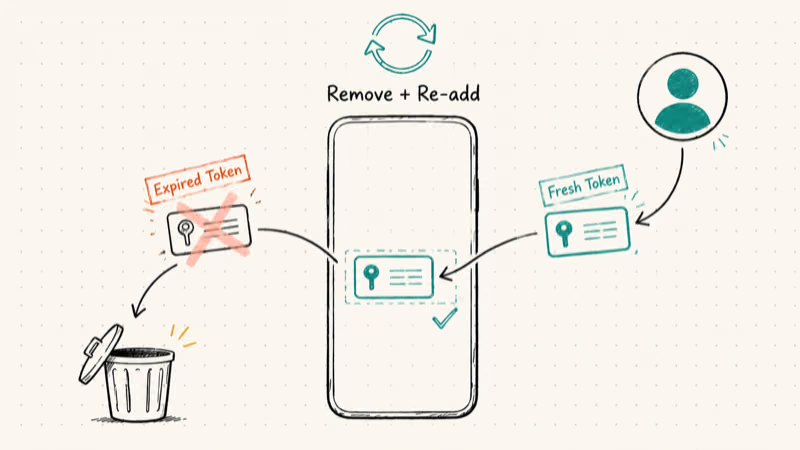
- Open
Settings>Accounts>Googleand tap your account - Tap Remove Account, then restart the phone
- Open
Settings>Accounts>Add Account>Googleand sign back in
Plan on roughly three minutes end to end. Your installed apps, photos, and on-device files aren’t deleted, only the cached account credentials.
One important note before you start: while the account is removed, Find My Device and Google-based two-factor flows on this phone are paused. Confirm you actually know your Google password and have a backup 2FA method handy before signing out, because you’ll need both to sign back in. If you’ve also been chasing the Google account action required banner, this same step often closes both errors at once.
#Update Android OS and Play Store
An out-of-date system rarely causes 927 on its own, but it’s a fast box to tick.
Update Android OS: open Settings > System > Software Update > Check for Updates, install whatever is offered, and reboot.
Update Play Store: open Play Store > tap your profile icon > Settings > About > Update Play Store. The app silently checks and installs its newest build. Google ships Play Store updates separately from Android system updates, so it’s perfectly normal (and a real source of 927 reports) for the Play Store binary to lag months behind the OS even on a fully patched phone.
Updating the Play Store itself can resolve 927 even when Android is already on a current system build.
#Factory Reset as a Last Resort
If nothing above moved the needle, a factory reset is the final option. It wipes every byte and reinstalls Android clean.
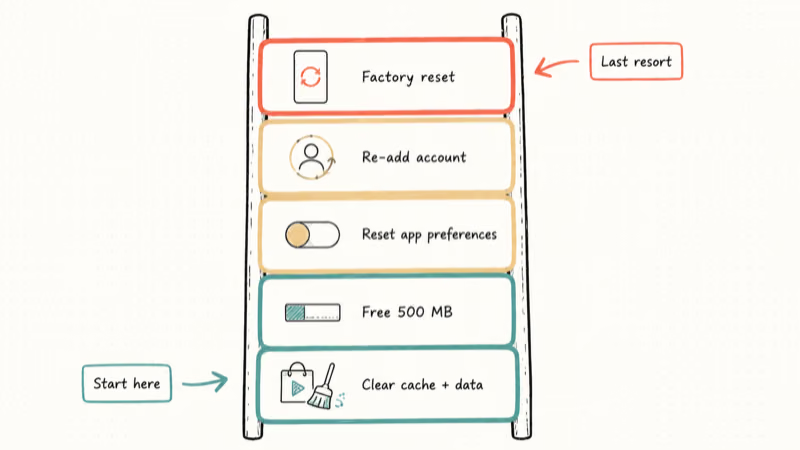
Back up first. There’s no undo. Go to Settings > Google > Backup and confirm your data is syncing to Google Photos, Google Drive, and Google contacts. Anything not synced before the reset is gone.
Then open Settings > System > Reset Options > Erase All Data (Factory Reset) and tap Reset Phone. The wipe runs five to ten minutes, then drops you back at the original setup wizard.
After setup, install apps one at a time from the Play Store. If 927 reappears on a freshly wiped phone, the problem is your Google account, not the hardware. Sign in with a different Google account on the same device to confirm that theory before contacting support.
For software-level Android issues that resist a factory reset, Dr.Fone Repair for Android can re-flash the system partition without touching user data, which is a useful middle ground when a wipe-and-restore is too aggressive.
Some links on this page are affiliate links, which means fone.tips may earn a commission at no extra cost to you.
#Bottom Line
Start with the cache and data wipe. That single step addresses the most common Error 927 cause on modern Android phones. If it sticks, check free space (target 500 MB or more) and reset app preferences before reaching for a factory reset. Save the wipe for the rare case where every cache, account, and update path has already failed; on a healthy phone you should never need it for 927 alone.
#Frequently Asked Questions
What does error 927 mean on Google Play Store?
Error 927 means the Play Store can’t finish an app download or update. The most common causes are corrupted cache files, low device storage, or expired account tokens. The fault is on your phone, not the app’s developer.
Will clearing Play Store data delete my apps?
No. Your installed apps, photos, contacts, and personal files all stay in place. The only side effect is that you’ll need to sign back into the Play Store the next time you open it.
How much free storage does Google Play need to work properly?
You need at least 500 MB free. Below that, you’ll see codes like 927, 491, and 505 because the Play Store can’t write temporary install files. Google recommends keeping 1 GB free for smooth downloads. Open Settings > Storage to see your current free space at a glance.
Can error 927 happen on any Android phone?
Yes. Error 927 can affect Samsung Galaxy, Pixel, Motorola, OnePlus, Xiaomi, and other Android handsets, especially when cache, storage, or account-token issues interrupt Play Store downloads.
Is it safe to install apps from APK files if error 927 won’t go away?
APKs from trusted mirrors like APKMirror are usually safe, but sideloading bypasses Google’s Play Protect malware scanning. Stick to well-known repositories, enable Settings > Security > Install Unknown Apps for the exact browser you trust, and verify that the file’s version and SHA hash match what is listed on the Play Store before tapping install.
Why does error 927 keep coming back after I fix it?
A repeat 927 points at something deeper. Free space may keep falling below the threshold from app caches that grow daily, or your Google account tokens may be expiring on a sync conflict. Re-adding the Google account is usually the fix that finally sticks; otherwise, audit which apps are eating your storage on a weekly basis.
Does error 927 affect app updates or only new downloads?
Both. The same write path handles brand-new installs and version updates, so a corrupted cache breaks both equally. The cause and fix are identical.
Should I contact Google support about error 927?
Only after you’ve run every method in this guide, including the factory reset. Google’s support team can flag rare account-side blocks that no on-device fix will clear. Reach them through the Play Store > Help & feedback flow or through the Google Support app on your phone.

Pixel 11 vs Pixel 10: What Changed and Who Should Upgrade
Pixel 11 vs Pixel 10: same screen and camera resolution, new Tensor G6, 25W wireless, and Gemini Intelligence. Here is who should actually upgrade.

Verizon Not Receiving Texts? How to Fix It in 9 Steps
Verizon not receiving texts? Fix it in 9 steps: check Message Blocking in My Verizon, reset network settings, deregister iMessage, and call support.

Pixel Battery Drain: What Google's July Fix Really Covers
Google marked the Pixel idle battery drain bug fixed in July, but only some phones got the patch. Here is who is covered, who is not, and what to try.

iPhone Stuck on EDGE? How to Get 5G or LTE Back (2026)
iPhone stuck on EDGE with crawling data? Here's why the E icon appears, which settings force 5G or LTE back, and when the problem is your carrier.