What Is igfxEM Module? Causes of High CPU and Fixes
igfxEM.exe is the Intel Graphics Executable Main Module on Windows. Learn what it does, why it spikes CPU, and 5 proven fixes to stop the lag.

Quick AnswerThe igfxEM module (igfxEM.exe) is the Intel Graphics Executable Main Module, a legitimate component of the Intel HD Graphics driver that runs at startup to manage display settings. It is not a virus, but it can spike CPU when the driver is outdated or corrupted, and the fix is to update the Intel graphics driver, run SFC, or disable the matching service.
The igfxEM module is the Intel Graphics Executable Main Module, a small process that ships with every Intel HD Graphics driver and runs in the background to keep your display settings persistent across reboots. It usually sits at zero percent CPU, so most people never notice it until Task Manager flags igfxEM.exe as the top resource hog. When that happens, the cause is almost always a stale or broken Intel graphics driver, not malware.
This guide is for diagnosing igfxEM.exe on your own computer; it explains what the process does, how to confirm yours is the real Intel file, and five fixes that bring igfxEM.exe back under one percent CPU.
- igfxEM.exe is the Intel Graphics Executable Main Module, signed by Intel Corporation, and lives in C:\Windows\System32 on a clean install
- Normal CPU usage sits between 0 and 1 percent at idle; sustained loads above 15 percent indicate a driver problem, not a virus
- The fastest fix is updating the Intel graphics driver through Intel Driver and Support Assistant, which usually clears the spike in just a few minutes
- You can safely disable the process on a desktop with a discrete GPU, but laptops with Intel HD Graphics rely on it for display switching
- A real igfxEM file is digitally signed by Intel Corporation; if the signature is missing or the file lives outside System32, treat it as suspicious and run a Microsoft Defender offline scan
#What the igfxEM Module Actually Does
The igfxEM module is part of the Intel Common User Interface bundle that installs with every Intel HD Graphics, UHD Graphics, and Iris Graphics driver. According to Intel’s graphics drivers download page, the bundle ships executables that handle hotkey events, display configuration, and the right-click “Graphics Properties” context menu. The igfxEM piece is the persistence layer: it remembers your resolution, refresh rate, color depth, and rotation so the desktop redraws correctly after a sleep cycle or external monitor swap.
It carries real state.
With the process running, unplugging an external monitor and plugging it back in restores the exact resolution right away. With the process killed, Windows can fall back to a low default resolution until you reboot, and the rotation hotkey stops working.
So the module isn’t cosmetic fluff for laptop users who hot-swap displays.
The file you see in Task Manager is igfxEM.exe, sometimes called the Graphics Executable Main Module. Older driver packages from 2015 to 2017 also installed igfxEMN.exe (a 64-bit variant) and igfxext.exe, both of which Microsoft Learn’s process documentation treats as standard service-host children. None of these are part of Windows itself. Uninstalling the Intel graphics driver removes them, and reinstalling the driver brings them back.
#Is igfxEM.exe Safe or a Virus?
A real igfxEM module is safe.
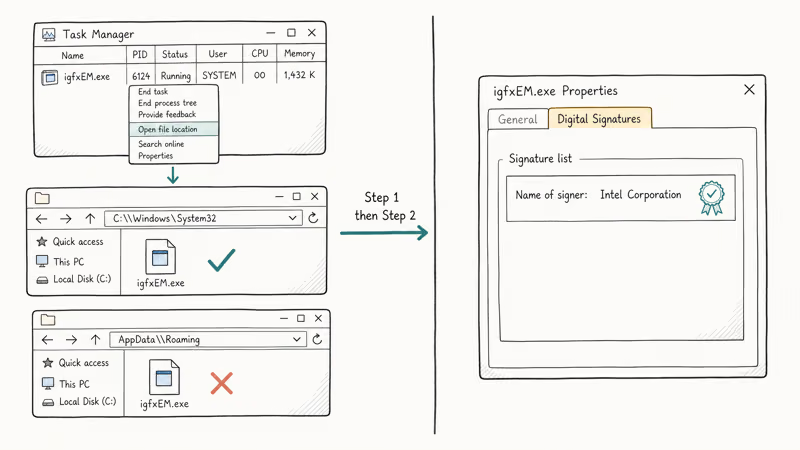
The risk is camouflage. Malware authors love to disguise spyware as legitimate-looking system processes, and a name like igfxEM is convenient cover. Mimics come and go faster than antivirus signatures, so the verification habit is worth building.
In most cases the file flagged in Task Manager is the real Intel binary, and confirming authenticity takes only a moment. Documented malware that actually mimics this exact name is rare.
Open Task Manager with Ctrl + Shift + Esc, find igfxEM.exe under the Processes tab, right-click it, and choose Open file location. The file should sit at C:\Windows\System32\igfxEM.exe. If Windows opens any other folder, especially something inside AppData\Roaming or Temp, treat it as suspicious. Microsoft’s Defender offline scan documentation states that a boot-time sweep catches rootkits the live scanner misses, which is the right tool when a process name looks suspicious.
The second test is the digital signature. Right-click the file in Explorer, pick Properties, then Digital Signatures. A real copy is signed by Intel Corporation with a valid certificate chain.
On a legitimate copy the signer field reads “Intel Corporation - Software and Firmware Products” with a valid timestamp. If the Digital Signatures tab is missing entirely, the file isn’t the real igfxEM. Names like igfx-EM, igfxEM_.exe, or igfxxEM.exe are documented impersonator patterns and warrant a full malware scan. Bleeping Computer’s process library keeps a running list of these clones.
#Why Is igfxEM Module Causing High CPU Usage?
High CPU from igfxEM.exe is not normal.
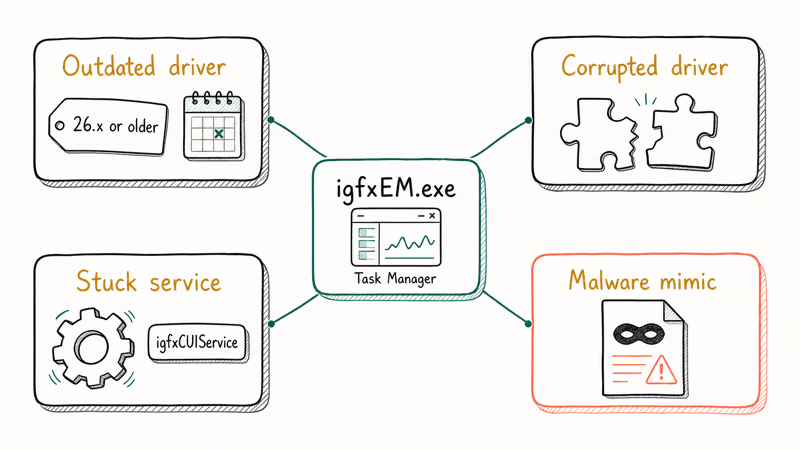
A healthy process averages well under one percent at idle and only spikes briefly during display configuration changes. If yours sits above 15 percent for more than a minute, one of four things is happening:
- The Intel driver is outdated. Intel announced major refactors to the graphics driver in versions 30.x and 31.x, and machines still on a 26.x or older driver hit a known polling loop in
igfxEM.exethat pegs one CPU core. Updating to the current Intel driver fixes it. - The driver is corrupted. A failed Windows Update, a botched OEM driver overwrite, or an interrupted install can leave the registry pointing at a half-installed binary. The process retries the load forever, burning CPU.
- A Windows service is stuck. The “Intel HD Graphics Control Panel Service” (or
igfxCUIServiceon older systems) feeds events to igfxEM. If that service crashes silently, igfxEM keeps spinning. - Malware is wearing the name. Rare, but real. Confirm authenticity using the steps in the previous section before applying performance fixes.
The same root causes show up in similar Intel-side processes. If you also see igfxTray or atiedxx.exe misbehaving on an AMD-equipped system, the troubleshooting flow is nearly identical because both belong to GPU vendor utility bundles.
#Normal CPU Range and When to Worry
A healthy igfxEM sits between 0 and 1 percent at idle.
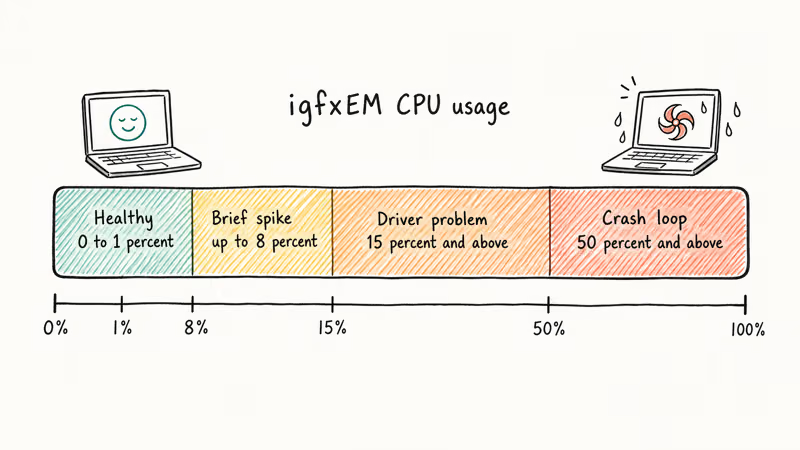
Short bursts of a few percent are normal during display configuration changes such as resizing windows or plugging in a second monitor, and a brief spike during a driver self-update is also expected. None of those last more than a couple of seconds, and Resource Monitor’s Disk and Network views stay flat the whole time, which is the cleanest fingerprint of a healthy Intel utility process.
Sustained load above 15 percent for over a minute is a real problem. Anything above 50 percent is a driver crash loop and needs Fix 1 or Fix 2 right away. If only the Desktop Window Manager spikes alongside igfxEM, suspect the same driver and apply the same fix to both.
#How to Fix igfxEM.exe High CPU on Windows
These five fixes are ordered by speed and likelihood of working. Stop after the one that resolves the spike.
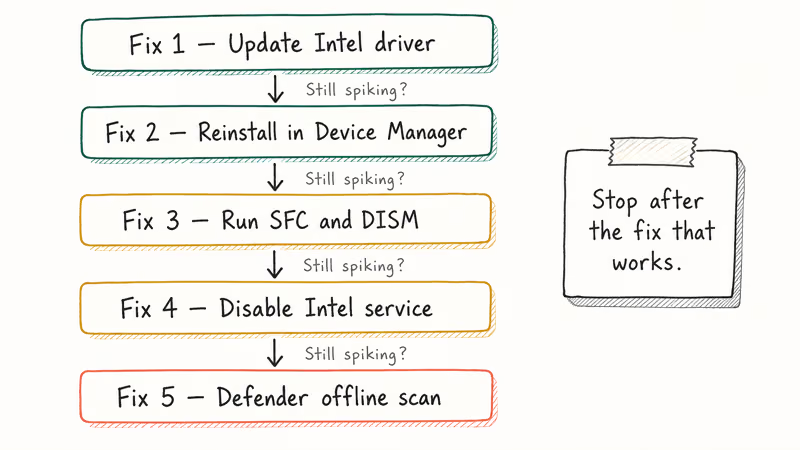
#Fix 1: Update the Intel Graphics Driver With Intel Driver and Support Assistant
Updating the driver is the single most effective fix. It takes about four minutes end to end and resolves most igfxEM CPU complaints.
- Go to Intel’s Driver and Support Assistant page and download the installer.
- Run the installer, agree to the license, and let the tool scan your system.
- When the browser tab opens, look for a Graphics Driver entry with an “Update available” badge. Click Download.
- Run the downloaded installer, choose Clean install if the option appears, and reboot when prompted.
After the reboot, open Task Manager and watch igfxEM.exe for two minutes. Once the current driver is in place, the process should settle back to idle, the fans spin down, and battery drain on an unplugged laptop returns to normal.
#Fix 2: Reinstall the Intel Graphics Driver From Device Manager
If the assistant says you are already on the latest driver but the spike continues, force a clean reinstall.
- Press Win + X and open Device Manager.
- Expand Display adapters, right-click your Intel graphics entry, and choose Uninstall device.
- Tick Delete the driver software for this device and confirm.
- Reboot. Windows pulls a fresh driver from Windows Update on the next boot.
This clears stale registry keys that the in-place updater leaves behind. It often succeeds on machines where Fix 1 looked successful but the spike came back after a restart.
#Fix 3: Run the System File Checker and DISM
Driver problems sometimes ride on top of corrupted Windows components, especially on machines that have been through multiple feature-update upgrades. Microsoft’s System File Checker guide recommends running both SFC and DISM in sequence to repair the underlying servicing store before troubleshooting any single driver in isolation.
- Right-click Start and choose Terminal (Admin) or PowerShell (Admin).
- Run
sfc /scannowand wait for it to finish. The scan takes 5 to 15 minutes. - If SFC reports unfixable files, run
DISM /Online /Cleanup-Image /RestoreHealthnext. - Reboot and recheck the process load.
This pair of commands also helps when other Windows utility processes misbehave, because they all depend on the same component store:
#Fix 4: Disable the Intel Graphics Control Panel Service
If the driver is fine but you don’t need the Intel hotkeys or graphics control panel, disabling the matching service stops igfxEM from being launched at startup. This is a per-user trade-off because you lose the Ctrl + Alt + arrow-key rotation shortcut and the right-click Graphics Properties menu.
- Press Win + R, type
services.msc, and press Enter. - Scroll to Intel(R) HD Graphics Control Panel Service (or
igfxCUIService). - Right-click and choose Properties.
- Set Startup type to Disabled and click Stop.
- Reboot.
After this change the igfxEM process no longer spawns. Display drivers still work, just without the Intel utility layer. If your laptop also runs a Killer NIC, the same disable-the-service approach works for the Killer Network Service when it gets stuck.
#Fix 5: Run a Microsoft Defender Offline Scan
Run this fix only as a last resort.
Apply it if Fixes 1 through 4 left the spike untouched, or if your authenticity check earlier in this guide flagged a wrong file path or missing signature on the executable.
- Open
Settings>Privacy &security >Windows Security>Virus &threat protection. - Click Scan options.
- Choose Microsoft Defender Offline scan and click Scan now.
- Save your work, because the machine reboots into a clean environment to scan offline.
The offline scan takes 15 to 20 minutes and catches rootkits that the live scanner can’t touch. If Defender finds something masquerading as igfxEM, it quarantines the rogue file and the legitimate Intel driver continues to work normally.
If high CPU persists after all five fixes, the issue is usually deeper than the graphics layer. Cross-check whether the Service Host: Local System parent group is also spiking, because a misbehaving WMI provider can drive igfxEM into a polling loop. The same pattern appears when corrupted PnP drivers escalate, when Windows Modules Installer Worker sits in the background pegged at 50 percent, or when a Group Policy refresh times out on enterprise machines.
#When to Disable Versus Keep igfxEM Running
Whether to leave igfxEM alone depends on your hardware.
On a laptop with Intel HD, UHD, or Iris Graphics as the primary display path, keep it; the process drives external-monitor resolution memory and the rotation hotkeys.
On a desktop tower running a discrete Nvidia or AMD card with Intel graphics disabled in BIOS, you don’t need it. On a hybrid laptop where the discrete GPU only kicks in for games, keep igfxEM on for everyday display switching, because the integrated Intel chip still drives your built-in panel and any HDMI or USB-C output.
The disable-the-service approach in Fix 4 is reversible. Reset the service to Manual and reboot.
#Bottom Line
For most Windows users seeing igfxEM.exe at 20 to 80 percent CPU, the fastest fix is to update the Intel graphics driver through Intel Driver and Support Assistant. If the spike returns after a reboot, do a clean reinstall through Device Manager.
Skip the service-disable route unless you really don’t use Intel display hotkeys. Reserve the malware scan for the case where the file path or digital signature looks wrong.
#Frequently Asked Questions
What is igfxEM.exe in Task Manager?
The file is the Intel Graphics Executable Main Module that ships with every Intel HD, UHD, and Iris graphics driver. It runs at startup to remember your display resolution, refresh rate, color depth, and rotation across sleep cycles and external monitor swaps. Normal CPU usage is well under one percent at idle on modern hardware, and older Skylake-era chips occasionally show 1 to 2 percent during cold boot.
Can I delete igfxEM.exe safely?
No. Windows recreates the file on the next driver load.
Why does igfxEM.exe use so much CPU on my laptop?
The most common cause is an outdated or corrupted Intel graphics driver, especially after a Windows feature update overwrote the OEM driver with a generic one. Less often, the Intel HD Graphics Control Panel Service hangs or, rarely, malware imitates the name.
How do I tell if igfxEM is malware?
Open Task Manager, right-click the process, and select Open file location; the real copy lives in C:\Windows\System32. Right-click the file, open Properties, and check the Digital Signatures tab, where the signer should read Intel Corporation. If either check fails, run a Microsoft Defender offline scan and reboot.
Is it safe to disable the Intel Graphics Control Panel Service?
Yes for most users.
Disabling the service stops igfxEM from launching but leaves your graphics driver intact, so display, video playback, and external monitors all keep working. You lose the Intel hotkey shortcuts and the right-click Graphics Properties menu.
Does igfxEM run on Windows 11?
Yes, on machines with Intel HD, UHD, or Iris graphics. The process behaves the same on both Windows 10 and 11.
Will updating to Windows 11 fix igfxEM high CPU?
Not on its own. The upgrade preserves your existing graphics driver, so a stale driver remains stale across the version change. Run Intel Driver and Support Assistant after the upgrade to install the current driver and clear the polling loop. Without that step, the spike follows you to the new OS without any change in symptoms.

Best Laptop for Running LLMs in 2026: Memory Comes First
The best laptop for running LLMs is a memory purchase first. Compare MacBook unified memory against NVIDIA laptop VRAM, and see what each tier really runs.

How to Run a Local LLM on Windows: A 2026 Setup Guide
Run a local LLM on Windows with LM Studio or Ollama. Pick a model that fits your GPU memory, keep every prompt offline, and skip the monthly bill.

Bluetooth Not Working on Snapdragon X? Fixes for 2026
Bluetooth not working on your Snapdragon X Copilot+ PC? Generic audio, mice, and keyboards work, but vendor apps often lack an ARM build. Fixes inside.

Docker Desktop and WSL2 Not Working on Snapdragon X? Fix It
WSL2 runs fine on Snapdragon X, but Docker Desktop ARM is Early Access and throws WSL errors. Use WSL2 plus native ARM64 Ubuntu and Docker Engine.