What Is CTF Loader (ctfmon.exe) and How to Fix High CPU
Learn what CTF Loader (ctfmon.exe) is, why it causes high CPU usage, and 4 proven ways to fix it. Covers SFC scan, malware check, and safe disable steps.
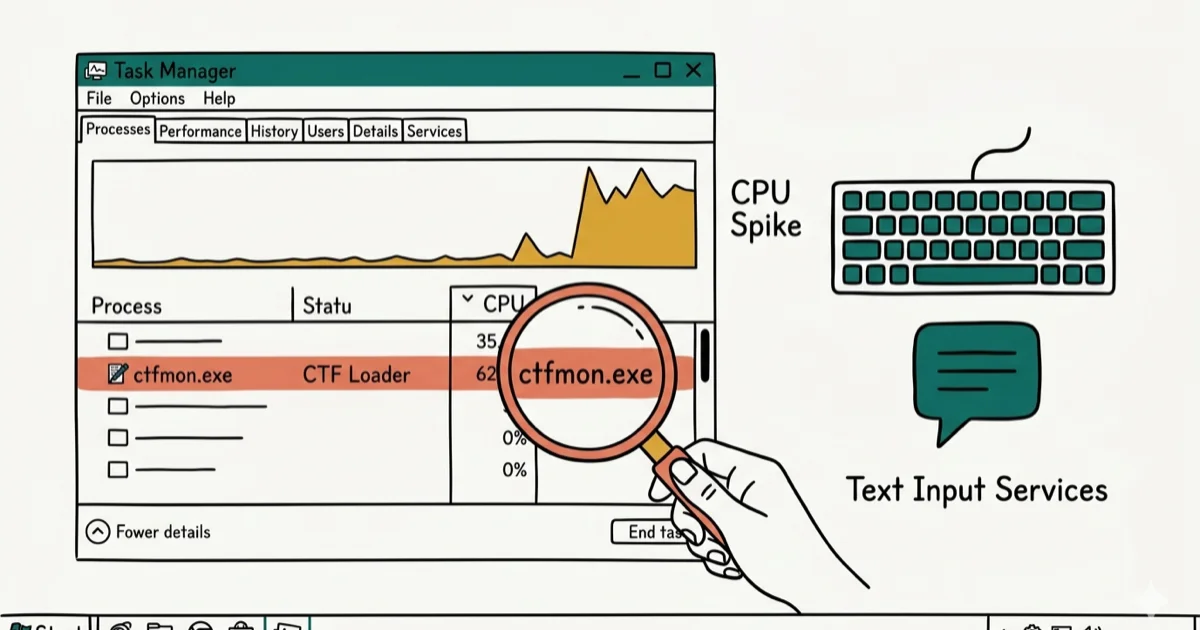
Quick AnswerCTF Loader (ctfmon.exe) is a legitimate Windows process that manages speech recognition, handwriting input, and keyboard translation. It normally uses less than 1% CPU, but if it spikes above 30%, you can fix it by restarting the Text Input service, running SFC, or disabling it through Services.
CTF Loader (ctfmon.exe) is a built-in Windows process that handles text input services like speech recognition and handwriting. It should stay quiet during normal use; investigate when it suddenly starts eating CPU.
- CTF Loader is a safe Microsoft process located at C:\Windows\System32\ctfmon.exe
- CTF Loader should stay quiet in normal use, but bugs can spike CPU and slow your PC
- Restarting the Touch Keyboard and Handwriting Panel Service fixes most high-CPU spikes
- Running SFC /scannow repairs corrupted system files that make ctfmon.exe malfunction
- Malware can disguise itself as ctfmon.exe, so verify the file’s digital signature before disabling anything
#What Is CTF Loader and Is It Safe?
CTF stands for Collaborative Translation Framework. It’s a Windows service that coordinates text input across different methods, including your physical keyboard, on-screen keyboard, speech-to-text, and handwriting recognition.
Microsoft introduced ctfmon.exe with Windows Vista and kept it through every version since then. According to Microsoft’s official documentation on text services, the Text Services Framework manages all alternative input processors and language bar functions within the operating system.
CTF Loader normally loads automatically at startup. It’s tied directly to Microsoft Office’s language features, so removing it can break spell-check and autocorrect in Word, Excel, and Outlook.
If you’ve noticed other unfamiliar processes in your task manager, check the device association framework provider host guide to learn which background services are safe.
#Is CTF Loader a Virus?
No. The real ctfmon.exe is digitally signed by Microsoft Corporation and lives in C:\Windows\System32. But malware sometimes disguises itself under the same name. Here’s how to verify yours:
-
Press Ctrl + Shift + Esc to open Task Manager, then find CTF Loader in the Processes tab.
-
Right-click it and select Open file location. If the folder that opens is
C:\Windows\System32, you’re looking at the real file. Any other location means you should treat it as suspicious and scan it right away. -
Right-click
ctfmon.exein that folder, choose Properties, and go to the Digital Signatures tab. The signer should read Microsoft Windows.
If the file isn’t in System32 or the digital signature doesn’t match, you’re likely dealing with malware. Run a full scan with Windows Defender or your antivirus immediately. According to Microsoft’s security intelligence, trojan programs that mimic system processes are among the most commonly detected threat categories.
As Tom’s Guide explains in their Windows optimization guide, identifying which background processes are safe versus problematic is a key step in keeping your PC running smoothly.
For other system file concerns, you might want to read about the atiedxx.exe process to understand whether it’s safe on your machine.
#CTF Loader High CPU: Root Causes
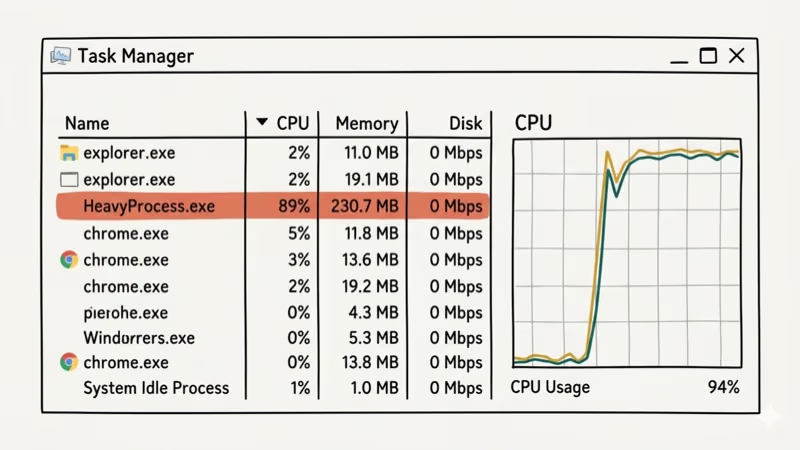
When ctfmon.exe starts consuming noticeable CPU, something has gone wrong. These are the usual causes:
- Corrupted language packs. A failed Windows Update can damage the text input framework files, sending ctfmon.exe into a loop.
- Conflicting third-party input software. Tools like AutoHotkey or custom keyboard remappers clash with the Translation Framework.
- Outdated Windows build. Microsoft patched several ctfmon.exe bugs in cumulative updates throughout 2024 and 2025.
- Malware impersonation. A fake ctfmon.exe running from an unexpected directory consumes resources while hiding malicious activity.
Killing the process in Task Manager doesn’t solve the underlying issue because Windows can restart protected system services to maintain OS stability. The proper fix is addressing the underlying cause.
#Four Methods to Fix CTF Loader High CPU
Start with the least disruptive method and work down the list. Disabling ctfmon.exe completely should be your last resort since it affects real functionality.
#Method 1: Restart the Text Input Service
This clears whatever stuck state the process is in without disabling any features.
-
Press Win + R, type
services.msc, and press Enter. -
Scroll down to Touch Keyboard and Handwriting Panel Service.
-
Right-click it and select Restart.
-
Check Task Manager to see if CPU usage dropped back to normal.
If you’re experiencing broader system slowdowns, the Windows 10 slow performance guide covers additional fixes beyond individual processes.
#Method 2: Run SFC to Repair System Files
Corrupted system files are a common trigger. The System File Checker scans and repairs them automatically.
-
Press Win + S, type
cmd, right-click Command Prompt, and select Run as administrator. -
Type
sfc /scannowand press Enter. -
Wait for the scan to finish. It typically takes 10-15 minutes.
-
Restart your PC after the scan completes.
Microsoft’s documentation states that SFC checks over 2,700 critical system files and replaces any that don’t match their original versions. If ctfmon.exe was corrupted, this fixes it without manual intervention.
#Method 3: Check for Malware
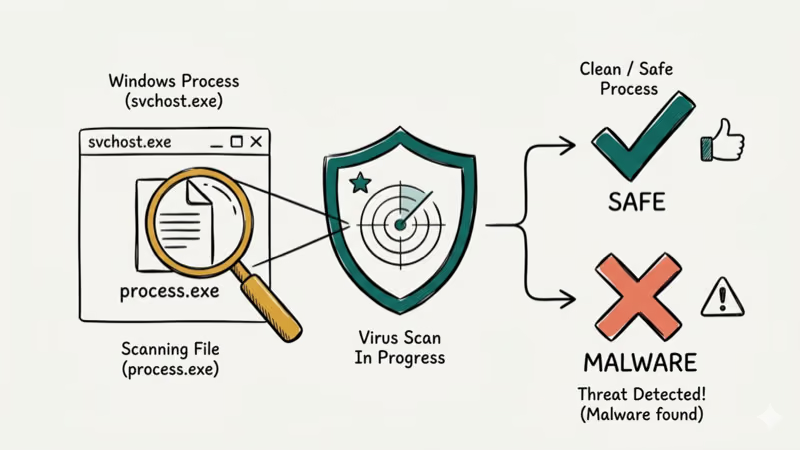
If the file location or signature didn’t check out earlier, you need a thorough malware scan.
-
Open Windows Security from the Start menu.
-
Go to Virus & threat protection > Scan options.
-
Select Full scan and click Scan now.
-
Let it run to completion. Don’t interrupt the scan, even if it takes over an hour.
If Windows Defender finds threats, quarantine them and restart. Then verify ctfmon.exe is back in its correct System32 location with a valid Microsoft signature. You can also read the filerepmalware guide for more details on identifying disguised system processes.
#Method 4: Disable CTF Loader Completely
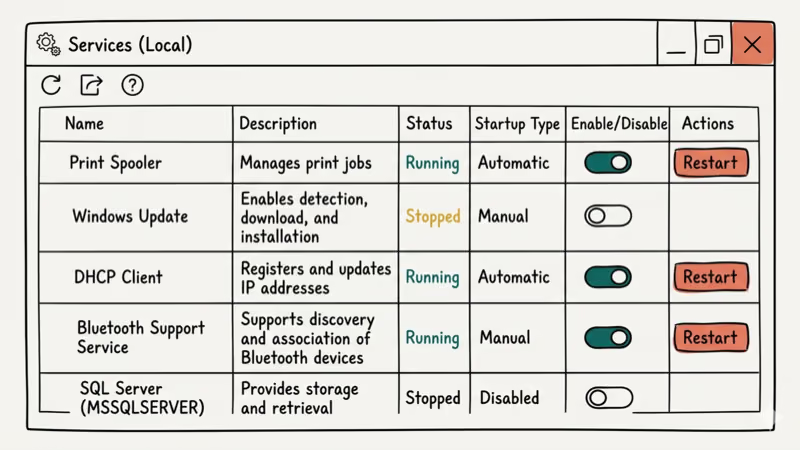
Only do this if you don’t use speech recognition, handwriting input, or alternative keyboard layouts. Disabling ctfmon.exe removes all text input framework functionality.
-
Press Win + R, type
services.msc, and press Enter. -
Find Touch Keyboard and Handwriting Panel Service.
-
Double-click it to open Properties.
-
Change Startup type to Disabled.
-
Click Stop if the service is currently running.
-
Click Apply, then OK.
-
Restart your PC. CTF Loader won’t appear in Task Manager anymore.
To re-enable it later, go back to the same service and change the Startup type to Automatic. This is fully reversible.
If you need help with other Windows file recovery tasks or want to learn how to deal with the default gateway not available error, those guides cover the next steps.
#CTF Loader and Microsoft Office
CTF Loader directly supports Office’s language features. Disabling ctfmon.exe may break spell-check suggestions, autocorrect in Word, and language switching in Excel and PowerPoint. Users who work in multiple languages or use accessibility features should fix the high CPU issue rather than disabling the service.
If you do disable ctfmon.exe and notice these Office features stop working, re-enabling the Touch Keyboard and Handwriting Panel Service in Services.msc restores them immediately.
#When to Disable CTF Loader Permanently
Disabling ctfmon.exe removes all text input framework functionality from Windows. You’ll lose speech recognition, handwriting input, on-screen keyboard support, and some Office language features.
For most users, the answer is no. Fix the high CPU issue instead of removing the service entirely. The only cases where permanent disabling makes sense are dedicated kiosk machines or servers where text input alternatives are never used. On those systems, disabling saves a small amount of resources without any practical downside.
If you do disable it, document the change so you remember to re-enable it if speech input or language bar functionality stops working in another app.
#Bottom Line
CTF Loader is a safe, legitimate Windows process that you don’t need to worry about under normal conditions. If it starts eating CPU resources, restart the Touch Keyboard service first since that fixes the problem in most cases. Run SFC next if the issue persists, and check for malware if the file’s location or signature looks wrong. Only disable ctfmon.exe entirely as a last resort, because you’ll lose speech input and handwriting features.
#Frequently Asked Questions
Does disabling CTF Loader affect Microsoft Office?
Yes, it can. CTF Loader manages the language bar and alternative input methods that Office relies on. Disabling it may break spell-check suggestions, autocorrect in Word, and language switching in Excel. If you use Office daily, fix the high CPU issue instead of disabling the service.
Will CTF Loader come back after a Windows update?
It can. Major Windows updates sometimes reset service configurations to their defaults. If you disabled ctfmon.exe and a cumulative update re-enables it, you’ll need to go back into Services and disable it again.
How much memory should CTF Loader use normally?
On a healthy system, CTF Loader should stay lightweight. If it keeps consuming unusual memory or CPU, restart the Touch Keyboard service or run SFC.
Can I delete ctfmon.exe from System32?
Don’t do that. Windows protects system files, and manually deleting ctfmon.exe can trigger blue screen errors or boot failures. If the file is actually infected, let your antivirus quarantine it. Windows keeps backup copies of system files and restores them automatically through the Windows Resource Protection mechanism.
Does CTF Loader run on Windows 11?
Yes. Windows 11 includes ctfmon.exe just like Windows 10. The process works identically and manages the same text input features.
What’s the difference between ctfmon.exe and msctfime.exe?
Both are part of the Text Services Framework, but they handle different layers. ctfmon.exe manages the overall framework and monitors input methods, while msctfime.exe specifically handles Input Method Editor integration for East Asian languages like Chinese, Japanese, and Korean.

Best Laptop for Running LLMs in 2026: Memory Comes First
The best laptop for running LLMs is a memory purchase first. Compare MacBook unified memory against NVIDIA laptop VRAM, and see what each tier really runs.

How to Run a Local LLM on Windows: A 2026 Setup Guide
Run a local LLM on Windows with LM Studio or Ollama. Pick a model that fits your GPU memory, keep every prompt offline, and skip the monthly bill.

Bluetooth Not Working on Snapdragon X? Fixes for 2026
Bluetooth not working on your Snapdragon X Copilot+ PC? Generic audio, mice, and keyboards work, but vendor apps often lack an ARM build. Fixes inside.

Docker Desktop and WSL2 Not Working on Snapdragon X? Fix It
WSL2 runs fine on Snapdragon X, but Docker Desktop ARM is Early Access and throws WSL errors. Use WSL2 plus native ARM64 Ubuntu and Docker Engine.