Atiedxx.exe: What It Is and How to Fix It on Windows
Atiedxx.exe is an AMD display driver process on Windows. Learn if it is safe, why it causes high CPU, and 5 practical fixes for crashes and errors.
Quick AnswerAtiedxx.exe is a legitimate AMD GPU driver process that manages display switching and hotkeys. If CPU usage spikes, disable AMD External Events Utility or update AMD drivers.
Atiedxx.exe keeps showing up in Task Manager.
Atiedxx.exe is an AMD driver component, and high CPU usage usually points to a driver, service, or file-integrity problem.
- Atiedxx.exe is the AMD External Events Client Module from AMD Radeon driver packages
- The process is safe when located in C:\Windows\System32 but suspicious if found elsewhere
- Disabling the AMD External Events Utility service stops it without hurting GPU performance
- Updating to the latest AMD Radeon driver fixes most high CPU and crash issues tied to this process
- Running SFC and DISM scans can repair corrupted copies of atiedxx.exe that trigger error popups on boot
#Atiedxx.exe on Windows Explained
Atiedxx.exe stands for ATI External Events Client Module. ATI was the original graphics card company before AMD acquired it in 2006, and the filename has carried over through every driver generation since.
This process does three specific things on your system:
- Display switching between integrated and discrete GPUs on laptops with AMD graphics, letting Windows seamlessly hand off rendering between your built-in Intel or AMD APU and the dedicated Radeon card based on workload
- Hotkey management for Radeon Software shortcuts (like Alt+R to open Adrenalin Edition)
- FreeSync coordination between your AMD GPU and compatible monitors, keeping refresh rates synchronized to prevent screen tearing during gaming sessions without requiring you to manually toggle settings in Radeon Software
According to AMD’s community documentation, the AMD External Events Utility service controls atiedxx.exe and its companion process atieclxx.exe, and its CPU usage normally stays minimal. The service starts automatically with Windows and runs in the background. You won’t see a visible window for it.
The file lives in C:\Windows\System32. Normal CPU usage is 0.1-2%.
If you’re troubleshooting other Windows processes, you might also want to check out our guide on the CTF Loader process, which is another background service that sometimes causes confusion in Task Manager.
#Is Atiedxx.exe Safe or a Virus?
Atiedxx.exe is safe when it’s the genuine AMD file. The real file lives in C:\Windows\System32 and has a valid AMD digital signature.

Here’s how to verify it in about 15 seconds:
-
Open Task Manager (Ctrl + Shift + Esc)
-
Right-click on atiedxx.exe
-
Select “Open file location”
-
If the folder is
C:\Windows\System32, the file is legitimate
A file located anywhere else is suspicious. Run a full antivirus scan immediately if you find it outside System32.
You can double-check the file’s authenticity by right-clicking the .exe, selecting Properties, and opening the Digital Signatures tab. A genuine file shows “Advanced Micro Devices, Inc.” as the signer. No signature at all, or a signature from an unknown publisher, means the file is not from AMD.
A legitimate copy should be in System32 and carry a valid AMD signature. Our article on conhost.exe walks through a similar verification for the Console Window Host process.
#Why Does Atiedxx.exe Cause High CPU Usage?
Three situations cause atiedxx.exe to spike above normal CPU levels:
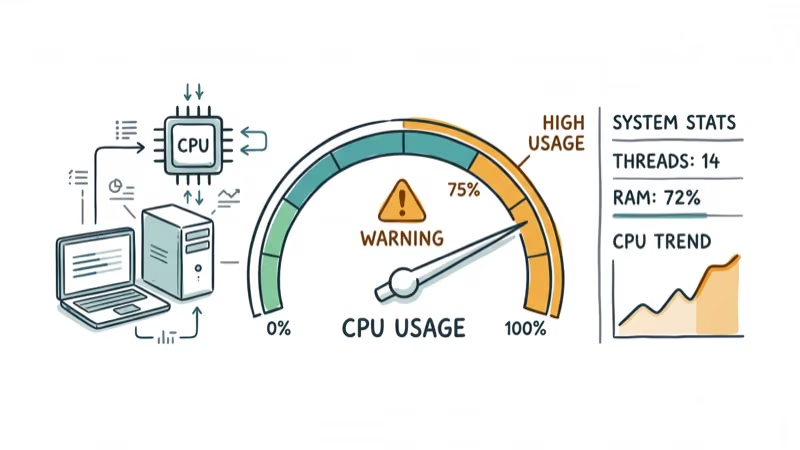
Outdated drivers. AMD releases driver updates roughly every month. Running a driver that’s more than two releases old means you’re carrying every known bug AMD has already fixed. AMD’s driver download page states that 1 click with the Auto-Detect and Install Tool identifies your exact GPU model and pulls the correct version automatically.
Corrupted system files. A failed Windows Update or sudden power loss can damage the executable. CPU usage locks at 15-30%.
Malware impersonation. Watch for network activity or multiple instances in Task Manager.
Outdated Adrenalin builds are a common trigger for persistent atiedxx.exe CPU usage. Updating to the latest AMD driver is the safest first repair before deeper system scans.
For similar Windows process issues, our guide on the igfxEM Module covers the Intel equivalent of this problem, where Intel’s graphics event manager causes the same type of CPU spikes.
#Fixing Atiedxx.exe Errors on Windows
Five methods cover everything from a quick 30-second service toggle to a full driver reinstall that wipes all AMD software and starts fresh. Start with Method 1 below, which resolves the problem for most users based on community reports across Reddit and AMD’s support forums.
#Method 1: Disable the AMD External Events Utility Service
Takes under 30 seconds. Your GPU keeps working normally.
-
Press Windows + R to open the Run dialog
-
Type services.msc and press Enter
-
Scroll down to AMD External Events Utility, right-click it, and select Properties
-
Change the Startup type dropdown from “Automatic” to Disabled
-
Click Stop to end the service immediately, then click Apply and OK
The process disappears from Task Manager within seconds, and you’ll immediately see CPU usage drop. One important tradeoff to know about: disabling this service also turns off AMD FreeSync, which means variable refresh rate stops working on compatible monitors. If you game on a FreeSync display and want to keep that tear-free experience, skip this method and try Method 2 instead.
#Method 2: Update Your AMD Drivers
Outdated drivers are the most common cause of atiedxx.exe problems, and AMD’s Radeon Software Adrenalin Edition includes an auto-update feature that checks for new releases and installs them with minimal user input.
-
Go to
Settings>System>Display>Advanceddisplay to confirm your GPU model -
Visit AMD’s driver download page and download the Auto-Detect and Install Tool
-
Run the installer, follow the prompts, and restart your PC after the update completes
The entire process takes about 5-10 minutes depending on your internet speed. AMD recommends closing all applications and temporarily disabling antivirus software before running the installer.
#Method 3: Run SFC and DISM Scans
If atiedxx.exe errors persist after a driver update, the system file itself might be corrupted. A botched Windows Update or unexpected shutdown can leave the executable in a half-written state that triggers error popups on every boot. Based on Microsoft’s system repair documentation, running DISM before SFC gives the best results because DISM repairs the Windows image that SFC relies on.
-
Press Windows + S, type cmd, and right-click Command Prompt to select Run as administrator
-
Type
DISM /Online /Cleanup-Image /RestoreHealthand press Enter (this takes 5-15 minutes) -
After DISM finishes, type
sfc /scannowand press Enter, then restart your PC
After SFC repairs AMD driver files, restart and check the next boot.
#Method 4: Perform a Clean Driver Reinstall
Clean reinstalls remove old AMD driver traces.
-
Download the latest AMD driver from amd.com/en/support but don’t run it yet
-
Open the AMD Adrenalin app, go to
Settings>System, and click Factory Reset with “Remove all AMD software components” checked -
Let the system restart, run the driver installer you downloaded, and restart again after installation
This method is useful when a normal driver update fails or when a PC has gone through major Windows updates without a clean GPU driver reinstall.
#Method 5: Scan for Malware
If none of the above methods work, the atiedxx.exe process might not be a real AMD file. Run a thorough scan.
- Open Windows Security and select Virus & threat protection
- Choose Full scan and click Scan now (30-60 minutes)
For a second opinion, download and run Malwarebytes alongside Windows Defender. The two tools use different detection engines, so using both can catch more disguised system-process malware than relying on one scanner.
For related AMD executable errors, see atibtmon.exe runtime errors.
#Removing Atiedxx.exe Permanently
You can’t delete atiedxx.exe on its own without breaking your AMD driver installation. The file is part of the AMD Radeon driver package, so removing it manually will cause display errors, crashes, or a black screen on your next restart.
Two options exist:
Option A: Disable the service. Follow Method 1 above. Recommended for most users.
Option B: Uninstall AMD drivers entirely. Go to Settings > Apps > Installed apps, find AMD Software, and uninstall it. Windows falls back to the Basic Display Adapter driver with reduced resolution and no 3D acceleration.
The bad pool caller error on Windows sometimes appears after aggressive driver removal, so always use AMD’s official uninstaller rather than deleting files manually.
#Atiedxx.exe vs. Atieclxx.exe Compared
These two processes work together but handle different tasks within the AMD External Events system.
| Process | Full Name | Role |
|---|---|---|
| atiedxx.exe | ATI External Events Client Module | Handles hotkeys and display events |
| atieclxx.exe | ATI External Events Service Module | Coordinates GPU switching |
| atiesrxx.exe | ATI External Events Server | Manages client-service communication |
Disabling the AMD External Events Utility service in services.msc stops all three processes at once. You don’t need to end each one individually in Task Manager.
For context on other paired Windows processes, check out our article on YourPhone.exe, which has a similar multi-process architecture.
#Bottom Line
Atiedxx.exe is a standard AMD driver component that belongs on any Windows PC with a Radeon graphics card. Start with disabling the AMD External Events Utility service if it’s causing high CPU usage. That one change resolves the problem for most people in under a minute. If errors persist, update your AMD drivers to the latest version and run an SFC scan to repair any corrupted files.
#Frequently Asked Questions
Is atiedxx.exe safe to keep running on my PC?
Yes, as long as the file is in C:\Windows\System32 with a valid AMD digital signature. It uses 0.1-2% CPU normally. Investigate only if usage stays above 5% or multiple instances appear in Task Manager.
Does disabling atiedxx.exe affect gaming performance?
No, unless you use FreeSync. Disabling the service turns off FreeSync but doesn’t affect core GPU rendering, shader processing, or frame rates.
Why does atiedxx.exe appear on computers without AMD graphics cards?
This happens when a previous AMD driver installation left behind residual files after you swapped to an NVIDIA or Intel GPU. The old driver components stay registered in Windows even though the hardware is gone. Use the AMD Cleanup Utility to remove them. Download it from AMD’s support page, run it in Safe Mode for a thorough cleanup, and restart your PC.
Can atiedxx.exe cause blue screen errors on Windows?
Rarely. The process itself runs in user mode, not kernel mode, so it can’t directly trigger a blue screen. However, a corrupted AMD driver package that includes a damaged atiedxx.exe can also include a damaged kernel-mode driver file, which would cause blue screens. Reinstalling AMD drivers with the Factory Reset option fixes both issues at the same time.
How do I check which version of atiedxx.exe is installed?
Right-click the file in C:\Windows\System32 and select Properties. The Details tab shows the Product version.
What happens if I delete atiedxx.exe manually?
Deleting it breaks things. Windows will crash or show graphical glitches on the next restart because the AMD driver expects this file to exist. If you accidentally removed it, reinstalling your AMD drivers through the Adrenalin Edition installer restores it automatically. Never delete individual driver files from System32.
Does atiedxx.exe run on Windows 11?
Yes. AMD’s Radeon Software Adrenalin Edition supports Windows 11 fully. The process name, file location, and all five fix methods in this article work identically on both Windows 10 and Windows 11.
How much RAM does atiedxx.exe normally use?
Atiedxx.exe should use only a small amount of RAM during normal operation. If the process is consuming more than 50 MB, that’s abnormal and usually points to a driver conflict or corrupted installation. Reinstalling your AMD drivers should bring memory usage back to the expected range.

Best Laptop for Running LLMs in 2026: Memory Comes First
The best laptop for running LLMs is a memory purchase first. Compare MacBook unified memory against NVIDIA laptop VRAM, and see what each tier really runs.

How to Run a Local LLM on Windows: A 2026 Setup Guide
Run a local LLM on Windows with LM Studio or Ollama. Pick a model that fits your GPU memory, keep every prompt offline, and skip the monthly bill.

Bluetooth Not Working on Snapdragon X? Fixes for 2026
Bluetooth not working on your Snapdragon X Copilot+ PC? Generic audio, mice, and keyboards work, but vendor apps often lack an ARM build. Fixes inside.

Docker Desktop and WSL2 Not Working on Snapdragon X? Fix It
WSL2 runs fine on Snapdragon X, but Docker Desktop ARM is Early Access and throws WSL errors. Use WSL2 plus native ARM64 Ubuntu and Docker Engine.