iTunes Keeps Asking for Password: 7 Checks to Stop It
Stop repeated iTunes or Apple Account password prompts by checking the request, downloads, password settings, restore status, and service health.
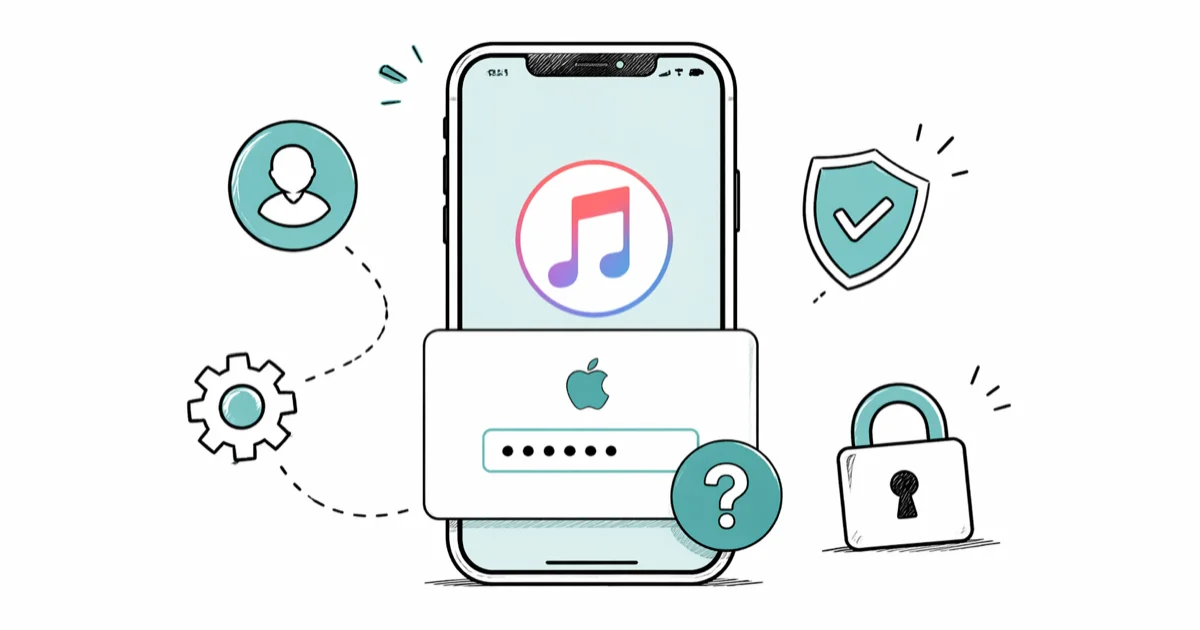
Quick AnswerRead the prompt before changing anything. Apple lists an unfinished iCloud restore, a recent password change, waiting downloads, and a Family Sharing purchase request as causes to check.
A repeated iTunes password prompt doesn’t prove the password is wrong. First identify which Apple service is asking and when.
Apple’s current support page names four supported situations, each tied to a specific account action or pending request.
Only manage your own Apple Account; unauthorized access can violate privacy.
- Read the full prompt and note whether it mentions iCloud, Media & Purchases, the App Store, iTunes Store, or Family Sharing.
- Check Apple System Status before changing account settings.
- Let a recent iCloud restore finish while the device stays on reliable Wi-Fi and power.
- Resume content waiting in Automatic Downloads, or cancel a download you no longer want.
- Review the purchase-password frequency, and don’t delete Keychain items or erase the device based only on a repeated prompt.
#Why Does iTunes Keep Asking for a Password?
The label “iTunes” can be misleading on current devices. A prompt may come from the iTunes Store, App Store, Apple Books, Media & Purchases, iCloud, or a Family Sharing request. Those services share an Apple Account, but a prompt from one service doesn’t prove that every service has failed.
According to Apple’s current repeated-password guidance, the supported causes to check are concrete: a restore still in progress, recently changed sign-in information, content waiting to download, or a child’s iTunes Store purchase request for a family organizer. Apple doesn’t describe background token corruption, stuck iMessage sessions, or a damaged Keychain entry as the default explanation for this symptom.
Take a screenshot of the full message if it disappears quickly. The service name and button labels are more useful than how often the alert appears.
#Check 1: Confirm Whether Apple Has an Outage
Open Apple System Status and look for the service named in the alert. Apple’s sign-in guidance puts this check first for iCloud connection problems.
If the affected service shows an incident, wait for Apple to resolve it. Repeatedly signing out, changing a password, or resetting the device can’t repair a server-side outage. If the status page is green, continue with the device-specific checks below.
Also confirm that ordinary websites load on the same connection. Our guide to Apple ID server connection errors covers network checks when several Apple services fail together.
#Check 2: Let a Recent iCloud Restore Finish
Did the prompts begin after setting up or restoring the device? Apple says a recently restored device may keep asking for the Apple Account password while the iCloud restore is incomplete.
Keep the iPhone or iPad connected to reliable Wi-Fi and power while the restore finishes. Don’t sign out in the middle of that process. Check Settings > [your name] > iCloud > iCloud Backup for a restore or backup status message, and address any warning shown there.
If other iCloud content is also incomplete, such as Notes, use the status shown by that service instead of assuming the password prompt is the root cause. Our iCloud Notes sync guide explains how to separate a sync delay from an account sign-in problem.
#Check 3: Update Services After a Password Change
If you recently changed your Apple Account password, a service may still have the old sign-in information. Apple advises making sure each iCloud service you use has the updated credentials.
Read the alert, then enter the new password only in a trusted Apple system prompt or in Settings. Don’t follow an unexpected link in an email or text message to “verify” the account. If a device says the account is locked or disabled, use Apple’s account recovery flow rather than trying the old password repeatedly. Our locked Apple ID guide explains the difference between a lock notice and an ordinary purchase prompt.
Changing the password again isn’t a neutral troubleshooting step. It signs other sessions out and creates more places that need the new credentials, so reserve another reset for a password you actually can’t use or an account-recovery instruction from Apple.
#Check 4: Resume Interrupted Automatic Downloads
Apple says content ready to download can trigger a request for the Apple Account email address or phone number and password. Open the App Store, tap your photo, and look for an app or update that is waiting, paused, or unable to finish. Resume it, or cancel it if you no longer want it.
If the prompt appears only in one media app, check that app’s pending content.
Don’t claim the problem is solved after waiting an arbitrary number of minutes. Complete or cancel the pending download, close the relevant app normally, and watch for the same prompt during the action that previously triggered it.
#Check 5: Identify a Family Sharing Purchase Request
If you’re a family organizer, parent, or guardian, Apple says the prompt may be a child family member’s iTunes Store purchase request. Read the item and requester shown before approving or declining it.
An Ask to Buy request is expected behavior, not a stuck password. Don’t approve a request you don’t recognize.
#Is the Password Prompt Expected for Purchases?
Maybe. Apple lets you choose how often purchases require a password. According to Apple’s 15-minute purchase-password setting, Always Require asks for the password on every purchase, while the other listed option waits 15 minutes after a password entry. With Face ID or Touch ID enabled for purchases, Apple says biometric authentication is requested for every download, including free items.
On iPhone or iPad, check Settings > [your name] > Media & Purchases > Password Settings. If Password Settings isn’t visible, Apple says Face ID or Touch ID is already enabled for purchases. A prompt that exactly follows the configured policy isn’t a loop to repair.
Paid-item password protection can’t be disabled completely on iPhone, iPad, or computer.
#Check 6: Update Software and Verify the Connection
Apple’s sign-in guidance recommends current software. Install an available update through Settings > General > Software Update on iPhone or iPad, or System Settings > General > Software Update on Mac.
An update is a general compatibility step, not proof that a particular release broke authentication. If an iTunes or Finder update fails, resolve the reported error first with our iTunes update error guide.
For connection failures, Apple’s App Store and iTunes Store connection guide says to verify internet access, check VPN or third-party security software, confirm date and time, and try another network. Follow that path when the message says a store or service can’t connect; don’t use it to explain an unrelated Family Sharing prompt.
#Check 7: Sign Out Only After Protecting Your Data
Signing out is a broad account action, not the first fix for an unexplained alert. Apple says signing out of iCloud also signs the device out of the App Store, iMessage, and FaceTime and turns off multiple iCloud services on that device.
If Apple Support directs you to sign out, make an up-to-date backup first and confirm recent iCloud changes have synced. Apple’s sign-out instructions say iCloud information remains in iCloud, but it can be removed from the device unless you choose to keep a copy when prompted. On current iPhone software, choose Sign Out But Don’t Erase if you plan to keep using the device, then follow the onscreen explanation of what remains.
Don’t delete every “iTunes” or “Apple ID Authentication” item from Keychain. Apple’s Keychain overview explains what Keychain stores, but it doesn’t prescribe bulk deletion as a fix for repeated Apple Account prompts. Likewise, a DFU restore erases and reinstalls device software; it isn’t an evidence-based remedy for an account or purchase request.
If the same verified prompt continues, contact Apple Support with the screenshot and reproduction steps.
#Bottom Line
Start by identifying the service in the alert. Check Apple’s status, finish any active restore or download, update sign-in information after a real password change, and verify whether purchase settings or Family Sharing explain the request.
Use sign-out only after a backup and only when the narrower checks don’t fit. Don’t erase the device, purge Keychain entries, or reset the password merely because an old guide attributes every prompt to a corrupt token.
#Frequently Asked Questions
Why does the prompt return after I enter the correct password?
Apple lists several reasons that don’t mean the password is wrong: a restore may still be running, another service may need updated credentials after a password change, content may be waiting to download, or a Family Sharing purchase may need approval.
Can Apple services cause repeated prompts?
An outage can prevent a service from completing sign-in or a download. Check Apple System Status for the named service before changing local settings.
Should I toggle iMessage and FaceTime?
Not unless the alert or an Apple troubleshooting flow points to those services. Apple’s current repeated-password page doesn’t list toggling them as a general fix.
Should I delete iTunes entries from Keychain Access?
No broad Keychain deletion is supported by the Apple pages cited here. Removing credentials without identifying the requesting service can create more sign-in prompts.
Will signing out erase my iPhone?
Apple offers Sign Out But Don’t Erase on current iPhone software, but signing out still disables iCloud services and can remove iCloud information from the device if you don’t keep a copy. Back up and read every confirmation first.
Is an iTunes backup password the same as an Apple Account password?
No. An encrypted local backup has its own password. If that is the credential you forgot, use our encrypted iTunes backup password guide instead of resetting the Apple Account.

Mac mini M6 vs M5 Pro: Which Model Should You Buy?
Mac mini M6 vs M5 Pro compared on price, memory, ports, displays, and real workloads. Find the better 2026 Mac mini for your desk and budget.

Apple Siri Settlement: Who Qualifies and How to Claim
Apple's $250 million Siri settlement covers iPhone 15 Pro and iPhone 16 models bought June 2024 to March 2025. See who qualifies and how claims work.

iOS 26.6.1 Security Update: What Apple Fixed and Who Gets It
Apple released iOS 26.6.1 on August 17 with 29 security fixes, including an IPSec interception bug. See what it patches, who gets it, and how to update.

iPhone Adaptive Power: How It Works and When to Use It
Learn how iPhone Adaptive Power works, which models support it, what it changes, and when Low Power Mode is still the better battery-saving choice.