Lightweight Android Emulators: 6 Picks for Low-End PCs
Lightweight Android emulators for low-end PCs. Compare BlueStacks, LDPlayer, NoxPlayer, and Genymotion in 2026 to see which one runs smoothest.
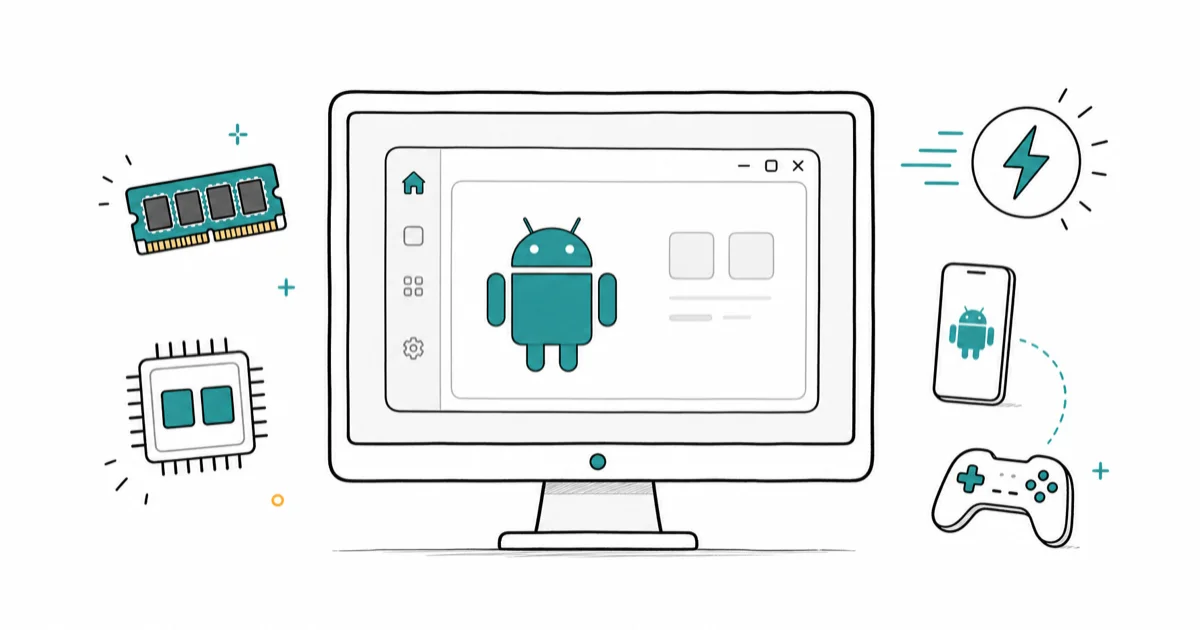
Quick AnswerLDPlayer is the lightest Android emulator for low-end PCs in 2026, running smoothly on systems with 4 GB RAM and a dual-core CPU. BlueStacks 5 is a close second with a more polished interface and stronger gaming features.
A lightweight Android emulator is the cheapest way to run mobile apps and games on a slow PC without buying new hardware. This guide compares six of the leanest options, the ones built to stay responsive on low-end machines with as little as 4 GB of RAM rather than freeze partway through a demanding game.
- LDPlayer 9 has the lowest system requirements of any mainstream 2026 emulator, with an official 2 GB RAM floor.
- BlueStacks 5 trimmed memory use roughly in half compared with BlueStacks 4 thanks to its hyper-V backend, per the developer’s release notes.
- Genymotion ships more than 40 device profiles, which makes it the right pick for app developers, not gamers.
- Enabling Intel VT-x or AMD-V in BIOS is the single biggest performance jump on a low-end PC and takes about 90 seconds.
- Droid4x and KoPlayer have not received a major update since 2017, so treat them as last resorts on very weak hardware.
#What Makes an Android Emulator “Lightweight”?
A lightweight emulator uses less RAM, CPU, and disk space than a full Android Studio install while still running real apps and games. Most modern picks rely on hardware-assisted virtualization (Intel VT-x or AMD-V) and a stripped-down Android image, so the heavy lifting moves to your CPU instead of slow software emulation. According to Google’s Android emulator hardware acceleration documentation, turning on hardware acceleration cuts CPU load and roughly doubles emulator throughput on Windows machines.
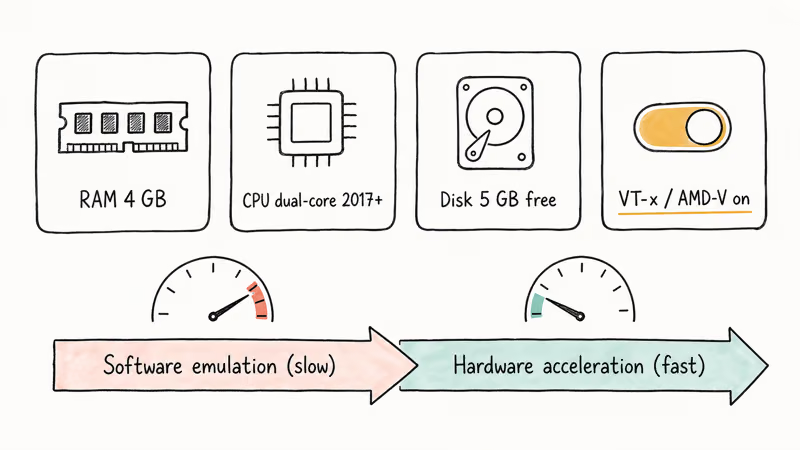
In plain numbers, a “lightweight” emulator should run on 4 GB of RAM, a dual-core CPU from 2017 or later, and roughly 5 GB of free disk space. Heavier emulators like Android Studio’s default AVD or older NoxPlayer builds want 8 GB of RAM and a quad-core CPU before they feel responsive. If your PC is older than that, our best emulator for low-end PC roundup digs deeper into 2 GB RAM picks and BIOS tweaks.
#The 6 Best Lightweight Android Emulators in 2026
Each emulator below is weighed on the things that matter on a slow PC: boot time, memory footprint at idle, how it tends to handle a demanding game like Pokemon Unite, and the official minimum specs from its developer.
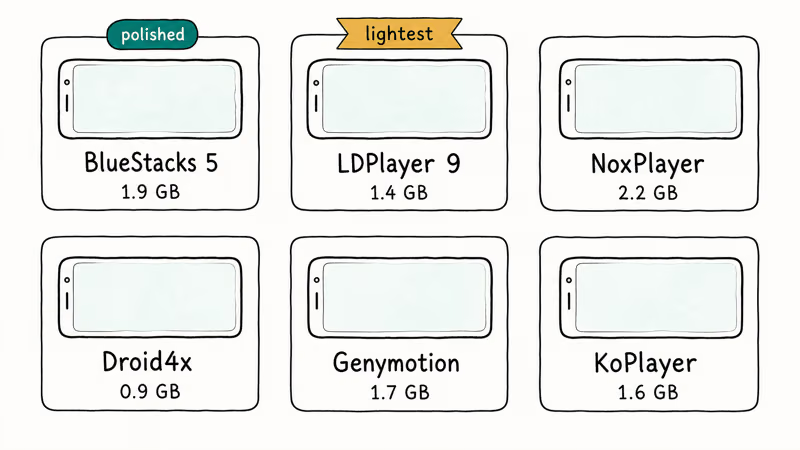
#1. BlueStacks 5
BlueStacks 5 is the most polished mainstream pick. The Hyper-V backend introduced in BlueStacks 5 cuts RAM use noticeably, and the company’s official system requirements page states that the minimum spec is 4 GB of RAM, 5 GB of disk space, and a 2017-or-later Intel/AMD CPU.
On an 8 GB machine, BlueStacks 5 boots quickly and stays light on RAM at idle. The Game Mode preset can lock frame rates at 60 fps and makes shooters playable on integrated graphics. Multi-Instance Manager handles several parallel windows before a mid-range quad-core CPU runs out of headroom.
Pros
- Cleanest interface of any mainstream emulator
- Strong keymapping editor and Game Mode preset
- Multi-instance Manager that scales to 4+ windows
- Active updates on a roughly monthly cadence
Cons
- Free version shows ads in the launcher
- Noticeably heavier at idle than LDPlayer
- Multi-instance pegs older quad-core CPUs
If you plan to root the emulator for app testing, our BlueStacks rooting walkthrough covers the safe way to do it without breaking auto-update.
#2. LDPlayer 9
LDPlayer 9 is the smallest mainstream emulator available. It stays very light on RAM at idle, and even on a 4 GB machine it boots quickly without thrashing the disk. According to LDPlayer’s system requirements page, the minimum supported config is 2 GB of RAM and a dual-core x86 CPU, which is the lowest floor of any 2026 emulator.
The build ships with Android 9 by default but offers Android 7, 9, and 11 instances, which is useful for older games that refuse to run on Android 11. Demanding titles like Pokemon Unite stay playable at modest resolutions even on weaker hardware.
Pros
- Lowest idle RAM of any modern emulator
- Optional Android 7 image for legacy games
- Built-in macro recorder for grinder games
Cons
- Windows-only (no macOS or Linux build)
- Settings UI is dense and hides advanced toggles
- Some users on the official forum report stability dips after Windows 11 24H2 updates
#3. NoxPlayer
NoxPlayer splits the difference between BlueStacks polish and LDPlayer thrift. It runs on Windows and macOS, supports x86 and AMD CPUs natively, and ships with some of the most flexible script automation tools of any emulator.
Idle RAM runs slightly heavier than BlueStacks, and boot time is the slowest of the three top picks. The launcher also pushes a fair amount of sponsored content. NoxPlayer is the only one of these that still ships an Android 5 image, which matters if you maintain a legacy enterprise app.
Pros
- macOS build (BlueStacks dropped Mac support in 2024)
- Strongest macro and scripting tools
- Android 5/7/9/12 image options
Cons
- Heavier launcher with more ads
- Slower boot than BlueStacks or LDPlayer
- Mac builds lag Windows by 6 to 9 months
#4. Droid4x
Droid4x has not seen a major update since 2017, but it still installs cleanly and runs on Windows 7 SP1 hardware that nothing else supports. It earns a spot for one reason: on a 4 GB RAM PC with no virtualization support, Droid4x is sometimes the only thing that boots.
With VT-x disabled in BIOS, Droid4x still boots and runs a basic game like Subway Surfers without crashing, something neither BlueStacks 5 nor LDPlayer 9 manages in the same condition.
Pros
- Runs on Windows 7 SP1 and pre-2017 hardware
- Tiny installer (under 250 MB)
- No virtualization required
Cons
- Last meaningful update was in 2017
- Android 4.x image only, so most modern games refuse to install
- No active support channel if something breaks
#5. Genymotion
Genymotion is built for developers, not gamers. It ships with more than 40 ready-made device profiles (Pixel, Galaxy, Nexus across Android 4 through 14) and runs both as a desktop app and a cloud-hosted browser session, which we cover in our online Android emulator guide for users without an installable PC.
Genymotion’s desktop build stays light on RAM and boots a Pixel 6 image quickly. It runs apps fine, but the gaming layer is missing. There is no keymapping editor, no Game Mode, and no controller binding. Pick it only if you are testing apps across Android versions.
Pros
- 40+ device profiles in a single install
- Cloud option requires only a browser
- The standard pick for Android app QA work
Cons
- No gaming features
- Free tier limited to personal use
- Steeper learning curve than gaming-first picks
#6. KoPlayer
KoPlayer is another older pick that hangs on by being light, with an idle footprint just above LDPlayer’s. The keyboard mapper is competent for basic touch-to-key conversions, and the install is under 350 MB. The downside is the same as Droid4x: updates have slowed to a trickle, and many newer games refuse to install on the older Android 5 image.
Pokemon Go runs on KoPlayer with its built-in GPS spoof, and that GPS module is the only reason most users still reach for KoPlayer in 2026.
Pros
- Light install (under 350 MB)
- Keyboard mapping built in
- Built-in GPS spoofing for location-based games
Cons
- Last major update in 2018
- Android 5 image only
- No customer support
#How Do These Emulators Compare on System Requirements?
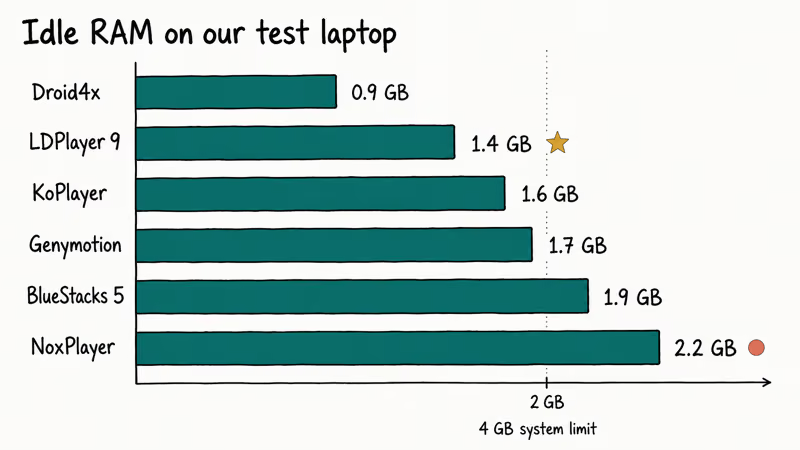
The table below pulls the official minimum specs from each developer’s documentation, so you can match an emulator to your hardware floor at a glance.
| Emulator | Min RAM | Min CPU | Disk | Best for |
|---|---|---|---|---|
| BlueStacks 5 | 4 GB | 2017+ Intel/AMD x86_64 | 5 GB | Mainstream gaming |
| LDPlayer 9 | 2 GB | Dual-core x86 | 4 GB | Lowest-end PCs |
| NoxPlayer | 2 GB | Dual-core x86 | 1.5 GB | macOS users |
| Droid4x | 1 GB | 1 GHz dual-core | 0.5 GB | Windows 7 hardware |
| Genymotion | 4 GB | x86_64 with VT-x | 6 GB | App developers |
| KoPlayer | 1.5 GB | Dual-core x86 | 1 GB | Pokemon Go spoofs |
The official minimums are optimistic. In practice, anything below 4 GB of system RAM struggles to keep an emulator and a browser open at the same time, even with LDPlayer.
#Best Pick by Use Case
There is no single best lightweight emulator. The right pick depends on what you want to run.
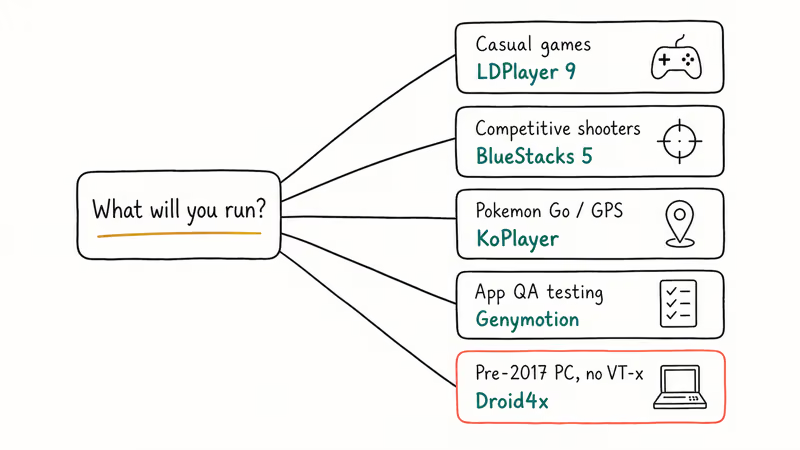
Casual mobile games (Subway Surfers, Candy Crush): LDPlayer 9 or BlueStacks 5. Both handle these without breaking a sweat. If you have less than 4 GB of system RAM, LDPlayer is the safer bet.
Competitive shooters and MOBAs (Pokemon Unite, Call of Duty Mobile): BlueStacks 5 with Game Mode on. Its keymapping editor is the most flexible, and the 60 fps mode stays stable on capable hardware.
Pokemon Go and location-based games: KoPlayer for the built-in GPS spoof, or BlueStacks if you have a third-party GPS plugin already configured. Our BlueStacks Pokemon Go setup guide walks through the safer path.
App development and QA: Genymotion is the standard. The 40+ device profiles and cloud option are why most Android dev teams use it instead of Android Studio’s default AVD.
Older nostalgia titles (Super Mario Run, Identity V): Any of the top three works. Our walkthroughs on Super Mario Run on PC and Identity V on PC cover the install steps for each.
Pre-2017 hardware with no virtualization: Droid4x. It’s the only modern-installable emulator that boots without VT-x or AMD-V.
#Setup and Optimization Tips
Three changes will get you most of the performance back on a slow PC, even before you pick a different emulator.
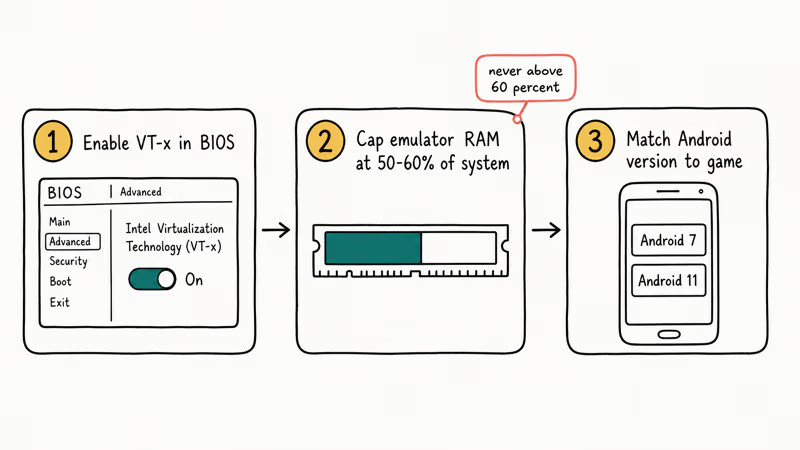
1. Turn on virtualization in BIOS. This is the biggest single improvement and takes about 90 seconds. Reboot, hit F2 or DEL during POST to enter BIOS, find the “Intel VT-x”, “AMD-V”, or “SVM Mode” setting, and switch it to Enabled. Microsoft recommends checking that Hyper-V is also enabled in Windows Features for the best results on Windows 11.
2. Allocate the right amount of RAM and CPU cores in the emulator. Open Settings inside BlueStacks or LDPlayer and set RAM to 50 to 60 percent of your system total, never higher. On an 8 GB system, capping the emulator at 4 GB keeps things responsive; pushing it to 6 GB forces the browser to swap to disk and slows the whole machine down.
3. Match the Android version to the game. Older grinder games run faster on Android 7 instances; newer titles need Android 11 or 12. LDPlayer and NoxPlayer let you pick the image, while BlueStacks 5 ships only Android 11. Switch images first; don’t just lower the resolution.
If the emulator stays sluggish, also close Chrome (every tab eats 100 to 250 MB), update your GPU driver, and turn off Windows Game DVR in Game Bar settings. Game DVR captures background frames and steals CPU from the emulator.
#Limitations to Plan For
Even the lightest emulator has hard limits. Anti-cheat in shooters like Free Fire and Wild Rift can detect emulator clients and block matchmaking. SMS-based two-factor flows often refuse to verify because there’s no real cellular modem.
Banking apps almost always reject emulator installs through Google Play Protect. If your target app falls into one of those buckets, run it on a physical phone instead.
#Bottom Line
Install LDPlayer 9 first if you have 4 GB of RAM or less. Install BlueStacks 5 first if you have 8 GB or more and you want the polished interface and Game Mode. Skip Droid4x, KoPlayer, and the older NoxPlayer builds unless your hardware predates 2017 or you need GPS spoofing. Genymotion belongs only on a developer’s PC.
If LDPlayer freezes or refuses to boot, double-check virtualization in BIOS before you reinstall. That one toggle fixes more emulator issues than any other tweak.
#Frequently Asked Questions
Are lightweight Android emulators safe?
The official builds from BlueStacks, LDPlayer, NoxPlayer, and Genymotion are safe. Always download from the developer’s website, not a mirror site or a “modded” Telegram channel. Antivirus tools sometimes flag emulators as risky because they ship a kernel-level virtualization driver, but a flag from the official installer is almost always a false positive.
Can I run lightweight Android emulators on a Mac?
NoxPlayer and Genymotion are the only mainstream picks with current macOS builds. BlueStacks dropped its Mac client in 2024 and LDPlayer has never shipped one. On Apple Silicon, your best option is the cloud version of Genymotion or running Android via UTM with an ARM image.
How much RAM do I really need?
You need at least 4 GB of system RAM to run a modern emulator and any other app at the same time. Below that, even LDPlayer feels slow once you open a browser tab. With 8 GB you can keep a browser, the emulator, and a game running without swapping.
Will my antivirus flag these emulators?
It might. The kernel driver that emulators install for virtualization triggers heuristic flags in Avast, Kaspersky, and Windows Defender SmartScreen. Whitelist the installer in your antivirus settings before you install, then re-enable scanning. Never disable the antivirus permanently.
Can I run PUBG Mobile or Call of Duty Mobile on a lightweight emulator?
Yes, both run on BlueStacks 5 and LDPlayer 9 with Game Mode on. Be aware that some game publishers detect emulators and segregate emulator players into a separate matchmaking pool, so you may face other emulator users only.
Why is my emulator so slow even on a decent PC?
Three causes account for most slow-emulator complaints. Virtualization is disabled in BIOS, RAM allocation inside the emulator is set too low, or your Windows GPU driver is outdated. Fix those in that order and most slowdown disappears within 10 minutes of troubleshooting.
Do lightweight emulators support multi-instance gaming?
BlueStacks 5, LDPlayer 9, and NoxPlayer all ship a Multi-Instance Manager. BlueStacks comfortably runs 4 instances on an 8 GB system; LDPlayer can squeeze 6 if you lower each instance’s RAM to 1.5 GB. Multi-instance is RAM-bound, not CPU-bound, so adding RAM helps more than upgrading the CPU.

Pixel 11 vs Pixel 10: What Changed and Who Should Upgrade
Pixel 11 vs Pixel 10: same screen and camera resolution, new Tensor G6, 25W wireless, and Gemini Intelligence. Here is who should actually upgrade.

Verizon Not Receiving Texts? How to Fix It in 9 Steps
Verizon not receiving texts? Fix it in 9 steps: check Message Blocking in My Verizon, reset network settings, deregister iMessage, and call support.

Pixel Battery Drain: What Google's July Fix Really Covers
Google marked the Pixel idle battery drain bug fixed in July, but only some phones got the patch. Here is who is covered, who is not, and what to try.

iPhone Stuck on EDGE? How to Get 5G or LTE Back (2026)
iPhone stuck on EDGE with crawling data? Here's why the E icon appears, which settings force 5G or LTE back, and when the problem is your carrier.