Best Android Emulator for Low-End PC: Top 10 Picks (2026)
Choosing the best emulator for a low-end PC can be a pretty tough task for any individual. However, if you read this guide through the end,...
Quick AnswerLDPlayer is the best emulator for low-end PCs because it runs smoothly on systems with just 2 GB RAM while supporting the latest Android games and apps.
Choosing the best emulator for a low-end PC can be a pretty tough task for any individual. However, if you read this guide through the end, you can find the best recommendations. So, keep reading if you’re searching for a superb Android emulator for a low-end PC.
- LDPlayer runs Android 5.1+ games on PCs with as little as 2 GB RAM and supports keyboard mapping for better control
- NoxPlayer offers root access and DirectX/OpenGL switching, giving you fine-tuned control over graphics performance
- BlueStacks 5 uses a hyper-visor architecture that meaningfully cuts RAM usage compared to BlueStacks 4, according to the developer
- MEmu works natively with both Intel and AMD processors and can handle productivity apps alongside games
- Genymotion emulates over 40 Android device profiles and is the top choice for developers testing across multiple screen sizes
In the past, apps were viewed as an essential feature of smartphones. Android apps are now being used on PCs. You can only run Android apps on your PC if you install an Android emulator.
Android emulators are virtual machines or pieces of software that enable Windows computers to run Android apps. Because an emulator doesn’t virtualize the operating system, you can execute only the apps you want.
Originally intended for use by software developers, it’s now accessed by virtually everyone. You may download a slew of free emulators for your PC from the internet. In general, emulators demand high-end specs like large amounts of RAM and a strong processor to run smoothly, but the options below can handle PCs with limited resources.
#Which Android Emulators Work Best on Low-End PCs?
You can read this if you’re looking for an excellent Android emulator for a low-end PC. As PCMag’s guide to Android emulators confirms that these tools let you run 50+ Android apps without a physical device, picking the right one matters. The best options below focus on lighter system requirements, useful controls, and practical compatibility for older PCs.
PS: if you’re looking for the top Android emulator for iOS, you should check out that guide. You might also like our picks for the best GameCube emulators.
For more emulator-specific reading, see our roundups of lightweight Android emulators and online Android emulators.
If you’re building a dedicated gaming rig, the best OS for gaming comparison covers Windows, Linux, and lightweight alternatives.
#01. LDPlayer
This virtualization emulator enables users to use Android on low-end computers. It’s available for download here and it’s an excellent low-end PC emulator out there. LDPlayer is a Windows Emulator that’s pretty safe and has a couple of ads. It’s also free of spyware.
With LDPlayer’s Android 5.1 support, you can easily play the newest games. According to LDPlayer’s official documentation, the emulator requires just 2 GB of RAM minimum, making it one of the lightest options available. LDPlayer’s user interface is quite like Nox’s.
Keyboard mapping controls are also included, as is support for the most recent games. The Play Store, screen rotation, and specifying the device’s virtual location are just a few of the many options.
#Features
-
It comes with custom controls that let you play with a mouse and keyboard
-
Excellent compatibility
-
Features multiple tabs to play several games simultaneously
-
Scripts and macros to take control of games
-
Free
#02. NoxPlayer
Here’s another excellent emulator for PCs with low-end processors: NoxPlayer. There are some similarities to BlueStacks, but it has a slew of additional, impressive features.
Gamers will enjoy using Nox as an emulator. Keyboard and mouse control of games is highly possible because of its special features. Players would be thankful for the ability to select controls, which is the most amazing aspect.
You can use this software’s DirectX & OpenGL graphic features to fine-tune your virtual Android device’s specifications. For instance, you can maximize your RAM and CPU power allocation.
#Features
-
Custom controls are available with touchscreen and game controls
-
Root access is available
-
No annoying ads
-
Free
-
Compatible with DirectX and OpenGL
#Most Popular Android Emulators Overall
#03. Bluestack 5
You can easily run Android apps on low-end computers with the Bluestacks app player, an Android emulator. As BlueStacks’ official blog confirms that version 5 uses up to 40% less RAM than its predecessor, this emulator handles numerous accounts simultaneously. It’s quick and steady, and it lets you download pretty much anything you want from the Google Play Store.
It’s pre-installed on the device. If you’re on Facebook, you can stream games to your friends. Bluestacks has a full-screen mode as well. Several features allow you to use your keyboard and gamepads to control a variety of the game’s functions.
Besides transferring files from virtual devices to the PC, you may use a single button to flip your screen.
#Features
-
Preset controls that can be customized
-
It lets you play several games at the same time
-
Record your favorite games and play them later with a single-key operation
-
High FPS
#Lightweight Emulator Options for Budget PCs
#04. KOPlayer
Here’s a great option if you wonder about an emulator for a low-end PC. KOplayer is yet another incredible and simple-to-use emulator that allows you to simply duplicate your favorite Android games.
Many other players around the world like this Android emulator for low-end PC. KOplayer, like plenty of other emulators, provides keyboard and mouse controls for gameplay. You can run it on any PC, even a low-end one.
Using this emulator, gamers could record their gameplay and post it to video-sharing websites like YouTube. You may also utilize the play store to download applications. Keymapping is one of this emulator’s nicest and most impressive features for low-end PC.
#Features
-
Excellent hardware acceleration with OpenGL
-
Multiple account compatibility
-
Recording and sharing the screen
-
Customizable controls
-
Enhanced display
-
Plenty of games and apps
#05. Droid4X
This is a low-configuration emulator for nearly all PCs that doesn’t require any additional software to run. Simple to use and compact, this emulator is a great choice.
Droid4X Offers a Pleasurable Experience to Its Users. This has improved over time, making this ideal if you are looking for the best emulator for a low-end PC.
Use the emulator’s built-in screen recorder to record anything you want. You may quickly and easily download apps or game files using the built-in downloader. You can also use this emulator to test your apps if you’re a developer.
#Features
-
Works with touchscreen
-
Customizable controllers
-
Records videos or even capture screenshots
-
Downloading and installing apps through the emulator
-
Free
#Free and Paid Emulator Alternatives
#06. YouWave
To run Android apps on your windows pc, this is a lightweight and convenient emulator. Try YouWave’s free version if you’re having trouble with other emulators. Also, it lets you download many apps from various app stores.
For an additional fee, you could also go for the Premium subscription to this emulator. This specific tool includes additional features, including no ads and VT-X.
Multiple instances allow you to run different games using the same account. If not, you can play the exact game using multiple accounts. If you’d rather not spend a lot of time looking for options, YouWave’s user interface is ideal.
#Features
-
Lightweight emulator
-
Built-in, comprehensive app store
-
Plenty of features
-
User friendly
#07. MEmu
Gaming on low-end computers can also benefit from this emulator. MEmu is especially useful for Android games like Clash of Clans and Among Us because keyboard mapping and customization make desktop play more comfortable.
Regarding desktop specs, 2 GB of RAM, Intel, or even an AMD processor are standard. According to MEmu’s official requirements page, the emulator supports Android 5.1, 7.1, and 9.0 images, giving you flexibility across 3 Android versions.
Unlike Bluestacks, MEmu performs at high speed even when running productivity apps, Bluestacks. It can also place a fake location on its map if desired.
MEmu’s greatest strength is that it works with Nvidia and AMD processors with no trouble. So, if you like to use the best Android emulator for a low-end PC, that’s a great option.
#Features
-
Faster gameplay
-
Perfect FPS
-
Many graphics features
-
Free and user-friendly
#08. AMIDuOS
This is a relatively new Android Emulator that has just been released. This emulator comes in two variations. However, keep in mind that this isn’t a free emulator, so you’ll need to pay for both versions. This option is still good if you want the best emulator for a low-end PC.
Both AMIDuOS Emulator versions are available for the following price: regardless, it’s a once-in-a-lifetime purchase. This means that you only should pay once to gain access to it for the rest of your life.
AMIDuOS is a high-performance emulator focused on enhancing performance. You can’t use it in a way that’s different from how you use your phone.
If you’re a well-known Android user, AMIDuOS can meet your needs for both functionality and execution. Generally speaking, it’s an excellent emulator for low-end PC.
#Features
-
It isn’t a free tool; you should purchase it.
-
Amazing performance for an Android emulator for low-end PC
-
One-time payment
-
Plenty of features
#Emulators Built for Developers and Power Users
#09. Andy OS
As a fan of Android emulation, you’ve likely heard of Andy OS. It’s a free Android emulator for low-end PCs and Mac computers.
Andy OS breaks down the barrier between PCs and workplaces. It provides a PC-like experience, unlimited storage, and the ability to run almost all Android apps.
Your PC can enjoy all of Android’s features with no problem. Among an emulator for low-end pcs, this makes Andy a good choice.
#Features
-
A free tool with plenty of features
-
User-friendly
-
Ideal as an emulator for low-end PC
#10. Genymotion
Well, Genymotion is, without a doubt, one of the top low-end PC Android Emulators. Its widespread use is due in large part to the fact that it’s both powerful and simple to use. For gamers and Android developers alike, this is the only Android Emulator that can compete with it.
Everyone is choosing Genymotion for the following reasons:** **several devices can be supported and emulated by it. Genymotion has you covered from the Nexus to the Galaxy.
Some of its most notable capabilities include automatically recognizing your computer’s mouse and keyboard. Access to the internet and GPS tracking are also included.
Our favorite aspect? It’s the flexibility to change the window size. You should know that you can change the size of the window while it’s running.
It’s an excellent emulator for low-end PC systems, so you can try it.
#How Do You Set Up an Android Emulator on a Low-End PC?
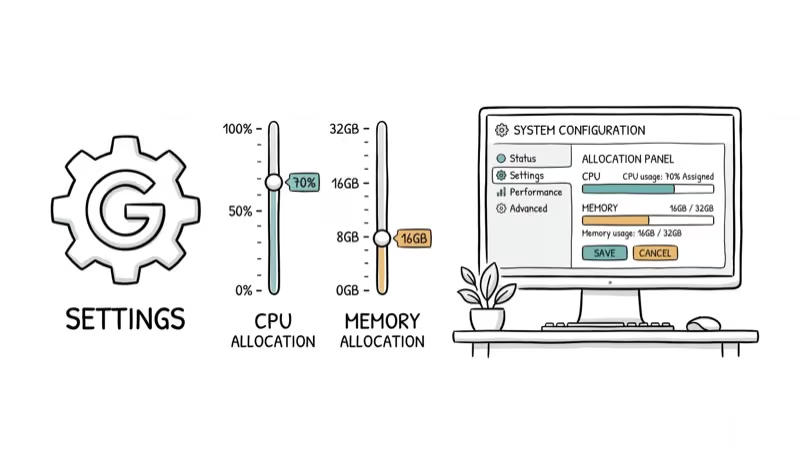
Setting up an emulator on a low-end PC usually takes under 10 minutes. Download the installer from the official website, run it, and adjust the RAM allocation to about half your total system memory. Enable virtualization (VT-x) in your BIOS settings for better performance. Most emulators like LDPlayer and BlueStacks 5 walk you through the process with a setup wizard.
#Bottom Line
LDPlayer and BlueStacks 5 are the two best emulators for low-end PCs if your goal is gaming with minimal lag. For developers who need device emulation across multiple Android versions, Genymotion is the stronger pick. Choose the one that fits your use case, and you’ll get a smooth Android experience even on budget hardware.
#Frequently Asked Questions
Are these Android emulators free to use?
Yes, most of the emulators in this list are free to download and use. AMIDuOS is the exception, requiring a one-time purchase for full access.
Can you run these emulators on macOS?
Most of the mentioned emulators are built for Windows. However, BlueStacks and NoxPlayer offer macOS versions that work on Intel-based Macs.
Will using an emulator slow down a low-end PC?
It depends on how much RAM you allocate. The emulators listed here are optimized for low-end systems and shouldn’t cause major slowdowns if you keep RAM allocation under 2 GB.
Can you play high-end Android games on these emulators?
Yes, these emulators can run most Android games, including graphically demanding titles like Genshin Impact and Call of Duty: Mobile, though performance varies by hardware.
Do these emulators support running multiple instances?
BlueStacks, NoxPlayer, MEmu, and LDPlayer all support multiple instances, letting you run several apps or game accounts simultaneously. Each extra instance uses additional RAM.
Which emulator uses the least RAM?
LDPlayer and MEmu have the lowest minimum requirements at 2 GB of RAM. BlueStacks 5 also reduced its memory footprint significantly compared to version 4.

Pixel 11 vs Pixel 10: What Changed and Who Should Upgrade
Pixel 11 vs Pixel 10: same screen and camera resolution, new Tensor G6, 25W wireless, and Gemini Intelligence. Here is who should actually upgrade.

Verizon Not Receiving Texts? How to Fix It in 9 Steps
Verizon not receiving texts? Fix it in 9 steps: check Message Blocking in My Verizon, reset network settings, deregister iMessage, and call support.

Pixel Battery Drain: What Google's July Fix Really Covers
Google marked the Pixel idle battery drain bug fixed in July, but only some phones got the patch. Here is who is covered, who is not, and what to try.

iPhone Stuck on EDGE? How to Get 5G or LTE Back (2026)
iPhone stuck on EDGE with crawling data? Here's why the E icon appears, which settings force 5G or LTE back, and when the problem is your carrier.