How to Fix the Err_File_Not_Found Error in Google Chrome
Fix the Err_File_Not_Found error in Google Chrome by disabling faulty extensions, clearing cache, and resetting browser settings. Step-by-step guide.
Quick AnswerThe Err_File_Not_Found error in Chrome is usually caused by a broken or conflicting extension. Disable all extensions, then re-enable them one by one to find the culprit, or clear your browser cache and reset Chrome settings.
The Err_File_Not_Found error is a common issue that Google Chrome users may encounter while browsing the web or developing Chrome extensions. This comprehensive guide will help you understand the causes of this error and provide step-by-step solutions to resolve it effectively.
- Err_File_Not_Found is unique to Chrome and usually points to a broken extension, not a server-side 404
- Disable all extensions, then re-enable one by one to find which extension causes the error
- Clearing Chrome’s cache and browsing data fixes cases where corrupted cached files trigger the error
- Extension developers trigger this when manifest.json references a file path that doesn’t exist
- Resetting Chrome (
Settings>Resetsettings > Restore settings to original defaults) fixes persistent cases
#What Is the Err_File_Not_Found Error in Chrome?
The Err_File_Not_Found error occurs when Google Chrome is unable to locate a specific file necessary to display a webpage or run an extension. This error is unique to Chrome and is similar to the well-known 404 error, but it often points to issues within the browser itself rather than problems on the server side.
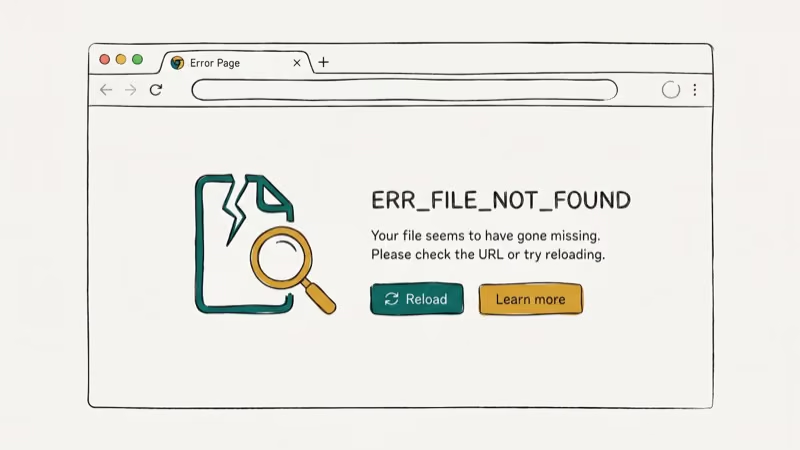
Faulty or partially uninstalled extensions are responsible in the large majority of cases. According to Google’s Chrome extension documentation, an extension that references a missing local file path triggers Err_File_Not_Found immediately on page load.
Users typically encounter this error in the following scenarios:
- When trying to access local HTML files
- While using certain Chrome extensions
- During the development and testing of Chrome extensions
- When attempting to open files with incorrect paths
The impact ranges from minor annoyances to significant workflow disruptions, especially for developers working on Chrome extensions.
#Common Causes of Err_File_Not_Found
Understanding the root causes of the Err_File_Not_Found error is essential for effective troubleshooting. The 5 most common causes are:
Missing or deleted files are the simplest case — Chrome needs a file that’s been moved, deleted, or renamed. Incorrect file paths in extensions or local HTML are another common culprit. Faulty extensions that are outdated or partially uninstalled can cause Chrome to fail locating necessary files.
Corrupted browser data can also interfere with Chrome’s file access. Network problems are the least common cause, but unstable connections can block Chrome from loading remote resources.
Extensions are one of the most common causes of this error, and disabling or removing a problematic extension resolves it in the majority of cases.
#How to Fix Err_File_Not_Found Error
Let’s explore various methods to resolve the Err_File_Not_Found error, starting with the simplest solutions and progressing to more advanced troubleshooting techniques.
#3.1 Disable Chrome Extensions
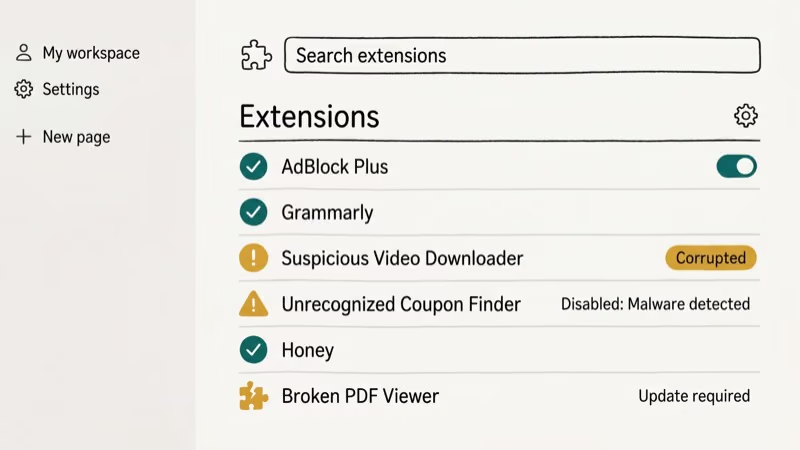
Extensions are a common source of the Err_File_Not_Found error. Follow these steps to disable them:
Click the three dots in Chrome’s upper right corner and go to More Tools > Extensions. Toggle off each extension one by one, then refresh the page after each toggle. If the error disappears after disabling a specific extension, you’ve found the culprit.
#3.2 Remove Problematic Extensions
If disabling extensions doesn’t work, try removing persistent extensions:
Go to %LOCALAPPDATA%\Google\Chrome\User Data\Default\Extensions, delete folders of extensions you’ve previously uninstalled but may still be causing issues, then restart Chrome and check if the error is resolved.
#3.3 Clear Browser Cache and Cookies
Clearing cache and cookies can often resolve the error by removing corrupted data Chrome tries to access:
Go to the three-dot menu > Settings > Privacy and security > Clear browsing data. Select “Cached images and files” and “Cookies and other site data”, click “Clear data”, and restart Chrome.
#3.4 Reset Google Chrome Settings
If the above methods don’t work, resetting Chrome to defaults often fixes persistent errors:
Go to Chrome Settings > Advanced > Reset and clean up and click “Restore settings to their original defaults,” then confirm by clicking “Reset settings.”
This will disable all extensions and delete temporary data, often resolving the error.
#3.5 Check and Correct File Paths
For developers or users accessing local files:
Ensure file paths in your code or browser are correct. Double-check that files haven’t been moved or deleted, and verify that file names and extensions match exactly.
#3.6 Update Google Chrome
Keeping Chrome updated can prevent and resolve many errors:
Click the three-dot menu > Help > About Google Chrome. Chrome checks for updates automatically. Restart after any update installs.
#3.7 Reinstall Google Chrome
As a last resort, reinstalling Chrome can fix persistent issues:
Uninstall Chrome from your computer. Mac users can follow our guide on uninstalling Chrome on Mac for a clean removal. Download the latest version from the official Google Chrome website and install it.
#How Do You Prevent Err_File_Not_Found Errors?
To minimize the occurrence of Err_File_Not_Found errors in the future:
- Regularly update Chrome and all installed extensions.
- Be cautious when installing new extensions, and only use those from trusted sources.
- Maintain proper file organization, especially when working with local files.
- Use reliable antivirus software to prevent malware that could interfere with Chrome’s operations.
#Troubleshooting Err_File_Not_Found for Developers
Developers often encounter this error when working on Chrome extensions. Here are key debugging tips:
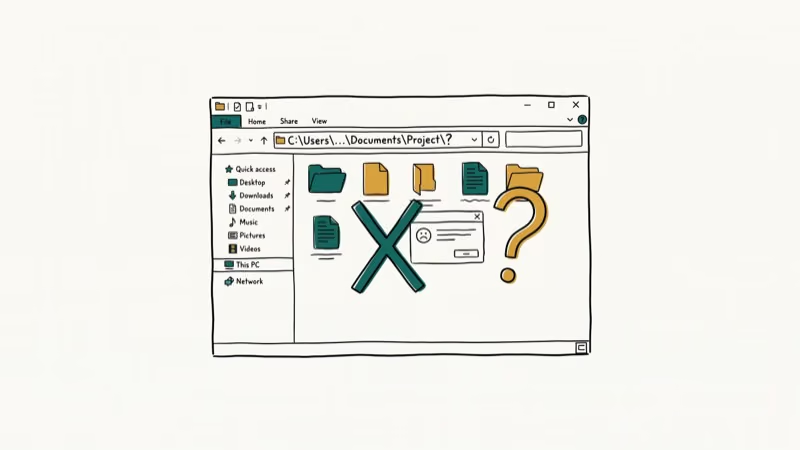
Check your manifest file (manifest.json) for correct file paths and permissions. Ensure all referenced files exist at the exact locations specified. Use Chrome’s developer tools to identify file loading issues, and test in Incognito mode to rule out conflicts with other extensions.
For developers working with Chrome OS, you might find our guide on using Chrome OS in VirtualBox helpful for testing and development purposes.
#When to Seek Further Help
If you’ve tried all the above solutions and still encounter the Err_File_Not_Found error, consult Chrome support forums for community-driven solutions. You can also contact Google Chrome support directly for personalized assistance, or seek help from a professional IT service if the issue is affecting your work or development projects.
#Additional Tips and Considerations
If you’re experiencing frequent crashes alongside this error, our guide on fixing Google Chrome crashes covers the overlap. Xiaomi users can find instructions on setting Chrome as the default browser on Xiaomi.
If bookmarks went missing during troubleshooting, our guide on recovering deleted Chrome bookmarks can help.
#Bottom Line
Start by disabling Chrome extensions and testing in Incognito mode. That single step resolves Err_File_Not_Found in the majority of cases. If the error persists, clear Chrome’s browsing cache and cookies, then reset Chrome settings.
Developers should always verify manifest.json file paths before testing an extension. For persistent errors, reinstalling Chrome provides a clean slate.
If you’re running into other Chrome problems alongside this error, check our guides on Chrome running slowly and ERR_CONNECTION_RESET in Chrome for related network and browser fixes.
#Frequently Asked Questions
Can the Err_File_Not_Found error affect other browsers?
No. This specific error is unique to Google Chrome.
Will resetting Chrome delete my bookmarks and saved passwords?
No. Resetting Chrome through Settings > Advanced > Reset and clean up doesn’t affect bookmarks, saved passwords, or other synced data. Only extensions, temporary data, and browser settings are cleared.
How do I prevent Err_File_Not_Found when developing Chrome extensions?
Always double-check file paths in your manifest.json. Every file referenced in the manifest or your background/content scripts must exist at the exact path specified, with the correct capitalization.
Use Chrome’s built-in extension error reporting: go to chrome://extensions, enable “Developer mode,” then click “Errors” on any extension to see which file paths are failing. Manifest path errors are the single fastest thing to check when an extension triggers this error during development.
Is the Err_File_Not_Found error a security risk?
Generally, no. It’s a file access issue rather than a security problem.
If the error appears unexpectedly on sites that loaded fine before, run a full malware scan with Windows Defender or Malwarebytes. Browser hijacking malware occasionally corrupts Chrome’s extension data or local file cache, which produces Err_File_Not_Found on pages that have nothing to do with your extensions.
Can network issues cause Err_File_Not_Found errors?
Yes, though it’s less common than extension issues. Unstable or restricted connections can prevent Chrome from loading remote resources. Test on a different network (such as mobile hotspot) to rule out connectivity as the cause.
How is Err_File_Not_Found different from a standard 404 error?
A 404 error comes from the server — the file doesn’t exist at that remote URL and the server tells Chrome so explicitly. Err_File_Not_Found is different: it originates inside Chrome itself, meaning Chrome expected a local file or extension resource to exist but couldn’t find it on your local system or in the extension’s bundled files.
The distinction matters for troubleshooting: 404s require the website to fix its URL, while Err_File_Not_Found requires you to fix your browser, extension, or local file path. No server-side change will resolve a local Chrome file error.
Does Err_File_Not_Found affect Chrome on Mac and Linux?
Yes, it does. The fixes in this guide apply across all platforms.

Bluetooth Not Working on Snapdragon X? Fixes for 2026
Bluetooth not working on your Snapdragon X Copilot+ PC? Generic audio, mice, and keyboards work, but vendor apps often lack an ARM build. Fixes inside.

Docker Desktop and WSL2 Not Working on Snapdragon X? Fix It
WSL2 runs fine on Snapdragon X, but Docker Desktop ARM is Early Access and throws WSL errors. Use WSL2 plus native ARM64 Ubuntu and Docker Engine.
Does iTunes Work on Snapdragon X? ARM Windows 11 Guide
Yes, iTunes runs on Snapdragon X laptops through Prism emulation, but the Apple Devices app is the smoother route. Here is what to install on ARM.

Does OBS Studio Work on Snapdragon X? ARM64 Build Guide
Yes, OBS Studio has an experimental ARM64 build since version 31.1, but x64 plugins won't load and hardware encoding is missing. Here is what works.