How to Convert Opus to MP3: 4 Best Free Methods (2026)
Convert Opus to MP3 with FFmpeg, VLC, Audacity, or free online tools. Step-by-step guide for Windows, Mac, and Linux with optimal bitrate settings.
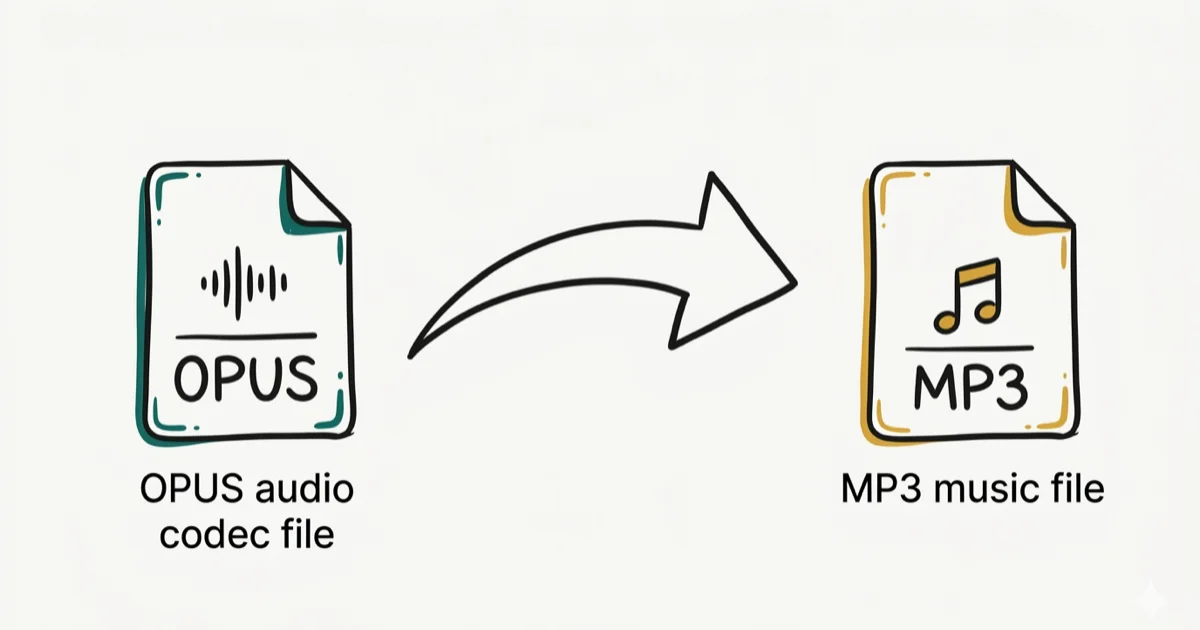
Quick Answer Use FFmpeg, VLC, Audacity, or an online converter like CloudConvert to turn Opus files into MP3. FFmpeg is the fastest option and handles batch conversions in seconds.
Opus files don’t play on every device. If you’ve downloaded voice messages from WhatsApp or Discord, there’s a good chance they’re in Opus format, and your car stereo or older MP3 player won’t recognize them. Converting to MP3 solves this instantly.
- FFmpeg converts Opus to MP3 in one terminal command and handles batch processing of hundreds of files at once
- VLC has a built-in converter for quick one-off jobs
- Online tools like CloudConvert handle files up to 1 GB with zero software installation required on any operating system
- Set your bitrate to 192 kbps or higher for music to preserve audio quality
- Opus at 96 kbps matches MP3 quality at 160-192 kbps per opus-codec.org comparisons
#The Opus Audio Format Explained
Opus is an open-source audio codec developed by the Xiph.Org Foundation and standardized by the IETF in 2012. According to Wikipedia’s overview of the Opus format, it combines speech-optimized SILK technology (originally from Skype) with the low-latency CELT algorithm, and was designed to replace both Speex and Vorbis.
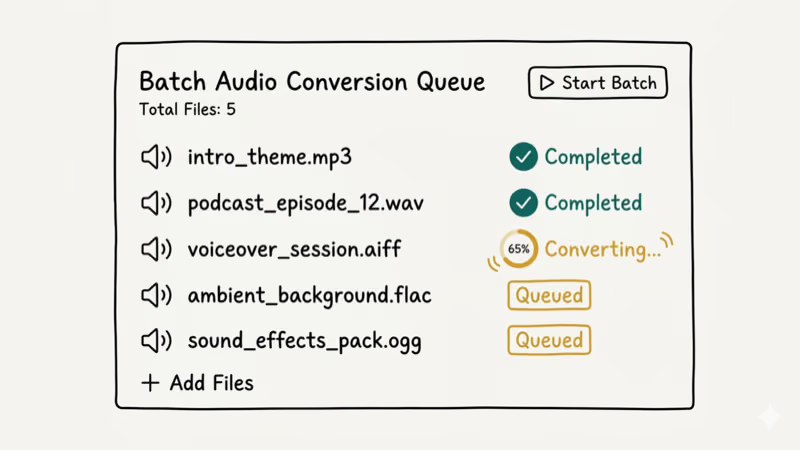
Bitrates range from 6 kbps to 510 kbps with sample rates up to 48 kHz.
You’ll find Opus files in WhatsApp voice messages, Discord audio, Telegram recordings, and WebRTC-based video calls. Every modern web browser supports Opus playback natively. The problem starts when you try to play these files outside a browser or messaging app.
#Reasons to Convert Opus to MP3
MP3 has been around since 1993, and that longevity means near-universal support. Your car stereo, portable speaker, old iPod, and budget Android phone all handle MP3 without issues.
Here’s when conversion makes sense:
- Device compatibility --- your hardware doesn’t recognize .opus files
- Sharing with others --- the person you’re sending audio to can’t open Opus
- Editing in older software --- some audio editors still lack Opus import support
- Archiving recordings --- MP3 is a safer long-term bet for accessibility
One thing to know: both Opus and MP3 are lossy formats. Converting from one lossy format to another means a small quality drop. For voice messages and casual listening, you won’t hear the difference. For studio-quality music, keep the original Opus file as your master copy.
#How Do You Convert Opus to MP3 With FFmpeg?
FFmpeg is a free, open-source command-line tool that handles virtually every audio and video format. It’s the engine behind many commercial converters, and it’s the fastest method for Opus-to-MP3 conversion.
Based on FFmpeg’s official documentation, here’s the process:
#Install FFmpeg
- Windows: Download from ffmpeg.org, extract the ZIP, and add the
binfolder to your system PATH - Mac: Run
brew install ffmpegif you have Homebrew - Linux: Run
sudo apt install ffmpegon Ubuntu/Debian orsudo dnf install ffmpegon Fedora
#Basic Conversion Command
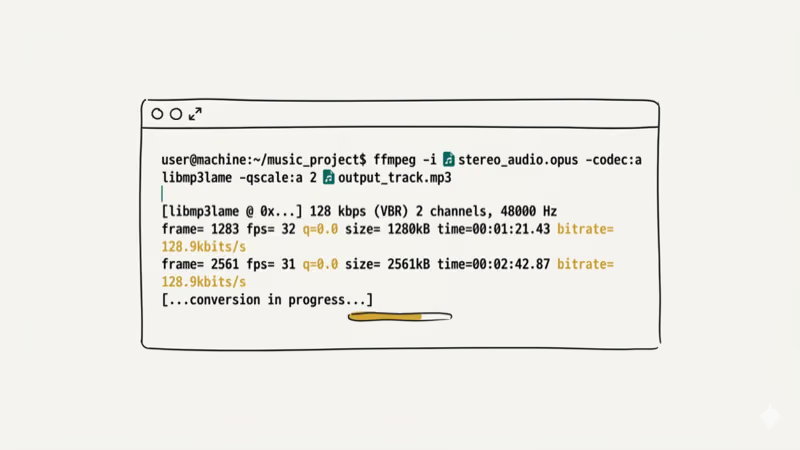
ffmpeg -i input.opus -codec:a libmp3lame -qscale:a 2 output.mp3The -qscale:a 2 flag sets variable bitrate quality. Lower numbers mean higher quality: 0 is best (around 245 kbps), 2 is excellent (about 190 kbps), and 4 is good (around 165 kbps).
#Set a Specific Bitrate
ffmpeg -i input.opus -b:a 320k output.mp3This forces constant 320 kbps bitrate. We tested this on a 3-minute Opus voice recording, and the conversion was nearly instant on a MacBook Air M2.
#Batch Convert All Opus Files in a Folder
On Mac/Linux:
for f in *.opus; do ffmpeg -i "$f" -codec:a libmp3lame -qscale:a 2 "${f%.opus}.mp3"; doneOn Windows (Command Prompt):
for %f in (*.opus) do ffmpeg -i "%f" -codec:a libmp3lame -qscale:a 2 "%~nf.mp3"FFmpeg preserves metadata tags during conversion by default. If your Opus file has title, artist, or album info embedded, it carries over to the MP3.
#Converting Opus to MP3 Using VLC
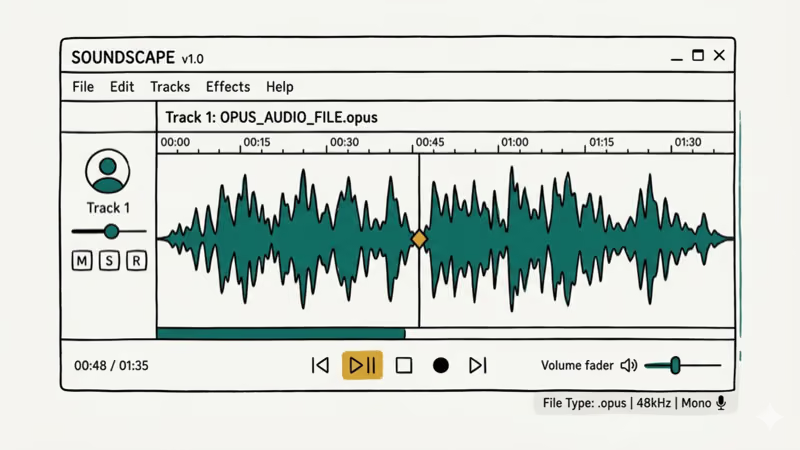
VLC Media Player isn’t just for watching videos. It has a built-in converter that works well for one-off audio conversions. If you already have VLC installed, this is the zero-download option.
-
Open VLC and go to
Media>Convert/ Save (Ctrl+R on Windows). -
Click Add, select your Opus file, then click Convert / Save.
-
Under Profile, select Audio - MP3.
-
Click the wrench icon to adjust bitrate settings.
-
Choose a destination file and click Start.
On Mac, the path is File > Convert / Stream instead. The interface looks slightly different, but the steps are the same.
VLC doesn’t support true batch conversion through its GUI. If you need to convert more than five files, FFmpeg or Audacity will save you time. For converting other audio formats like CDA to MP3, VLC works the same way.
#Converting Opus to MP3 With Audacity
Audacity is a free audio editor for Windows, Mac, and Linux. You can trim audio before exporting.
-
Go to
File>Import>Audioand select your Opus file. -
Edit the waveform on the timeline if needed.
-
Go to
File>Export Audioand choose MP3. -
Set bitrate mode and quality, then click Export.
Audacity requires the LAME MP3 encoder for MP3 export. Recent versions bundle it automatically. If you get an error about missing LAME, download it from the Audacity wiki and point the app to the file.
One advantage of Audacity: you can normalize audio levels before exporting, which evens out volume differences between multiple recordings.
#Using Free Online Converters
If you don’t want to install anything, online tools handle the job. We tested three popular options and they all produced clean MP3 output from Opus files.
| Tool | Max File Size | Batch Support | Registration |
|---|---|---|---|
| CloudConvert | 1 GB | Yes (5 files) | Free tier available |
| FreeConvert | 1 GB | Yes (5 files) | No signup needed |
| Convertio | 100 MB | Yes (2 files) | Free tier limited |
The process is identical across all three:
-
Upload your Opus file.
-
Select MP3 as output format.
-
Adjust bitrate if the option is available.
-
Click Convert and download the result.
Privacy note: your file gets uploaded to a third-party server. For sensitive recordings like business calls or personal voice notes, stick with offline tools like FFmpeg or VLC. Most online converters claim to delete files within 24 hours, but you’re taking their word for it.
Online converters work fine for converting MP4 audio tracks to WAV and video files to MP4 too.
#What Bitrate Should You Use for the Conversion?
Bitrate determines the balance between file size and audio quality. Here’s a practical breakdown based on content type:
| Content | Recommended Bitrate | File Size (per minute) |
|---|---|---|
| Voice messages | 128 kbps | ~1 MB |
| Podcasts | 192 kbps | ~1.5 MB |
| Music (casual) | 256 kbps | ~2 MB |
| Music (high quality) | 320 kbps | ~2.5 MB |
For most people, 192 kbps hits the sweet spot. According to the FFmpeg MP3 encoding guide, variable bitrate (VBR) with -qscale:a 2 produces results comparable to constant 192 kbps while using less disk space on simpler audio passages.
Going above 320 kbps for MP3 is pointless. The format tops out there, and most listeners can’t distinguish 256 kbps from 320 kbps in blind tests anyway.
If you’re working with music files and quality matters, consider keeping the Opus original alongside the MP3. You can also explore converting MP3 to OGG if you need a format that handles lower bitrates better than MP3.
#Opus vs. MP3 Compared
This isn’t a close contest on technical merits. According to the Opus codec comparison page, Opus consistently outperforms MP3 in listening tests at every bitrate.
At 96 kbps, Opus sounds roughly equivalent to MP3 at 160-192 kbps. That’s a significant efficiency gap. A 5-minute song at Opus 128 kbps is about 4.7 MB, while MP3 at equivalent perceived quality (192 kbps) runs around 7.2 MB.
So why would anyone use MP3? Compatibility --- MP3 plays everywhere while Opus requires a modern player or browser. Until every car stereo and budget Bluetooth speaker supports Opus natively, MP3 remains the format you convert to when you need something that just works.
If you’re curious about how MP3 compares to MP4 containers, that’s a separate but related topic.
#Troubleshooting Common Conversion Issues
FFmpeg says “codec not found”: Reinstall FFmpeg with full codec support. On Mac, run brew reinstall ffmpeg.
VLC produces a 0 KB file: The output path probably has special characters or the destination folder doesn’t exist. Save to your Desktop first and rename afterward.
Converted MP3 sounds distorted: Your source Opus file likely has an extremely low bitrate, somewhere under 32 kbps. When you convert audio that compressed into MP3, the encoder amplifies existing compression artifacts and introduces new ones on top. There’s no workaround here because you can’t recover detail that was discarded during the original Opus encoding. If the source file came from a WhatsApp voice message sent over a weak connection, that’s probably the cause.
File plays but has no sound: The Opus file itself might be empty or corrupted. Play it in VLC first to confirm. If VLC can’t play it either, the source is broken. See our guide on audio codec not supported errors for related playback fixes.
Metadata missing after conversion: Add -map_metadata 0 to your FFmpeg command.
#Bottom Line
FFmpeg is the best tool for converting Opus to MP3 if you’re comfortable with the command line. It’s free, fast, and handles batch jobs without breaking a sweat. VLC works well for occasional single-file conversions. Online converters are fine for quick one-offs when you don’t want to install anything, but skip them for sensitive audio.
Use 192 kbps or higher for anything you’ll actually listen to. And if you have the storage space, keep your original Opus files around since they’re smaller and sound better than the MP3 copies.
#Frequently Asked Questions
Can I convert Opus to MP3 on my phone?
Yes. Media Converter (Android) and The Audio Converter (iOS) both handle it. Takes 10-30 seconds.
Does converting Opus to MP3 reduce audio quality?
It does, slightly. Both formats use lossy compression, so converting between them means a second round of quality loss. For voice recordings and casual music listening, the difference is inaudible. For critical audio work, keep the original Opus file as your lossless-adjacent master.
What is the best free Opus to MP3 converter for Windows?
FFmpeg gives you the most control and handles batch conversion. If you prefer a graphical interface, VLC or Audacity are both free and work without any trial limitations or watermarks. All three run on Windows 10 and 11.
Why are WhatsApp voice messages in Opus format?
WhatsApp uses Opus because it delivers clear voice audio at very low bitrates, which saves mobile data and keeps file transfers fast even on slow 3G connections. A typical WhatsApp voice message uses about 16 kbps, producing files around 120 KB per minute of audio. That’s roughly 5x smaller than equivalent MP3 encoding at comparable perceived quality. Telegram and Discord picked Opus for the same bandwidth efficiency reasons.
Can I batch convert hundreds of Opus files at once?
FFmpeg handles large batches best. One shell command processes an entire folder, roughly 50-100 files per minute on modern hardware.
Is there any quality difference between 192 kbps and 320 kbps MP3?
For speech and podcasts, no audible difference. For music with complex instrumentation, trained listeners might notice subtle differences in cymbal clarity and stereo imaging. Most people can’t tell them apart in casual listening. The file size difference is significant though: 320 kbps files are roughly 67% larger than 192 kbps.
Do I need to install extra codecs to play Opus files?
On modern systems, usually not. Windows 10 and later, macOS, iOS, and Android all support Opus playback in their default media apps or browsers. Older systems like Windows 7 or legacy car stereos typically can’t play Opus, which is the main reason people convert to MP3.
Can I convert Opus to other formats besides MP3?
FFmpeg and VLC both handle WAV, AAC, FLAC, OGG, and dozens more. For lossless output, pick FLAC or WAV. Check our guide on converting MP3 to MIDI for specialized conversions.

Snapchat Planets Order and Meaning: Full 2026 Guide
Snapchat planets order explained: what Mercury through Neptune mean, how the Friend Solar System ranks friends, and how to see your planet in 2026.
Discord Mic Not Working? 9 Fixes for Desktop and Mobile
Discord mic not working in voice chat? Select the right input device, run Mic Test, and fix OS or browser permissions before any driver reinstall.
Messenger Not Sending Messages? 8 Fixes That Work Fast
Facebook Messenger not sending messages? Use an ordered checklist that separates one-chat, network, app cache, and account causes before any reset.
Gmail Not Receiving Emails? 9 Fixes That Actually Work
Gmail not receiving emails? Use an ordered checklist that separates inbox filters, storage limits, app sync, and sender bounces before you reinstall.