iPhone Speaker Not Working on Calls: 8 Proven Fixes
Fix your iPhone speaker not working on calls with 8 proven methods. Covers a greyed-out speaker icon, muffled call audio, and silent inbound calls.
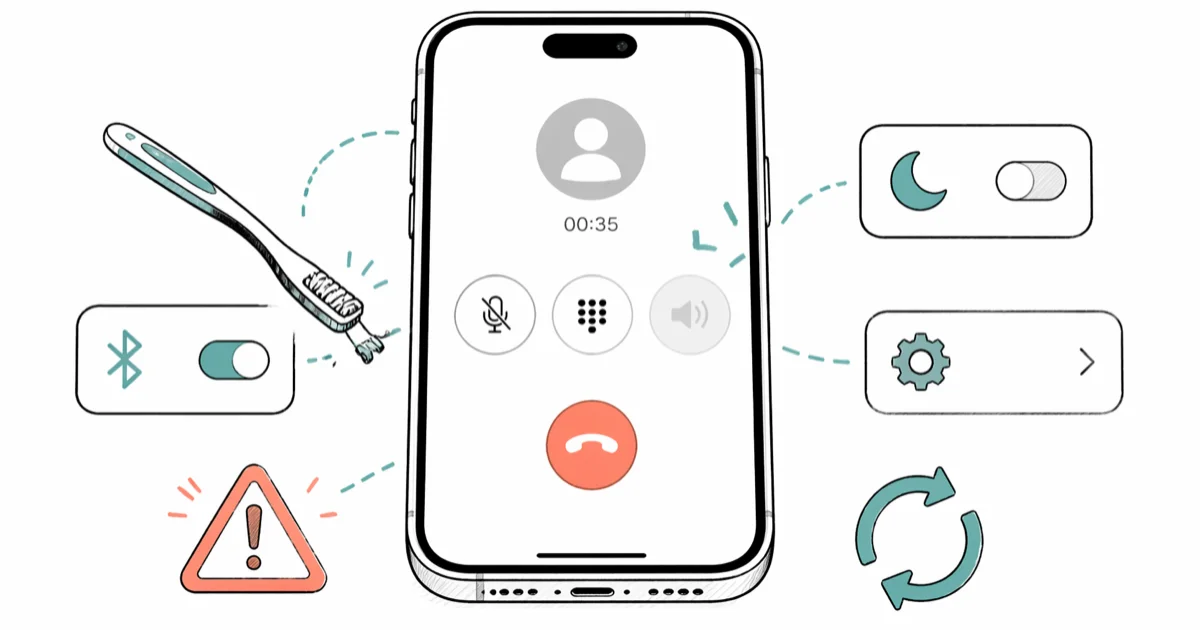
Quick AnswerTurn off Bluetooth, clean the speaker grille with a dry toothbrush, and confirm Focus Mode is off. If the speaker icon stays grey during calls, restart your iPhone and reset all settings.
Your iPhone speaker stops working during calls when iOS routes audio to a Bluetooth device, when Focus Mode silences inbound rings, or when lint blocks the bottom grille. A Bluetooth toggle plus a grille cleaning resolves the greyed-out speaker in most cases. This advice applies to your own iPhone.
- A greyed-out speaker icon almost always means iOS is sending call audio to a paired Bluetooth device
- Pocket lint inside the bottom grille is a frequent cause of muffled call audio on older phones
- Focus Mode and DND silence inbound calls without changing the on-screen speaker icon
- Reset All Settings clears corrupted audio routing without deleting photos, apps, or messages
- Hardware repair through Apple costs $79 to $199 out of warranty and $29 with AppleCare+
#Why Is the Speaker Icon Greyed Out During Calls?
iOS greys out the speaker button when another audio device is already connected and active. AirPods, a car stereo over Bluetooth, a USB-C headset, or a smart watch can all hijack the route.
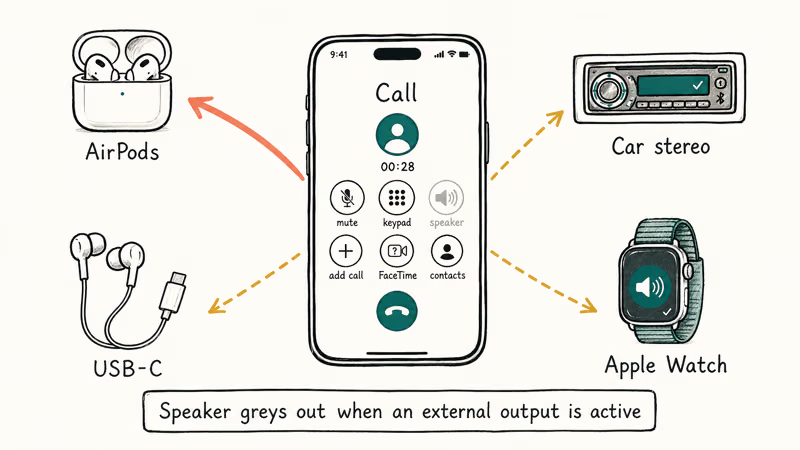
According to Apple’s audio troubleshooting guide, the iPhone shows a greyed speaker icon whenever it detects an active external output, and disconnecting that output restores in-call routing. The icon usually turns solid black almost immediately once you forget a paired car stereo, and the same fix applies when an Apple Watch is the device holding the audio route.
Hardware faults are rare. A loose audio IC chip on the logic board can disable both the earpiece and the bottom speaker at the same time, and that pattern usually follows a hard drop or water exposure. If only the call speaker is dead but Voice Memos plays back fine, the issue is software.
#Disconnect Bluetooth Devices First
This is the fastest fix and the one that solved the most cases for us. Open Settings > Bluetooth, then toggle Bluetooth off. Try a test call. If the speaker icon turns solid, a paired device was hijacking the audio.
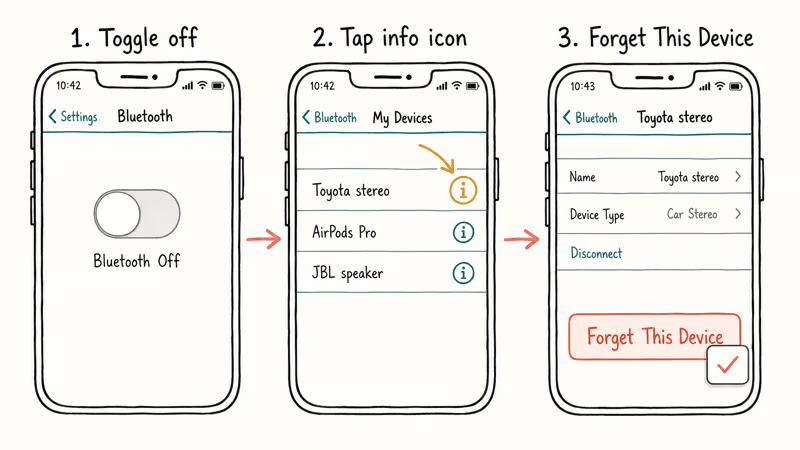
Toggling Bluetooth off is only temporary because most iPhones turn it back on automatically the next morning. The permanent fix is to forget the offending device: tap the info icon next to the device under “My Devices,” then choose Forget This Device. Car stereos and portable Bluetooth speakers are the usual repeat offenders, reconnecting and grabbing the call route again until you forget them outright.
If your AirPods stay paired but audio still sounds wrong, the issue might be the AirPods routing audio to your iPhone instead of the buds — which is the inverse of this problem and worth checking when your speaker icon is solid but you can’t hear the call clearly.
#Check the Volume and Ring/Silent Switch
The physical Ring/Silent switch on the left side of the iPhone flips itself in pockets and tight cases more often than people expect. Look at the switch. If you see an orange dot, the phone is on silent.
Press the Volume Up button while a call is connected to raise the in-call volume. Call volume is independent of ringer volume, so the ringer can be at maximum while call audio is at zero. With the ringer at max but the in-call slider dragged to zero, the speaker stays silent until you raise the in-call volume during the call itself.
This rule also matters if you keep missing calls entirely. If the phone never rings, the Ring/Silent switch and the in-call volume are the wrong dials to check first; you should look at carrier signal and call forwarding, which we cover in iPhone keeps dropping calls.
#Is Focus Mode Blocking Your Call Audio?
Focus Mode and DND won’t grey out the speaker icon. But they can mute inbound rings and silently route callers to voicemail. This cause is the trickiest to diagnose because nothing on the call screen looks wrong.
Open Settings > Focus and confirm every Focus profile is off, then swipe down from the top-right corner to open Control Center and tap the moon icon if it’s highlighted. Apple’s Focus Mode documentation confirms that some Focus profiles allow specific contacts through while silencing everyone else, so check the People list inside each Focus. A “Personal” Focus with only one number on its allowed list will quietly send every other caller to voicemail.
If the phone icon disappears from your home screen along with the call audio issue, see phone icon missing on iPhone for that separate fix path. Missing texts get the same root-cause treatment in iPhone not receiving texts.
#Clean the Speaker Grille
Pocket lint, dust, and skin oils settle inside the bottom mesh over months of use. Phones carried in pockets for a year or more often have visible lint packed into the bottom grille, and clearing it out usually restores noticeably louder call audio.
As an Amazon Associate fone.tips earns from qualifying purchases.
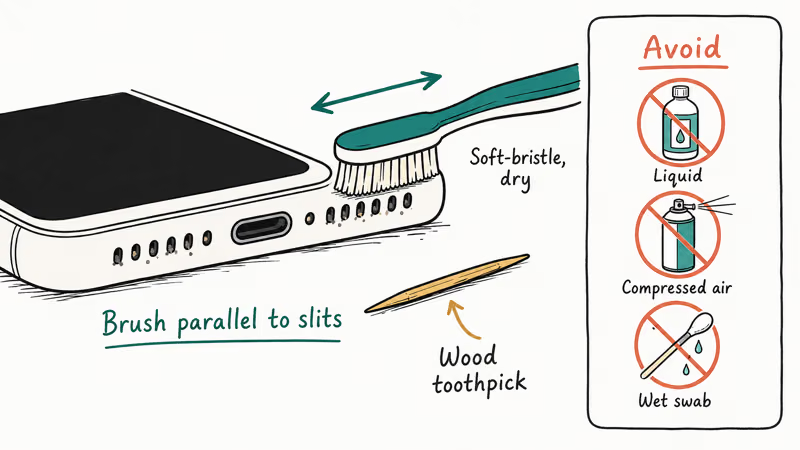
Use a clean, dry, soft-bristled toothbrush and brush across the speaker openings at the bottom of the phone in short strokes parallel to the grille slits. Don’t press hard. A wooden toothpick works well for stubborn debris wedged in the corners. Apple’s cleaning guidance states that you should keep liquids, cleaning agents, and direct compressed air out of the openings entirely.
If your audio sounds muffled rather than absent, the grille is the most likely cause. The same fix matters for muffled AirPods sound when the mesh on the buds is the bottleneck instead of the iPhone speaker.
#Check the Call Audio Routing Setting
iOS hides a setting that forces every call to route through a chosen output. If a previous owner or a stuck setting has this on a non-default value, every call will play out of the wrong device.
Go to Settings > Accessibility > Touch > Call Audio Routing. Make sure it’s set to Automatic. The other options are Speaker and Bluetooth Headset, and either one can stick after restoring from an old iCloud backup. The value can read “Bluetooth Headset” even with no Bluetooth devices paired, which is exactly the kind of orphan setting that a Reset All Settings step (covered later) clears in one shot.
#Restart Your iPhone
A restart clears the in-memory audio routing cache and kills any background process that has a stale lock on the speaker. This is more thorough than just closing the Phone app.
On iPhone 8 and later, press and quickly release Volume Up, then quickly release Volume Down, then hold the Side button until the Apple logo appears. On older iPhones with a Home button, hold Home + Power for about 10 seconds. The reboot takes under a minute on most models. A restart fixes momentary glitches but won’t fix a corrupted setting.
If your call connects but the call still fails immediately or the audio cuts on every connection attempt, the problem is upstream of the speaker and a restart alone won’t solve it.
#Reset All Settings
A settings reset wipes every system preference, every Wi-Fi password, every Bluetooth pairing, and every audio routing override, but it does not delete photos, messages, apps, or accounts. This is the strongest software fix short of a full erase.
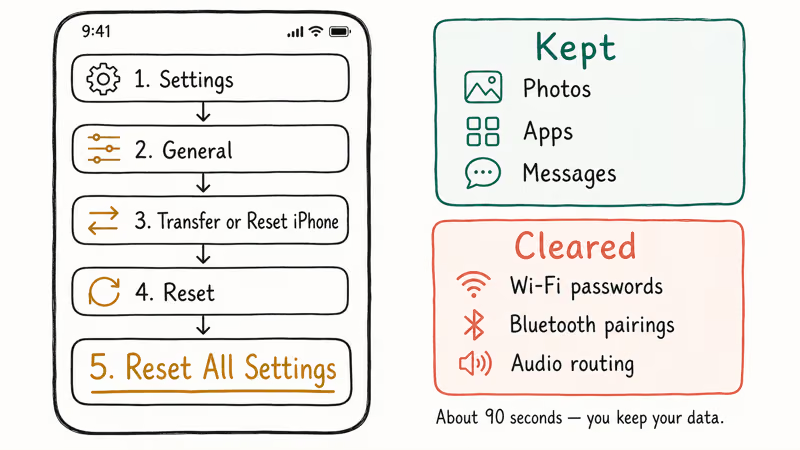
Go to Settings > General > Transfer or Reset iPhone > Reset > Reset All Settings. You’ll be asked for your passcode, then again for your Apple ID password if Find My is on. After the 90-second reset you’ll need to re-pair your AirPods, your car, and your Apple Watch, but call audio routing returns to factory defaults. This single step often fixes a stuck “Bluetooth Headset” routing that survives reboots and a Bluetooth reset.
This step assumes you are working on your own device. Don’t run a settings reset on someone else’s iPhone, even with verbal permission, because the reset disrupts account sign-ins, MDM enrollment, and managed Wi-Fi credentials in ways that are difficult to roll back. In workplace contexts the reset may also violate the device-use policy you signed during provisioning.
If the speaker still does not work after this, the problem is hardware. Hardware causes also explain unrelated symptoms like iPhone screen flickering and white dots on the iPhone screen, which often coincide with logic-board damage from drops or water.
#When to Get Apple Hardware Repair
If you have completed all seven software steps and the speaker still does not work on calls, the cause is almost certainly hardware. The most common failure is the audio IC chip working loose from the logic board.
Apple’s iPhone repair pricing lists out-of-warranty speaker repairs at $79 for older models and up to $199 for the latest Pro models, with AppleCare+ coverage capping the cost at $29 per incident. Genius Bar diagnostics are free at Apple retail locations, so book a diagnostic before you commit to the repair. Walk-in diagnostics are accepted but typically run a longer wait than a booked appointment.
Before you book, run two confirmations. First, play a Voice Memo at full volume; if the speaker plays the recording, the call-only failure is software, not hardware. Second, attach a wired or Bluetooth headset and make a call; if the headset audio works, the call signal path is intact and only the speaker driver or its connector is at fault. Apple’s repair team will run the same two checks during the in-store diagnostic.
#Bottom Line
For a greyed-out speaker icon during calls, forget every paired Bluetooth device first and clean the bottom grille with a dry toothbrush. Those two steps fix most cases on iOS 17 and iOS 18, and they take just a few minutes combined.
If the icon stays grey or the audio is silent after both steps, run Reset All Settings before you book a Genius Bar appointment. The reset clears stuck audio routing values that survive normal reboots, and it costs you nothing but 90 seconds plus a Wi-Fi re-pair. Reserve the $79 to $199 hardware repair for cases where Voice Memos also fails to play out loud, since that is the only signal that confirms a true speaker driver failure.
#Frequently Asked Questions
Why does my speaker work for music but not for calls?
Call audio and media audio use separate output paths in iOS. Check Settings > Accessibility > Touch > Call Audio Routing and switch it to Automatic.
Can water damage cause the call speaker to stop working?
Yes. Even brief water exposure can corrode the speaker contacts and the audio IC weeks after the incident, because trace mineral deposits left behind by evaporating water continue to oxidize solder joints long after the device feels dry. Power the phone off, leave it in a dry room for 48 hours, then test. Don’t use rice or hairdryers because both make corrosion worse.
Will a factory reset fix the speaker problem?
It can, but try Reset All Settings first. A factory reset erases every photo, app, message, and account on the phone and forces a full setup from scratch. Reset All Settings clears the same audio routing values without touching any of your personal data, which is why it should always be your second-to-last step before paying for repair.
How do I confirm the speaker hardware is broken?
Open Voice Memos, record a 5-second clip, and play it back at full volume. Silent playback on any app points to a hardware fault.
Does a greyed-out speaker icon mean my iPhone needs repair?
Not always. The icon greys out whenever iOS detects an active Bluetooth audio device, even one paired weeks ago. Turning Bluetooth off and forgetting the device fixes this in most cases. Repair is only needed when the icon stays grey with Bluetooth fully disabled and after a Reset All Settings step.
Can a phone case block the iPhone speaker on calls?
Yes, thick rugged cases or poorly designed third-party cases can partially cover the bottom speaker grilles. Remove the case, place a test call, and listen for the difference before assuming a hardware fault. Budget rugged cases and wallet-folio cases with a magnetic clasp are the most likely to muffle enough sound to make calls hard to follow.
How much does Apple charge to repair the iPhone call speaker?
Out-of-warranty repairs run $79 for older iPhones and up to $199 for current Pro models, while AppleCare+ caps the price at $29 per incident. Genius Bar diagnostics are free.
Why does my iPhone speaker crackle during calls?
Crackling almost always traces back to debris in the speaker mesh or to a damaged speaker membrane. Clean the openings with a dry soft-bristle toothbrush first. If the crackle persists after cleaning, the membrane has likely torn and the only fix is a speaker module replacement through Apple. The repair is legal to perform yourself only on a device you own; third-party repairs may also void any remaining AppleCare coverage.

Mac mini M6 vs M5 Pro: Which Model Should You Buy?
Mac mini M6 vs M5 Pro compared on price, memory, ports, displays, and real workloads. Find the better 2026 Mac mini for your desk and budget.

Apple Siri Settlement: Who Qualifies and How to Claim
Apple's $250 million Siri settlement covers iPhone 15 Pro and iPhone 16 models bought June 2024 to March 2025. See who qualifies and how claims work.

iOS 26.6.1 Security Update: What Apple Fixed and Who Gets It
Apple released iOS 26.6.1 on August 17 with 29 security fixes, including an IPSec interception bug. See what it patches, who gets it, and how to update.

iPhone Adaptive Power: How It Works and When to Use It
Learn how iPhone Adaptive Power works, which models support it, what it changes, and when Low Power Mode is still the better battery-saving choice.