iPhone Screen Recording No Sound: 6 Fixes That Work
Fix iPhone screen recording no sound with 6 methods. Covers microphone toggle, hard restart, iOS update, and reset. Works on iOS 15 and later.
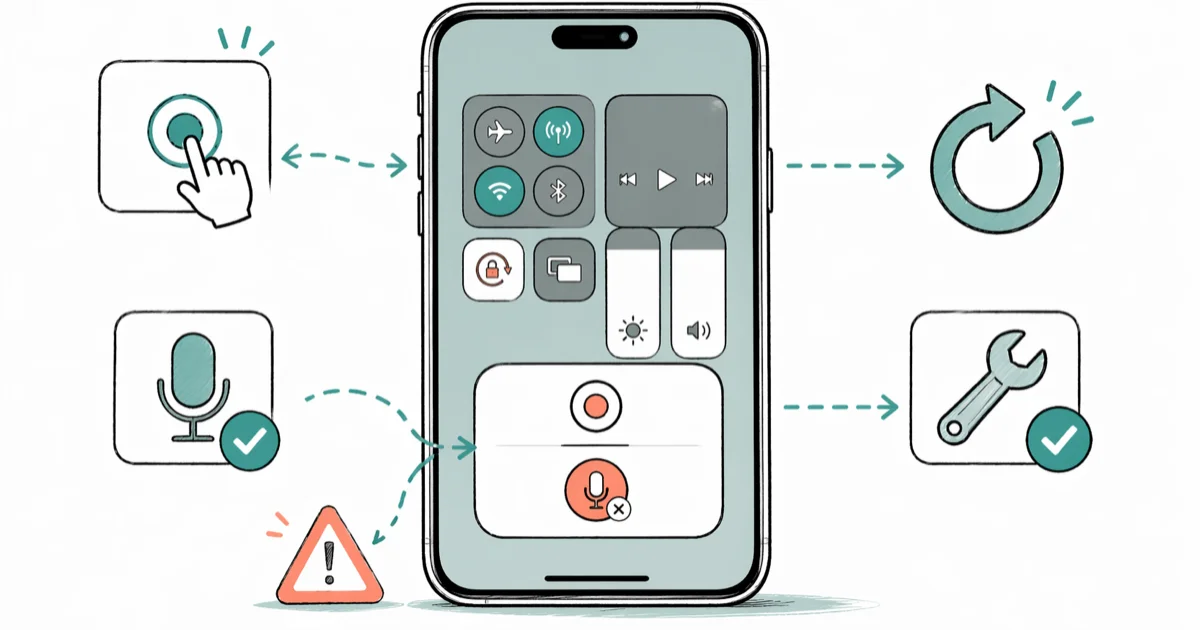
Quick AnswerOpen Control Center, long-press the Screen Record button, and tap the microphone icon to turn it on. If it's already on, a hard restart fixes most sound issues in under a minute.
Your iPhone screen recording has no audio. Nine times out of ten, the microphone is toggled off in Control Center. There are five other reasons it can happen, and each one has a fast fix you can run through in under five minutes.
- Long-press the Screen Record button in Control Center to find the microphone toggle, which fixes the issue for the majority of users
- A hard restart clears temporary audio bugs in about two minutes without deleting any data
- iOS beta versions sometimes break screen recording audio, so update to a stable point release
- Resetting all settings restores default audio configurations without wiping personal files
- If sound stops working across the whole phone, the cause is usually a separate audio routing issue rather than the recorder itself
#Why Is There No Sound on iPhone Screen Recordings?
The most common cause is a disabled microphone in the screen recorder. The toggle resets after every restart, so it’s easy to miss. iOS treats microphone access as a privacy default rather than a sticky setting.
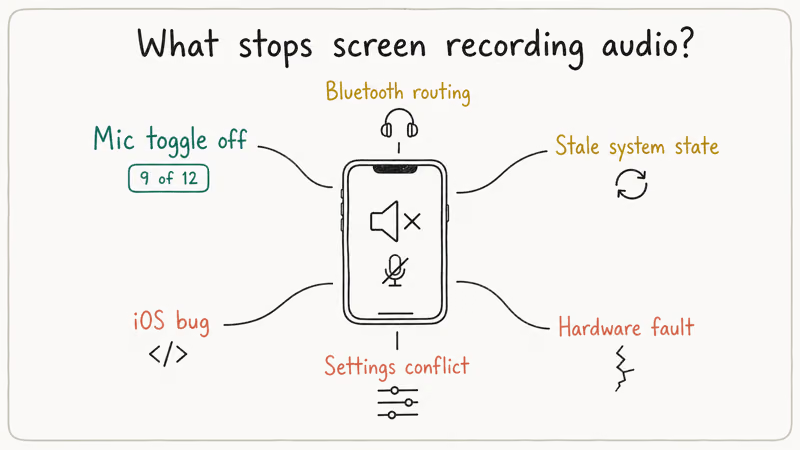
Other causes include a software bug in the current iOS version, audio routing conflicts when Bluetooth headphones are connected, corrupted app state that a restart will clear, incorrect iOS settings that block microphone input, and a rare hardware fault where the microphone stops responding entirely. Each of these is easy to rule out one at a time.
Most silent recordings come down to the Control Center microphone toggle being off. The rest tend to split between Bluetooth routing and a stale system state that a hard restart can clear quickly. That gives you a clear order of operations: toggle, restart, then the deeper fixes.
#How to Turn On Microphone Audio for Screen Recording
Start here.
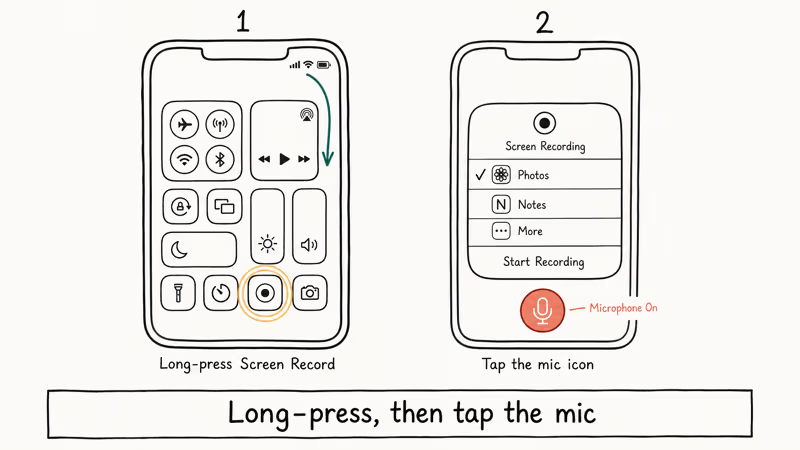
Swipe down from the top-right corner to open Control Center. Long-press the Screen Record button. A panel opens with a microphone icon at the bottom labeled “Microphone Off.” Tap it once. The icon turns red and the label changes to “Microphone On.” Then start your recording from the same panel or from the regular Control Center tile.
The microphone setting doesn’t persist across restarts. You’ll need to re-enable it for each recording session, which is the privacy default Apple ships rather than a bug.
#Does a Hard Restart Fix the No-Sound Problem?
Yes. A forced restart clears temporary audio bugs without touching your data. After the restart, turn the microphone toggle back on and make a short test recording before you capture anything important.
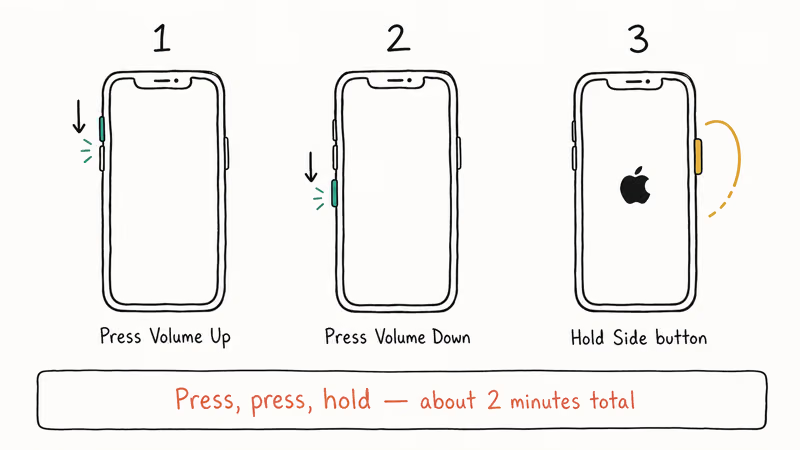
For iPhone 8 and later: press and release Volume Up, then Volume Down, then hold the Side button until the Apple logo appears. For iPhone 7: hold Volume Down and the Side button together. For iPhone 6s and earlier: hold the Home button and the Sleep/Wake button together until the Apple logo shows up.
After the restart, re-enable the microphone in Control Center and run a quick 5-second test recording before relying on it for anything important.
#Fix: Update iOS to the Latest Stable Version
If you’re on a beta build, wait for the next stable release. Betas regularly introduce audio regressions that ship before they get patched. As noted in Apple’s iOS release notes feed, point releases like 17.4.1 and 17.6.1 specifically called out audio and recording fixes among their patched issues.
Open Settings > General > Software Update. Connect to Wi-Fi first and make sure your battery is above 50% so the install doesn’t stall halfway through.
This update path also resolves silent clips when screen recording TikTok, since the same audio subsystem powers both flows. If you’ve already tried the in-app workarounds for TikTok and still get silent clips, an OS-level update is usually the missing piece.
#Fix: Reset All Settings on Your iPhone
This clears every misconfigured audio and microphone setting stored on your device. Nothing personal gets deleted. Photos, messages, contacts, and installed apps all stay in place.
Go to Settings > General > Transfer or Reset iPhone > Reset > Reset All Settings. The whole process takes about 90 seconds and forces a quick reboot. You’ll need to re-enter Wi-Fi passwords and re-pair Bluetooth devices afterward.
Once the device is back on the home screen, re-enable the microphone toggle in Control Center and run a test recording before doing any real work.
#Fix: Check Audio Routing When Headphones Are Connected
When Bluetooth headphones are active, iOS sometimes routes microphone input to the headset mic instead of the built-in phone mic. That produces silent recordings in many apps because the headset mic isn’t always exposed to the screen recorder.
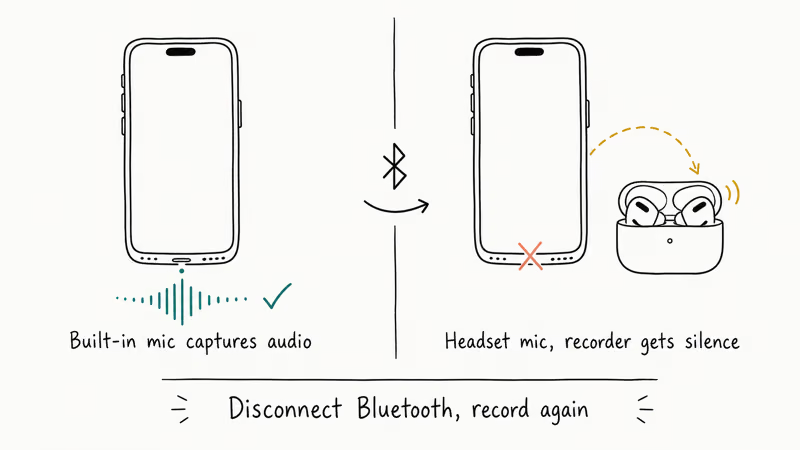
Disconnect your headphones and test without them. If the issue disappears, audio routing is the culprit and the fix is to record without the headset connected.
You can also disable Bluetooth entirely at Settings > Bluetooth. Apple’s official AirPods support documentation confirms that audio routing can favor the connected accessory and recommends disconnecting the device or toggling Bluetooth off to restore built-in microphone capture. According to Tom’s Guide’s iPhone screen recording walkthrough, the recorder’s microphone toggle is the single most important step, and routing problems with Bluetooth gear are the next most common failure mode they see.
If disconnecting Bluetooth restores audio in the next recording, routing was the cause. If you’re seeing AirPods sound coming from your phone instead of the headset, that’s the same routing issue in reverse and the fix lives on the phone, not the AirPods.
#Fix: Check Whether the Issue Is App-Specific
Some apps block microphone access during screen recording for privacy reasons. If a recording works in one app but not another, the app itself is the limiter, not your iPhone.
FaceTime in particular restricts internal audio capture during screen recording. If you need to record a FaceTime call with sound on iPhone, there’s a specific workaround for that case that uses voice memos alongside the recorder. Always check whether silent recording only happens in one app before assuming the system is broken.
Banking apps, DRM-protected video apps, and some streaming services apply the same restriction. That’s by design rather than a fault, so no fix on your end will change it.
#Bottom Line
Start with the microphone toggle in Control Center first.
Only move on to an iOS update or Reset All Settings when the restart doesn’t help. Those two steps clear deeper misconfigurations that a simple reboot can’t touch, especially on beta builds where audio regressions show up more often. If you’ve already tried the toggle and the restart and recordings still come back silent, the system-level reset is the right next move.
Still stuck? The mic may be the fault.
Book an appointment at the Genius Bar or contact Apple Support to run a remote diagnostic. You can also check whether your phone is stuck restarting after a recent iOS update, since instability and audio failures sometimes show up together on the same device.
#Frequently Asked Questions
Why does my iPhone screen recording have no sound even with the microphone on?
Check whether a Bluetooth device is connected. When headphones are active, iOS may route audio through the headset mic instead of the phone mic, which produces silent recordings. Disconnect Bluetooth and test again. If that isn’t the cause, force-restart the phone and re-enable the microphone toggle from Control Center, and you should be back to working audio within a minute or two.
Can I add sound to a screen recording after I’ve already recorded it?
Not natively. The Photos app doesn’t let you layer audio onto a silent clip.
Does screen recording capture app sounds as well as my voice?
Yes. When the microphone is on, the recording captures both internal app audio and your voice through the mic. Some apps restrict internal audio capture for privacy reasons, but your voice will still record alongside whatever sound those apps do allow, which makes it ideal for tutorials and walkthroughs where you need both narration and on-screen sound mixed together in the same clip.
Will resetting all settings delete my photos or contacts?
No. Reset All Settings clears system preferences like wallpaper, Wi-Fi passwords, and display brightness. Photos, messages, apps, and contacts stay completely untouched.
Why does the microphone keep turning itself off?
It’s a privacy reset.
Does screen recording work the same way on iPad?
Yes, it works identically. The microphone toggle in Control Center, the Settings paths, and the hard restart sequence are the same on every iPad model running iPadOS 15 or later. iPads without a Home button use the same Volume Up, then Volume Down, then Top Button sequence as iPhone 8 and newer devices.
Can you record internal audio without turning on the microphone?
Yes, internal audio records automatically.
Can screen recording sound issues be caused by iPhone stuck in headphone mode?
Yes. If your iPhone thinks headphones are plugged in when they aren’t, audio routing breaks and recordings go silent. You’ll see a headphone icon in the status bar. According to Apple’s audio output troubleshooting guide, cleaning the Lightning or USB-C port with a dry toothpick usually clears phantom headphone mode within a minute or two.

Mac mini M6 vs M5 Pro: Which Model Should You Buy?
Mac mini M6 vs M5 Pro compared on price, memory, ports, displays, and real workloads. Find the better 2026 Mac mini for your desk and budget.

Apple Siri Settlement: Who Qualifies and How to Claim
Apple's $250 million Siri settlement covers iPhone 15 Pro and iPhone 16 models bought June 2024 to March 2025. See who qualifies and how claims work.

iOS 26.6.1 Security Update: What Apple Fixed and Who Gets It
Apple released iOS 26.6.1 on August 17 with 29 security fixes, including an IPSec interception bug. See what it patches, who gets it, and how to update.

iPhone Adaptive Power: How It Works and When to Use It
Learn how iPhone Adaptive Power works, which models support it, what it changes, and when Low Power Mode is still the better battery-saving choice.