Fix iPhone Alarm Not Working: 10 Proven Solutions (2026)
iPhone alarm not going off? Try 10 practical fixes for silent alarms, wrong volume, Bluetooth routing, and iOS bugs. Covers iOS 15 through iOS 18.
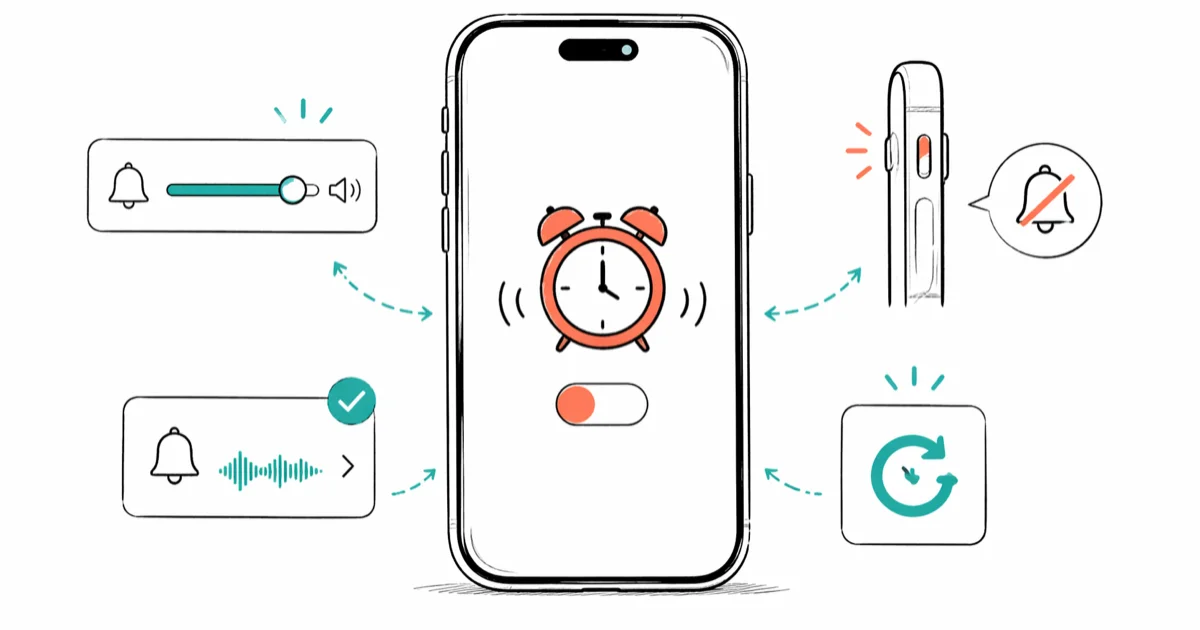
Quick AnswerOpen Clock, tap Edit, tap your alarm, then tap Sound. If None has a checkmark, that's the problem. Pick any ringtone and save. Also check Settings > Sounds & Haptics and raise the Ringer and Alerts slider above 50%.
Your iPhone alarm didn’t go off this morning, and now you’re late. The three most common causes are an alarm tone set to None, ringer volume turned down, or a Bluetooth device stealing the audio.
Open Clock>Alarm>Edit>Sound andconfirm the tone isn’t set to None- The Ringer and Alerts slider in
Settings>Sounds & Hapticscontrols alarm volume separately from media - AM/PM mixups account for a large share of “alarm didn’t fire” complaints
- Bluetooth headphones or speakers connected at bedtime route alarm audio away from the built-in speaker
- Deleting and recreating a stuck alarm clears a persistent iOS glitch that keeps it from firing
#Why Is Your iPhone Alarm Not Making Sound?
The alarm tone set to None is the single biggest cause. Open Clock, tap Alarm, tap Edit, then tap Sound. If “None” has a blue checkmark, pick Marimba or Radar from the Ringtones list, tap Back, then Save.
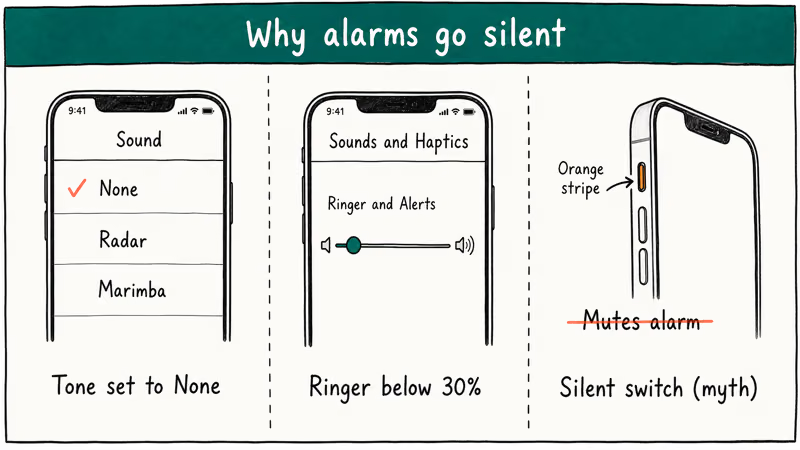
Low ringer volume comes second. Go to Settings > Sounds & Haptics and drag the Ringer and Alerts slider to at least 60%. If the slider is near the bottom, the alarm can be too quiet to wake you. The ringer slider and media volume are two completely separate systems.
Third, check the iPhone mute switch. That orange stripe means silent mode is active. On iOS 14 and earlier, silent mode could suppress alarm audio. iOS 15 and later decoupled them, so alarms play regardless of the switch position.
#Quick Fixes for Volume and Sound Settings
These three steps solve roughly half of all alarm failures. Start here before going deeper.
#1. Set a Real Alarm Tone
Open Clock > Alarm, tap Edit, then tap the alarm. Tap Sound and look for the blue checkmark next to None. If it’s checked, your alarm has been vibrating without any audio. Select any ringtone from the list, like Radar.
#2. Raise the Ringer and Alerts Slider
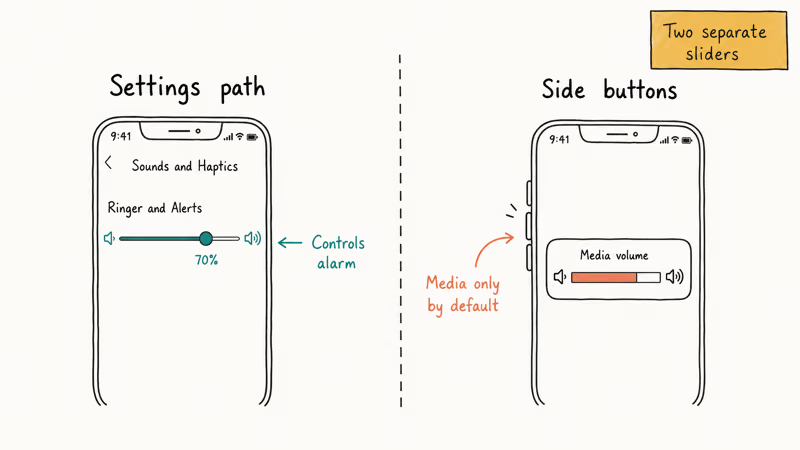
Go to Settings > Sounds & Haptics. The Ringer and Alerts slider sits near the top. Drag it past 60%.
Here’s what confuses people: the side volume buttons only control media playback by default. They don’t touch the ringer volume unless you’ve toggled “Change with Buttons” on. So your podcast can be at full blast while your alarm sits at zero. According to Apple’s Sounds & Haptics support page, the Ringer and Alerts slider is the dedicated control for alarm, ringtone, and notification volume.
#3. Verify AM vs. PM
The AM/PM selector is a thin column on the right side of the time wheel. It scrolls easily without you noticing. Edit your alarm and double-check the column explicitly. Setting PM instead of AM means your alarm fires 12 hours late.
#Alarm Configuration Mistakes That Cause Failures
Alarms that look correctly set can still fail because of settings you don’t check daily.
#4. Enable Repeat Days
A one-time alarm fires once and disables itself. If your alarm worked Monday but not Tuesday, you probably never set repeat days. Open Clock > Alarm, tap the alarm, tap Repeat, and select each day you need. The toggle turns green when active.
#5. Disconnect Bluetooth Audio Devices
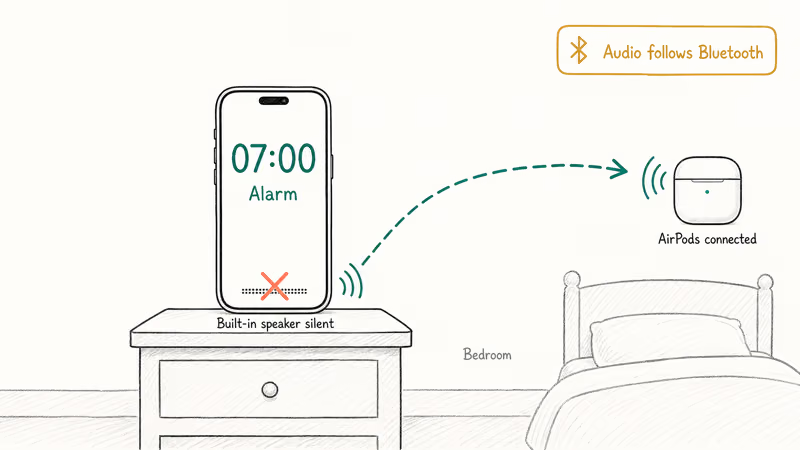
AirPods, a Bluetooth speaker, or a car stereo connected overnight will route alarm audio away from the built-in speaker. You won’t hear a thing if those devices are across the room or powered off but still paired.
Turn off Bluetooth before bed: Settings > Bluetooth, toggle off. According to Apple’s support article on alarms and audio, connected Bluetooth devices determine where alarm audio plays. The iPhone’s built-in speaker stays silent while any Bluetooth audio device is active.
#6. Delete and Recreate the Alarm
This fixes a specific iOS glitch where an alarm looks enabled, shows the correct time and tone, but never fires. It’s a known bug that persists across iOS versions.
Swipe left on the broken alarm in Clock and tap Delete. Tap the + icon and build a fresh alarm with the correct time, sound, and repeat schedule. Recreating the alarm clears the saved alarm entry instead of relying on one that may be stuck in a bad state.
#iOS Software Fixes
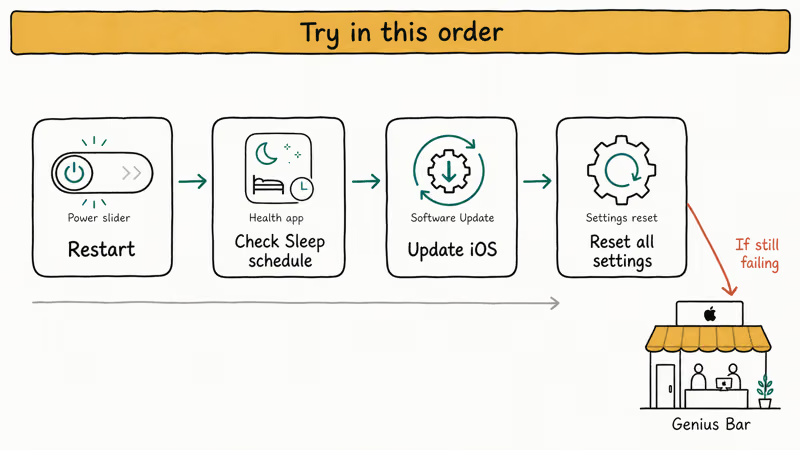
If your alarm settings are correct but the alarm still doesn’t fire, the problem is likely a software bug. Work through these three in order.
#7. Restart Your iPhone
Hold the side button plus a volume button until the power-off slider appears. Drag it, wait 30 seconds, then hold the side button to turn on. Takes about 90 seconds total.
A restart clears temporary glitches in the Clock app’s background process. This also resolves related problems like random vibration patterns on your iPhone and unresponsive notification sounds.
#8. Check the Sleep Schedule in Health
Apple’s Sleep Focus documentation confirms that iOS 16 and later links a separate Wake Up alarm to the Health app’s Sleep schedule. If you have both a Clock alarm and a Health Wake Up alarm set for different times, they can conflict.
Open Health > Browse > Sleep. If a Wake Up alarm exists at a different time than your Clock alarm, delete one. Running two alarm systems from two different apps leads to unpredictable results.
#9. Update iOS
Apple has patched alarm-specific bugs across several point releases. A widely-discussed Apple Support Community thread documented alarm failures in iOS 17.2 that Apple resolved in the 17.2.1 update.
Go to Settings > General > Software Update. Plug in your charger and install any available update. Alarm reliability improvements shipped throughout the iOS 17 cycle.
#10. Reset All Settings
This restores every system setting to factory defaults without deleting your apps, photos, or contacts. Wi-Fi passwords, display adjustments, and custom sound settings reset.
Go to Settings > General > Transfer or Reset iPhone > Reset > Reset All Settings. Enter your passcode, then set up your alarms again from scratch. This step also clears iPhone speaker problems on calls and other audio-routing issues. If you need to fully restore your device, here’s what restoring an iPhone means.
#Will Focus Mode or DND Silence My Alarm?
No. Clock alarms fire through every Focus Mode and DND configuration in iOS 15 and later. Apple built this exemption directly into the Clock app.
The only alarm type that Focus can suppress is the Health app’s Sleep schedule notifications. Standard Clock alarms are immune. If you use Focus Mode for managing notifications during work or sleep, your morning alarm still goes off on schedule.
#When Hardware Is the Problem
If every software fix fails, the speaker itself might be damaged. Run a quick test: call your own number from another phone.
If the ringtone sounds normal and clear, the speaker works and the issue is software. If it sounds muffled or completely silent, book a Genius Bar appointment through the Apple Support app. Bring your iPhone charged to at least 50% so they can run full hardware diagnostics.
#Bottom Line
Start with Fix 1: checking the alarm sound. A tone set to None is one of the easiest alarm mistakes to miss. If the alarm sounds fine during a manual test but fails at wakeup time, Fix 5 (Bluetooth routing) is your next stop.
Alarms that look correct but never fire respond to Fix 6 (delete and recreate). For persistent software issues, update iOS first since Apple has patched alarm bugs in multiple point releases. If you’ve worked through all 10 fixes and the alarm still fails, contact Apple Support or book a Genius Bar appointment. Related iPhone problems like Reminders not working often share the same root cause and respond to the same Reset All Settings fix.
#Frequently Asked Questions
Why does my iPhone alarm vibrate but not make any sound?
The alarm tone is set to None. Open Clock, tap Edit, tap the alarm, then tap Sound. If None has a checkmark, select any ringtone from the list. Takes about 20 seconds to fix.
Can Focus Mode or DND silence my alarms?
No. In iOS 15 and later, Clock alarms always fire regardless of Focus Mode or DND settings. The Health app’s Sleep Wake Up alarm is the only type that interacts with Sleep Focus, and it behaves differently depending on your Sleep schedule setup.
Why did my alarm go off at the wrong time?
You probably set PM instead of AM. The AM/PM selector is a thin column on the right side of the time wheel, and it scrolls easily without you noticing. Edit the alarm and confirm the setting explicitly.
Does the silent switch on my iPhone mute alarms?
Not on iOS 15 and later. Alarms play through the built-in speaker even when the mute switch shows orange. On iOS 14 and earlier, the silent switch could suppress alarm audio, which is why this myth still circulates.
My alarm worked yesterday but didn’t go off today. What changed?
Check three things: first, whether the alarm had no repeat days and disabled itself after firing once. Second, whether AirPods or a Bluetooth speaker connected overnight and routed the sound away. Third, whether an iOS update installed overnight and introduced a bug. Repeat settings and Bluetooth pairing cover the vast majority of these cases.
How many alarms can I set on my iPhone?
Apple doesn’t publish an official limit for the Clock app. Community reports suggest performance slows above 50 simultaneous active alarms. For reliable daily use, keep between 5 and 10 active alarms.
Can third-party sleep apps interfere with Clock alarms?
Yes. Sleep-tracking apps that request Clock access can conflict with your scheduled alarms. If problems started after you installed a sleep or fitness app, delete that app and test the Clock alarm on its own for two or three mornings before reinstalling anything.
Will resetting all settings on my iPhone delete my data?
No. Reset All Settings restores system defaults for Wi-Fi, display, sound, and privacy settings, but your apps, photos, messages, and contacts stay untouched. You’ll need to re-enter Wi-Fi passwords and reconfigure your alarms afterward.

Mac mini M6 vs M5 Pro: Which Model Should You Buy?
Mac mini M6 vs M5 Pro compared on price, memory, ports, displays, and real workloads. Find the better 2026 Mac mini for your desk and budget.

Apple Siri Settlement: Who Qualifies and How to Claim
Apple's $250 million Siri settlement covers iPhone 15 Pro and iPhone 16 models bought June 2024 to March 2025. See who qualifies and how claims work.

iOS 26.6.1 Security Update: What Apple Fixed and Who Gets It
Apple released iOS 26.6.1 on August 17 with 29 security fixes, including an IPSec interception bug. See what it patches, who gets it, and how to update.

iPhone Adaptive Power: How It Works and When to Use It
Learn how iPhone Adaptive Power works, which models support it, what it changes, and when Low Power Mode is still the better battery-saving choice.