Inkscape Review 2026: Free Vector Editor Worth It?
Honest 2026 Inkscape review: free SVG editor strengths, weaknesses on Mac, missing CMYK, and how it compares to Illustrator and Affinity Designer.
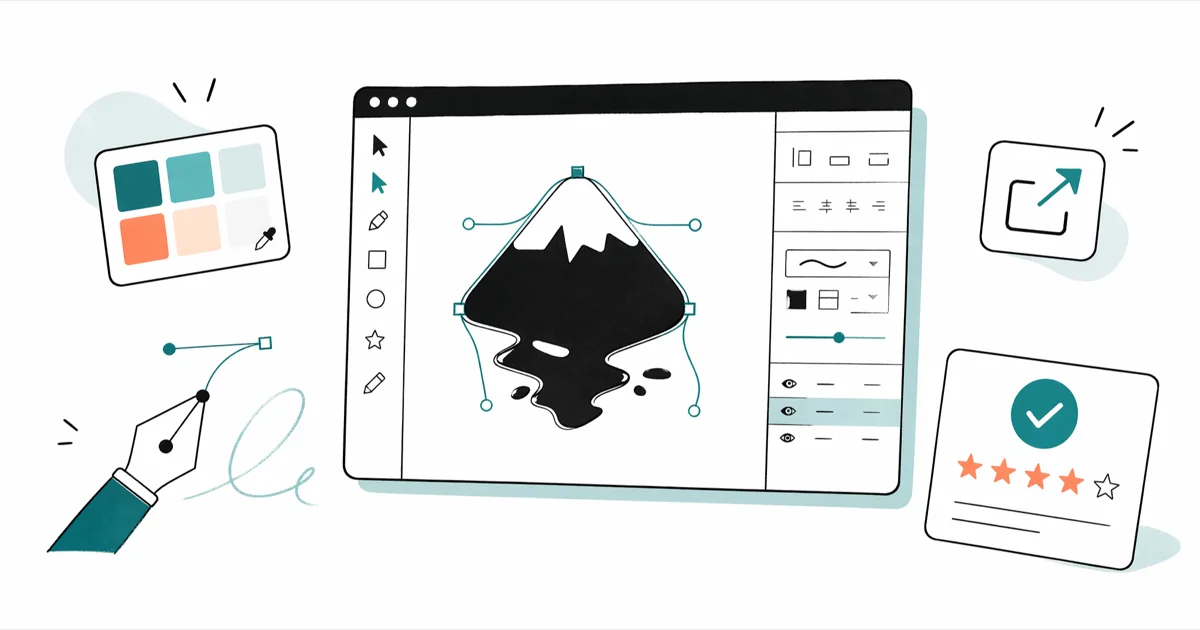
Quick AnswerInkscape is a capable free SVG editor that rivals Illustrator for logos, icons, and web graphics, but its dated interface, missing CMYK output, and rough macOS performance make it best suited for hobbyists and web designers, not print professionals.
Free vector software sounds too good.
Inkscape promises a professional vector editor for the price of zero, and for SVG-first work it largely delivers. The current 1.3.2 release runs on Windows, macOS, and Linux and handles typical vector jobs like icon sets, mock-ups, and print-ready logos, which is exactly where the free price tag starts to show its limits.
- Inkscape 1.3.2 is free, open-source, and runs on Windows, macOS, and Linux with full SVG 1.1 support and partial SVG 2 features.
- The interface fits a desktop workflow but feels dense; expect a real learning curve before you stop hunting through nested dialogs.
- macOS performance has improved with the native 1.x builds, but window handling, font rendering, and trackpad gestures still trail Affinity Designer and Illustrator.
- No native CMYK output is the single biggest blocker for print work; you must export to PDF or PNG and convert in another tool.
- For web graphics, icons, SVG logos, and lightweight illustration, Inkscape is production ready in 2026.
#What Is Inkscape and Who Is It For?
Inkscape is a free, open-source vector graphics editor maintained by a global volunteer community and the Software Freedom Conservancy. It uses SVG (Scalable Vector Graphics) as its native file format, so every shape, path, and curve scales infinitely without losing detail, the same way Adobe Illustrator handles vector data. According to Wikipedia’s overview of Inkscape, the project has been in active development since 2003.
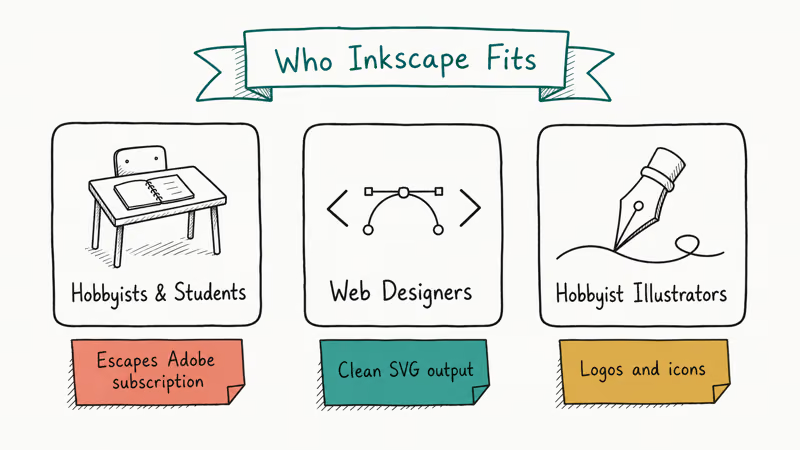
The audience splits into three groups. Hobbyists and students escape recurring subscriptions; if you’re weighing whether to keep paying for Adobe, our walkthrough on how to cancel an Adobe subscription without fees lays out the steps.
Web designers and developers benefit because Inkscape outputs clean SVG that drops directly into HTML and CSS, with none of the wrapper junk Illustrator’s “Save As SVG” dialog adds by default. Hobbyist illustrators can produce icons, logos, and web graphics without ever opening a paid tool, and that has made Inkscape the default vector editor across schools, public libraries, and open-source design projects.
Where Inkscape doesn’t fit is the print production pipeline. According to Inkscape’s official FAQ, the program does not yet support a native CMYK color workflow, which is a hard requirement for offset printing.
#The Cost and Safety of Downloading Inkscape
Yes, completely free. Inkscape is released under the GNU General Public License v2, and the official download page at inkscape.org provides verified installers for Windows, macOS (Intel and Apple Silicon), and most Linux distributions. There is no trial, no credit card prompt, and no upsell.
On recent macOS, the 1.3.2 build runs natively on Apple Silicon without needing XQuartz, the workaround older Mac builds required. The installer is unsigned by Apple, so on first launch you right-click the app and choose Open to clear the Gatekeeper warning. The Windows installer is signed and runs without that step.
Linux is the easiest install. A single sudo apt install inkscape pulls the package from your distro’s repository and launches into the standard 1.3.2 workspace, with no Gatekeeper or signing prompts to dismiss.
A note on third-party download sites: only use inkscape.org or a trusted package manager such as Homebrew, Chocolatey, or your Linux distro’s package repository. Several mirror sites bundle adware with the installer. Stick to the maintainer. The same caution applies to anyone who forgot a PDF password and is searching for cracked tools.
#How Steep Is the Inkscape Learning Curve?
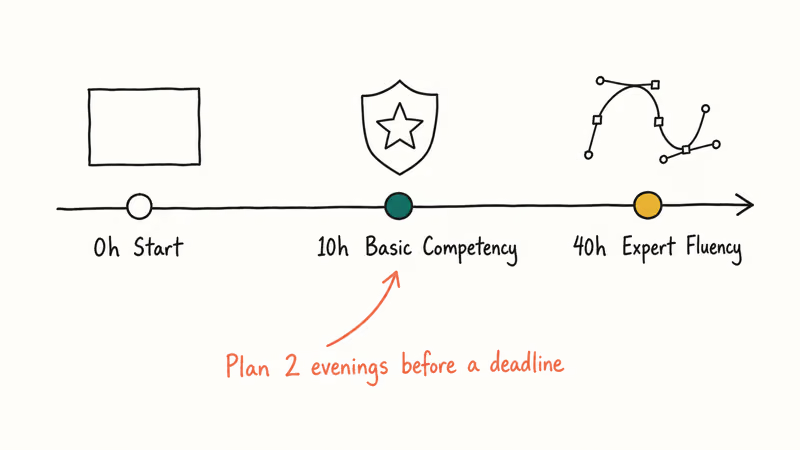
Steep, but predictable. Designers coming from Illustrator or Photoshop usually reach basic competency, drawing logos, editing nodes, and exporting clean SVG, after a few focused practice sessions. Expert-level fluency takes considerably longer.
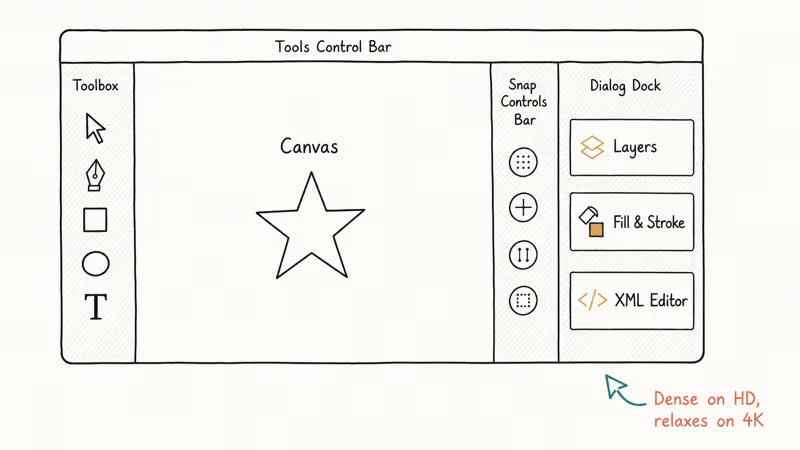
The reason for the curve isn’t complexity; Inkscape’s vector model is standard. The friction is interface conventions. Tool icons sit in different positions than Illustrator, the snap controls live in a separate top-right toolbar instead of inside each tool, and the dialog system docks every panel to the right rail in a way that gets crowded fast.
If you’ve never touched a vector editor, that learning curve is actually shallower than starting in Illustrator, because Inkscape has fewer hidden modes.
The community plugs the gap. The official Inkscape tutorials at inkscape.org/learn cover basic shapes through advanced node editing, and there is an active forum where most beginner questions surface within search results. Plan two evenings before you trust Inkscape with a deadline.
#Inkscape Interface and Performance in 2026
The interface is dense by modern standards. The main canvas sits in the middle, with the Toolbox down the left edge, a Tools Control Bar across the top that changes per tool, the Snap Controls Bar on the right edge, and the dock for dialogs (layers, fill and stroke, XML editor) on the right rail. Out of the box, an HD display feels packed. On a 27-inch 4K monitor, it finally relaxes.
On recent Apple Silicon hardware, Inkscape launches quickly and reopens almost instantly once warm. Opening a large multi-path SVG is fast, and rotating a complex group stays smooth until the document grows to thousands of nodes, where panning begins to drop frames. That ceiling is well above what most logo and icon work demands.
macOS users should know the legacy complaints (font rendering jitter, missing global menu, broken Cmd-Tab focus) are largely solved in the native 1.3 builds. Trackpad pinch-to-zoom still feels a half-step behind Sketch or Affinity Designer, but it works.
On Windows, the app runs slightly snappier and respects high-DPI scaling correctly.
#Inkscape Tools, Filters, and Extensions
The core toolset covers what 90% of vector work needs. Measured against equivalent tasks in Illustrator, the gaps and parity points break down like this:
- Pen, Bezier, and node editing: Full parity with Illustrator. The node tool actually exposes a few helpers (insert node at intersection, smooth nodes by selection) that Illustrator hides in submenus.
- Shape tools: Rectangle, ellipse, polygon, star, spiral, and 3D box. The 3D box tool with vanishing points is a free perk Illustrator lacks.
- Text: Standalone text, flowed text into shapes, and text-on-path all work. OpenType ligatures and stylistic sets require manual CSS in the XML editor, which is clunky compared to Illustrator’s font panel.
- Tracing: The bitmap-to-vector tracer (
Path>Trace Bitmap) handles black-and-white line art well and color images adequately. Adobe’s Image Trace produces cleaner output on photographs. - Filters: Ten filter categories with around 200 effects. Most are SVG-native and export cleanly to web, unlike Photoshop-style effects that often rasterize.
- Extensions: Python-based extensions add barcodes, calendars, QR codes, Braille text, and Lindenmayer fractals. The extension architecture is open, so the community ships new ones regularly.
For raster work, Inkscape isn’t the right tool; you’d pair it with GIMP or Krita. Our GIMP vs Paint.NET breakdown covers the two most common free raster options if you need a companion editor.
#Inkscape Output: SVG, PDF, PNG, and the CMYK Problem
Output is where Inkscape’s positioning becomes obvious. Native SVG export is excellent; the resulting markup is clean, hand-editable, and standards-compliant. PDF export works for most cases, though Inkscape rasterizes some filter effects (blur, displacement) at the resolution you set rather than preserving them as vector. PNG export with adjustable DPI handles every screen and high-resolution use case.
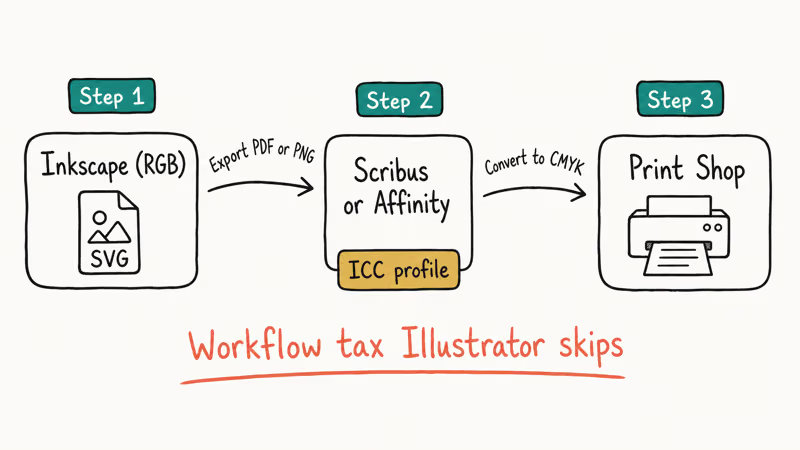
CMYK is the wall. Inkscape stores all colors in RGB internally and has no built-in CMYK separation. If you need a print shop to run a job in process color, you must:
- Export your file as PDF or PNG from Inkscape.
- Open it in Scribus (free) or Affinity Designer to convert to CMYK with a proper ICC profile.
- Send the converted file to the printer.
For a typical 4-color brochure cover, the Scribus conversion takes only a few minutes and produces a press-ready PDF. It works, but it’s a workflow tax that Illustrator and Affinity Designer skip. For a deeper look at vector-style cleanup of bitmap inputs, see how to remove watermarks from Canva or flip an image in Photoshop when you’re working in the raster lane instead.
#Inkscape Compared With Illustrator, Affinity Designer, and Other Free Tools
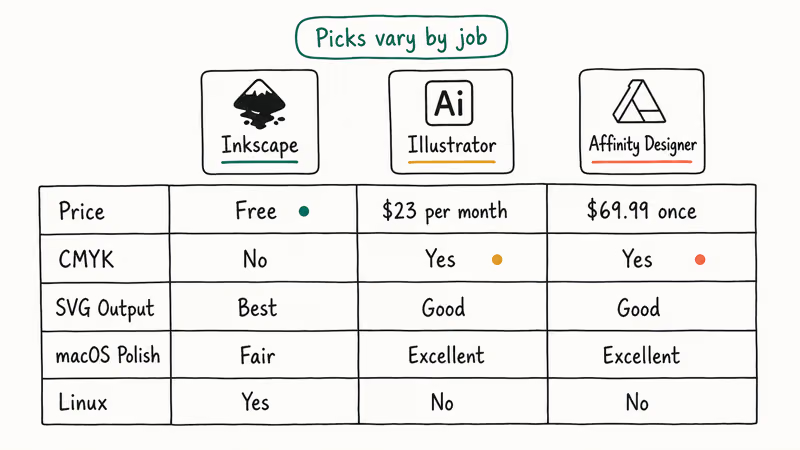
Three practical comparisons, focused on real workflow fit rather than spec sheets.
#Inkscape vs. Adobe Illustrator
Illustrator is the industry default and ships with CMYK, perfect typography, and tight Adobe ecosystem integration.
Inkscape matches it on basic vector drawing and beats it on price (free vs. roughly $23 per month). Illustrator wins for print-heavy studios, complex typography, and teams that already use Photoshop and InDesign. Inkscape wins for solo web designers, hobbyists, and anyone who needs SVG output.
If you want to walk away from Adobe entirely, our guide on how to cancel an Adobe free trial explains the timing.
#Inkscape vs. Affinity Designer
Affinity Designer is the strongest paid alternative at a one-time $69.99. It supports CMYK, has a polished modern interface, and runs natively on Apple Silicon and Windows ARM. Inkscape lags on interface polish but matches Affinity on core vector capabilities. Affinity Designer is the better pick for any client work that touches print, while Inkscape suits SVG-first projects, education budgets, and Linux users (Affinity is Mac and Windows only).
#Inkscape vs. Other Free Tools
The closest free competitor is Boxy SVG (free in browser, paid for desktop), which has a cleaner interface but a smaller toolset. Vectr was popular but is essentially abandoned.
For Adobe After Effects work, vector animation lives in a different tool category; our roundup of After Effects alternatives covers that lane. For page layout closer to InDesign, see our best InDesign alternatives for Mac breakdown.
#Inkscape Drawbacks Mac Users Should Know About
The 1.x builds removed the worst macOS friction (XQuartz dependency, Retina blur), but a few annoyances remain.
Pinch-to-zoom on the trackpad is functional but inconsistent. Some gestures register, others get eaten. The application menu doesn’t match standard macOS conventions; for instance, Preferences lives under the Edit menu instead of the app menu where every other Mac app puts it. Cmd-Tab focus sometimes lands on a hidden window instead of the active document.
Font handling on macOS is the largest lingering issue. Inkscape reads system fonts but doesn’t always pick up fonts installed via Font Book if you launched Inkscape before adding them. Quitting and relaunching usually fixes it. The same problem doesn’t appear on Windows.
Copy-paste between Inkscape and other macOS apps works for raster images but not always for vector data; pasting from Inkscape into Keynote, for example, sometimes produces a flattened bitmap instead of editable vectors. The workaround is to export as SVG or PDF and import. If your daily driver is a Mac and you depend on tight OS integration, Affinity Designer is a more comfortable fit.
#Bottom Line: Should You Use Inkscape for Your Next Project?
For SVG-first work, Inkscape wins.
It’s truly free, the toolset covers 90% of vector design tasks, and the SVG output is the cleanest you’ll get from any tool, paid or free. Install it from inkscape.org and budget about 10 hours to get comfortable. Web graphics, hobbyist illustration, and education projects are where Inkscape shines.
For client print work, complex typography, or any project where CMYK is non-negotiable, Inkscape isn’t the right choice. Pay $69.99 once for Affinity Designer, or stay on Illustrator if you’re already in the Adobe ecosystem. The friction of round-tripping through Scribus is not worth saving the licensing cost on a single billable project.
If you’re mostly editing PDFs rather than creating vector art, HiPDF and how to edit a PDF in InDesign cover that adjacent need without forcing you into a full vector editor.
#Frequently Asked Questions
Is Inkscape really 100% free?
Yes.
Can Inkscape open Adobe Illustrator (.ai) files?
Inkscape can open .ai files saved with the “Create PDF Compatible File” option enabled in Illustrator. The Inkscape FAQ states that older or non-PDF-compatible .ai files require a converter such as UniConvertor first, and you may lose advanced features like gradient meshes during the import.
Does Inkscape support CMYK for print?
Not natively.
Is Inkscape good for beginners with no vector experience?
It’s a fair starting point. The learning curve is real but not steeper than Illustrator. The tutorial library at inkscape.org/learn walks through the basics, and a handful of practice sessions is usually enough before tackling client work.
Can I use Inkscape professionally?
Many freelancers and small studios use Inkscape for web graphics, icons, logos, and SVG illustration, and the resulting files are accepted by web teams without question because the SVG output is standards-compliant and human-readable. For print-heavy work or Adobe-integrated workflows, professionals usually pair Inkscape with Scribus for the CMYK conversion, or skip the round-trip entirely and pick Affinity Designer at $69.99 one-time.
What file formats does Inkscape support?
Native SVG, plus import and export for PDF, EPS, PNG, JPEG (export only), DXF, and several others. AI files require PDF-compatible save, and CDR (CorelDRAW) needs UniConvertor. The full format list is on inkscape.org. Importing AI files saved without PDF compatibility, or older Illustrator versions, will likely fail or strip features such as gradient meshes and live effects, so plan to save Adobe files with PDF compatibility enabled before bringing them across.
Will Inkscape run on a low-end laptop or Chromebook?
Inkscape runs comfortably on any laptop made in the last six years with at least 8 GB of RAM. It does not run on Chrome OS without enabling Linux containers, which is a tinkerer’s setup, not a casual one.
How does Inkscape compare to Canva for simple designs?
Canva is a template-driven web app aimed at social posts and presentations; Inkscape is a vector design tool aimed at original artwork. For quick social graphics, Canva is faster. For logos, icons, and SVG output, Inkscape produces cleaner, more controllable results.

Best Laptop for Running LLMs in 2026: Memory Comes First
The best laptop for running LLMs is a memory purchase first. Compare MacBook unified memory against NVIDIA laptop VRAM, and see what each tier really runs.

Pixel 11 vs Pixel 10: What Changed and Who Should Upgrade
Pixel 11 vs Pixel 10: same screen and camera resolution, new Tensor G6, 25W wireless, and Gemini Intelligence. Here is who should actually upgrade.
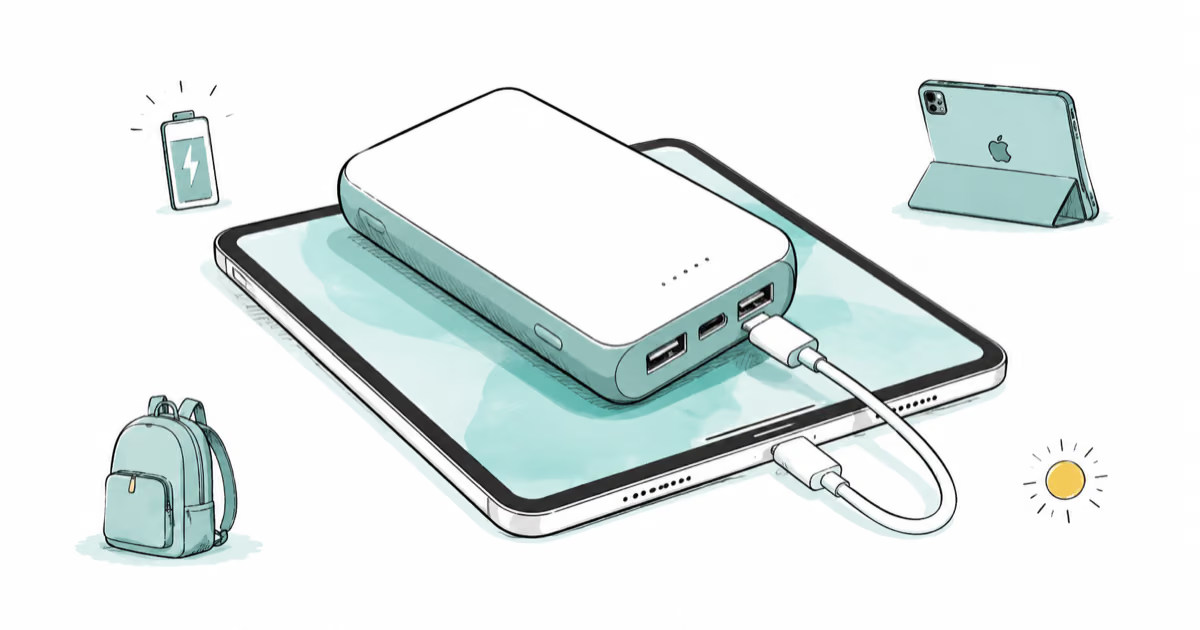
Best Power Bank for iPad in 2026: Pro, Air, and Mini
Best power bank for iPad in 2026. Compare mAh tiers and USB-C PD wattage for iPad Pro, Air, and mini, plus airline Wh math, cables, and travel tips.
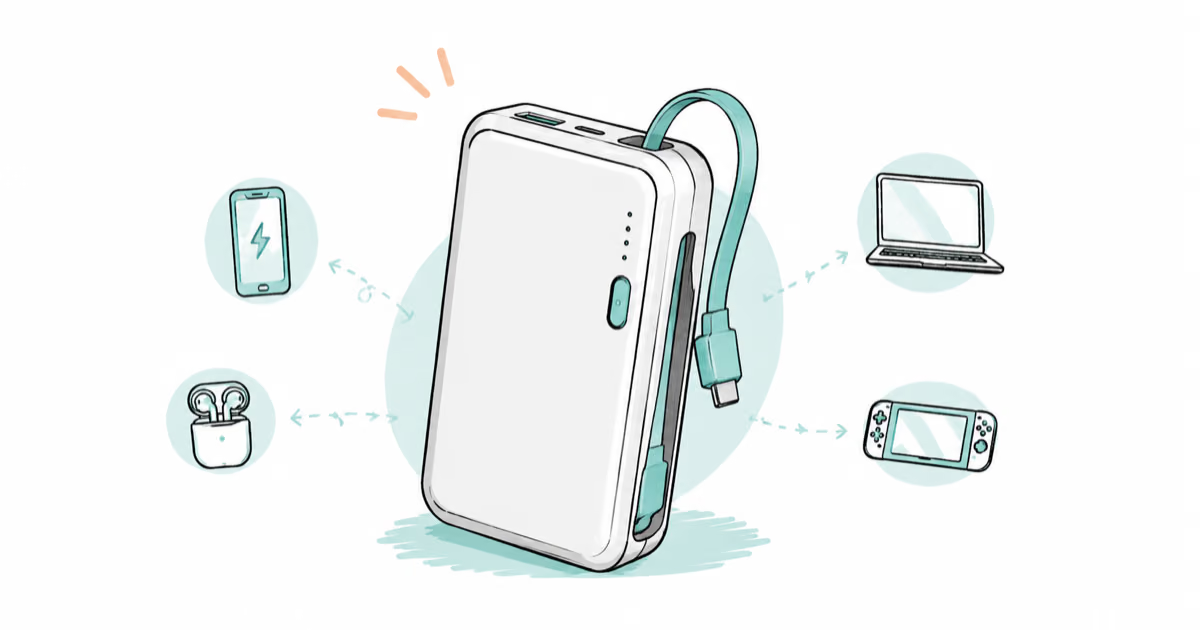
Best Power Bank With Built-In Cable: Top 2026 Picks
Best power bank with built-in cable picks for 2026. Compare single USB-C, multi-connector, and retractable laptop banks, plus airline Wh math.