Fix 'The Directory Name Is Invalid' Error on Windows (2026)
Fix The Directory Name Is Invalid error on Windows 10 and 11 with 7 proven methods. Covers USB drives, CHKDSK disk repair, and driver updates.
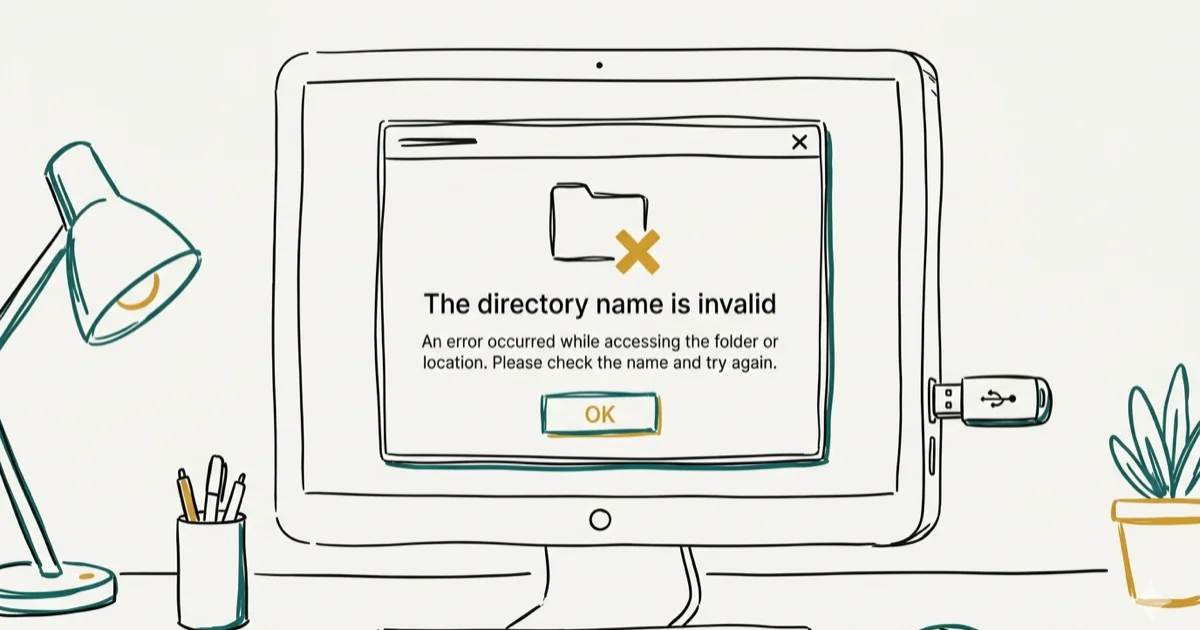
Quick AnswerThe Directory Name Is Invalid error means Windows can't access a folder or drive path. Disconnect and reconnect the affected USB device first. If the error persists, run CHKDSK on the drive, update your disk drivers through Device Manager, or reassign the drive letter through Disk Management.
The “Directory Name Is Invalid” error blocks you from opening folders, running programs from USB drives, or accessing external disks. Every fix below works on both Windows 11 and Windows 10, across internal SSDs and external USB drives alike.
- Reconnecting USB devices to a different port fixes this error in many cases
- CHKDSK /F repairs file system corruption that causes invalid directory paths
- Outdated disk drivers prevent Windows from reading drive paths correctly
- Changing the drive letter in Disk Management resolves letter conflicts
- The Command Prompt variant means the shortcut’s Start In path points to a deleted folder
#What Causes the Directory Name Is Invalid Error?
Windows throws this error when it can’t resolve a folder path on a storage device. The path exists in the file system index, but the actual data location is corrupted, disconnected, or reassigned.
USB connection issues are the most common cause. A loose cable or worn-out port creates a mismatch between what Windows expects and what the drive contains. This error often shows up right after moving a USB flash drive between ports without ejecting it first.
File system corruption is the second most frequent trigger. Power outages during file writes, forced shutdowns, and bad sectors all damage the NTFS or FAT32 directory structure. Microsoft’s chkdsk reference confirms that 4 exit codes report the result of a scan, where code 1 means errors were found and fixed, as documented in its chkdsk command guide.
Other causes include drive letter conflicts after connecting multiple external drives, disabled DVD/CD-ROM drivers, and corrupted Command Prompt shortcut paths. A PCMag troubleshooting guide notes that many drive access errors on Windows stem from file system corruption rather than hardware failure. If you’re also experiencing drive scanning stuck at a certain percentage, the underlying disk issue may be the same.
#How Do You Fix This Error on USB and External Drives?
Start with the physical connection since it’s the fastest fix.
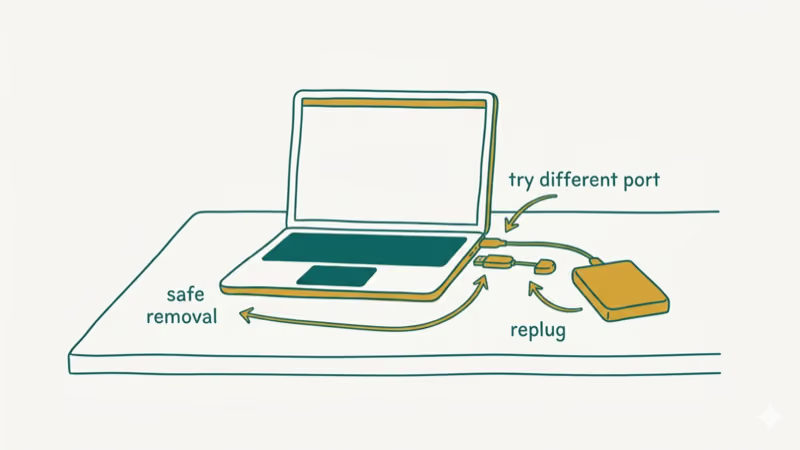
Disconnect and reconnect the drive. Remove the USB device, wait 10 seconds, then plug it into a different USB port. Avoid USB hubs and connect directly to a port on the back of your PC. Switching from a front USB 3.0 port to a rear USB 3.2 port often resolves the error immediately, since rear ports wire straight to the motherboard.
Try a different cable. USB cables degrade over time, especially micro-USB and USB-C cables that get bent frequently. Swap the cable and test again.
Use Safe Removal. Right-click the drive icon in the system tray, select Safely Remove Hardware, wait for the confirmation message, then physically disconnect the drive. Reconnect it after 10 seconds. This forces Windows to rebuild the drive’s directory index from scratch.
If the error persists after reconnecting, the problem is likely file system corruption rather than a physical connection issue.
#Running CHKDSK to Repair Disk Errors
CHKDSK scans the drive’s file system and repairs corrupted directory entries, bad sectors, and lost file fragments. It’s built into every version of Windows.
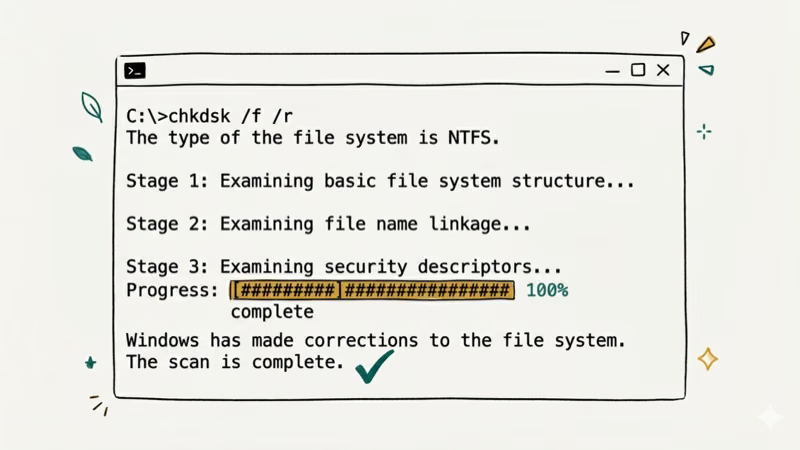
- Press Windows + S, type cmd, right-click Command Prompt, and select Run as administrator
- Type
chkdsk X: /F /R(replace X with your drive letter) and press Enter - If the drive is in use, type Y to schedule the scan for next restart
- Wait for the scan to finish (a 500 GB drive takes about 15-30 minutes)
The /F flag fixes errors and /R locates bad sectors and recovers readable data. On a USB SSD that keeps throwing the directory error, CHKDSK can usually find and repair the corrupted directory entries behind it.
If CHKDSK reports errors it can’t fix, the drive may have physical damage. According to Microsoft’s disk health guide, drives with over 50 reallocated sectors should be replaced as they’re at risk of complete failure. Systems showing NTFS.sys errors alongside directory errors often have deeper disk health problems worth investigating with CrystalDiskInfo or similar S.M.A.R.T. monitoring tools.
#Updating Disk Drivers
Outdated or corrupted disk drivers cause Windows to misread drive paths. Updating them takes about 2 minutes.
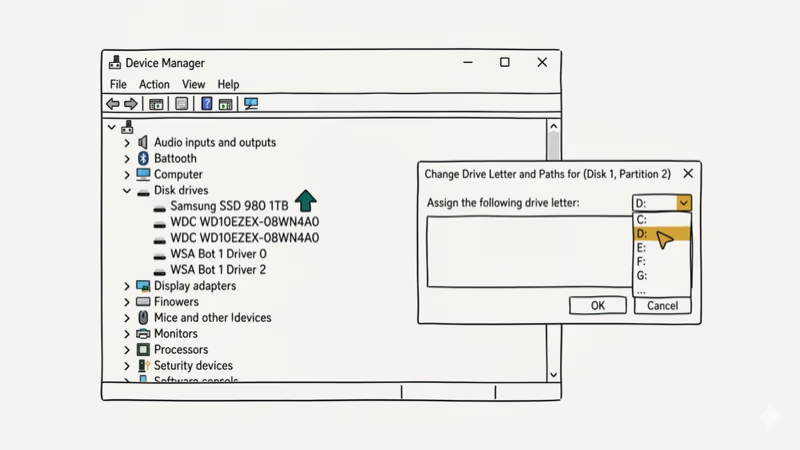
- Right-click the Start button and select Device Manager
- Expand Disk drives
- Right-click the affected drive and select Update driver
- Choose Search automatically for drivers
- Restart your PC after the update installs
If Windows says the driver is already up to date, try uninstalling it instead. Right-click the drive in Device Manager, select Uninstall device, then restart your PC. Windows reinstalls the driver automatically on reboot. Microsoft’s driver update guide recommends this approach when the current driver is corrupted beyond repair.
For DVD/CD-ROM drives showing this error, expand the DVD/CD-ROM drives section in Device Manager and check that the drive is enabled. Right-click and select Enable device if it’s disabled.
#Changing the Drive Letter
When two drives share the same letter (which happens after connecting multiple external drives), Windows can’t resolve the path for either one. Reassigning the letter fixes this.
- Press Windows + S, type Disk Management, and open Create and format hard disk partitions
- Find the affected drive in the lower panel
- Right-click the drive’s volume and select Change Drive Letter and Paths
- Click Change, pick a new letter that isn’t already in use, and click OK
This clears the directory error when an external HDD and a USB flash drive both claim the same letter, such as E, after a Windows update. The process takes under 30 seconds, and you don’t lose any data. If you’re running into high CPU usage from wsappx at the same time, that’s often a separate Windows Store issue, not related to the drive conflict.
#Fixing the Command Prompt Directory Error
If you see “The Directory Name Is Invalid” specifically when opening Command Prompt, the shortcut’s Start In path points to a folder that doesn’t exist anymore.
- Right-click the Command Prompt shortcut and select Properties
- Click the Shortcut tab
- Change the Start in field to
%WINDIR%(which resolves to C:\Windows) - Click Apply and OK
This variant of the error is common after user profile migrations or when a mapped network drive goes offline. The fix is instant and doesn’t affect how Command Prompt works. Systems dealing with bad pool caller errors or low memory warnings alongside this error may have broader system file corruption worth investigating with SFC /scannow.
#Bottom Line
Disconnect and reconnect the drive first since that fixes most cases. Run CHKDSK if the problem is file system corruption, update disk drivers if Windows can’t read the drive at all, and check for drive letter conflicts when multiple external drives are connected. The Command Prompt variant just needs a shortcut path correction. If none of these work and CHKDSK reports unfixable errors, back up your data and replace the drive.
#Frequently Asked Questions
Does this error mean my hard drive is failing?
Not necessarily. Most cases are caused by USB connection issues, outdated drivers, or minor file system corruption that CHKDSK can repair. A failing drive typically shows additional symptoms like slow file transfers, clicking noises, or frequent freezes alongside the directory error.
Will CHKDSK delete my files?
No. CHKDSK only repairs file system structure. Your photos, documents, and apps stay untouched.
Why does this error only appear on USB drives?
USB connections are inherently less stable than internal SATA or NVMe connections. Hot-swapping, cable wear, and power fluctuations corrupt the directory structure far more often on external drives.
Can I fix this error without losing data?
Yes, every method in this guide preserves your data. CHKDSK repairs file system errors without erasing files, driver updates don’t touch stored data, and drive letter changes are purely administrative. Only a full drive format would delete data, and that’s not recommended unless CHKDSK confirms the drive is beyond repair.
Does this error happen on Windows 11?
Yes. The error, its causes, and the solutions are identical across both Windows 11 and Windows 10. The Device Manager, Disk Management, and CHKDSK interfaces haven’t changed between Windows 10 and 11, so every fix here applies to both.
What if the error appears on my C: drive?
That’s more serious. Run sfc /scannow in an elevated Command Prompt to repair corrupted system files. If the error persists after restarting, run CHKDSK on C:, which schedules the scan for the next reboot since Windows can’t check a drive that’s currently in use. Back up important files before running either tool on your system drive because a severely corrupted file system can sometimes lose data during the repair process, and having a backup ensures you won’t lose anything critical.
Should I use third-party driver update tools?
You don’t need them. Device Manager and Windows Update cover the vast majority of driver updates. If the current driver is corrupted, uninstall it through Device Manager and restart. Windows auto-reinstalls a clean copy on reboot, which is more reliable than any third-party tool’s approach to driver management because it pulls directly from Microsoft’s certified driver store.
Can a Windows Update fix this error?
Sometimes. Microsoft patches occasionally fix bugs in the USB storage driver stack or NTFS file system that cause directory errors. Go to Settings > Windows Update > Check for updates and install any pending updates. Cumulative updates have addressed USB drive path resolution bugs in the past, so staying current is worth it.

Best Laptop for Running LLMs in 2026: Memory Comes First
The best laptop for running LLMs is a memory purchase first. Compare MacBook unified memory against NVIDIA laptop VRAM, and see what each tier really runs.

How to Run a Local LLM on Windows: A 2026 Setup Guide
Run a local LLM on Windows with LM Studio or Ollama. Pick a model that fits your GPU memory, keep every prompt offline, and skip the monthly bill.

Bluetooth Not Working on Snapdragon X? Fixes for 2026
Bluetooth not working on your Snapdragon X Copilot+ PC? Generic audio, mice, and keyboards work, but vendor apps often lack an ARM build. Fixes inside.

Docker Desktop and WSL2 Not Working on Snapdragon X? Fix It
WSL2 runs fine on Snapdragon X, but Docker Desktop ARM is Early Access and throws WSL errors. Use WSL2 plus native ARM64 Ubuntu and Docker Engine.