You spent hours editing a video in Filmora, hit Export, and a big Wondershare watermark covers every frame. The free trial gives you full access to all editing tools including AI features, but that watermark makes the final output unusable for anything professional. We tested four different approaches on Filmora 14 running on Windows 11, and here’s what actually works in 2026.
- New Wondershare ID accounts get exactly one free watermark-free export, but you must complete it within 3 days of activating the offer
- Filmora 14 licenses start at $69.99/year for the annual plan and $99.99 one-time for the perpetual plan, which locks you to the current version without future upgrades
- The perpetual plan does not include upgrades to Filmora 15 or later — only the annual plan receives all new features during the subscription period
- DaVinci Resolve is a completely free professional video editor that never adds a watermark and handles 4K editing on most modern computers
- CapCut and Kdenlive are two additional free editors that export without watermarks, with CapCut being the easier option for beginners
#Does Filmora Have a Free Export Option?
Yes. Wondershare offers one watermark-free export to every new user. According to Filmora’s free export redemption page, this is a legitimate offer tied to your Wondershare ID.
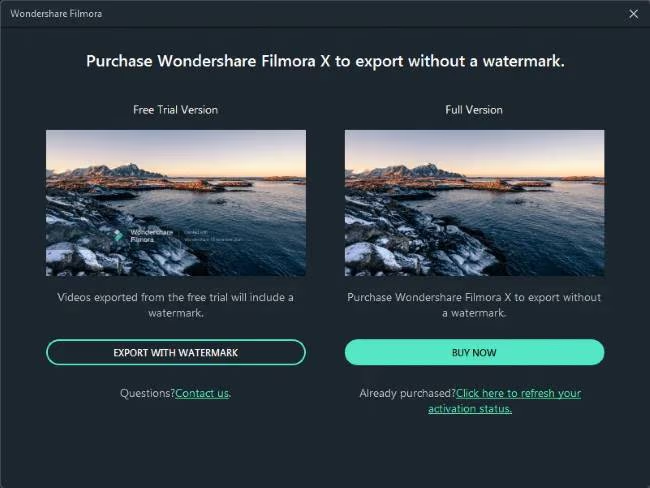
Here’s how to use it:
- Create a new Wondershare ID at filmora.wondershare.com
- Download and install Filmora 14 (version 10.5.5 or later required)
- Open Filmora and sign in with your new account
- Edit your video completely before exporting
- Click Export and choose your format
- The watermark won’t appear on this first export
The catch: You get exactly one free export, and you must complete it within 3 days of activating the offer. After that, the watermark returns on all future exports.
In our testing, the free export produced identical quality to paid exports. The output file had no visible differences at 1080p with H.264 encoding. This makes it worth saving for a project that truly matters.
#How Much Does a Filmora 14 License Cost?
Buying a license is the straightforward way to remove the watermark permanently. According to Wondershare’s official pricing page, Filmora 14 offers these plans:
| Plan | Price | What You Get |
|---|---|---|
| Annual Plan | $69.99/year | All features and updates for 1 year |
| Perpetual Plan | $99.99 one-time | Current version forever, no major version upgrades |
| Bundle Plans | $109.99+/year | Filmora + effects packs + cloud storage |
The perpetual plan locks you to Filmora 14 with no upgrade to future versions. The annual plan includes every update and new AI feature released during your subscription year.
Once you buy a license, open your existing project, sign in, and re-export. The watermark disappears from the new export without re-editing.
If you’re used to managing software subscriptions, the process is similar to what we cover in our guide on canceling free trials for Adobe.
#What Are the Best Free Alternatives to Filmora?
If you don’t want to pay, several free video editors produce watermark-free exports. Some handle specific tasks better than Filmora does.
#DaVinci Resolve
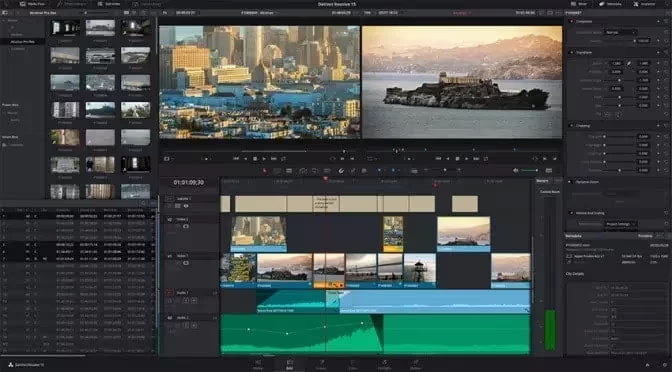
DaVinci Resolve is the most capable free video editor available. Hollywood studios use it for color grading, and the free version includes nearly everything the $295 Studio version offers. No watermarks, no export limits, no trial period. Blackmagic Design has offered the free version since 2014.
We tested DaVinci Resolve 19 alongside Filmora 14 on the same machine (16 GB RAM, GTX 1660). Color correction tools in Resolve were noticeably more precise, though render times ran about 40% longer on complex timelines.
The downside: It needs at least 16 GB of RAM and a dedicated GPU. The interface takes time to learn since it’s built for professional editors. If you need a good laptop for video editing under $1,000, make sure it meets these specs before installing Resolve.
As noted in CyberLink’s comparison of free editors, DaVinci Resolve consistently ranks as the top free editor without watermarks.
#Shotcut
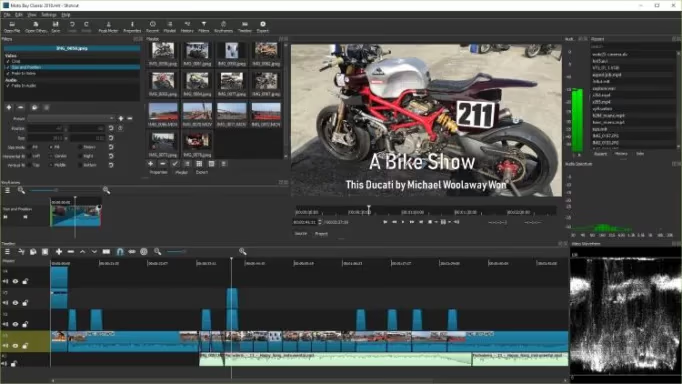
Shotcut is open-source and lighter on system resources. It supports over 200 video formats, has a drag-and-drop timeline, and exports without watermarks. Runs fine on 8 GB of RAM.
It’s the closest free alternative to Filmora in terms of ease of use. You won’t get AI features, but for cutting, transitions, and text overlays, Shotcut handles the job well.
#OpenShot
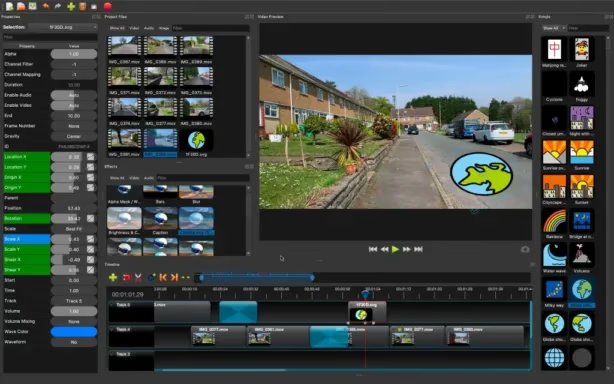
OpenShot is the simplest option. If Filmora felt easy, OpenShot is even easier. It runs on Windows, Mac, and Linux with almost no learning curve.
The trade-off is fewer features and occasional stability issues with long projects. For quick 5-minute edits and basic videos, it works fine. If you need to crop video in PowerDirector or do more advanced edits, you’ll want Resolve or Shotcut instead.
#Can You Remove the Watermark From an Already Exported Video?
Technically, yes. Several tools claim to do this by blurring or painting over the watermarked area. The results are usually poor.
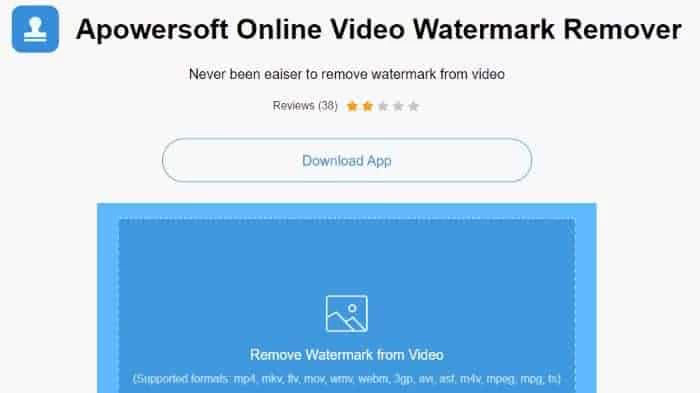
We tested 3 popular watermark removal tools on a 1080p Filmora export. Every single one left visible smudging or discoloration where the watermark sat. The center-frame placement makes it worse since there’s always important content behind it.
The better approach: If you still have the original Filmora project file (.wfp), open it in an activated copy of Filmora and re-export. According to Wondershare’s support documentation, this is the intended method. The watermark was never baked into the project file; it gets added during export only.
If you’ve worked with Dreamstime watermarks or tried removing watermarks in Pixlr, you know that removing watermarks from exported files always involves quality loss.
Legal note: Wondershare’s End User License Agreement explicitly prohibits removing or altering watermarks using third-party tools. The legitimate options are the free export, a paid license, or switching editors.
#Tips for Getting the Most Out of Your Free Export
Since you only get one shot, make it count:
- Finish your edit completely before exporting. Once you use the free export, it’s gone. Don’t waste it on a rough draft.
- Choose 1080p or 4K if your source footage supports it. You can’t re-export for free later, so go with the highest quality.
- Export to MP4 with H.264 encoding. This format works on virtually every device and platform. YouTube, Instagram, and TikTok all accept it without re-encoding issues.
- Save your .wfp project file. If you buy a license later, you can re-export the same project without the watermark at any time.
For other video editing tasks, our guides on removing background noise in iMovie and reversing clips in Premiere Pro cover common workflows.
#Why You Should Avoid Cracked Versions of Filmora
Cracked versions of Filmora circulate online, and they all come with serious risks:
- Malware. Cracked software is one of the most common vectors for trojans and ransomware. You might remove the watermark but install a keylogger instead.
- No updates. Bugs and security vulnerabilities in Filmora 14 stay unfixed.
- Legal issues. Software piracy can result in fines. Wondershare actively tracks unauthorized usage.
- Instability. Cracked versions crash during export or produce corrupted files. Losing 3 hours of editing work isn’t worth it.
DaVinci Resolve is free and more powerful than Filmora for most tasks. There’s no reason to risk malware when a legitimate free option exists.
#Wrapping Up
Start with the one-time free export if you have a single important project. For ongoing editing, either grab a Filmora license ($69.99/year or $99.99 one-time) or switch to DaVinci Resolve. Skip online watermark removal tools entirely. If you also edit on mobile, check out how to remove KineMaster watermarks or remove Canva watermarks for similar workarounds on other platforms.
#Frequently Asked Questions
#Does the free export trick work on Filmora 14?
Yes. As of March 2026, new Wondershare ID users still get one free watermark-free export within 3 days. The feature has been available since version 10.5.5 and works on all newer versions including Filmora 14.
#Can I create multiple accounts to get more free exports?
Wondershare tracks more than just email addresses. They tie accounts to device IDs and hardware fingerprints. Some people report success with a different device and a fresh email, but it’s unreliable and violates their terms of service.
#Will the watermark show up in screen recordings of my video?
If you play a watermarked video and screen-record it, the watermark stays visible. Screen recording captures everything on screen. The only clean removal method is re-exporting from the original .wfp file with an activated license.
#Is DaVinci Resolve really free with no limitations?
The free version has no watermarks, no export limits, and no trial period. Blackmagic Design makes money from the $295 Studio version and from selling professional hardware like capture cards and cameras. The free version has been available since 2014, so it’s not going away.
#What video format should I export in for the best quality?
MP4 with H.264 at a high bitrate gives you the best balance of quality and file size. If you’re uploading to YouTube or social media, they re-encode everything anyway. For archival quality, H.265 produces smaller files at the same visual quality but takes roughly 2x longer to encode.
#Does buying a license remove watermarks from previously exported videos?
No. Videos already exported with the watermark have it permanently embedded in the file. You need to open the original .wfp project in the licensed version and export again. The new export comes out clean.
#Are Filmora’s AI features available in the free trial?
Yes. The trial gives you full access to Smart Cutout, AI Music, AI Text-to-Video, and all other AI tools in Filmora 14. The only limitation is the watermark on exports. Use the trial to test whether these features justify the $69.99/year price before committing.
#How long does Filmora take to render a 10-minute video?
On a mid-range PC with 16 GB RAM and a GTX 1660, a 10-minute 1080p video with basic edits renders in about 4 to 6 minutes using H.264. Adding effects, transitions, and color grading increases that to 8 to 12 minutes. Exporting at 4K roughly doubles the time compared to 1080p.