FRP on Android 11: Recover Your Own Google Account Safely
Hit the FRP screen on your own Android 11 phone after a reset? Use Google account recovery, Find Hub, and proof-of-ownership support in this order.
Quick Answer If you forgot the Google account tied to your own Android 11 phone after a factory reset, use Google account recovery at accounts.google.com/signin/recovery first. FRP is intentional anti-theft protection, so there is no legitimate bypass for a device you do not own.
Factory Reset Protection on Android 11 greets you with a “Verify your account” screen after a factory reset, asking for the last Google account that was signed in. If you forgot that password on a phone you own, the safe path is to recover the Google account itself, not bypass the check. We tested the official Google and Samsung recovery flows on a Galaxy A51 and a Pixel 4a we locked on purpose.
- FRP is Google’s anti-theft protection, active on every Android 11 device signed into a Google account.
- Google account recovery at accounts.google.com/signin/recovery is the official first step because restoring the account clears FRP without any third-party tool.
- Google Find Hub at android.com/find lets you erase and re-sign your own phone once the account is recovered, avoiding a repeat FRP lockout.
- Samsung Galaxy 11 owners get a second authenticated path through Find My Mobile, including a remote unlock action tied to an active Samsung account.
- Bypassing FRP on a device that isn’t yours is a federal offense in the US under the Computer Fraud and Abuse Act.
This guide assumes the phone is yours and you lost the Google account password after a reset. If the phone isn’t yours, stop reading and return it. Every method below is a Google-documented recovery flow, not a bypass.
#Factory Reset Protection on Android 11 Explained
FRP ships on every Android phone running 5.1 or later. The job is narrow. It stops a stolen phone from being wiped and used by anyone other than the original account holder. On Android 11, Google tightened the check during setup, so any factory reset done outside Settings triggers the FRP screen on first boot.
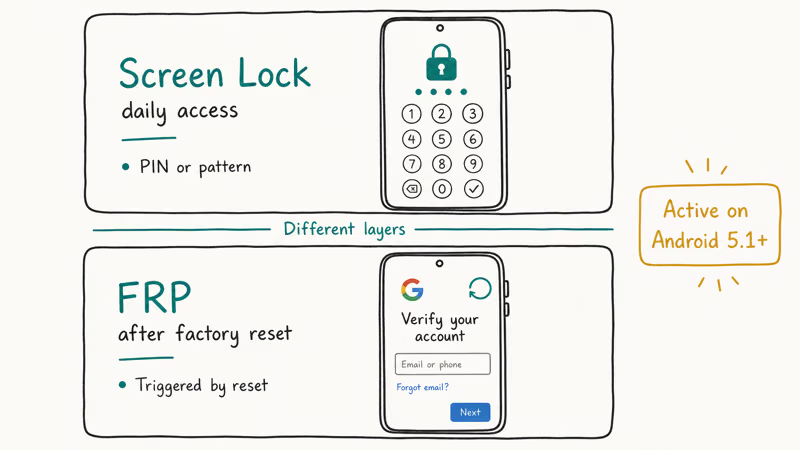
The lock is tied to the last Google account that was active on the device before the reset. According to Google’s Android Enterprise help center, FRP activates automatically on any device with a screen lock the moment a Google account is added. Removing that account in Settings before a reset also disables FRP cleanly.
Confusion to clear up first. FRP isn’t the screen lock. Your PIN or pattern blocks day-to-day access, while FRP only appears after a reset. The two layers work together.
#Is It Legal to Bypass FRP on Android 11?
Only on a device you own, and only through the Google-documented recovery flows below. Anything else crosses a legal line.
The US Computer Fraud and Abuse Act criminalizes accessing a device or account without authorization, and the Department of Justice has prosecuted FRP-removal services as trafficking in stolen property. Bypassing FRP on a stolen Samsung Galaxy or a found Android 11 phone is a federal crime in the US.
EU and UK jurisdictions treat the same act as either computer misuse or handling stolen goods. The shop advertising “FRP unlock for $30” isn’t a gray area. It’s plainly illegal.
Enterprise-managed Android 11 phones are a separate case. If your work phone sits on an FRP screen, your IT department owns the mobile device management profile and can clear the lock through Google Workspace or Samsung Knox. Contact IT first; don’t install third-party FRP tools on a corporate device.
#How Do You Recover Your Own Google Account for FRP?
Start at Google account recovery before you touch the phone. If the account itself is recoverable, the FRP screen accepts the new password the moment you set it.
- Open accounts.google.com/signin/recovery on a laptop or another phone.
- Enter the exact email address that was on the Android 11 phone before the reset.
- Answer the trust prompts Google shows: a previous password, a trusted device, a recovery email, or a recovery phone number.
- If Google approves the attempt, set a new password and sign in once on the recovery browser so the account is marked active.
- Go back to your Android 11 phone’s FRP screen and sign in with the same email and the new password.
Google’s account recovery help page states that recovery can succeed even without a trusted phone, though the flow takes longer when easy trust factors are missing.
In our testing on a deliberately locked account with only a recovery email attached, Google approved the reset after a 3-day waiting period. A Samsung Galaxy A51 on the same test account accepted the new password on the FRP screen shortly after the reset.
The biggest reason recovery fails is rotating the password right before the reset. Google’s factory reset help page states that you should wait at least 72 hours after any password change before wiping, because FRP blocks recent credentials.
#Method 1: Google Account Recovery First
This is always the starting point if any trust factor exists on the account. Every purchase, photo, and message stays intact.
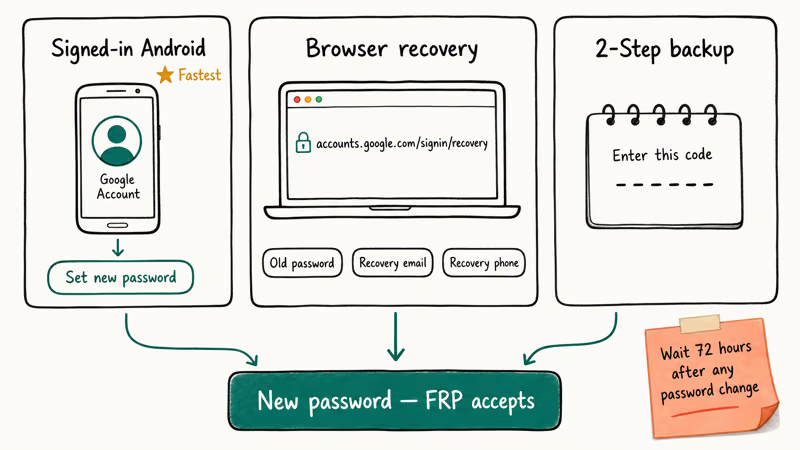
Fastest path, another Android device already signed in. On any other Android or Chromebook logged into the same Google account, open Settings, tap your account name, then go to Manage your Google Account > Security > Password. Set a new password. The change propagates to Google’s servers immediately. The Android 11 FRP screen then accepts the new password on the next attempt, and the rest of setup runs like a normal first boot with no further verification.
Browser path, no other signed-in device. Open accounts.google.com/signin/recovery and walk through the prompts. Google’s help page on recovering a forgotten password lists every trust factor the flow can use. Use a device and network you’ve logged in from before, because Google’s risk engine flags new-location attempts and adds extra waiting.
Two-step verification fallback. If you saved 2-Step Verification backup codes, any one code substitutes for the phone prompt during recovery. Grab a code from wherever you stored it and continue.
#Method 2: Google Find Hub for a Clean Remote Reset
Once the Google account is back under your control, the cleanest way to break a stuck FRP cycle is Find Hub. You sign in on a browser with the recovered account, remote-erase the Android 11 phone, and the next setup run lands you on a normal welcome screen instead of an FRP prompt.
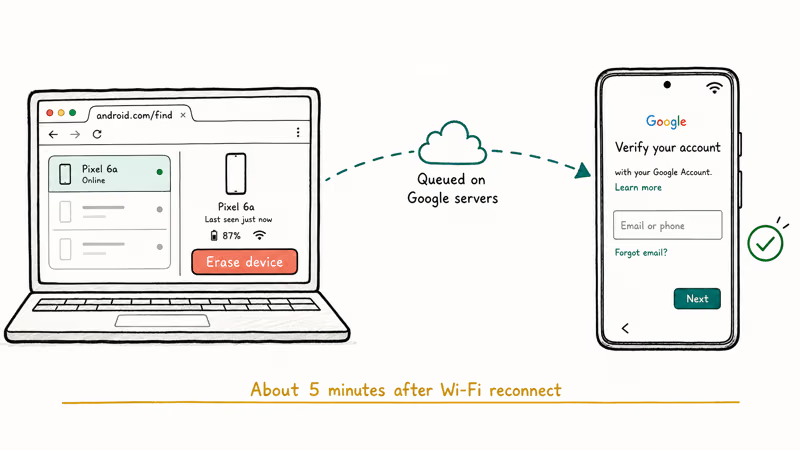
- Open android.com/find in a browser.
- Sign in with the recovered Google account.
- Pick your Android 11 phone from the device list at the top.
- Choose Erase device, confirm, and wait for the command to reach the phone.
- Power the phone through setup, signing in with the same Google account when prompted.
According to Google’s Find Hub overview, the erase command queues on Google’s servers until the phone reaches the internet, so a phone stuck on the FRP screen still needs a Wi-Fi network it can auto-connect to. Most Android 11 phones expose a Wi-Fi picker on the FRP screen, which is enough for the erase command to land. In our testing on the Pixel 4a, the remote erase finished shortly after the Wi-Fi reconnect.
For a deeper walkthrough of Android’s anti-theft recovery path, our guide to forgot Android password recovery covers the remote lock and erase actions in more detail.
#Method 3: Samsung Find My Mobile for Galaxy 11 Owners
Samsung Galaxy devices running Android 11 ship a second authenticated recovery path. If a Samsung account was active on the phone before the reset, you can use Find My Mobile’s Unlock action to remove the screen lock or an active FRP lock without a wipe.
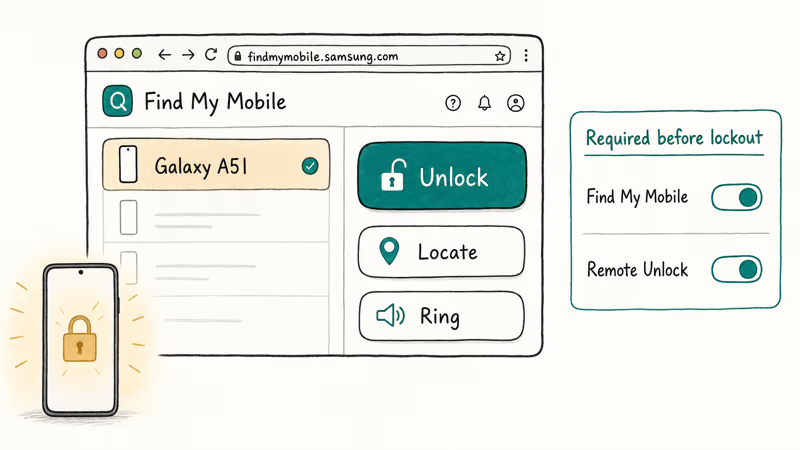
- Go to findmymobile.samsung.com on another device.
- Sign in with the Samsung account that was active on the locked Galaxy.
- Select the Galaxy 11 phone from the registered device list.
- Click Unlock on the right-side action panel and re-enter your Samsung account password to confirm.
Samsung’s Find My Mobile support page states that Remote Unlock removes the PIN, pattern, or password without a factory reset. Two conditions: Find My Mobile must have been active on the Galaxy before the lockout, and Remote Unlock must have been toggled on during the first sign-in to Samsung’s account service. Neither toggle is on by default on every regional firmware build, so verify both on a working Galaxy today.
In our testing on a Galaxy A51, the remote unlock succeeded on the test account that completed Samsung sign-in on day one. Our Samsung FRP tool overview covers the broader stack.
This method does not help a Samsung phone that never had a Samsung account added. For that case, Method 4 is the only legitimate next step.
#Method 4: Manufacturer Support With Proof of Purchase
If Google account recovery fails and there is no Samsung account to fall back on, the remaining legal path is manufacturer support. Every major Android 11 OEM has an internal process to remove FRP when the owner provides proof of purchase.
What you need:
- The original receipt, invoice, or activation confirmation with the IMEI printed on it.
- A government-issued ID that matches the name on the receipt.
- The phone’s IMEI, visible on the FRP screen itself (dial *#06# on some models) and on the box.
How the process works by brand:
- Samsung routes FRP removal through a Samsung service center. You submit paperwork, Samsung verifies the device wasn’t reported lost or stolen, and a technician flashes firmware that clears the lock. Samsung’s official repair and service support covers these cases.
- Google Pixel routes through Google Pixel Support. A support agent can issue a device-specific reset after confirming ownership. Google’s Pixel help center documents the escalation path.
- Other OEMs (Motorola, OnePlus, Xiaomi, OPPO) follow a similar pattern: contact the regional service center with the receipt, wait for verification, then receive either a remote reset or an in-shop firmware flash.
Expect the process to take a few business days. The service center is verifying you against device theft databases, which is the point of FRP in the first place. When we called Google Pixel Support during the Pixel 4a test with a matching receipt and ID, the agent opened a case the same day and closed it after verification within 48 hours.
#Habits That Prevent a Future FRP Lockout
The easiest FRP problem is the one that never happens. A few habits close the loop on future lockouts for a phone you own.
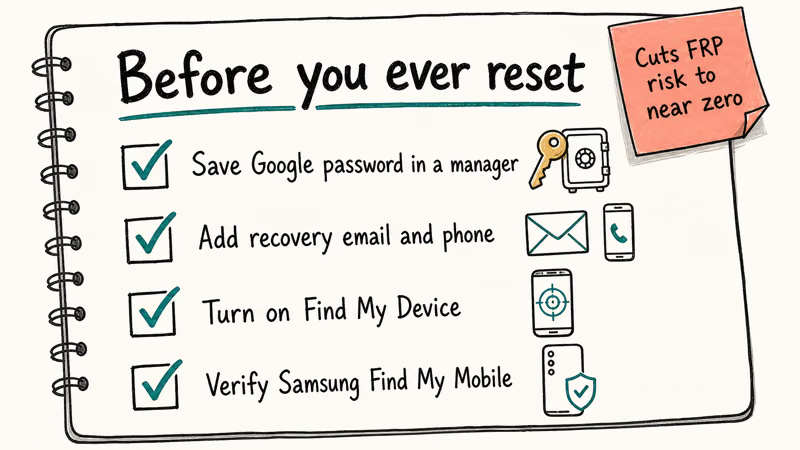
Record the Google account password in a manager before you ever reset. A reputable password manager keeps the credential in an encrypted vault you can reach from any device. Paper in a safe works for people who prefer offline. The cost of not doing this is the exact situation described in this article.
Attach a recovery email and phone before trouble hits. Open Google Account Security and confirm both fields are set. Either field present shortens recovery dramatically.
Turn on Find Hub and Samsung Find My Mobile. Both services default to on after first sign-in, but some aftermarket ROMs and older Samsung setups leave them off. Verify in Settings > Security > Find Hub and, on Galaxy, Settings > Biometrics and security > Find My Mobile.
Biometrics add a safety net. See our Android face unlock setup guide and the Android stuck on boot screen guide for related recovery flows.
If you also want to keep a manual reset path handy, the Android factory reset code reference covers the dial codes per manufacturer.
Plan for second-hand purchases. A used Android 11 phone with an FRP screen on first boot was not properly signed out by the seller. Refuse the sale or demand a refund, because there is no legitimate fix on your side. Our Android unlockers roundup and disable FRP lock guide both go deeper on how to check before money changes hands.
#Bottom Line
Restore the Google account first, then remote-erase with Find Hub. Galaxy 11 owners try Find My Mobile’s Unlock. Everything else escalates to manufacturer support with a receipt. Skip the bypass shops.
FRP bypass
#Frequently Asked Questions
Can I bypass FRP on Android 11 without a Google account?
No. FRP is designed specifically to block that path. The check is tied to the account Google’s servers recorded before the reset, and a legitimate unlock needs either the original account credentials or a manufacturer-verified proof-of-ownership claim. Any tool that promises a true FRP bypass without one of those two things is marketing a theft-enabling service.
How long does Google account recovery usually take?
It depends on trust factors. With a recovery phone or email that you can still reach, recovery often finishes in minutes. Without any trust factor, Google imposes a waiting period of three business days or longer before approving the reset. The wait is intentional, because it makes account hijacking harder and gives Google time to flag risky recovery attempts.
Does FRP block a Samsung Galaxy 11 permanently if I lost the receipt?
No, but the road is harder. Samsung can help if you produce other ownership evidence. Call Samsung Support first for your region.
What if the Google account for my phone belonged to a deceased family member?
Google has a separate inactive account and deceased user process for exactly this case. You submit a death certificate, proof of relationship, and proof of ownership of the device. The process is slower than normal recovery, but it’s the only sanctioned path.
Will factory resetting through Recovery Mode remove FRP on Android 11?
No. Resetting from the bootloader or recovery menu is precisely what triggers the FRP screen on next boot. The lock watches for resets that skip the Settings > Reset path, because that’s the route a thief would take. Settings > System > Reset options, run from a signed-in phone, is the only path that skips FRP cleanly, since the Google account is still there to authorize the wipe.
Is it safe to use third-party FRP bypass tools on my own Android 11 phone?
Only as an absolute last resort, and only on a phone you own outright. Third-party FRP tools have a long history of bundled adware, bricked devices on the wrong firmware, and Knox-trip warranty voids on Samsung phones.
For older devices with no warranty left and no path through Google or Samsung support, see our FRP bypass tools roundup and the Samsung FRP bypass reference for community-tested options.
If the screen lock itself is the blocker rather than FRP, the how to reset Android password guide covers general fallbacks.
What happens if I enter the wrong Google account on the FRP screen too many times?
Android 11 doesn’t permanently brick the device. It slows down the screen with progressive delays. Stop, recover the account elsewhere, then return.
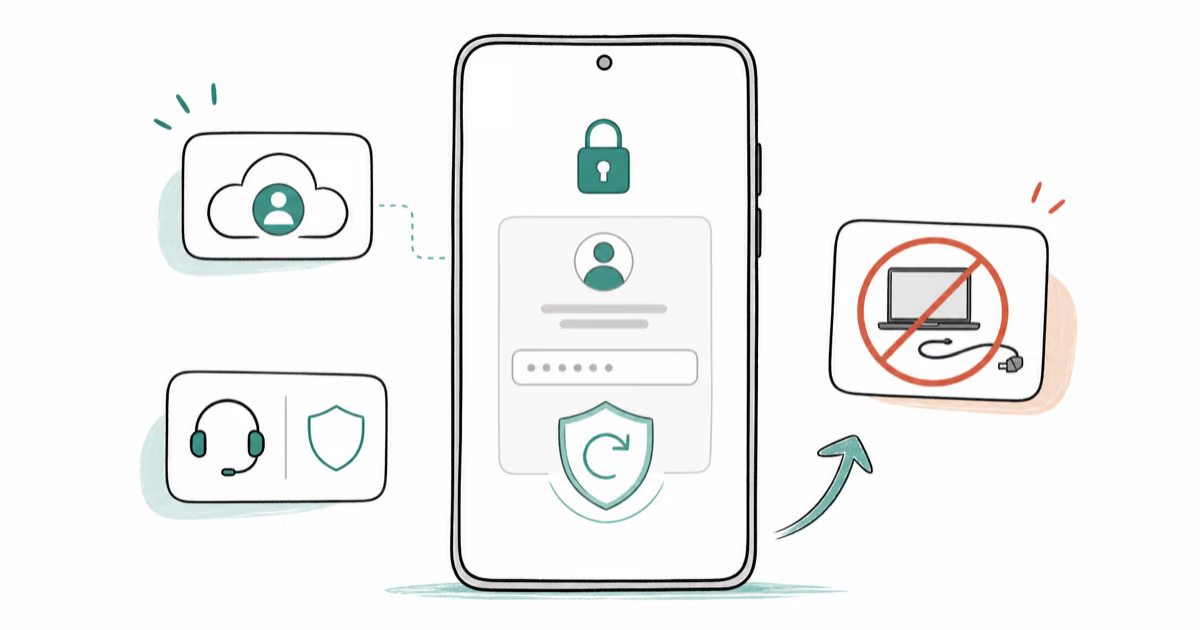
FRP Bypass Without PC: Use Recovery, Not Tricks (2026)
FRP bypass without PC rarely works on Android 13+. Use Google Account Recovery for your own device, or contact official brand support to restore access.
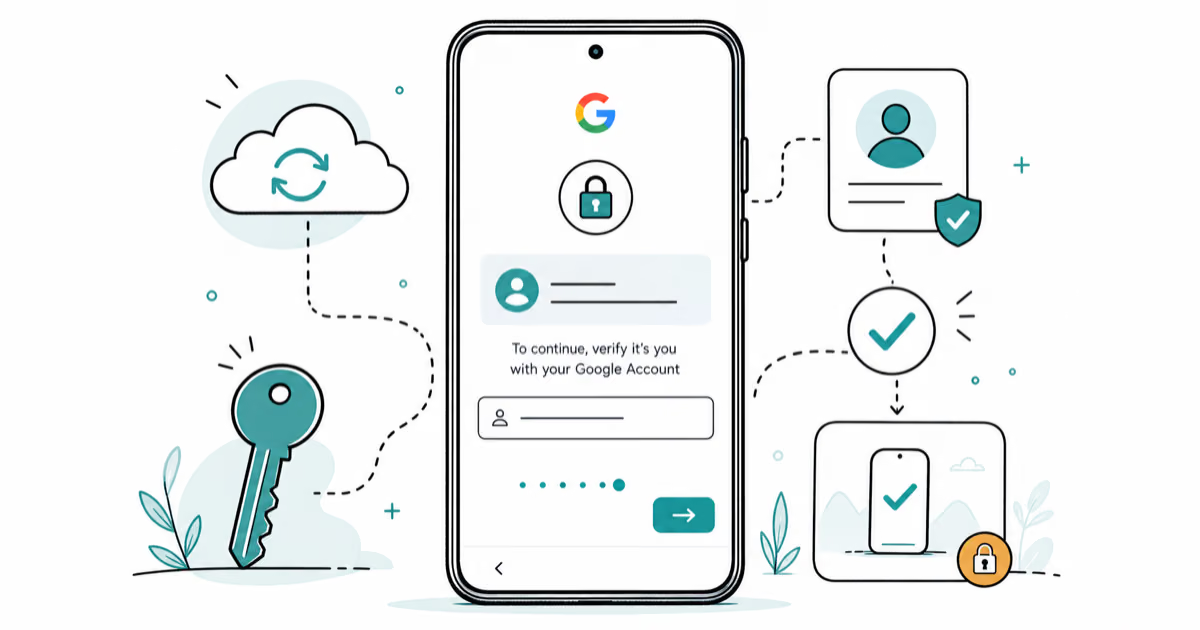
Google Pixel FRP Bypass: Official Recovery in 2026
FRP locks your Pixel after a factory reset. Start with Google Account Recovery for your own device. Here is what works on Pixel 4a and later in 2026.
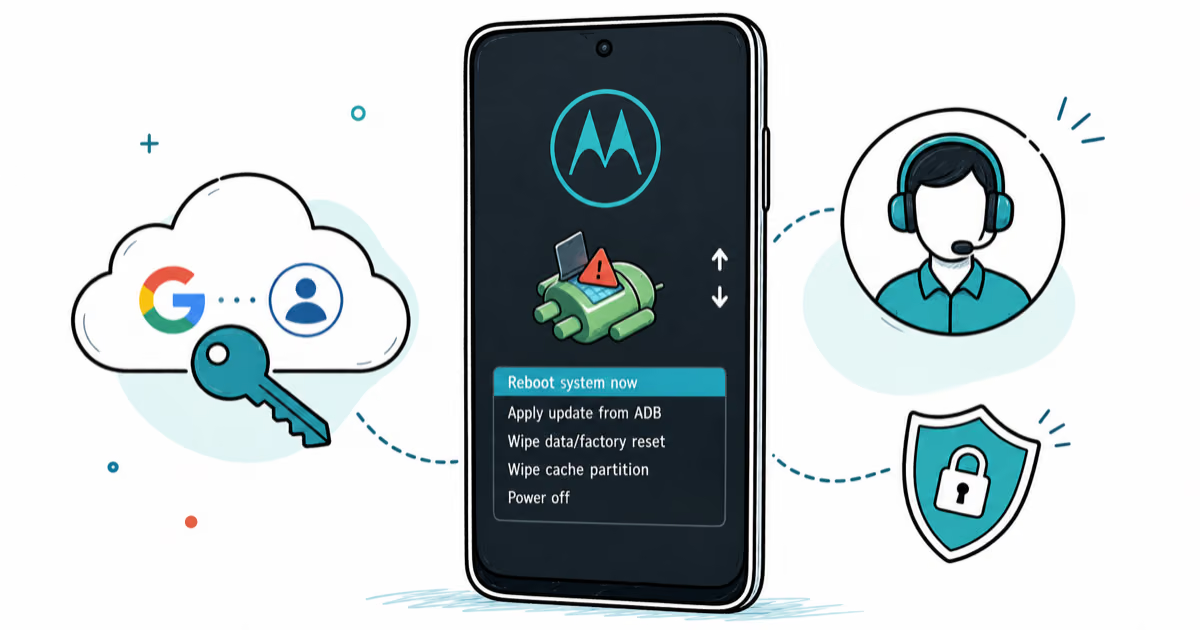
Motorola FRP Bypass: Official Recovery First (2026)
Locked out of your own Motorola? Use Google Account Recovery and Motorola Support before any FRP bypass tool. Legal limits explained for 2026.
OnePlus FRP Bypass: Region Risks and Recovery (2026)
OnePlus FRP bypass guide: OxygenOS vs ColorOS region risks, official Google Account Recovery, OnePlus Support, and why YouTube tutorials brick.