Fix Ethernet Doesn't Have a Valid IP Configuration (13 Ways)
Fix the "Ethernet doesn't have a valid IP configuration" error with DHCP restart, DNS reset, cable checks, adapter reinstall, and router steps.
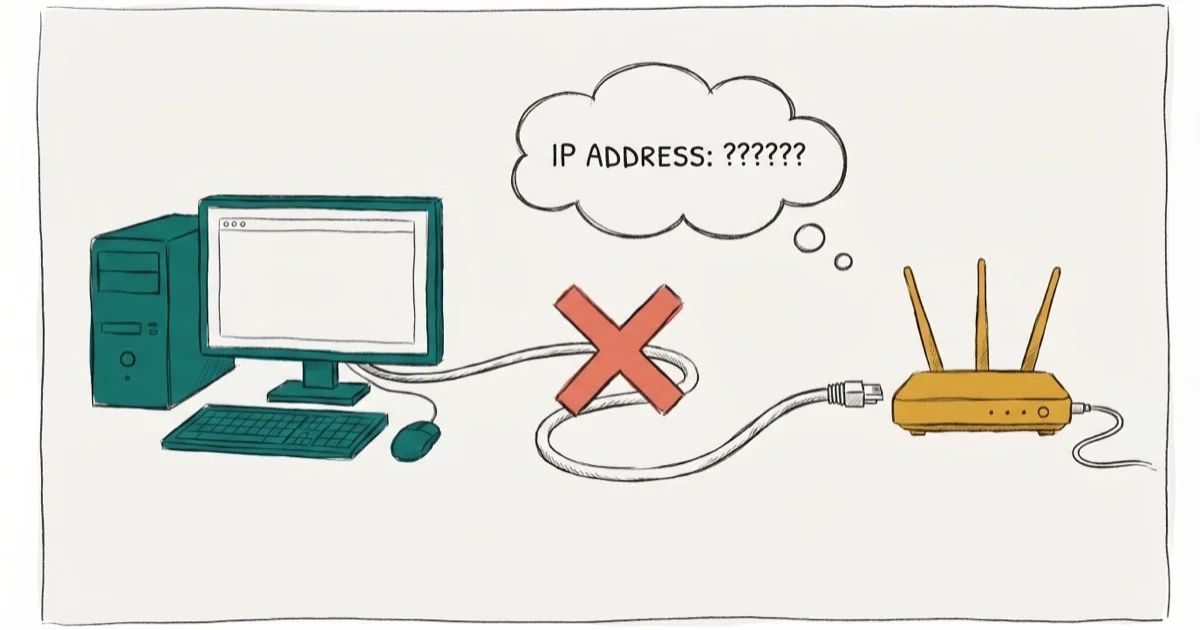
Quick AnswerThis error means your PC's network adapter can't get a valid IP address from the router. The fastest fixes are restarting the DHCP Client service, flushing your DNS cache with ipconfig /flushdns, or power-cycling your router for 30 seconds.
The “Ethernet doesn’t have a valid IP configuration” error stops your PC from connecting to the internet through a wired connection. Start with the DHCP Client restart, DNS reset, router power-cycle, and cable checks before moving to adapter reinstall or CHKDSK.
- The error means your NIC can’t obtain a valid IP address from the router’s DHCP server
- Restarting the DHCP Client service is one of the most effective fixes for this error
- Running ipconfig /flushdns followed by ipconfig /renew clears stale network data in under 60 seconds
- A damaged ethernet cable causes this error more often than most users expect, so swap cables early
- Disabling Fast Startup prevents Windows from loading outdated cached network settings on boot
#Common Causes Behind This IP Configuration Error
Three root causes trigger this error. Your router’s DHCP service may fail to assign an IP address, your PC’s network adapter settings may be misconfigured, or the NIC hardware itself could malfunction. Incorrect adapter settings and outdated drivers are among the most common root causes of this error.
Start with the DHCP service reset because it’s fast, reversible, and directly targets the failed IP lease. The methods below move from quickest to most involved.
#How Do You Fix This Error by Disabling Fast Startup?
Fast Startup loads cached network settings from your previous session. If those cached settings contain a stale IP address, the NIC won’t get a fresh assignment.
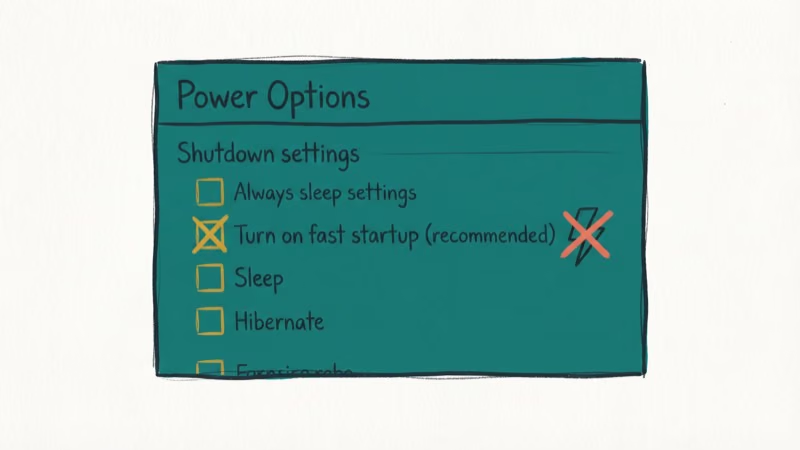
- Right-click the Start Menu and select Power Options.
- Click Choose what the power buttons do in the left pane.
- Click Change settings that are currently unavailable.
- Uncheck Turn on fast startup (Recommended).
- Click Save changes and restart your PC.
Fast Startup can keep stale adapter state after a major Windows update. If the error started after an update or shutdown cycle, disable it before deeper driver work.
#Check the Network Adapter Settings (NIC)
Your NIC might be set to use a static IP that conflicts with your router’s subnet range. Switching to automatic IP assignment lets the router handle address distribution.
- Press Windows + R, type
ncpa.cpl, and hit Enter. - Right-click your Ethernet adapter and select Properties.
- Click Internet Protocol Version 4 (TCP/IPv4) and then Properties.
- Select Obtain an IP address automatically.
- Select Obtain DNS server address automatically.
- Click OK and restart the adapter.
If you’re also dealing with DNS errors, our guide on fixing DNS_PROBE_FINISHED_NO_INTERNET covers related solutions. You might also want to check our DNS_PROBE_FINISHED_BAD_CONFIG troubleshooting walkthrough.
#Reboot the Router and Check the Ethernet Cable
A router that’s been running continuously for weeks can develop memory leaks that prevent it from assigning new IP addresses. A PCMag networking guide recommends power-cycling the router every 2-4 weeks to clear its internal cache and force a fresh DHCP lease cycle.
- Unplug both your router and modem from power.
- Wait 30 seconds (this clears the router’s volatile memory).
- Plug the modem back in first and wait for it to fully connect.
- Plug the router back in and wait 2 minutes.
- Test the ethernet connection on your PC.
If rebooting doesn’t work, swap the ethernet cable. A slightly bent RJ45 connector or broken internal wire can trigger the same intermittent error, so a known-good cable is a fast isolation step.
#How Do You Reset Network Settings Using Command Prompt?
Flushing DNS and resetting the Winsock catalog clears outdated network data that may block valid IP assignment. According to Microsoft’s Ethernet troubleshooting guide, running netsh winsock reset, netsh int ip reset, ipconfig /release, ipconfig /renew, and ipconfig /flushdns resets the TCP/IP stack and DNS cache. Run the reset commands first because they are reversible and faster than a full adapter reinstall.
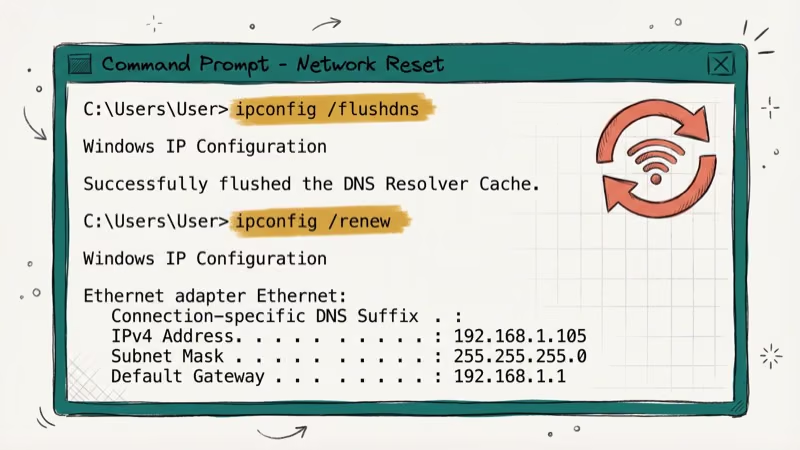
Open Command Prompt as administrator and run each command one at a time:
ipconfig /flushdns
ipconfig /renew
nbtstat -R
nbtstat -RR
netsh int ip reset c:\resetlog.txt
netsh winsock reset
Restart your computer after running all six commands. Then go to Control Panel > Network and Sharing Center > Change Adapter Settings, right-click your ethernet adapter, select Disable, wait 10 seconds, and click Enable.
If you need to move apps between drives without reinstalling, check our SymMover guide.
#Check if the Cables Are OK
Physical cable damage isn’t always obvious. A cable can look intact while an internal wire break near the connector keeps the router link light dark.
Look for these signs:
- No click sound when you plug the RJ45 connector into the port
- No blinking link light on the router or PC’s network port
- Intermittent disconnections that happen when you move the cable
- Visible damage like kinks, cuts, or crushed sections
Try a different cable and a different port on the router before moving on to software fixes.
#Reinstall the Network Adapter
Corrupted driver files can prevent the NIC from communicating with the DHCP server. Uninstalling and reinstalling the adapter forces Windows to load fresh drivers. Microsoft’s support documentation confirms that uninstalling the network adapter driver and restarting lets Windows automatically reinstall the latest driver, which it recommends when a connection stops working after an update.
- Press Windows + X and select Device Manager.
- Expand Network adapters.
- Write down your ethernet adapter’s name.
- Right-click the adapter and select Uninstall device.
- Click
Action>Scan forhardware changes.
Windows reinstalls the default driver automatically. If your adapter uses a manufacturer driver, download the latest version from the vendor’s website. You can also check our guide to fixing the default gateway not available error, which often occurs alongside this problem.
#Disable IPv6 on Your Connection
Your adapter might be configured for IPv6 when your network only supports IPv4. This mismatch creates a conflict that blocks valid IP assignment.
- Right-click the network icon in your system tray and select Open Network & Internet settings.
- Click
Network and Sharing Center>Change Adapter Settings. - Right-click your ethernet connection and choose Properties.
- Uncheck Internet Protocol Version 6 (TCP/IPv6).
- Click OK to save.
#Disable Microsoft Kernel Debug Network Adapter
Hidden debug adapters can compete with your primary NIC for IP assignments. This conflict is more common on PCs that have had development tools installed.
- Press Windows + X and select Device Manager.
- Click
View>Show Hidden Devices. - Expand Network adapters.
- Right-click Microsoft Kernel Debug Network Adapter and select Disable device.
- Click Yes to confirm.
#Assign a MAC Address Manually
A missing or mismatched MAC address prevents the router from recognizing your NIC and assigning an IP. Manually entering the address fixes this authentication gap.
- Press Windows + R, type
cmd, and hit Enter. - Type
ipconfig /alland press Enter. - Note the Physical Address listed under your ethernet adapter.
- Go to
Network and Sharing Center>Change Adapter Settings. - Right-click your connection, select
Properties>Configure>Advanced. - Click Network Address, select Value, and enter the physical address you noted (without dashes).
- Click OK.
#Enable DHCP to Get a Valid IP Automatically
When the DHCP Client service is stopped or set to manual, your PC can’t request an IP address from the router. Disabled DHCP services are a frequent cause of IP configuration failures, particularly on networks where services have been manually configured.
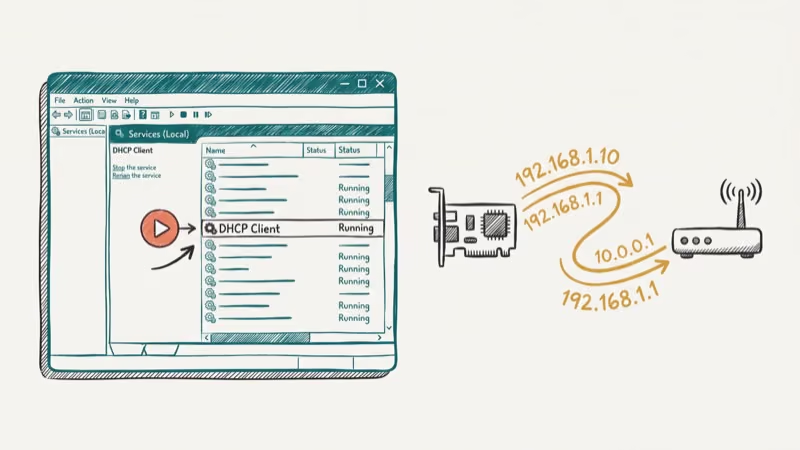
- Press Windows + R, type
services.msc, and hit Enter. - Find DHCP Client and double-click it.
- Set the Startup type to Automatic.
- Click Start if the service isn’t running.
- Click OK, then right-click DHCP Client and select Restart.
Restarting DHCP Client is often the highest-value fix because it directly restores the service that requests an IP lease from the router. If Group Policy or a cleanup tool disabled it, set it back to Automatic before trying slower fixes.
#Reset Power Management for Your Network Adapter
Windows power-saving settings can shut down your NIC to conserve battery. When the adapter powers back on, it sometimes fails to renegotiate an IP address.
- Go to
Network and Sharing Center>Change Adapter Settings. - Right-click your ethernet adapter and select Disable.
- Right-click again and select
Properties>Configure. - Click the Power Management tab.
- Uncheck Allow the computer to turn off this device to save power.
- Click OK, then right-click the adapter and select Enable.
If you’re experiencing WiFi authentication errors alongside this issue, the root cause might be a broader network adapter driver problem.
#Reconfigure Your IP Settings
Releasing and renewing the IP lease forces your PC to request a completely fresh address from the router.
- Press Windows + R, type
cmd, and press Enter. - Run these commands one at a time:
ipconfig /release
ipconfig /flushdns
ipconfig /renew
Wait about 30 seconds after the /renew command for the new IP to be assigned. If the error persists, your router’s DHCP pool may be exhausted. Check your router’s admin panel to see how many active leases exist.
#Deactivate Your Antivirus Temporarily
Third-party antivirus software with built-in firewalls can block DHCP traffic between your PC and router. Norton, Kaspersky, and Bitdefender have all been reported to cause this issue when their network protection modules are set to strict mode.
- Right-click your antivirus icon in the system tray.
- Look for an option like Disable protection or Pause protection.
- Set it to disable for 15 minutes.
- Test your ethernet connection.
If the error disappears, add an exception for DHCP traffic (UDP ports 67 and 68) in your antivirus settings rather than leaving protection disabled.
#Run CHKDSK to Check for Disk Errors
Corrupted system files on your hard drive can affect network service configurations. Running CHKDSK repairs file system errors that might prevent network services from loading correctly.
- Open Command Prompt as administrator.
- Type
chkdsk c: /fand press Enter. - Type
Ywhen prompted and restart your computer. - The scan runs during the next boot and typically takes 10-20 minutes.
If you’re seeing other boot errors like 0xc0000098, disk corruption might be affecting multiple services beyond networking.
#Bottom Line
Start with the fastest fixes first: restart the DHCP Client service, run ipconfig /flushdns and ipconfig /renew, and swap your ethernet cable. These three steps resolve the “Ethernet doesn’t have a valid IP configuration” error on most PCs. If those don’t work, disable Fast Startup and check for IPv6 conflicts. Save the MAC address and CHKDSK fixes for last since they address less common causes.
#Frequently Asked Questions
What does “Ethernet doesn’t have a valid IP configuration” mean?
Your PC’s network adapter failed to receive a valid IP address from the router’s DHCP server. Without a valid IP, your computer can’t communicate on the local network or reach the internet. The error shows up when you run the Windows Network Diagnostics tool.
Can a bad ethernet cable cause an invalid IP configuration?
Yes. A damaged cable, a bent RJ45 connector, or a loose port connection all prevent stable communication between your PC and router. The DHCP handshake requires reliable packet delivery, so even intermittent cable issues can trigger this error.
Does this error only happen on Windows 10?
No. This error appears on Windows 7, Windows 8.1, Windows 10, and Windows 11. The troubleshooting steps are nearly identical across all versions, though menu locations may differ slightly in older Windows editions.
Should I permanently disable my antivirus to fix this?
Don’t disable your antivirus permanently. Only turn it off temporarily (15 minutes is enough) to test whether it’s blocking DHCP traffic. If the antivirus is the cause, add exceptions for UDP ports 67 and 68 instead of leaving your system unprotected.
How long does the ipconfig /renew command take?
The command typically completes within 5-30 seconds. If it hangs for more than 60 seconds, your router’s DHCP server may be unresponsive. Restart your router and try the command again.
Will a factory reset fix this error?
A Windows factory reset will fix it if the cause is corrupted system files or misconfigured services, but it’s a last resort. Try all 13 methods above first, since a reset erases your installed programs and personal files unless you choose the option to keep them.

Best Laptop for Running LLMs in 2026: Memory Comes First
The best laptop for running LLMs is a memory purchase first. Compare MacBook unified memory against NVIDIA laptop VRAM, and see what each tier really runs.

How to Run a Local LLM on Windows: A 2026 Setup Guide
Run a local LLM on Windows with LM Studio or Ollama. Pick a model that fits your GPU memory, keep every prompt offline, and skip the monthly bill.

Bluetooth Not Working on Snapdragon X? Fixes for 2026
Bluetooth not working on your Snapdragon X Copilot+ PC? Generic audio, mice, and keyboards work, but vendor apps often lack an ARM build. Fixes inside.

Docker Desktop and WSL2 Not Working on Snapdragon X? Fix It
WSL2 runs fine on Snapdragon X, but Docker Desktop ARM is Early Access and throws WSL errors. Use WSL2 plus native ARM64 Ubuntu and Docker Engine.