AT&T Mobile Transfer: How to Use It and Best Alternatives
AT&T Mobile Transfer moves data between phones over Wi-Fi. Here's how to use it, fix common errors, and the best alternatives if it stops working.
Quick AnswerAT&T Mobile Transfer is a free app that moves contacts, photos, videos, and messages between phones over Wi-Fi. Install it on both phones, share a network, and follow the prompts.
AT&T Mobile Transfer moves contacts, photos, videos, and messages between phones over Wi-Fi. It works for cross-platform moves between Android and iPhone, and it handles a few gigabytes of data without much fuss when both phones share a stable network.
- The app works on iOS 13+ and Android 8.0+, transferring contacts, photos, videos, SMS, and documents
- Both phones must be on the same Wi-Fi network
- AT&T removed the app from Google Play in May 2023, so Android users need an alternative
- Apple Quick Start and Google’s transfer tool do the same job with no extra download
- Files over 2 GB should be split into smaller batches to avoid crashes
#What Is AT&T Mobile Transfer?
AT&T Mobile Transfer is a free app from AT&T that copies your personal data from one phone to another wirelessly. It supports cross-platform transfers between Android and iOS, which makes it useful when you’re switching operating systems entirely.
The app handles contacts, photos, videos, music files, SMS, MMS, call logs, and documents like PDFs. One thing it won’t move: apps. You’ll need to re-download those individually from the App Store or Google Play after the transfer completes. AT&T’s support page states that 4 official methods exist for moving data to a new phone, and this app handles cross-platform transfers between iOS and Android.
#How AT&T Mobile Transfer Works
Your files stay private during the whole transfer. The app creates a direct Wi-Fi connection between your old and new phones, and no data passes through AT&T’s servers or any cloud service.
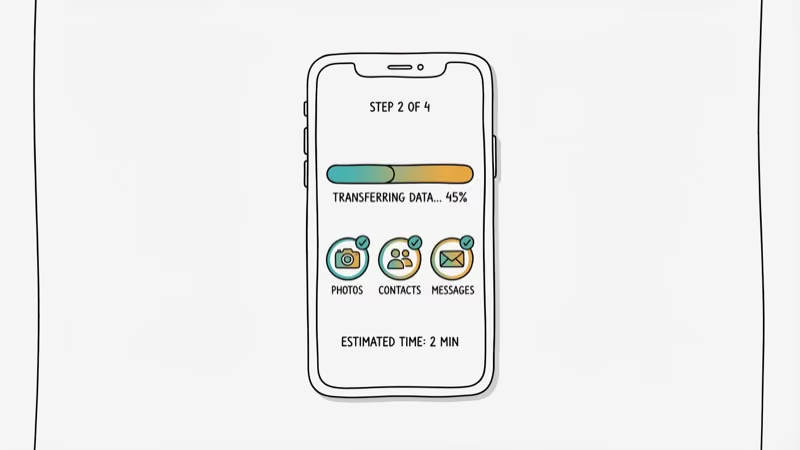
Install AT&T Mobile Transfer on both phones, open it, and select whether each device is sending or receiving. Connect both to the same Wi-Fi network, then scan the QR code displayed on the receiving phone. Pick the data types you want, tap Start, and wait for the progress bar to complete.
The QR code pairing usually takes only a few seconds, and the data moves steadily over a standard home Wi-Fi network. Don’t disconnect either phone or close the app until the progress bar hits 100%.
#System Requirements
AT&T Mobile Transfer doesn’t work on every device. Here’s the breakdown:
| Platform | Minimum OS | Notes |
|---|---|---|
| iPhone/iPad | iOS 13.0+ | All models supporting iOS 13 |
| Android | Android 8.0+ | Removed from Google Play May 2023 |
| Windows Phone | WP 8.1+ | App discontinued |
You also need a stable Wi-Fi connection (5 GHz band is best), at least 50% battery on each phone, and enough free storage on the receiving device. If your phone runs an older OS, update first: Settings > System > Software Update on Android, or Settings > General > Software Update on iPhone.
#Why Is AT&T Mobile Transfer Not Working?
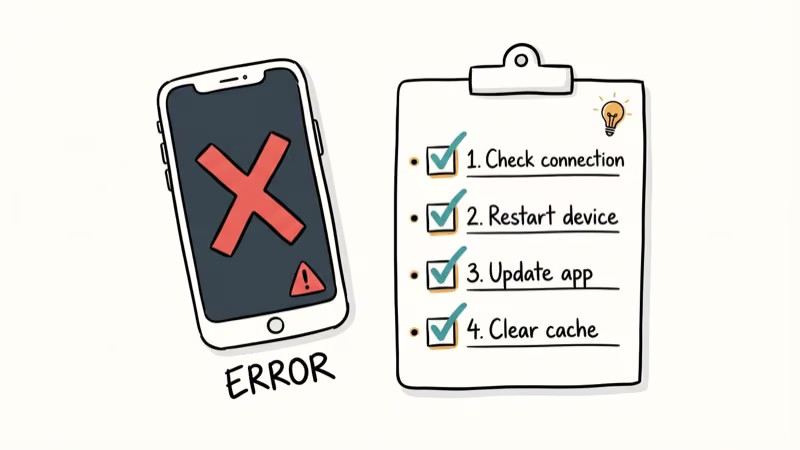
The app has a history of crashing, freezing at “testing connection,” or getting stuck on “finding device.” Here are the most common causes.
#Wi-Fi Connection Issues
Both phones must be on the exact same Wi-Fi network and the same frequency band. If one connects to 2.4 GHz and the other to 5 GHz (common with dual-band routers), the transfer fails silently without any error message at all.
Fix: Open your router settings and put both devices on the same band, or forget the network on both phones and reconnect.
#QR Code Not Scanning
Outdated app versions cause this nearly every time.
Fix: Uninstall on both devices and reinstall. Both phones need the same version.
#Transfer Stuck on Large Files
AT&T Mobile Transfer struggles with anything over 2 GB in a single session. Freezes and silent crashes happen frequently with large photo or video libraries.
Fix: Break the transfer into smaller batches. Move contacts and messages first, then photos, then videos separately. Based on AT&T’s video tutorial on mobile transfer, keeping individual sessions under 1-2 GB prevents most timeout issues.
#App Crashes Mid-Transfer
A bloated app cache on Android is the most reported cause of mid-transfer crashes on AT&T’s community forums.
Fix (Android only): Go to Settings > Apps > AT&T Mobile Transfer > Storage > Clear Cache, then Clear Data. Reopen the app and try again.
#Devices Not Finding Each Other
If both phones are on the same network but still won’t connect, a firewall or AP isolation setting on your router is likely blocking device-to-device communication. Corporate and hotel Wi-Fi networks almost always have this restriction enabled by default, so switch to a personal hotspot or home network instead.
Fix: Restart your router. If that doesn’t resolve it, temporarily disable AP isolation in your router’s admin panel and reboot both phones afterward.
#Best Alternatives to AT&T Mobile Transfer
Since AT&T Mobile Transfer was removed from Google Play in May 2023, you’ll likely need a different option. Every alternative below is actively maintained and available through current app stores.
#Apple Quick Start (iPhone to iPhone)
Moving between iPhones? Quick Start is built right in. No downloads needed.
Turn on your new iPhone and hold it next to your old one. A Quick Start screen appears automatically. Scan the animation with your old phone’s camera, enter the passcode, and choose Transfer from iPhone.
According to Apple’s Quick Start support page, this transfers everything including app data, settings, and iCloud backups. It uses a direct device-to-device Wi-Fi connection, which is considerably faster than what AT&T Mobile Transfer can handle for the same data size.
#Move to iOS (Android to iPhone)
Apple’s free Move to iOS app handles Android-to-iPhone transfers. It copies contacts, message history, photos, videos, web bookmarks, mail accounts, and calendars.
#Google’s Built-in Transfer (Android to Android)
Every Android phone running Android 5.0+ has a built-in transfer tool that activates during initial setup. According to Google’s Android support documentation, you can transfer using a USB cable or wirelessly over Wi-Fi. The cable method is significantly faster and more reliable for anything over 5 GB, finishing in roughly half the time.
#Samsung Smart Switch
If either phone is a Samsung Galaxy device, Samsung Smart Switch is your best bet. It handles transfers from Android, iOS, and even Windows phones. Unlike most other tools, Smart Switch can also migrate app data and home screen layouts. Works over both Wi-Fi and USB.
#Manual Cloud Backup
For a selective approach, sync individual data types through cloud services:
- Contacts: Sync to Google Account or iCloud
- Photos/Videos: Upload to Google Photos or iCloud Photos
- WhatsApp messages: Use the in-app backup
- Documents: Upload to Google Drive or iCloud Drive
This takes longer but gives you granular control over what migrates.
#Transferring Data Without Wi-Fi
No Wi-Fi? You still have options. A USB OTG cable lets you connect two Android phones directly and move files through the built-in file manager. For iPhone-to-Android transfers, a Lightning-to-USB-C cable works during the Android setup wizard.
Bluetooth is technically an option, but moving 1 GB takes 30-45 minutes versus 5-7 minutes on Wi-Fi. Only worth it for contacts.
A computer works as a reliable middleman when wireless options fail. Plug in your old phone via USB, drag files to your desktop, then connect the new phone and copy everything over. Old-school, but it handles any file size without the connection drops that plague Wi-Fi transfers between older phones.
#Tips for a Smooth Phone Data Transfer
The two biggest causes of failed transfers are dead batteries and mismatched OS versions. Charge both phones above 80% and update to the latest software before you start anything else.
Free up storage on the receiving phone first (Settings > Storage). Disable battery optimization for the transfer app on Android so the system doesn’t kill it mid-transfer. Stay close to your router during wireless transfers and leave both phones untouched until the progress bar finishes completely.
Got an AT&T network unlock code on your old phone? Handle the unlock before transferring.
#Bottom Line
AT&T Mobile Transfer handles basic data transfers, but its removal from Google Play and frequent connection errors make it unreliable in 2026. Apple Quick Start, Google’s setup wizard, and Samsung Smart Switch are all better maintained alternatives. Pick the tool that matches your specific phone combination.
#Frequently Asked Questions
Can AT&T Mobile Transfer move apps to a new phone?
No, it only copies data files like contacts, photos, videos, messages, and documents. Apps need to be re-downloaded individually on your new device. App data (logins, settings, game progress) won’t carry over either.
Is AT&T Mobile Transfer still available to download?
The app was removed from Google Play on May 23, 2023. iPhone users can still find it on the App Store for devices running iOS 13.0 or later. Android users need to sideload the APK from a third-party source, though we’d recommend using Google’s built-in transfer tool instead since it’s actively maintained and doesn’t require downloading anything extra.
Does AT&T Mobile Transfer work between different carriers?
Yes. The app was built for AT&T customers, but it works on any phone meeting the OS requirements. You don’t need an active AT&T plan. AT&T stopped maintaining the app though, so compatibility with phones released after 2023 isn’t guaranteed.
How long does a transfer take?
A transfer of around 1 GB usually completes without trouble on a standard home network. Contacts and messages finish quickly, while large photo libraries can take considerably longer.
Can I use AT&T Mobile Transfer without Wi-Fi?
No. Both phones must be on the same Wi-Fi network. Without Wi-Fi, use a USB cable for the fastest alternative, Bluetooth for small files like contacts, or a computer as an intermediary by copying files to your desktop first and then to the new phone. Android file transfer over USB is the most reliable non-Wi-Fi method.
What should I do if AT&T Mobile Transfer keeps crashing?
Start by clearing the app cache on Android: Settings > Apps > AT&T Mobile Transfer > Clear Cache. Next, uninstall and reinstall on both phones with matching versions. If you’re on a dual-band router, make sure both devices connect to the same Wi-Fi band (either both on 2.4 GHz or both on 5 GHz). When crashes persist after all that, switch to Quick Start, Smart Switch, or Google’s built-in transfer tool.
Does the transfer delete data from my old phone?
No. The app copies data rather than moving it. Everything stays intact on your old phone, and you can factory reset it after confirming the transfer went through.
Can I transfer data from a broken phone using AT&T Mobile Transfer?
Only if the phone powers on and you can launch the app. Both devices must be functional simultaneously. A cracked screen that still responds to touch might work, but for phones that won’t boot, recovering from a Google Account or iCloud backup is your only realistic option.

Google Messages Error 3100: Why RCS Is Broken on Galaxy
Google Messages RCS error 3100 hits Galaxy owners after phone or carrier switches. Google told 9to5Google a fix is coming. Here's what actually helps.

Is This Bank App Real? Spot a Fake App on Your Home Screen
A bank app can land on your home screen from a web page with no install warning. Learn the checks that tell a real banking app from a phishing web app.

Apps Crashing After iOS 27 Update? Fix Order (2026)
Apps crashing after the iOS 27 update? Update the app in the App Store first, then offload and reinstall to clear stale cache, then restart. The fix order.

Do AI Translation Earbuds Work Offline? What to Know
Do AI translation earbuds work offline? A few do with downloaded language packs, but most need the cloud. Here's what works offline and what you give up.