How to Turn Off Autocorrect on Any Android Phone Fast
Turn off autocorrect on Android in under a minute. Step-by-step instructions for Gboard, Samsung Keyboard, and SwiftKey on Android 10 and newer.
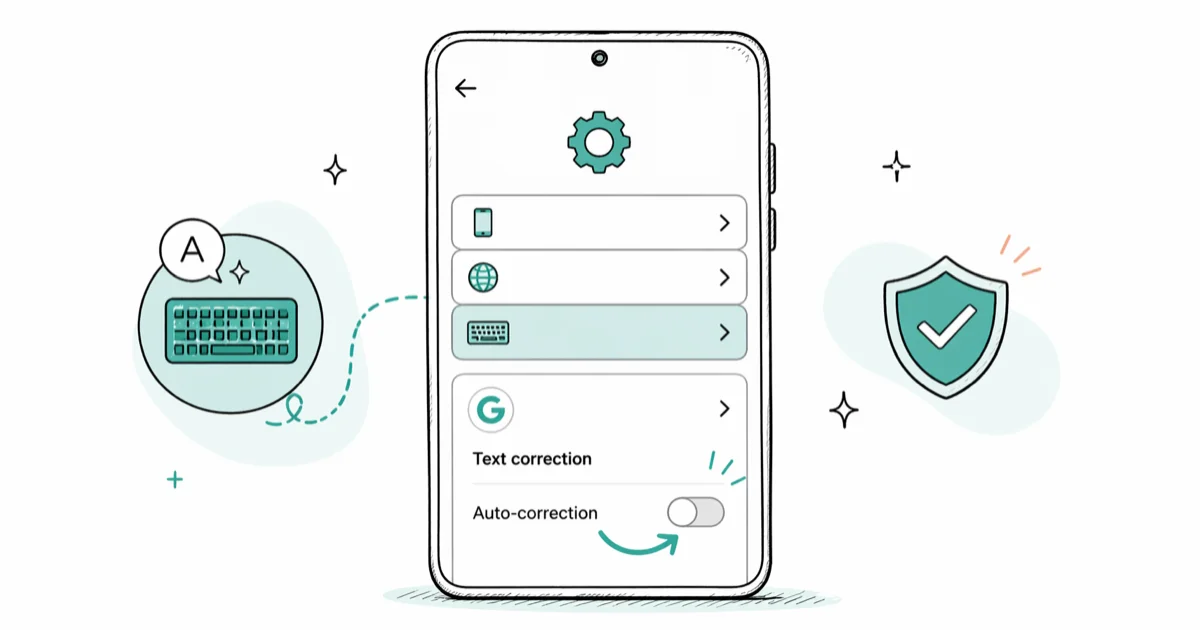
Quick AnswerGo to Settings > System > Languages & Input > On-screen Keyboard, select your keyboard (usually Gboard), tap Text Correction, and toggle off Auto-correction. The change applies instantly across all apps.
Turning off autocorrect on Android takes about 30 seconds, and you don’t need to restart your phone afterward. The setting lives inside your keyboard app rather than Android’s main settings, which trips up most people looking for it. The paths below cover the major Android keyboard apps.
- Autocorrect lives inside your keyboard app, not Android’s main settings
- On Gboard:
Settings>System>Languages & Input>Gboard>Text Correction> toggle off Auto-correction - On Samsung:
Settings>General Management>Samsung Keyboard Settings> toggle off Auto Replace - Turning off autocorrect won’t disable predictive text suggestions above your keyboard
- The change applies instantly across all apps with no restart needed
#How to Disable Autocorrect on Gboard
Gboard is the default keyboard on Pixel phones and most non-Samsung Android devices. According to Google’s Gboard support page, autocorrect and text suggestions are separate features, so you can turn one off without affecting the other.
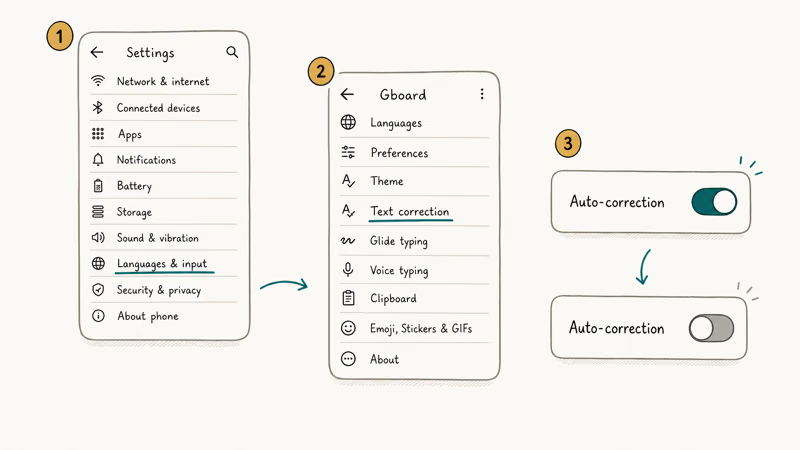
Here’s the full process:
Open Settings on your phone, then go to System > Languages & Input > On-screen Keyboard. Tap Gboard, select Text Correction, and toggle off Auto-correction.
Done. The change applies across apps without a restart.
Can’t find Languages & Input under System? Try searching for “keyboard” in the Settings search bar. Manufacturers like OnePlus and Motorola sometimes move this menu to a slightly different location.
#How to Turn Off Autocorrect on Samsung Keyboard
Samsung Galaxy phones use their own keyboard. Samsung’s keyboard settings guide confirms the autocorrect feature is called “Auto Replace” instead of “Auto-correction,” so look for that label specifically.
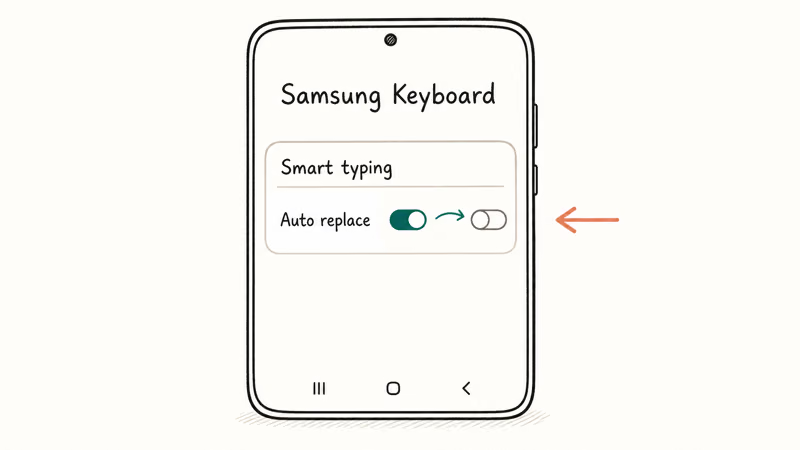
Here’s the process:
Open Settings, tap General Management, then select Samsung Keyboard Settings. Find Auto Replace and toggle it off.
There’s a faster way too. Tap the gear icon on the Samsung Keyboard toolbar while you’re typing in any app. This shortcut skips the Settings app and lands you directly in the keyboard controls.
You might also want to turn off Auto Spell Check on the same screen. It underlines words it thinks are misspelled, and that can be distracting once autocorrect is off.
#Disabling Autocorrect on SwiftKey
Microsoft SwiftKey labels it “Autocorrect” directly. You’ll find it in the app’s own settings rather than Android system settings.
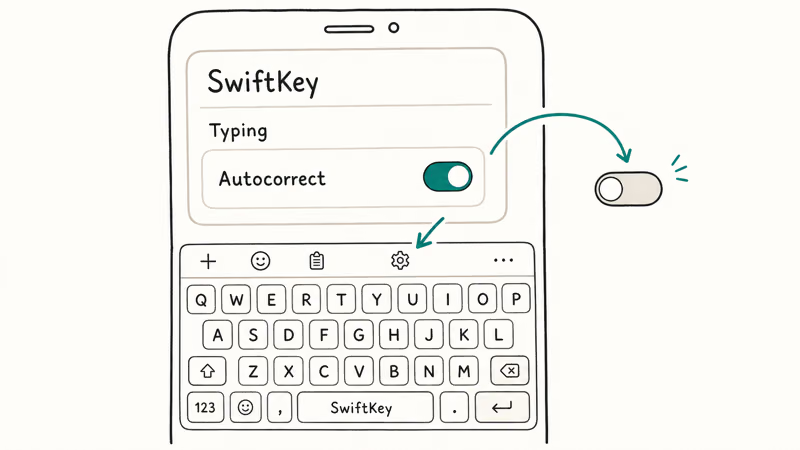
Open the SwiftKey app (or tap its icon on your keyboard toolbar), then go to Typing and toggle off Autocorrect.
SwiftKey also lets you adjust correction intensity before fully disabling the feature. If autocorrect keeps mangling one specific word, long-press the incorrect suggestion and drag it to the trash icon. SwiftKey learns from this and stops suggesting that word going forward. That’s a solid middle ground if you compare SwiftKey and Gboard and want to keep some correction features active.
#What Happens After You Disable Autocorrect?
Your keyboard stops replacing words as you type, but it doesn’t go completely silent. Predictive text still works separately.
You’ll see suggested words above your keyboard, and tapping one inserts it. The key difference is that the keyboard won’t force a replacement when you hit the spacebar. Based on Google’s text correction documentation, predictive suggestions and autocorrect are independent features controlled by separate toggles.
Your personal dictionary stays intact. Any words you’ve taught your keyboard still appear as suggestions, and you can reverse the steps anytime to re-enable autocorrect.
Here’s the trade-off: without autocorrect, typos in text messages and emails won’t get caught. If spelling accuracy matters for work, consider training your keyboard’s dictionary by adding commonly used terms rather than disabling autocorrect entirely. That way, the keyboard works with your vocabulary instead of fighting it.
#Should You Turn Off Autocorrect?
It depends on how you use your phone. For people who type in multiple languages, autocorrect creates constant friction because it tries to “fix” words from your second language.
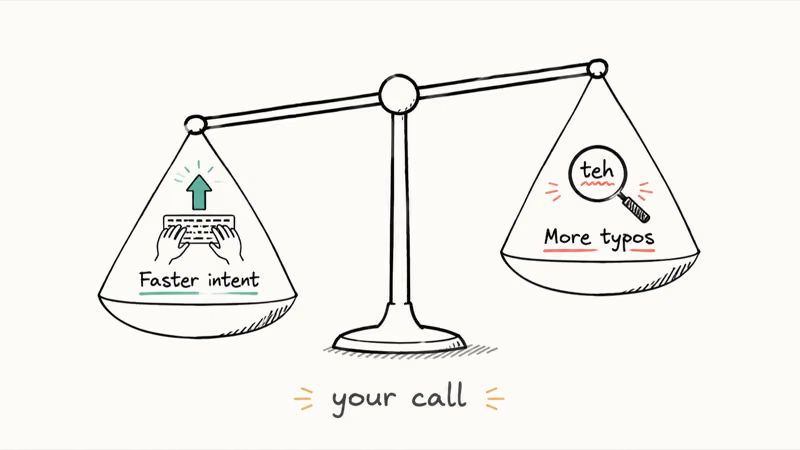
Names and slang cause headaches too. If you frequently type proper nouns, brand names, or informal words that autocorrect keeps changing, turning it off saves real time throughout the day. According to Android’s input method documentation, keyboards use the inputType attribute to decide correction behavior, which means some text fields already suppress autocorrect by design.
For people who rely on autocorrect for typing speed, there’s a better option than disabling it completely. Try adding your frequently used words to your keyboard’s personal dictionary. On Gboard, go to Settings > System > Languages & Input > Personal Dictionary and add custom words there. This teaches autocorrect to work with you rather than against you.
If you’re exploring other keyboard customizations, check out the best emoji apps for more expression options, or learn how to send GIFs on Android for richer messaging.
#How to Reset Your Keyboard Dictionary
Sometimes the real problem isn’t autocorrect itself. If your keyboard keeps suggesting bizarre words it shouldn’t know, a corrupted personal dictionary is likely the cause, and resetting it can fix things without turning autocorrect off entirely.
On Gboard:
Go to Settings > System > Languages & Input > On-screen Keyboard > Gboard, then tap Dictionary > Delete Learned Words and confirm.
On Samsung Keyboard, go to Settings > General Management > Samsung Keyboard Settings > Reset to Default Settings > Erase Personalized Predictions. Samsung recommends clearing the keyboard cache if the dictionary reset doesn’t resolve persistent autocorrect quirks.
This wipes every word your keyboard learned from your typing habits. You’ll need to retrain it over a few days of normal use, but your keyboard starts completely fresh without any of the bad suggestions that were causing problems in the first place.
Got other Android issues? Our guide on fixing the SystemUI has stopped error covers another common headache.
#Autocorrect Settings Across Android Versions
Every step in this guide works on Android 10 through Android 15. The autocorrect toggle has been in Gboard since Android 7.0 (Nougat), and Samsung Keyboard has included it since One UI 1.0.
On Android 8 and 9, some phones put keyboard settings under Settings > Language & Input without the “System” prefix. The toggle itself works identically once you find it.
Also own an iPhone? We’ve got a separate guide on how to turn off autocorrect on iPhone.
#Bottom Line
Start with the keyboard-specific steps above for Gboard or Samsung Keyboard. The whole process takes under a minute. If you’re not sure whether to disable autocorrect completely, try resetting your keyboard dictionary first. And if you use your Android phone for screen mirroring to a laptop, keyboard settings carry over to mirrored sessions too.
#Frequently Asked Questions
Does turning off autocorrect also disable predictive text?
No, they’re completely separate. Autocorrect replaces words automatically, while predictive text only shows suggestions you can tap to accept. One forces changes, the other just offers options. Turning off autocorrect keeps the suggestion strip active, and you can still tap predicted words to insert them.
Can I disable autocorrect for just one app?
No. The toggle applies system-wide, and there’s no per-app override on Gboard or Samsung Keyboard.
Will my keyboard still learn new words with autocorrect off?
Yes, your keyboard keeps learning. Words you type frequently still show up as predictive suggestions above the keyboard.
How do I add words to my personal dictionary on Android?
On Gboard, go to Settings > System > Languages & Input > Personal Dictionary, then tap the plus icon. On Samsung Keyboard, long-press any suggestion word and it saves automatically. Both methods prevent autocorrect from overriding those specific terms, so you don’t need to disable the whole feature just for a few problem words.
Why does autocorrect keep changing words even after I turned it off?
Check whether you have multiple keyboards installed. Each keyboard app has its own autocorrect toggle, so you need to disable it in every keyboard you use. Also verify you turned off “Auto-correction” specifically rather than just “Spell check,” which is a different setting that only underlines words without replacing them.
Does disabling autocorrect affect voice typing?
No. Voice typing runs on a separate speech recognition engine, so your autocorrect settings don’t affect it at all.
What Android versions support these autocorrect settings?
The steps in this guide work on Android 10 through Android 15. Gboard has supported the autocorrect toggle since Android 7.0 (Nougat), and Samsung Keyboard included it starting with One UI 1.0. Older versions may have the setting under slightly different menu names, but the toggle itself works the same way.
Is there a way to make autocorrect less aggressive without turning it off?
Gboard doesn’t offer an aggressiveness slider, but SwiftKey does. In SwiftKey, you can choose between minimal, moderate, and aggressive correction levels. On Gboard, a practical workaround is to keep autocorrect on but add problem words to your personal dictionary so the keyboard stops “correcting” them.

Pixel 11 vs Pixel 10: What Changed and Who Should Upgrade
Pixel 11 vs Pixel 10: same screen and camera resolution, new Tensor G6, 25W wireless, and Gemini Intelligence. Here is who should actually upgrade.

Verizon Not Receiving Texts? How to Fix It in 9 Steps
Verizon not receiving texts? Fix it in 9 steps: check Message Blocking in My Verizon, reset network settings, deregister iMessage, and call support.

Pixel Battery Drain: What Google's July Fix Really Covers
Google marked the Pixel idle battery drain bug fixed in July, but only some phones got the patch. Here is who is covered, who is not, and what to try.

iPhone Stuck on EDGE? How to Get 5G or LTE Back (2026)
iPhone stuck on EDGE with crawling data? Here's why the E icon appears, which settings force 5G or LTE back, and when the problem is your carrier.